MyPraise App: End to End Guide
Everything you need, to get the most out of MyPraise App. From your first Memory to the AI Assistant, Dream and Bible Modes, Reflections, and many more, this guide will help you make MyPraise App 🍇 yours!
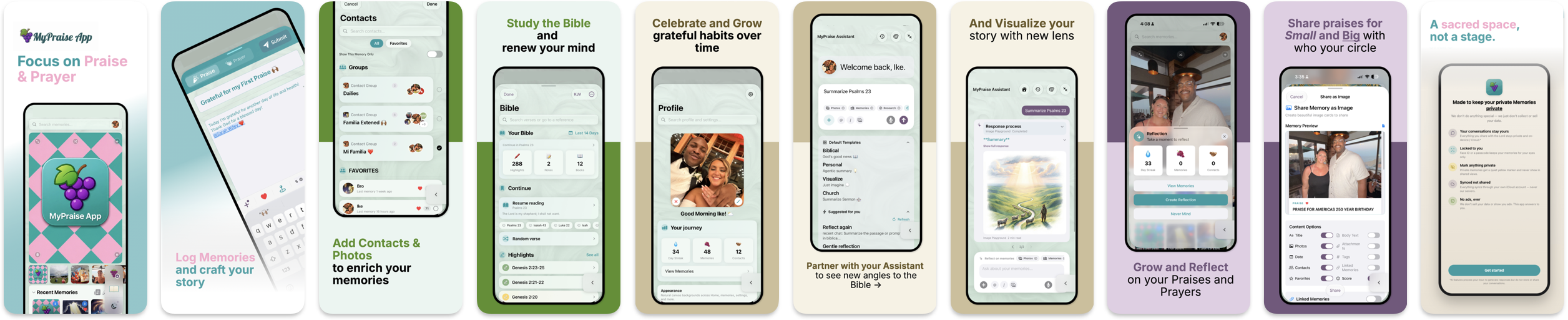
Getting started
A short, warm onboarding introduces the app's purpose and gathers just enough context so we can personalize the app's experience for you. No password required.
Quick start
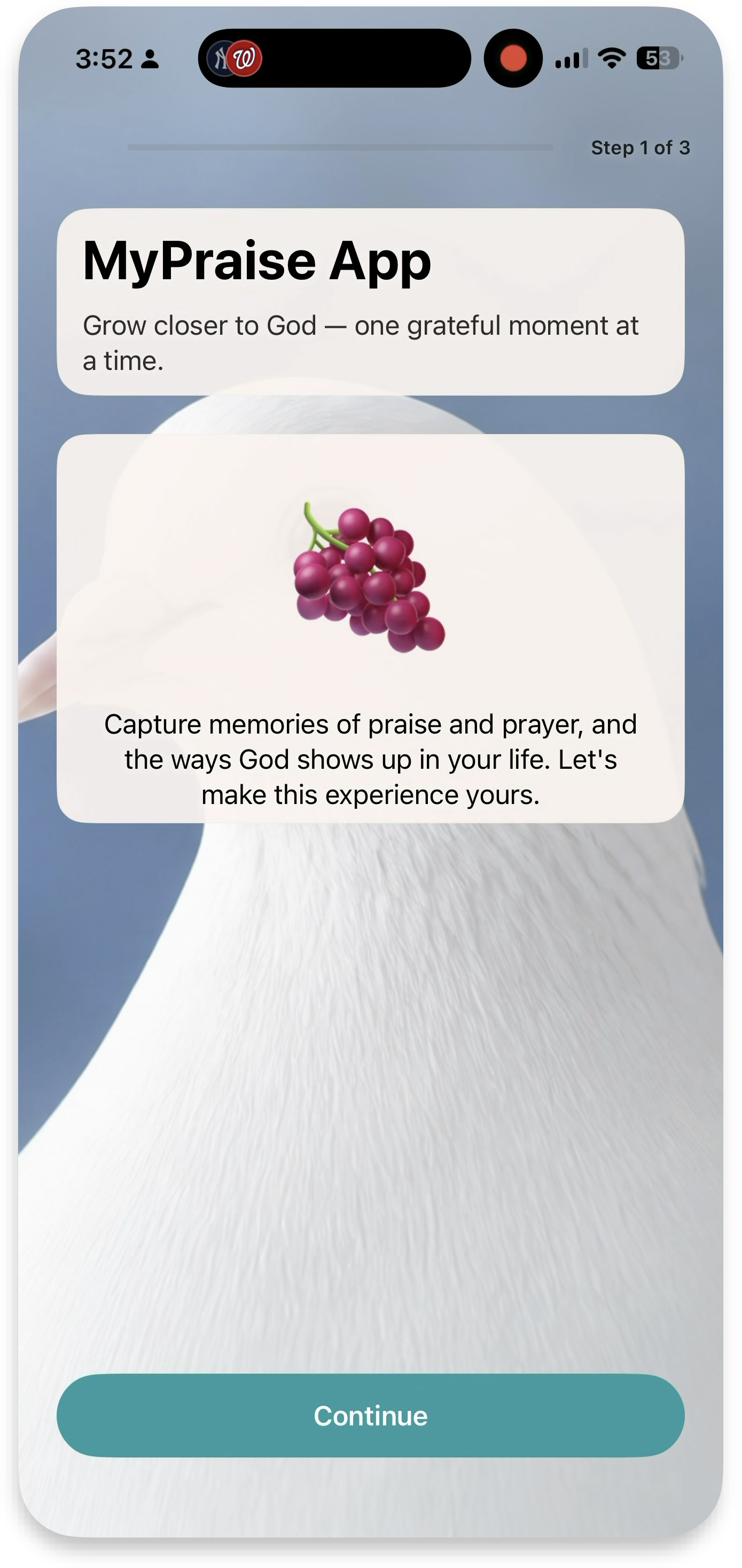
- Open MyPraise App — the welcome screen explains praises, prayers, and reflections in one line each.
- Answer a few personalization steps: name, relationship with God, and what you're hoping to get from journaling.
- Choose whether to enable notifications for daily prompts.
- Land on Home, where a time-of-day greeting and a "New memory" action are waiting.
Onboarding flow
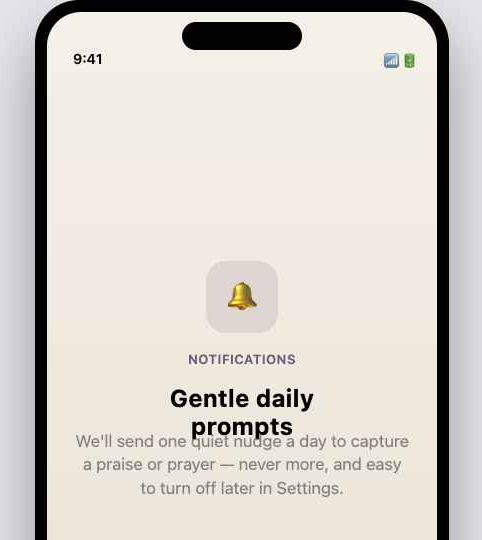
Note: the Notifications screen above is a placeholder mock, not a captured screenshot — flagging until we get a real one from the shipping build.
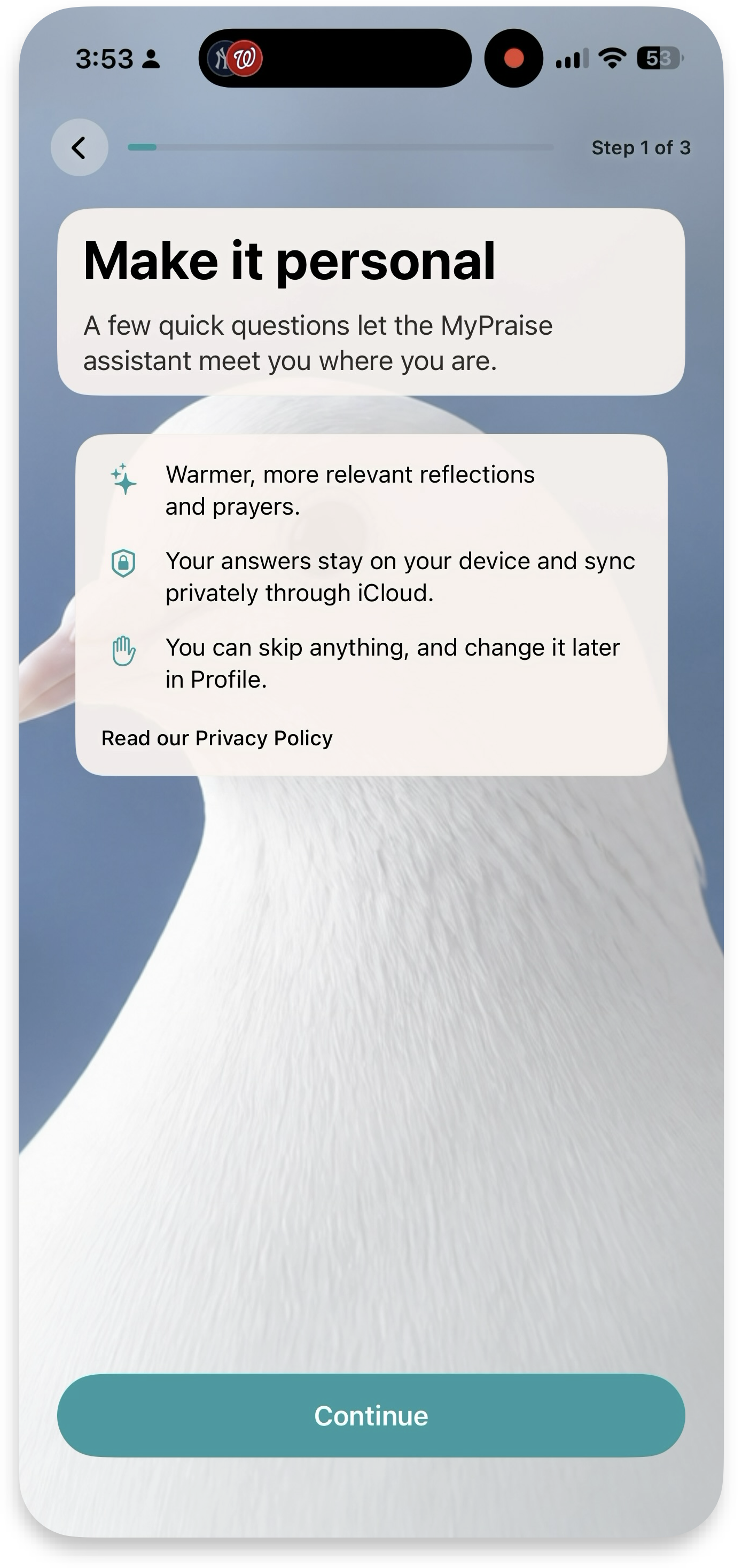
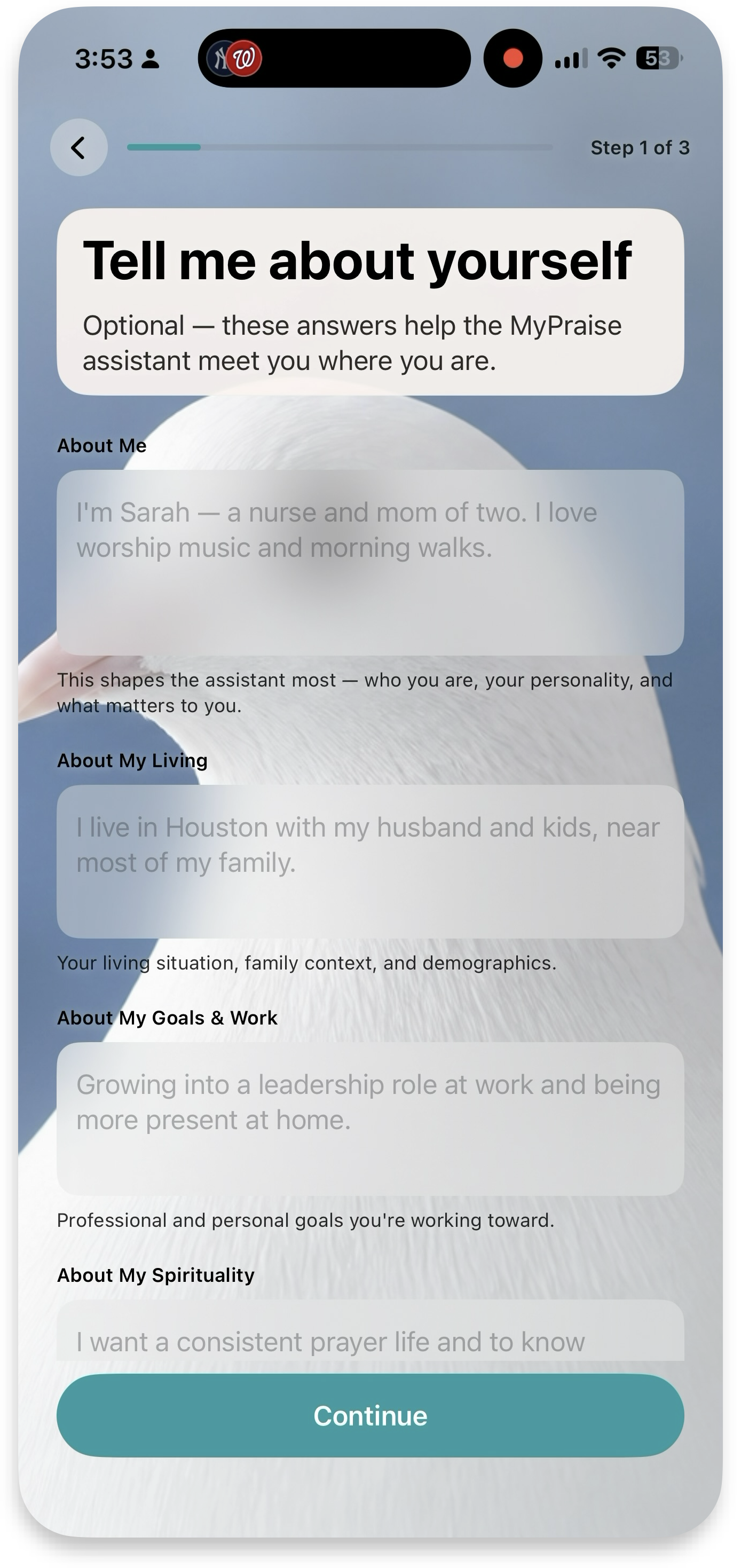
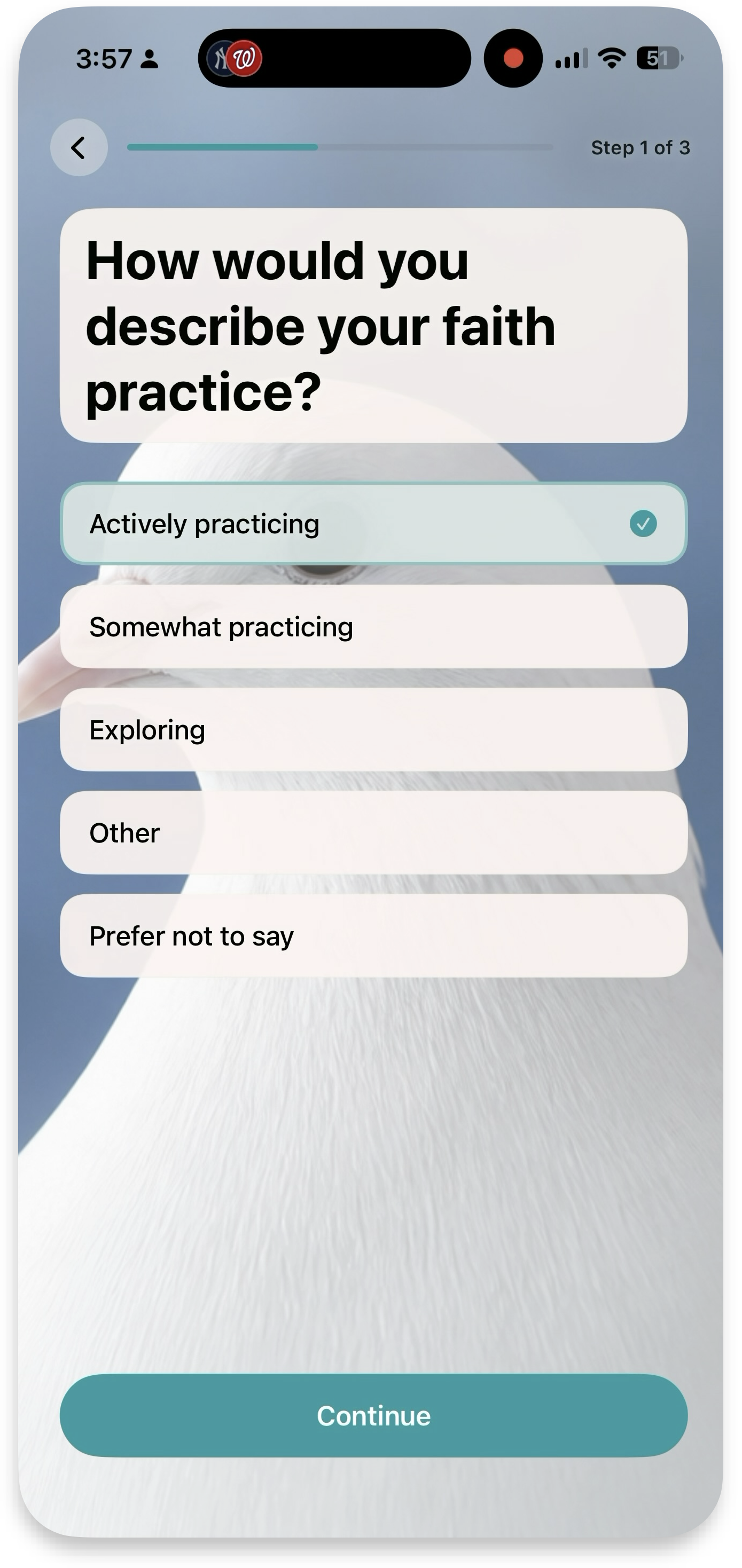
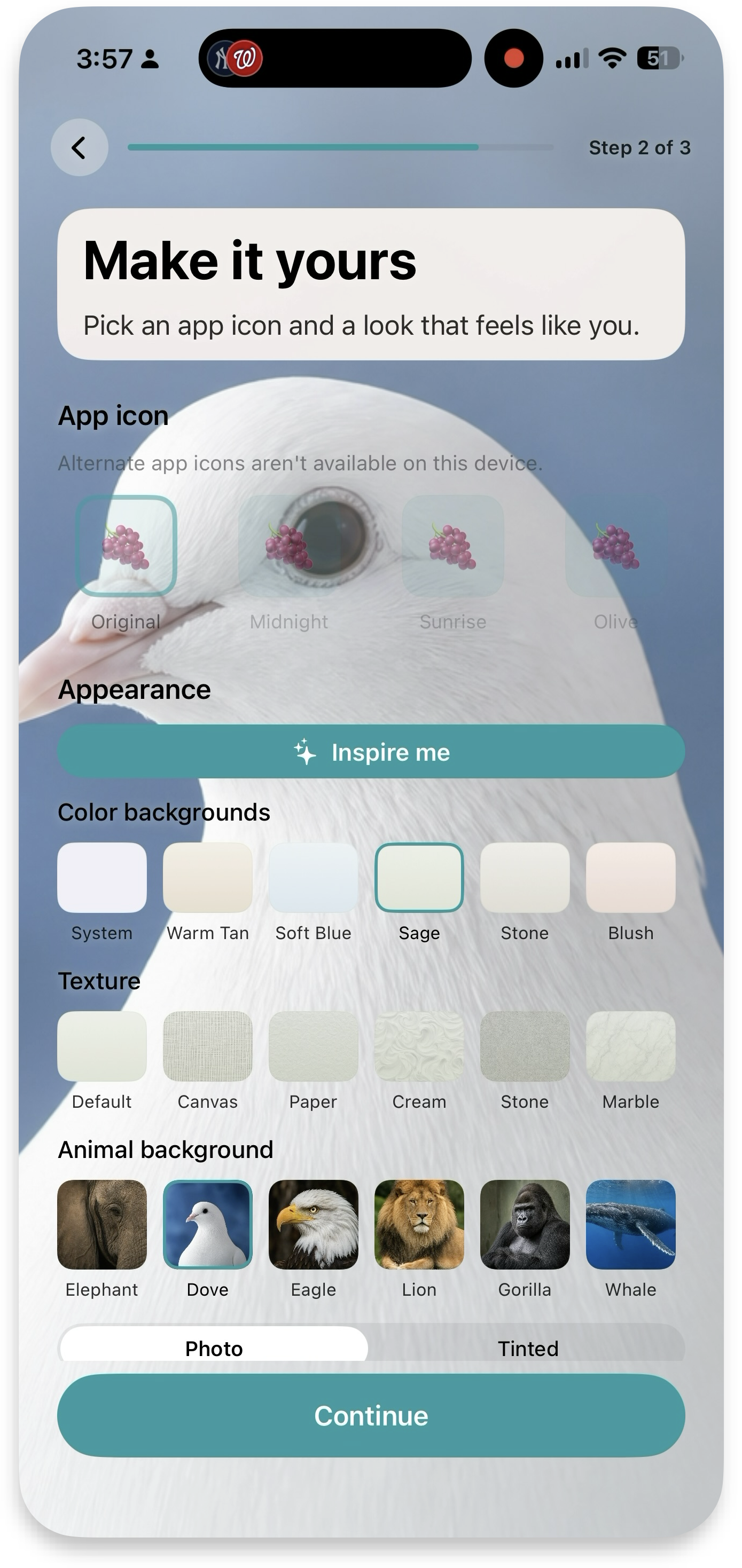
Step 1 bundles the welcome card with a short, mostly-optional personalization pass — free-text prompts about yourself plus a faith-practice question — all under one progress bar. Progress uses the plum/accent color, and screen transitions are a simple slide + fade, never bounce or elastic overshoot.
Why the personalize questions matter
Tell me about yourself — optional free-text prompts (about you, your living situation, your goals, your spirituality) that shape the MyPraise Assistant's personality and relevance from day one, without requiring an account or profile setup.
Faith practice — tunes the Assistant's tone and prompt style from the very first session (a "just starting to explore" answer gets gentler, more explanatory prompts than "actively practicing") — this is what keeps early Assistant replies from feeling mismatched before it has any memory history to learn from.
Onboarding/; step copy and ordering are driven by an enum, not a remote config. See docs/onboarding-flow-summary-2025-03-07.md and docs/lessons-learned-onboarding-and-rerun.md for the rerun-from-settings edge cases.
Memories: praises & prayers
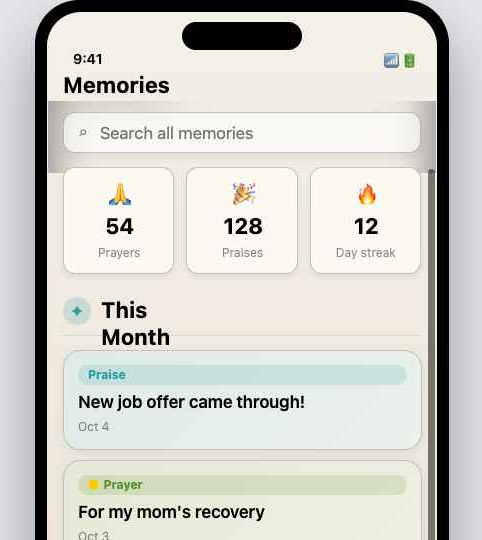
A memory is a text entry — optionally with photo or video — tagged as a praise, prayer, or general note, and optionally linked to people.
Quick start
- Tap "New memory," write what happened, and pick praise, prayer, or general.
- Attach a photo or video, and link the contacts it involves.
- Mark it private if it shouldn't sync to shared views.
- Find it later from the Memories hub — grouped by month, filterable by type.
New memory flow
Pick Praise or Prayer, give it a title, write what happened, and Submit. A "Praise Recorded!" confirmation slides up where you can tag your memory (Spiritual, Professional, Physical, Personal), view it, or skip.
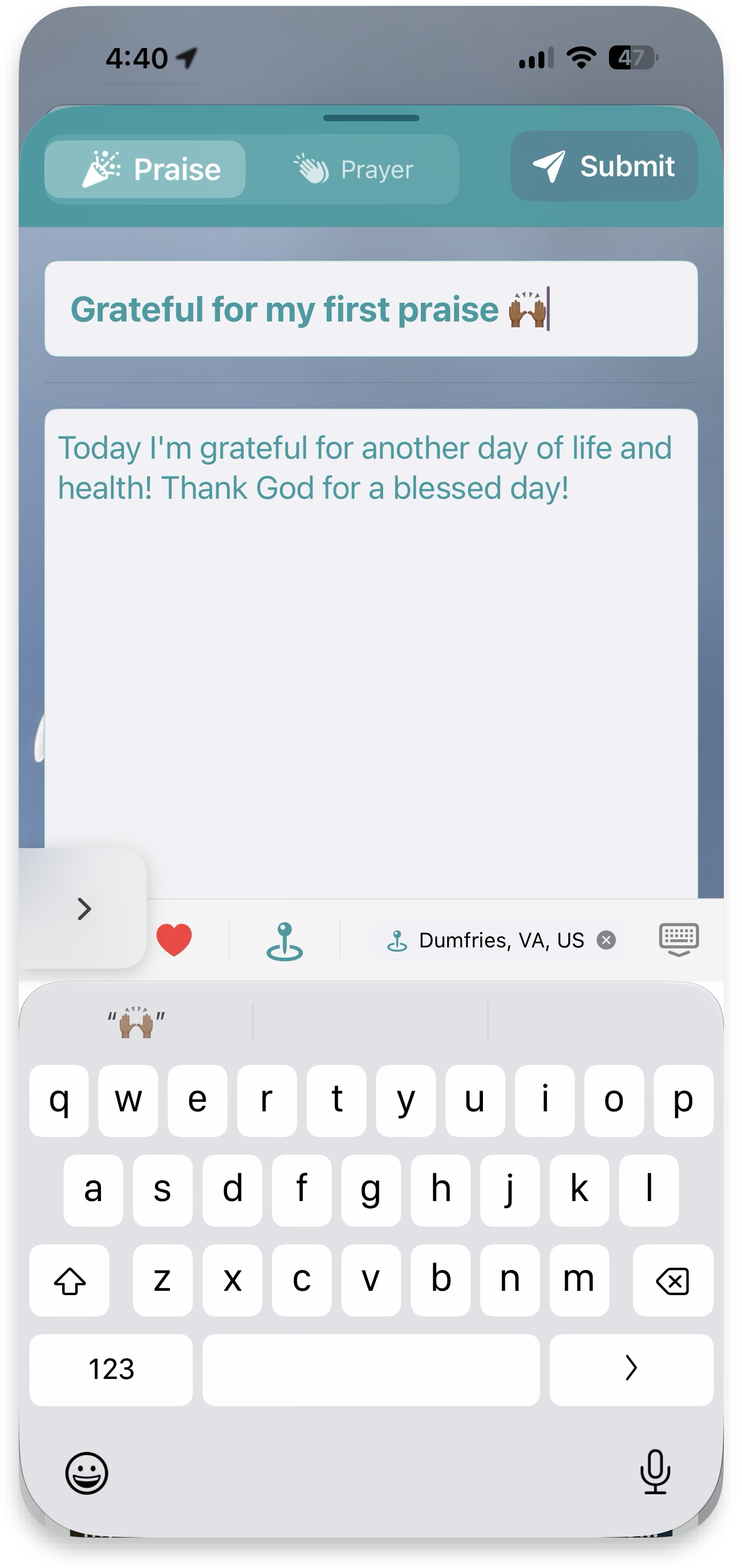 Compose
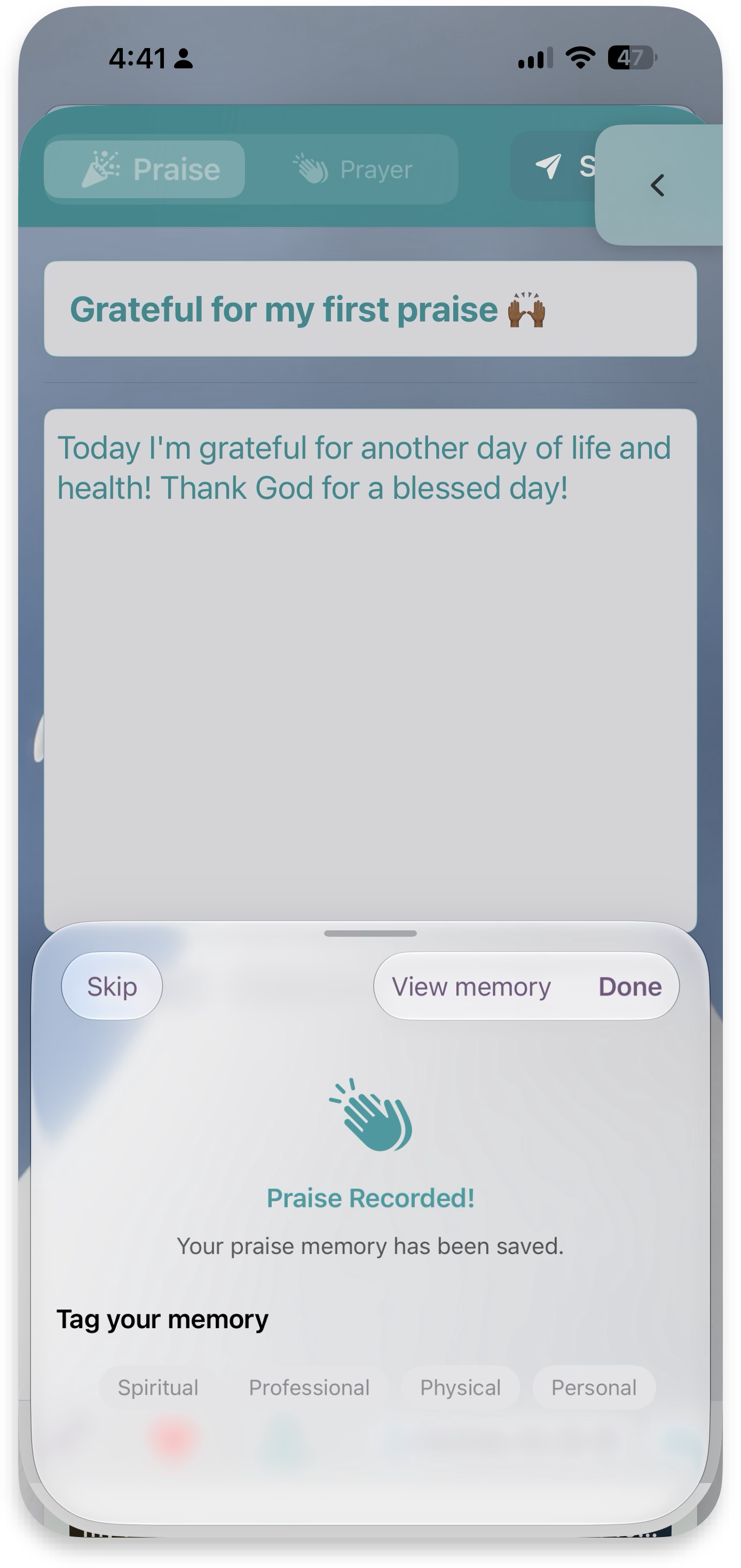 Praise Recorded!
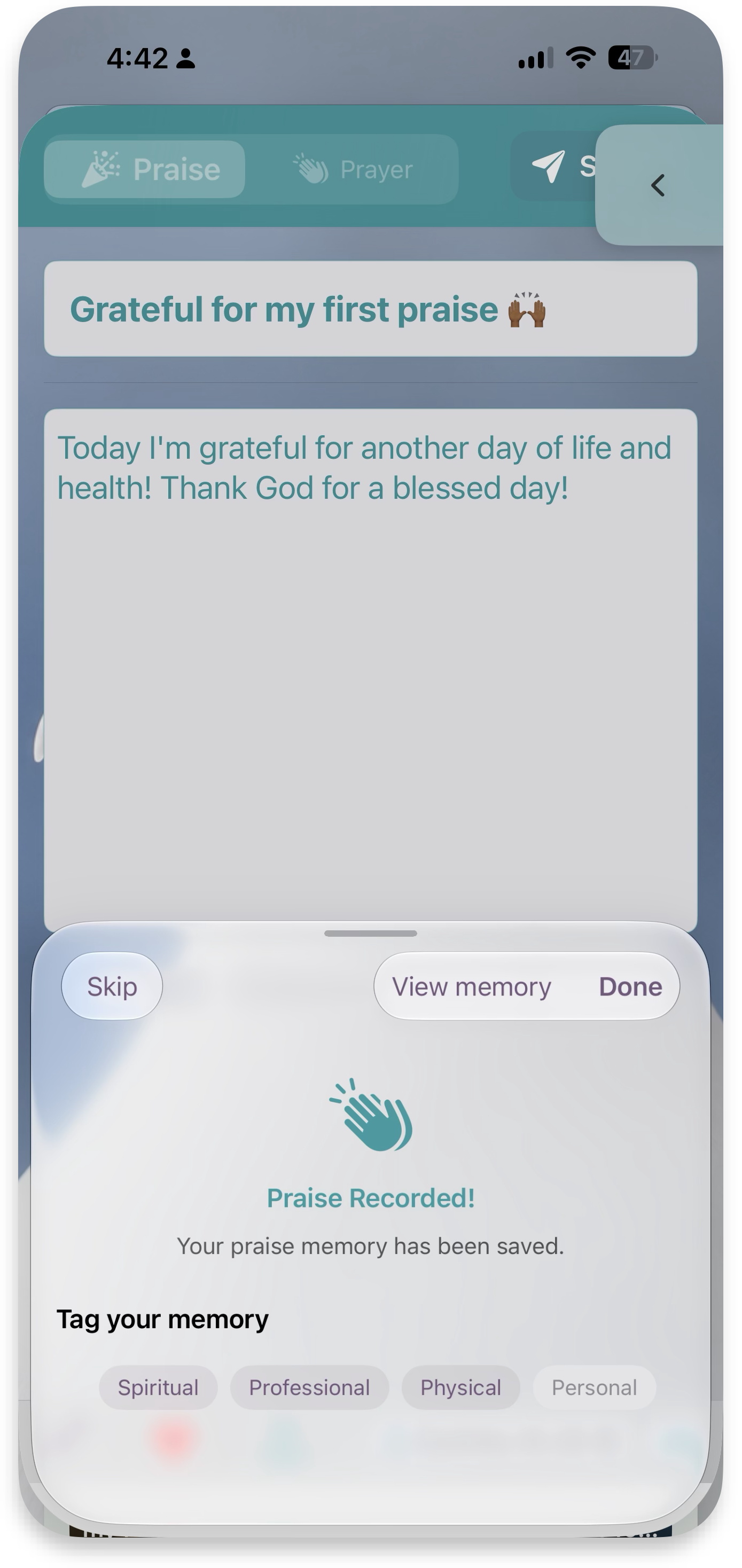 Tag your memory
Memory management
Everything you can do with a memory after it's saved, in four steps — from quick inline edits to sharing it beyond the app.
Basic management
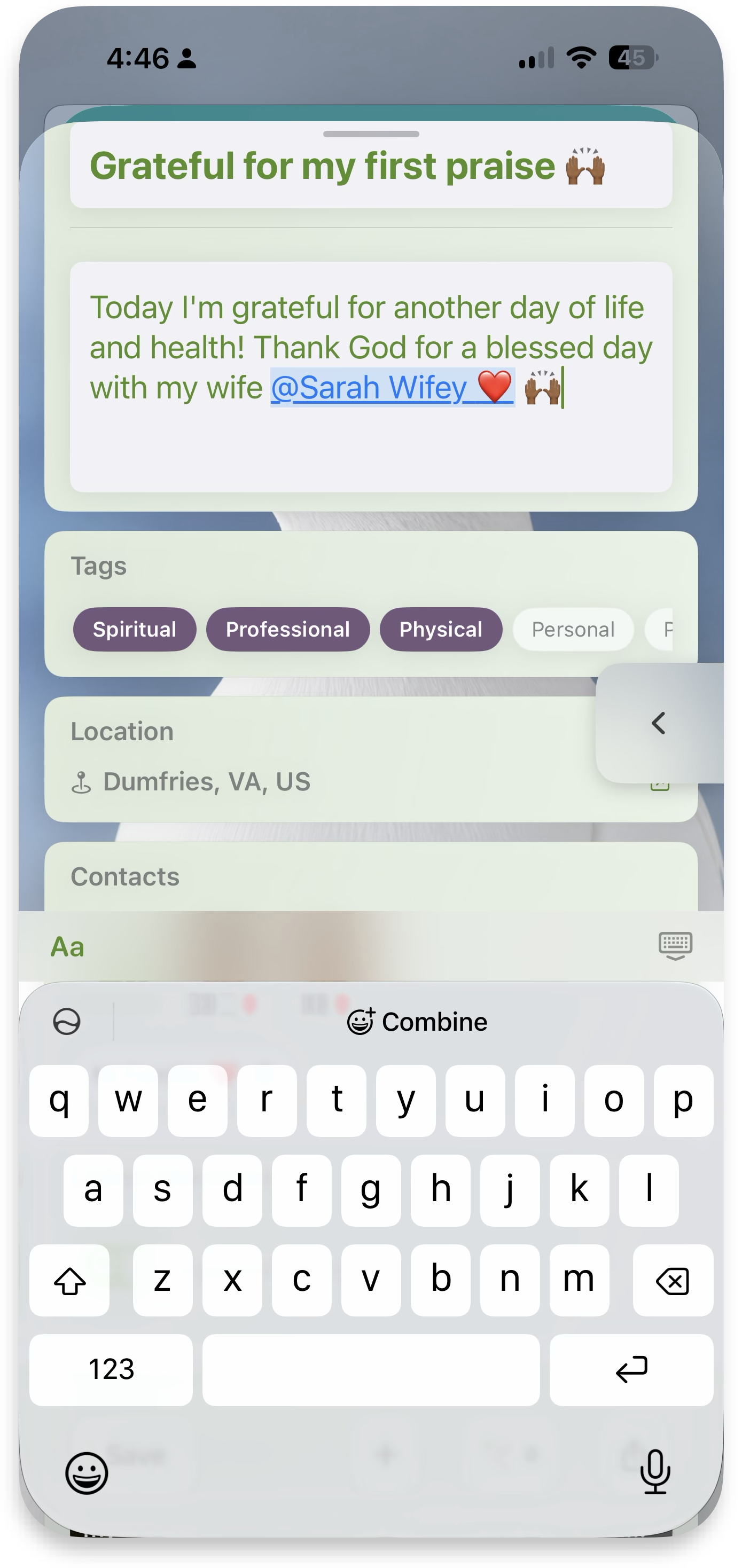
Inline edit by double-tapping any field, change tags, and "@" mention contacts — you can also "/" to tag memories. Add rich text like bold, checkboxes, and line breaks. Extra: add your location and save a place for reference later. More details ↓
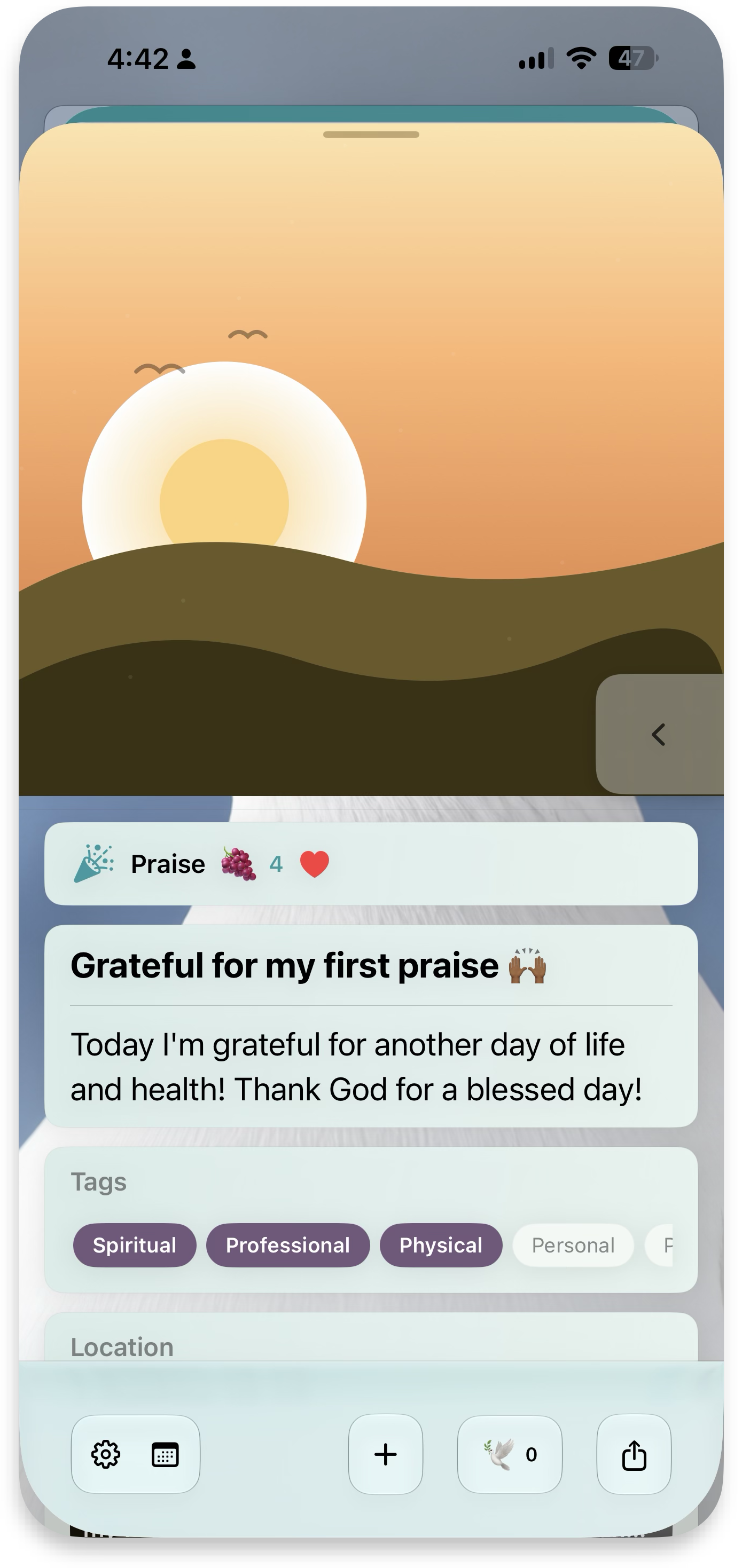 Memory view
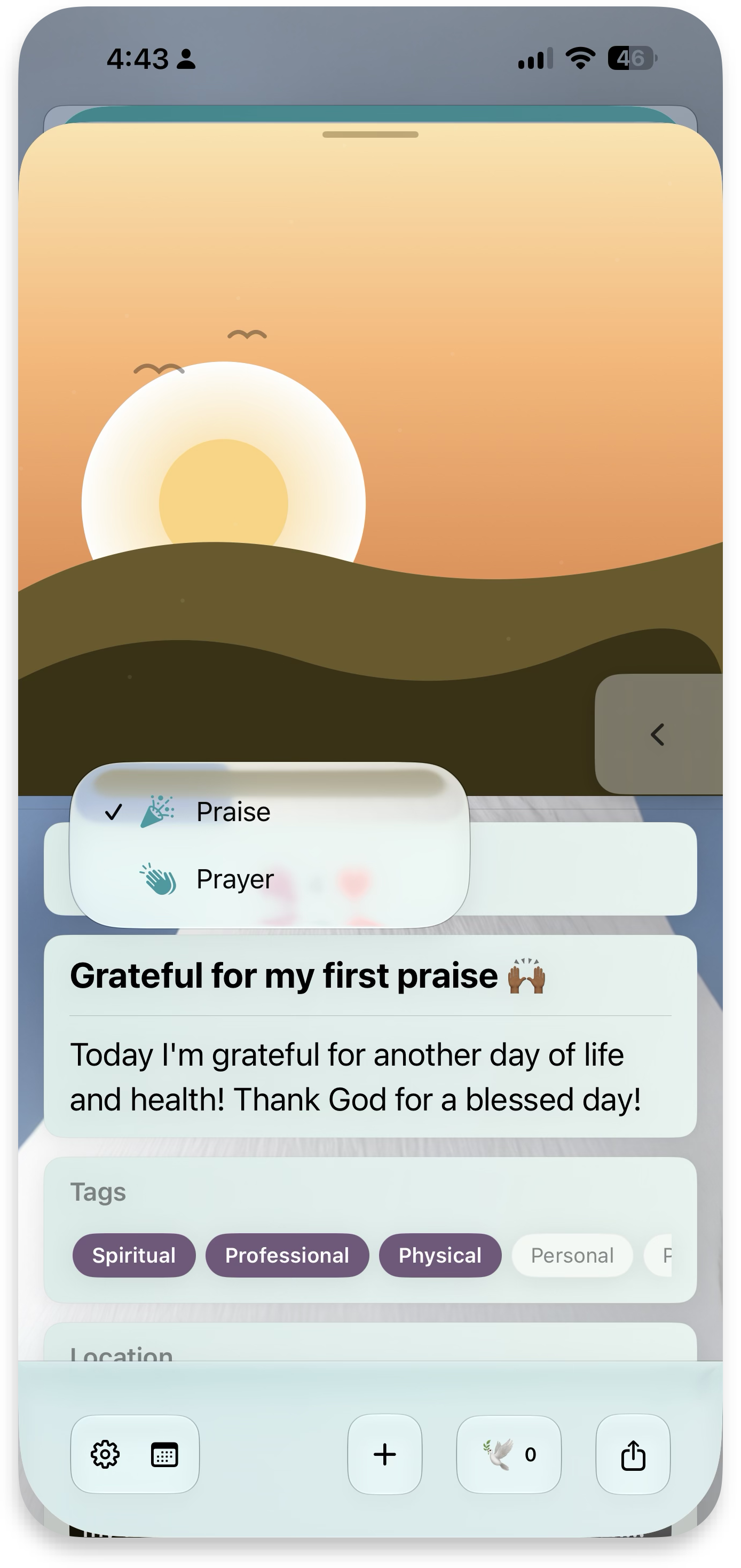 Change type
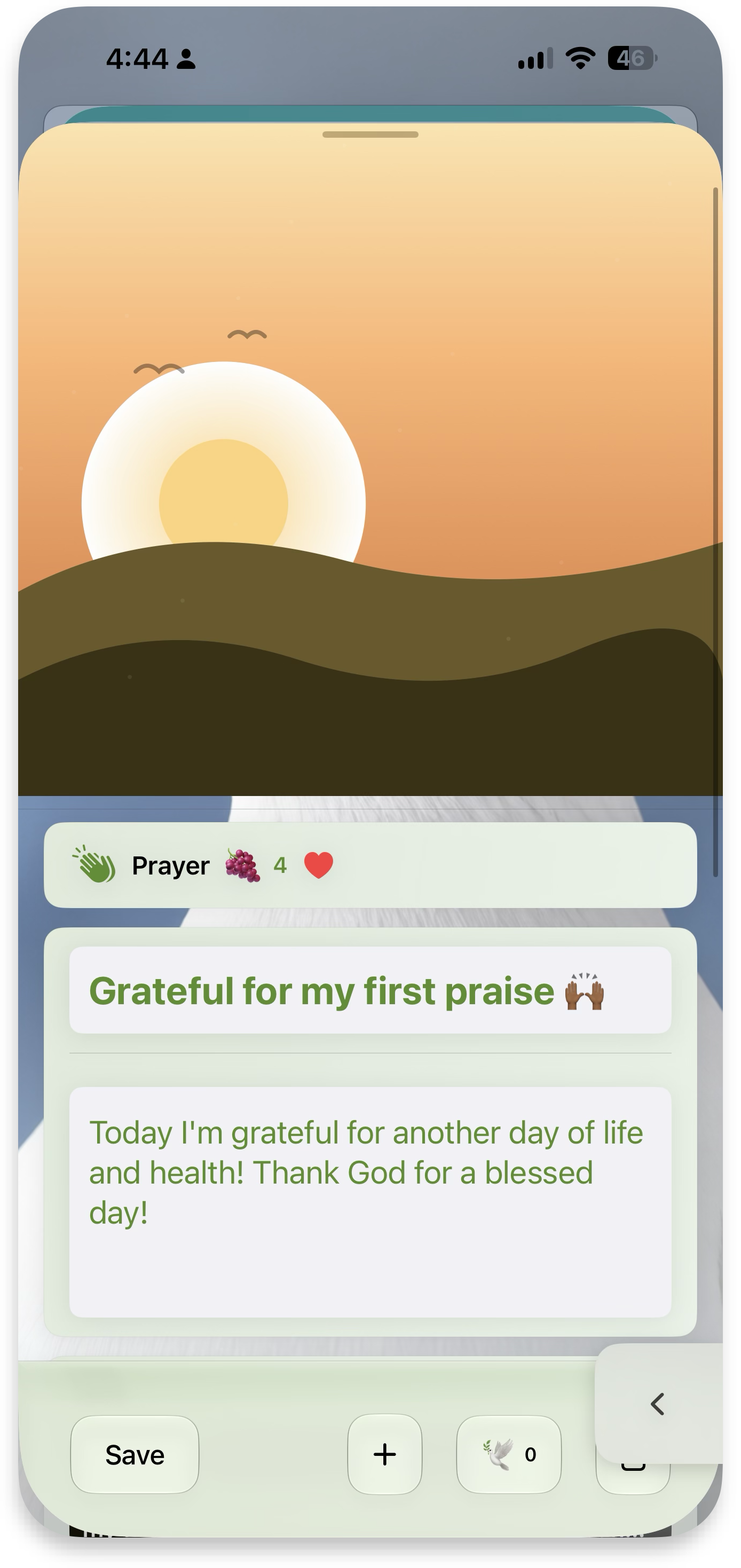 Inline edit & save
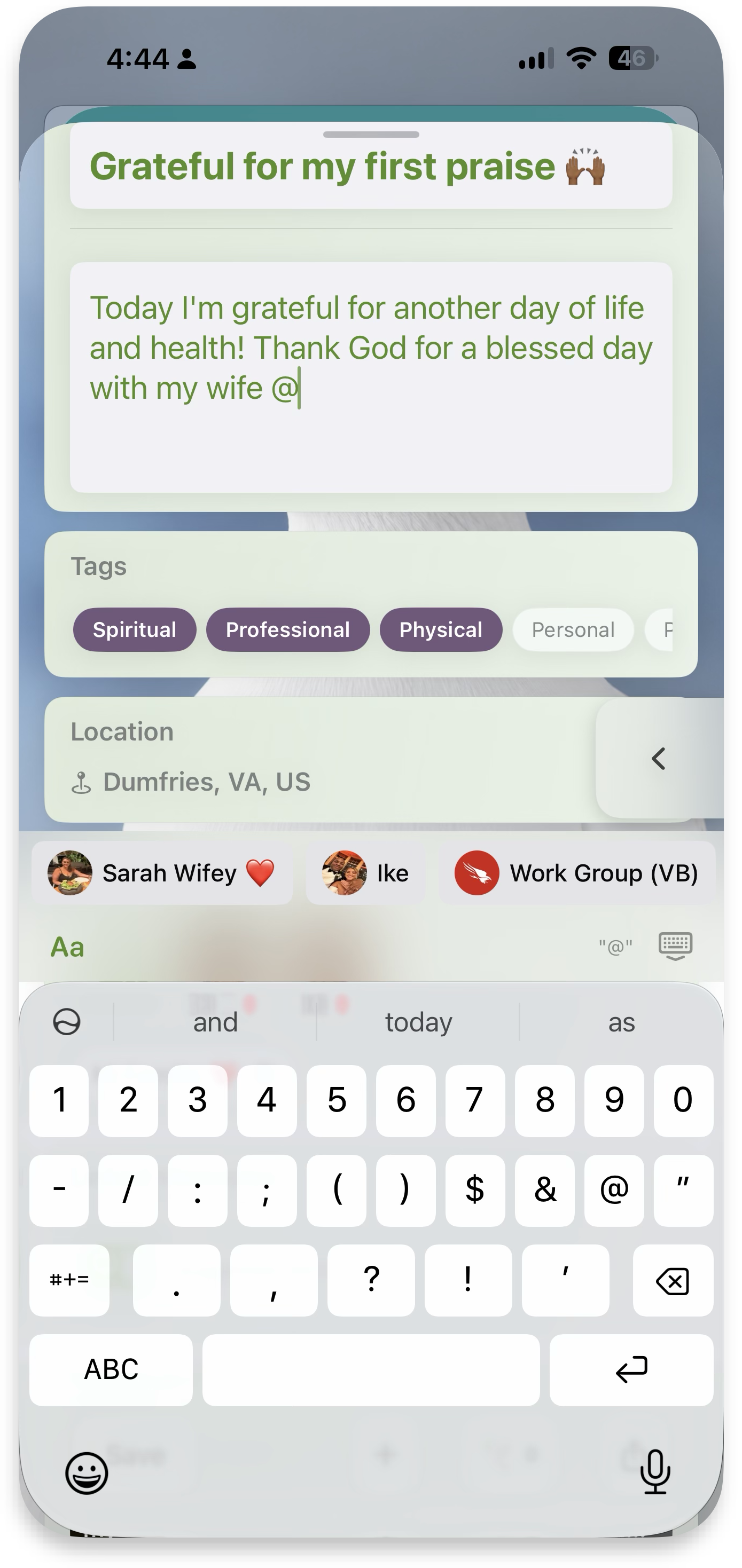 @ mention contacts
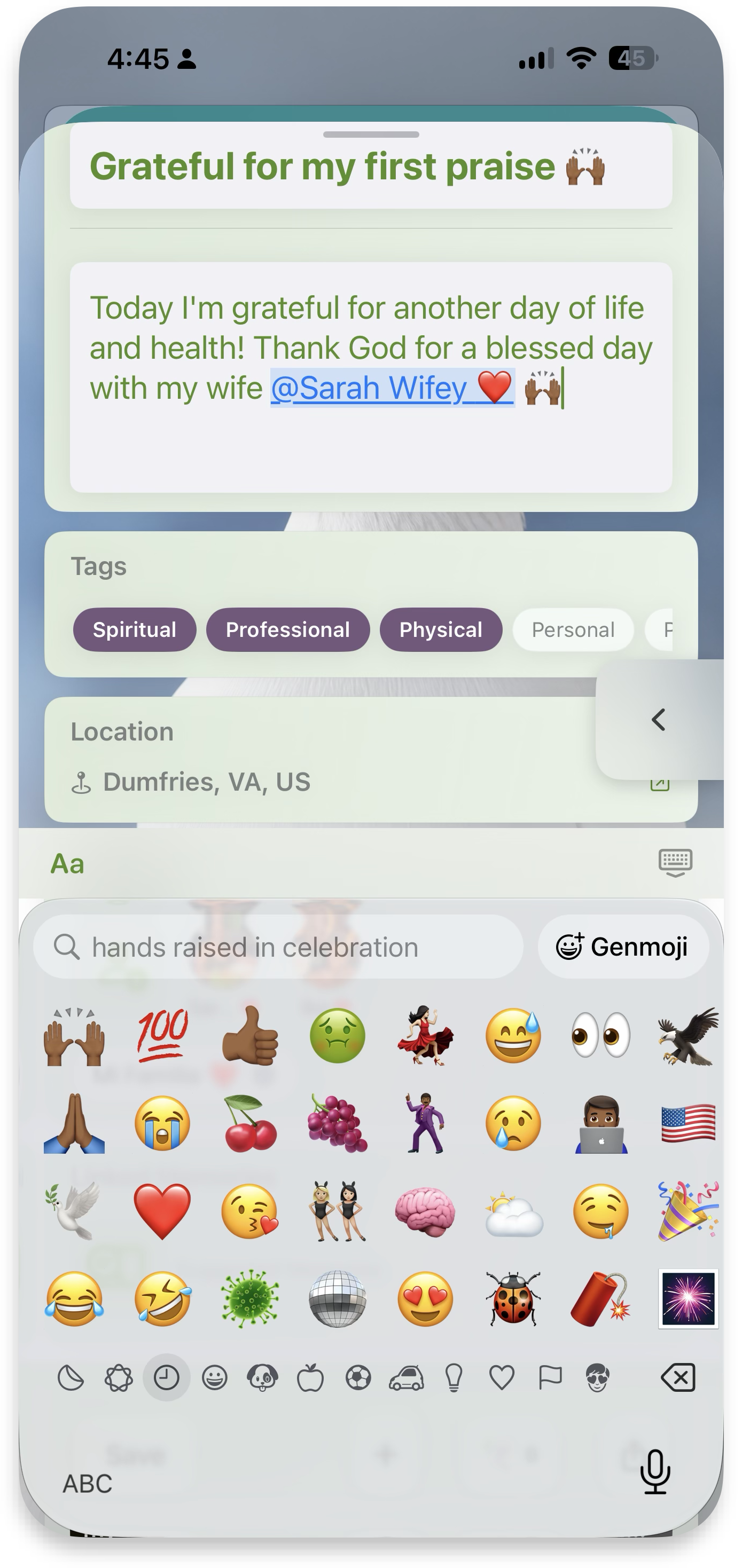 Emoji & Genmoji
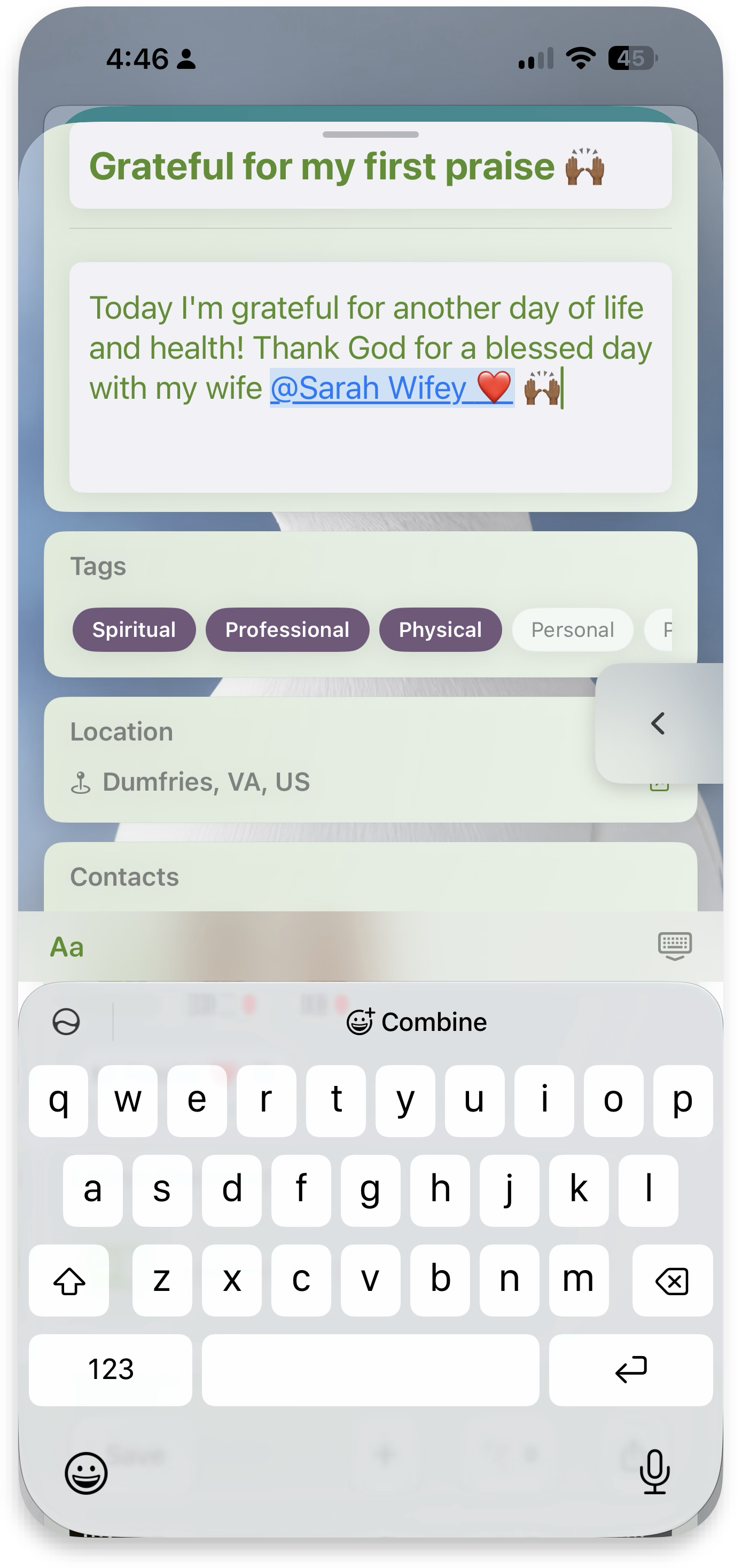 Linked mention
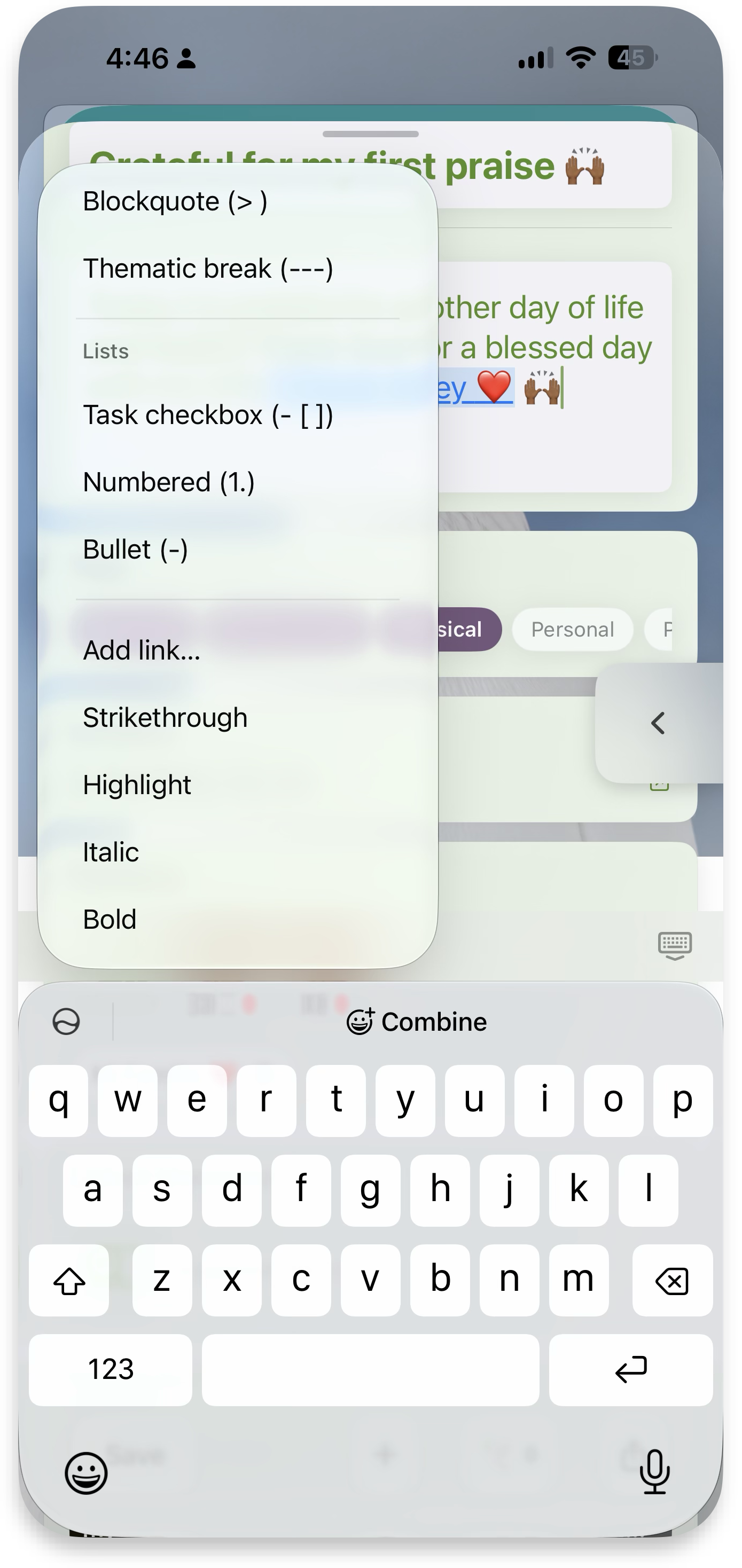 Rich text menu
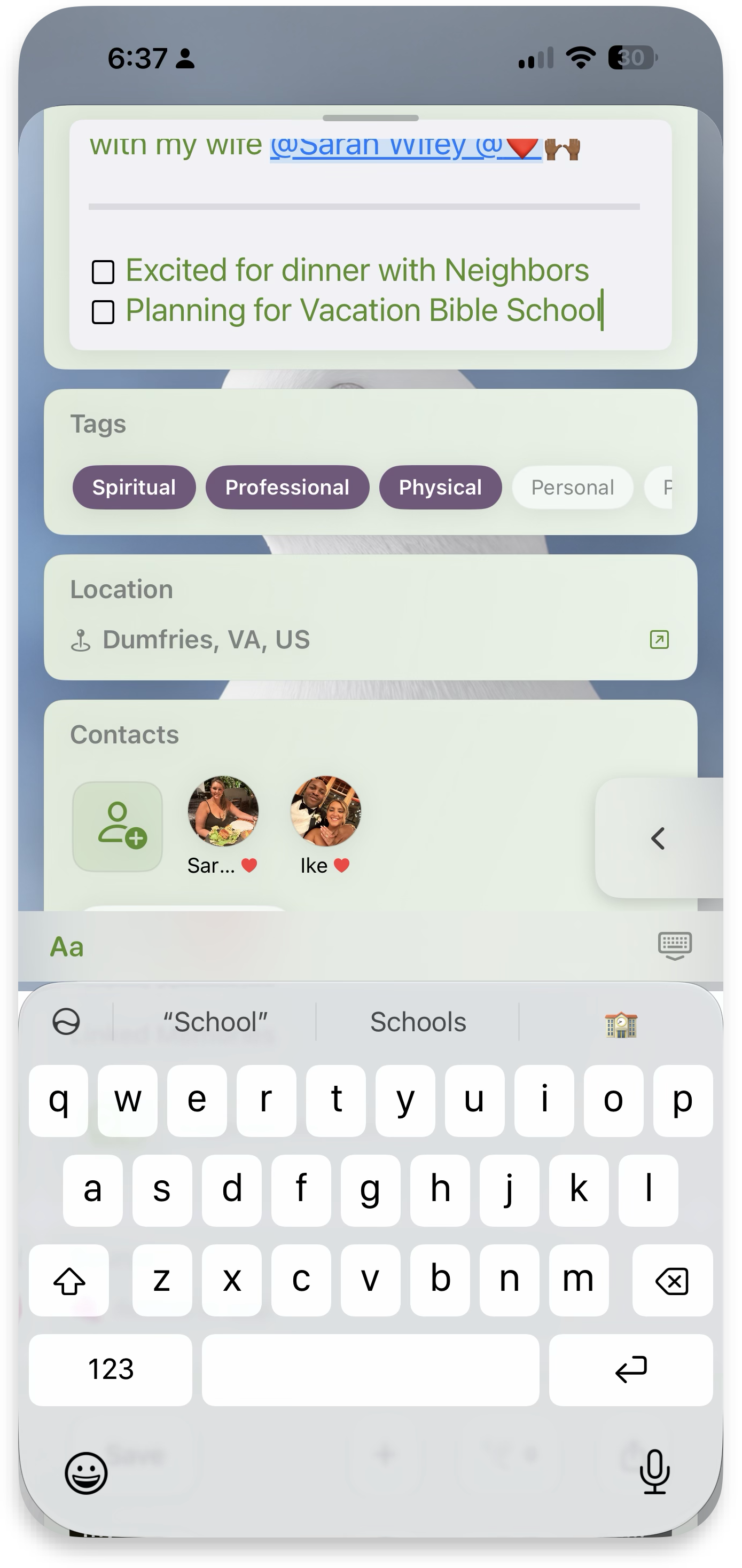 Checkboxes & breaks
 Contacts card
Enrich memories
Link related memories and see what MyPraise App recommends. Add photos, videos, and URLs to make memories vibrant and engaging, and add the contacts and contact groups who made the memory special. Extra: change your featured photo and favorite photos for your gallery. More details ↓
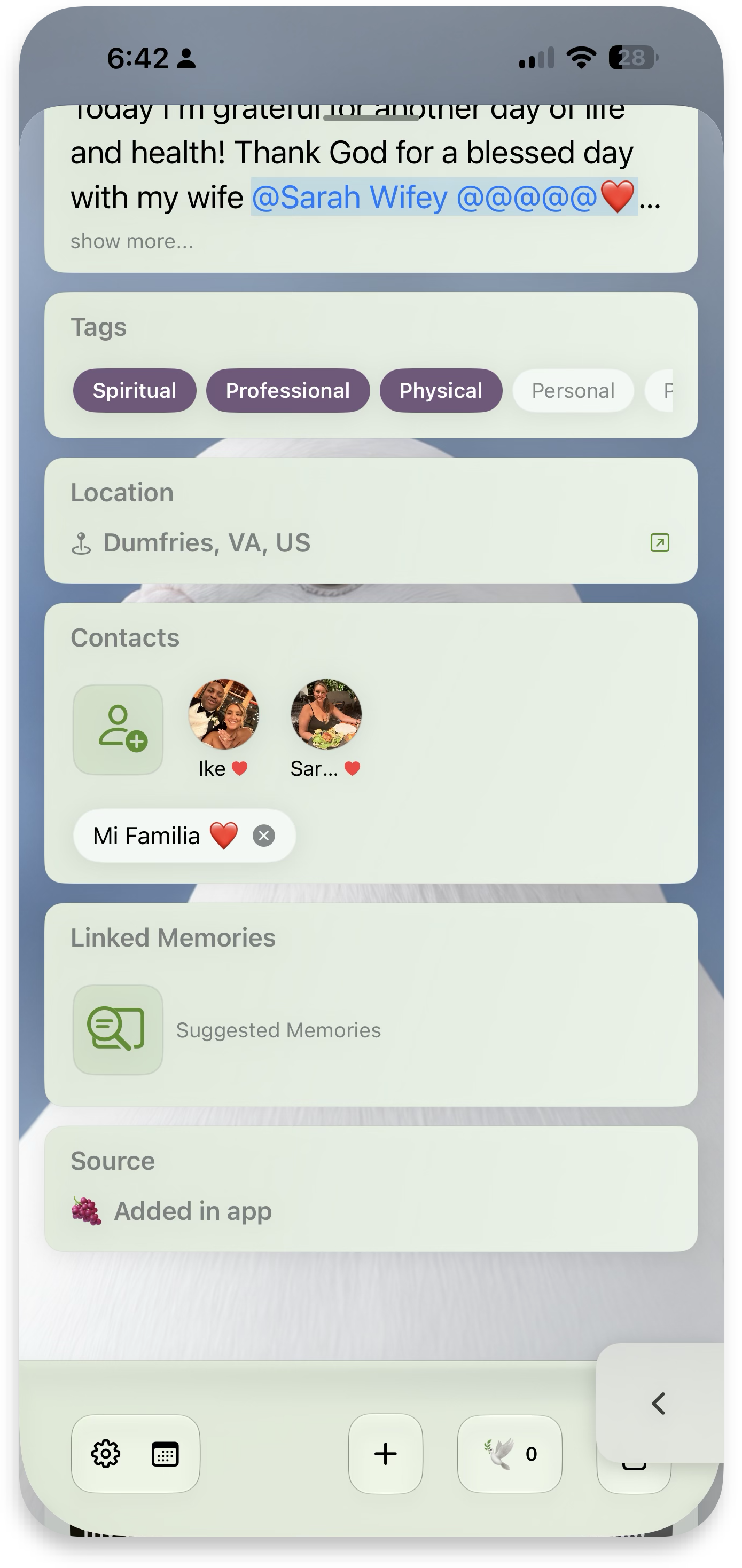 Linked Memories
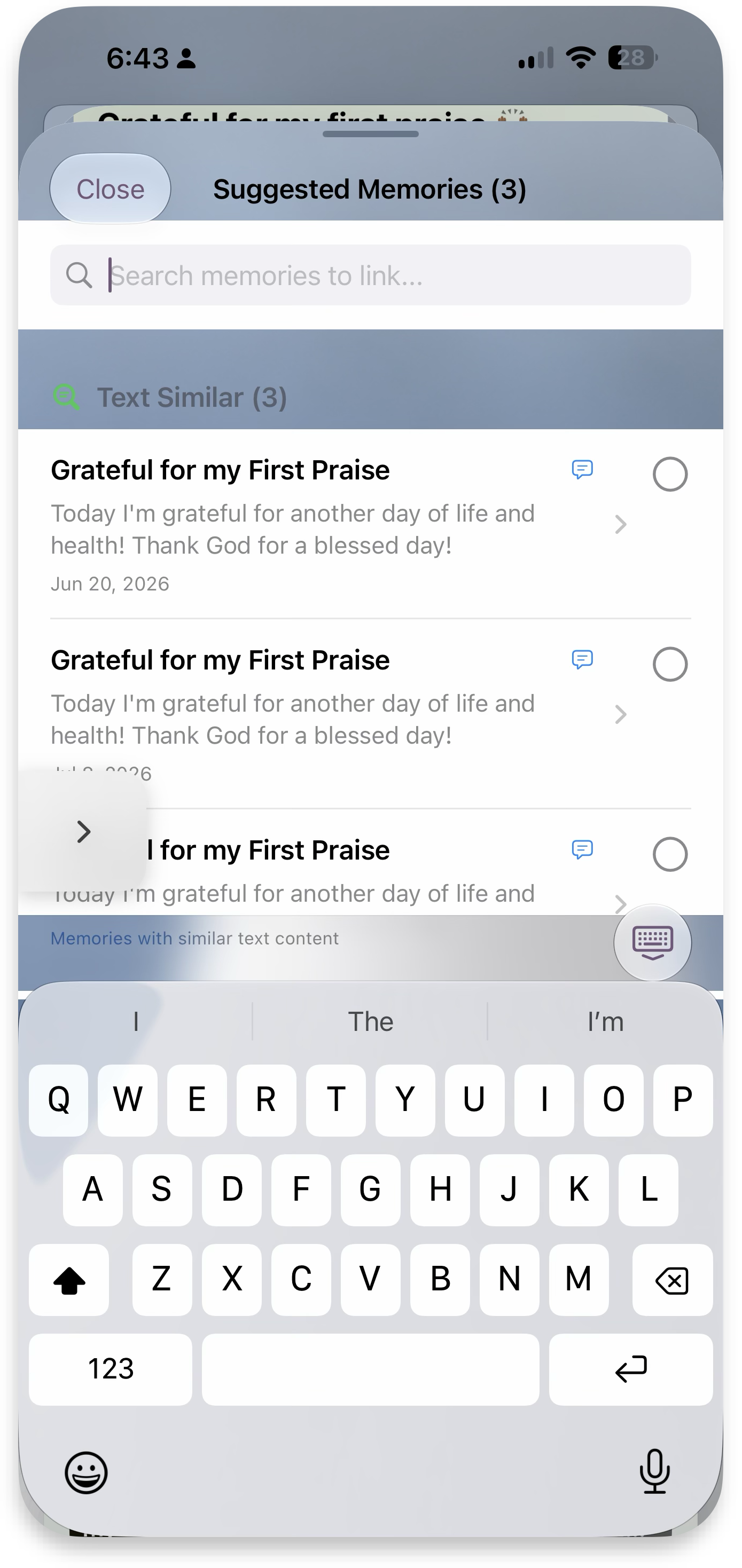 Suggestions
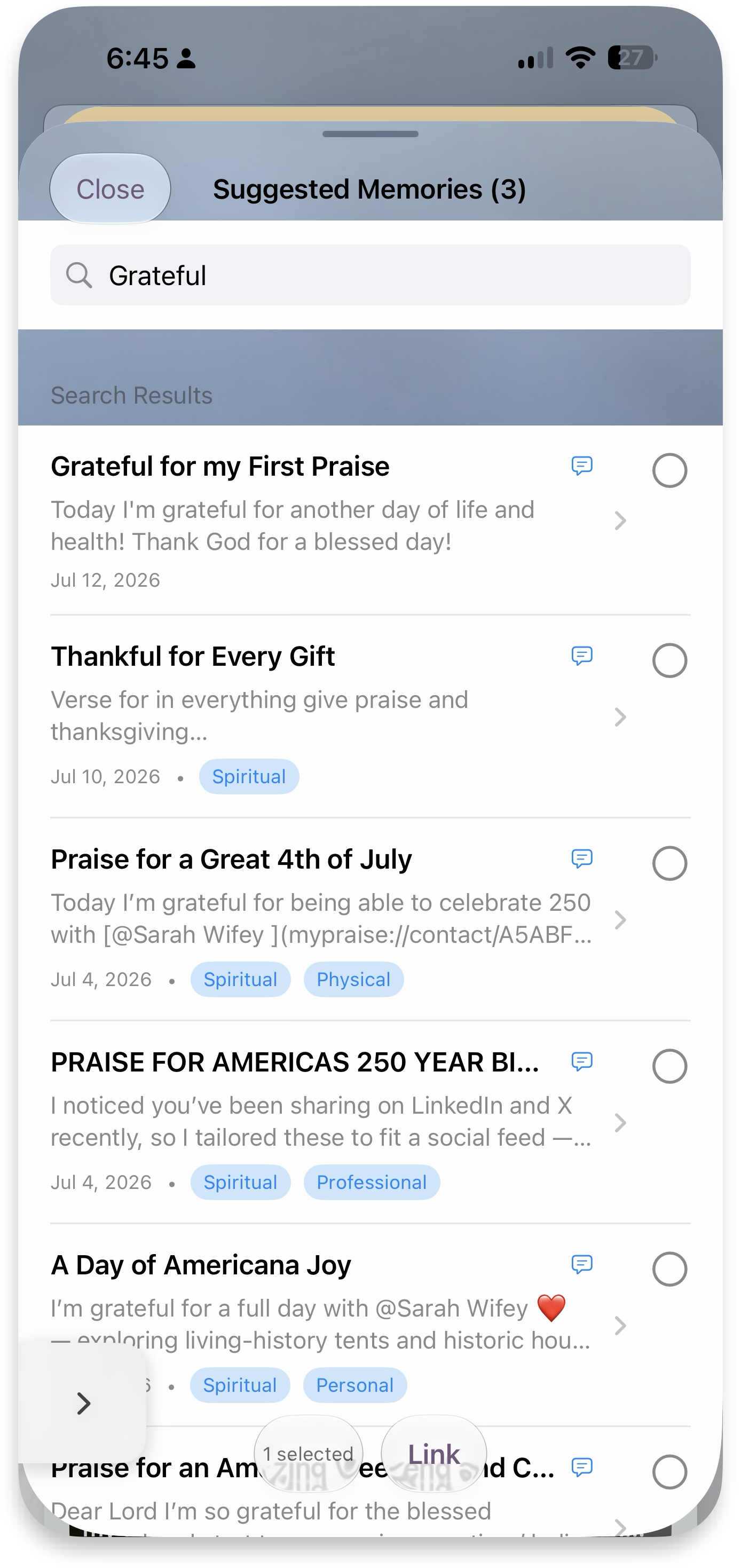 Search & link
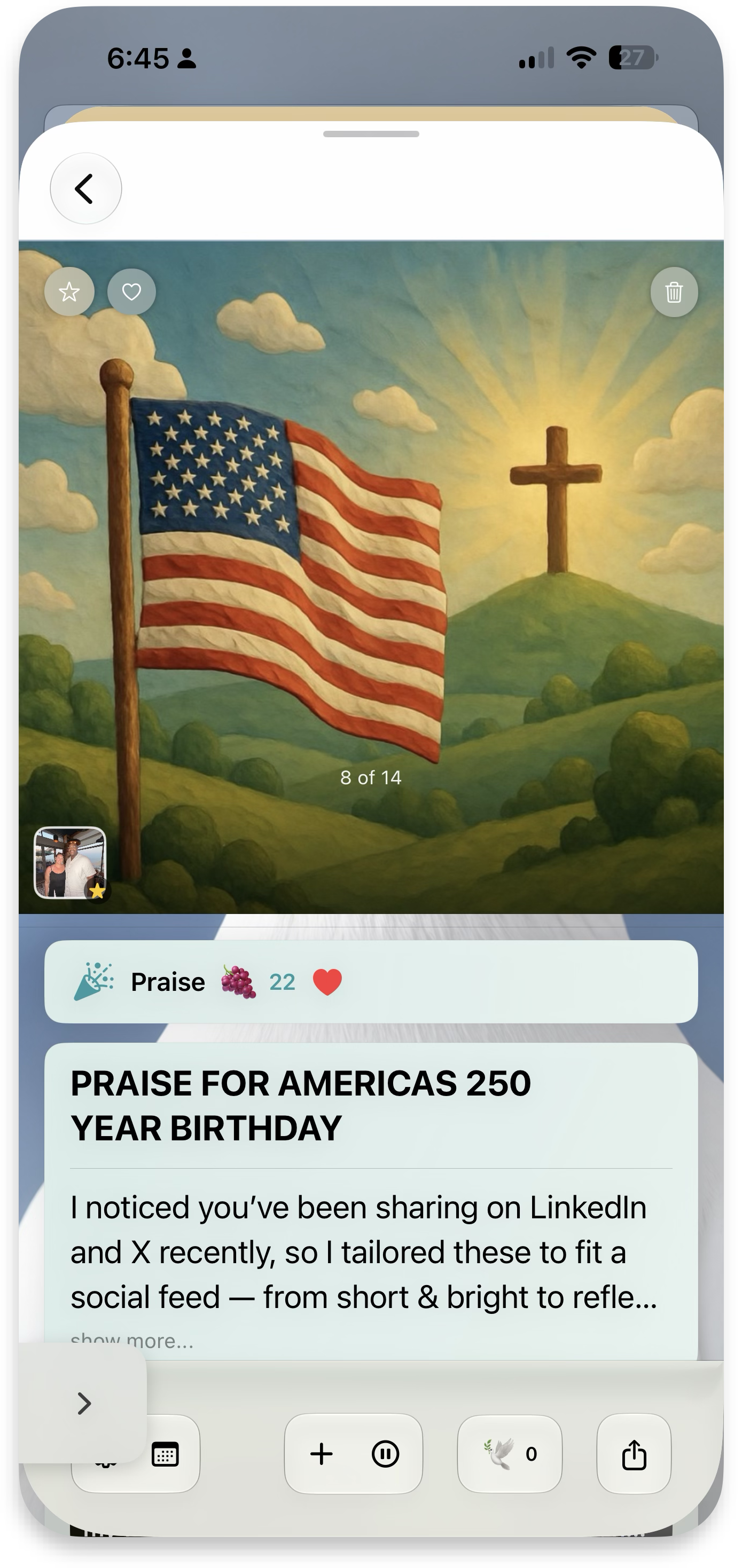 Photos & artwork
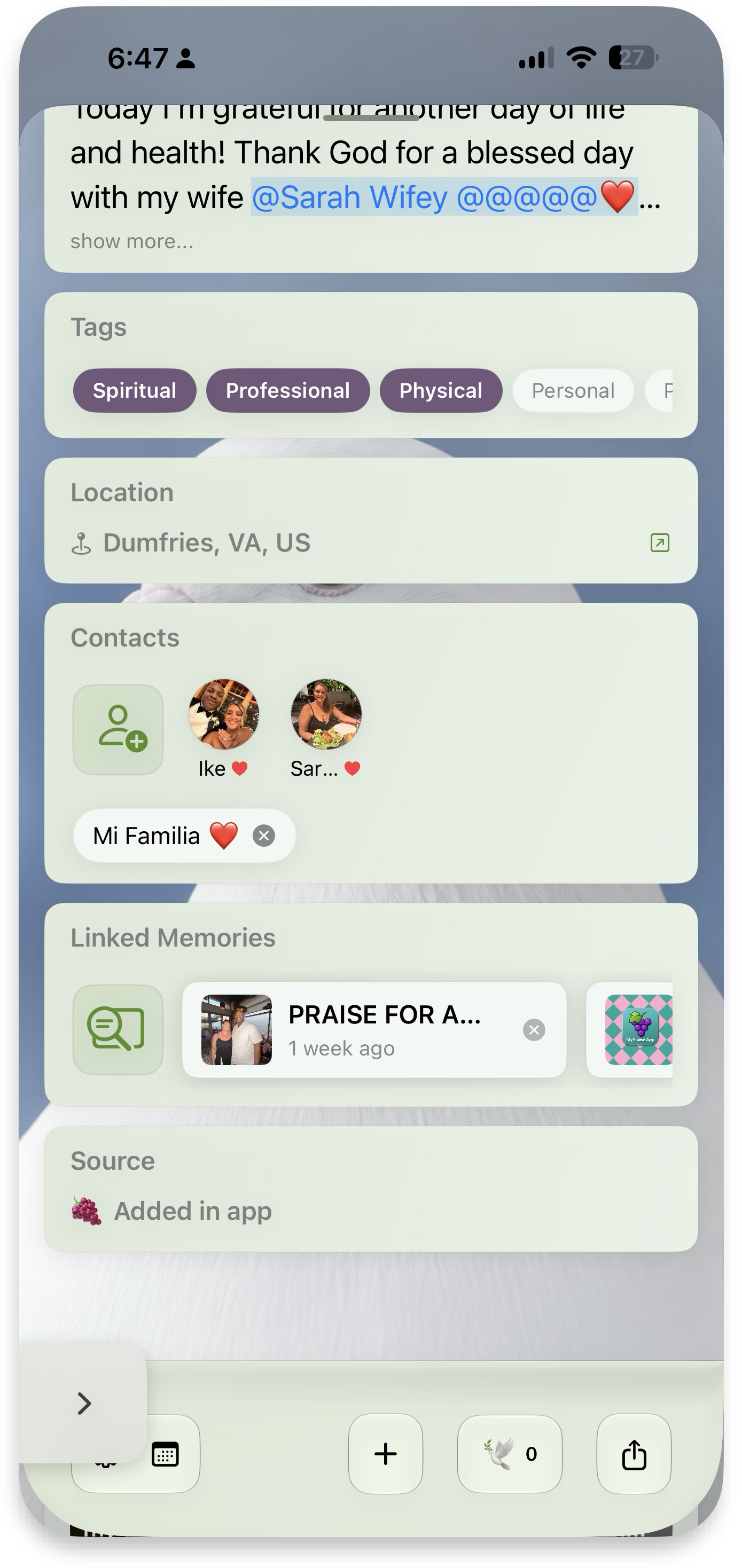 Linked
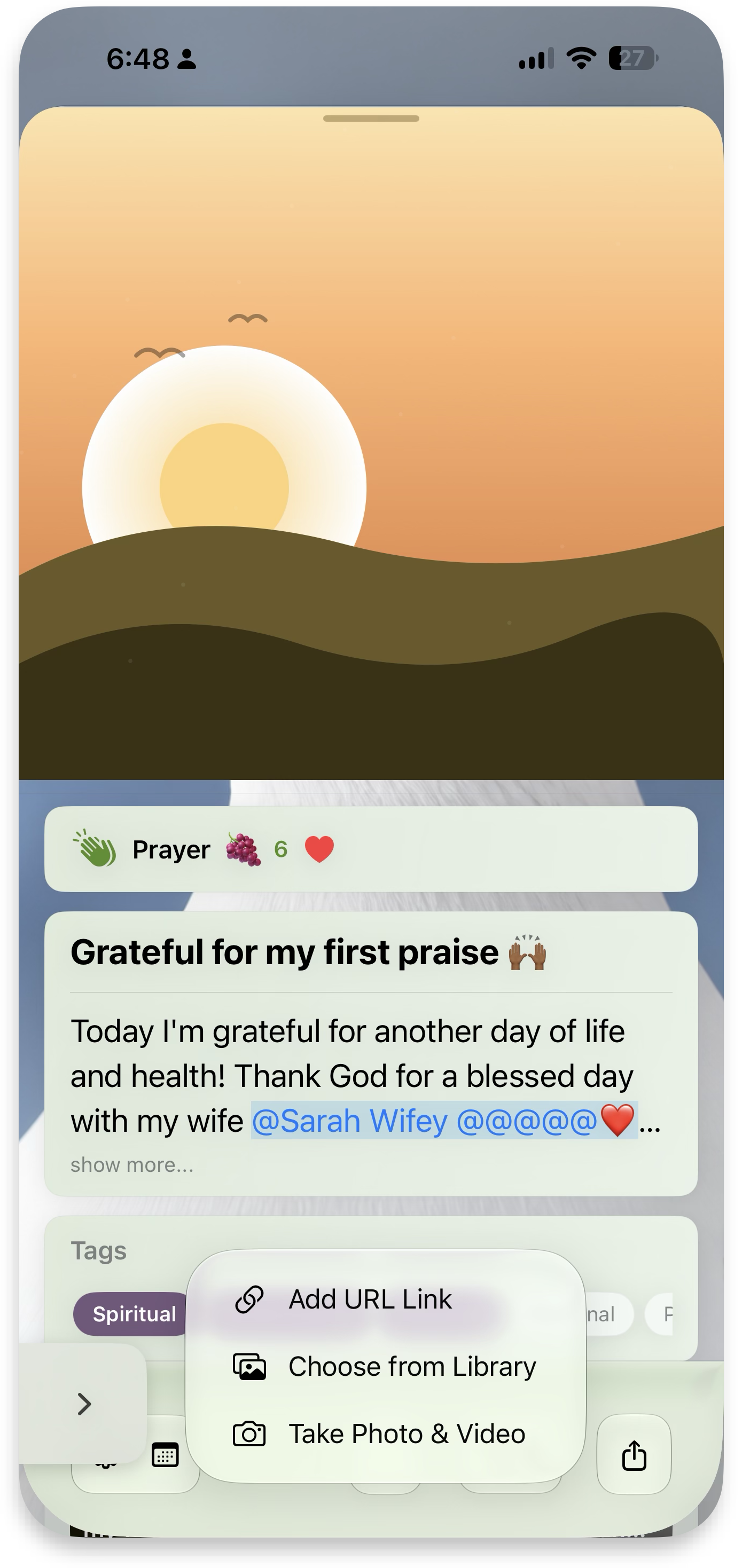 Add media menu
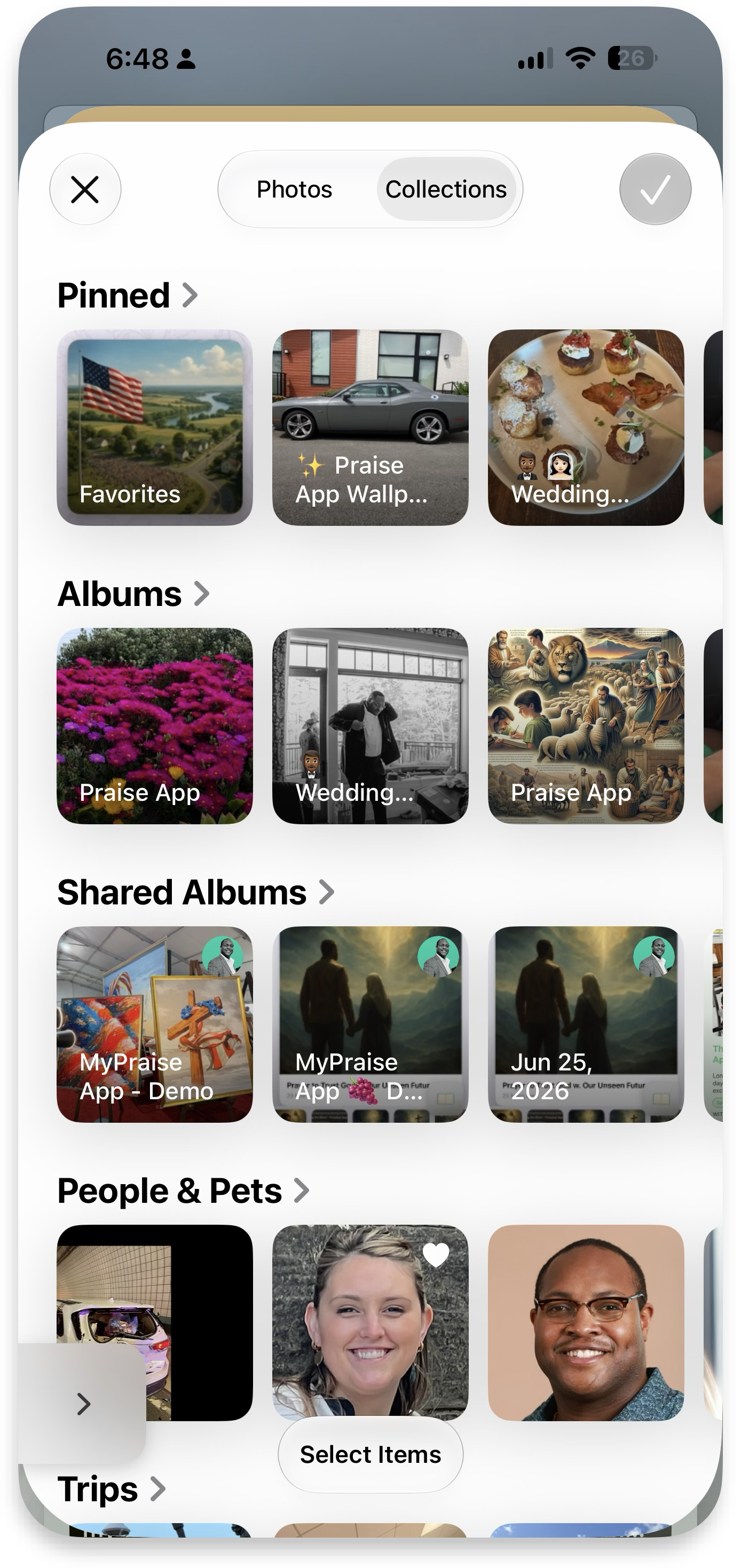 Collections
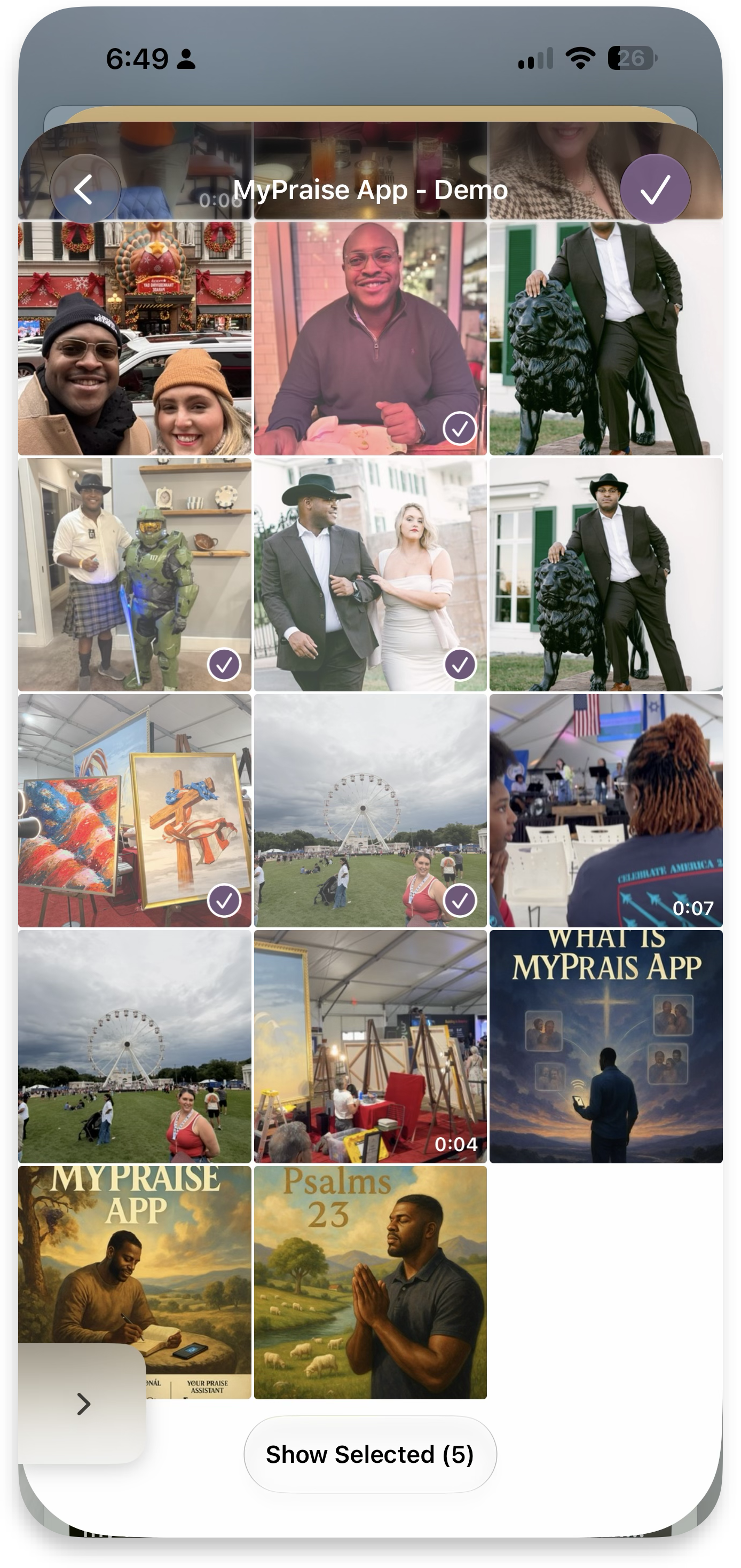 Select items
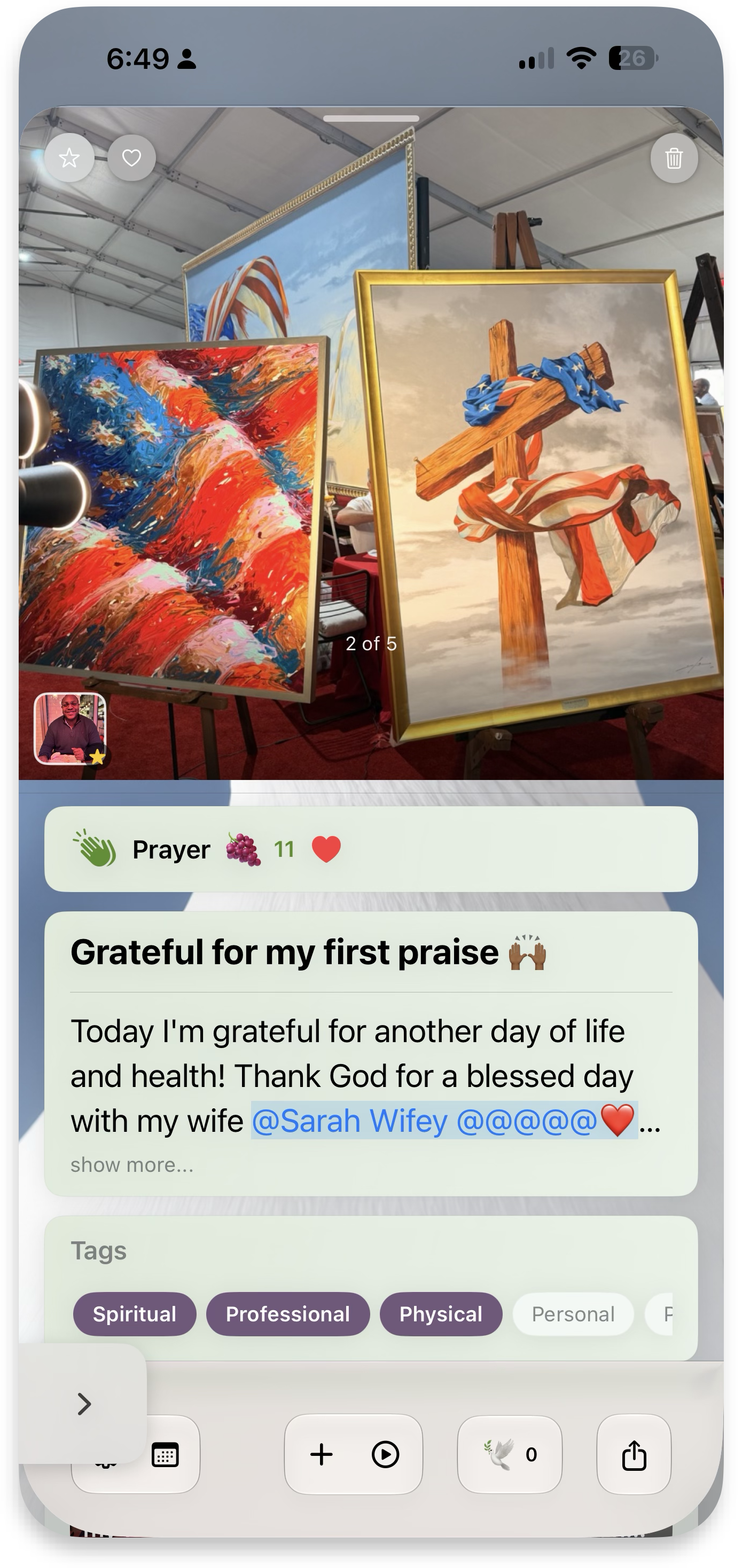 Photo carousel
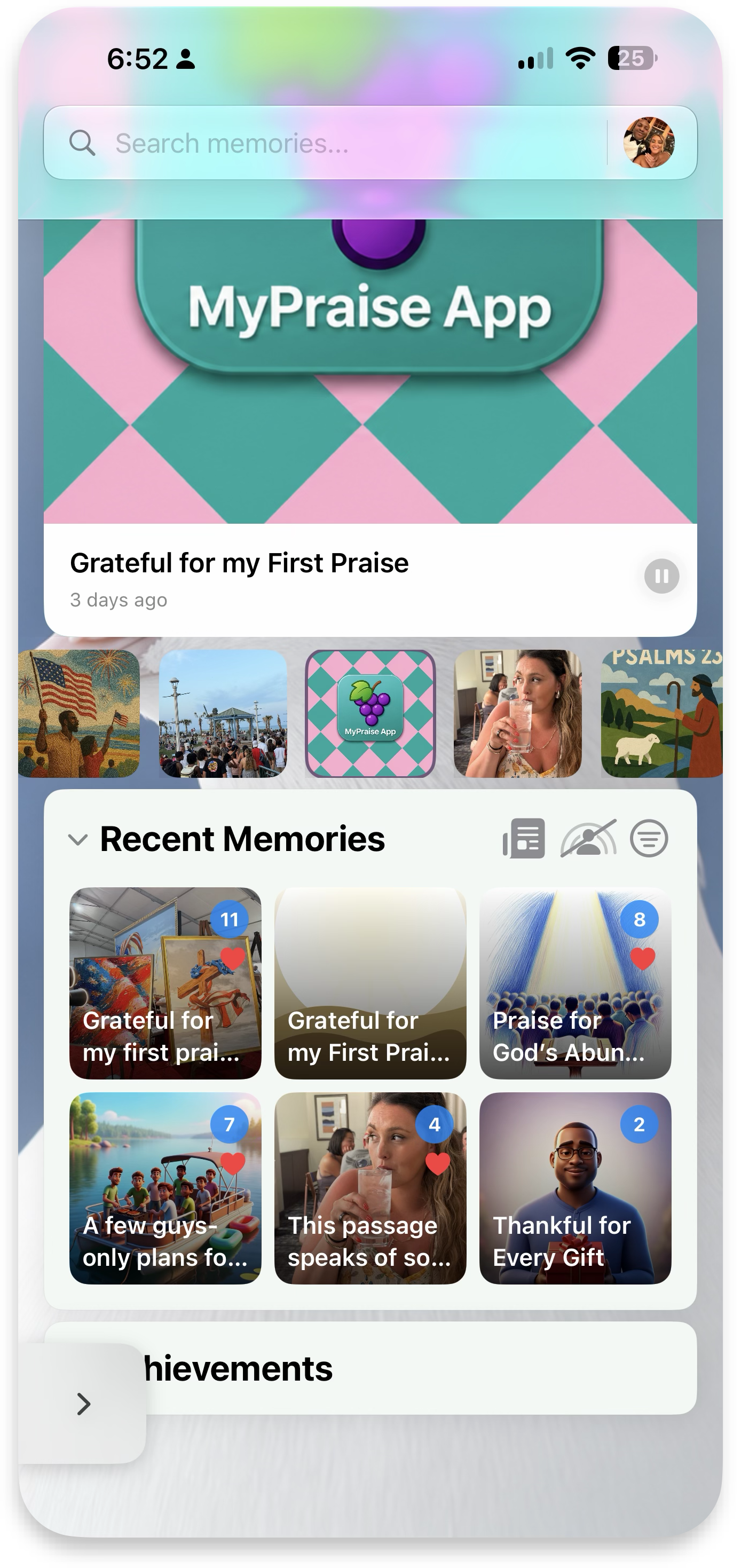 In your gallery
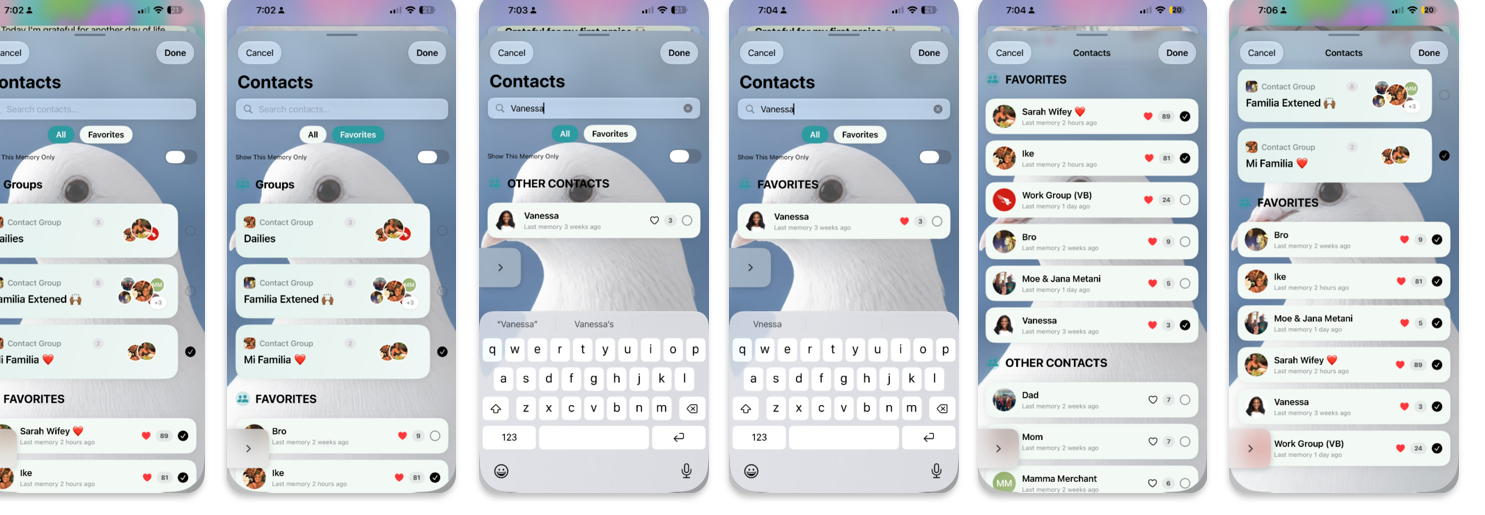
Add affirmations
As your memories grow, add affirmations to further enrich them — and when ready, create a new memory automatically linked to the affirmation. Extra: clone memories for easy modifications. More details ↓
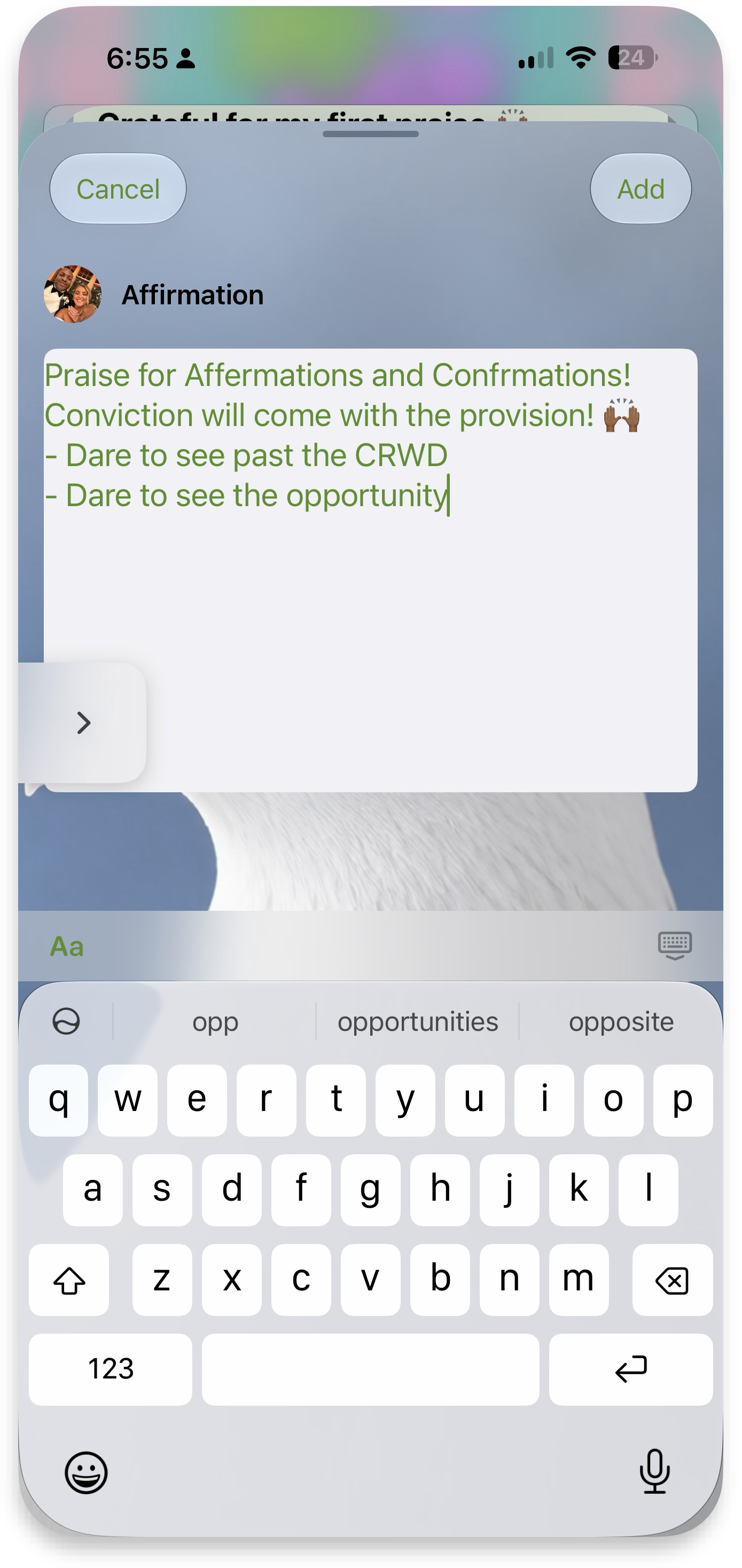 Write affirmation
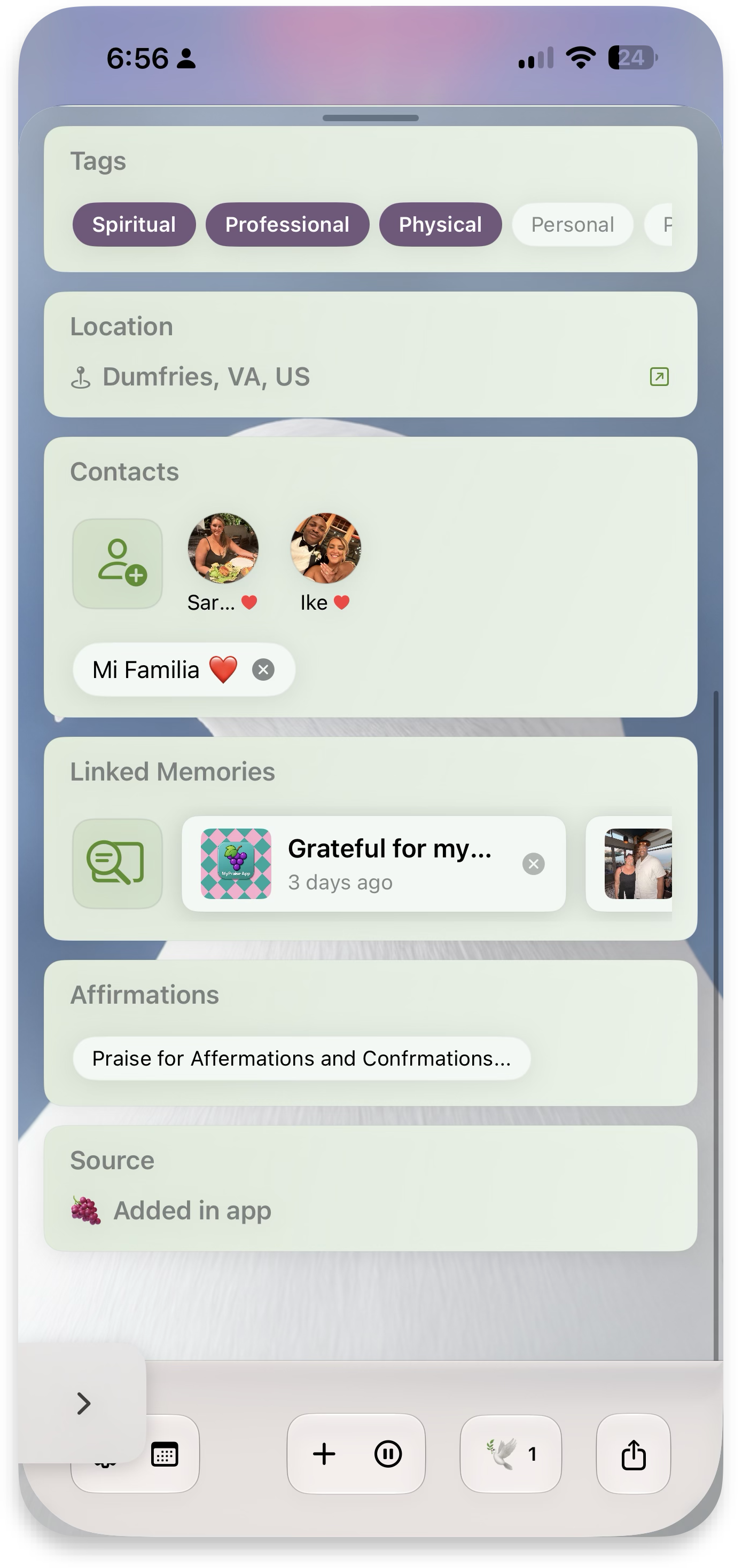 On the memory
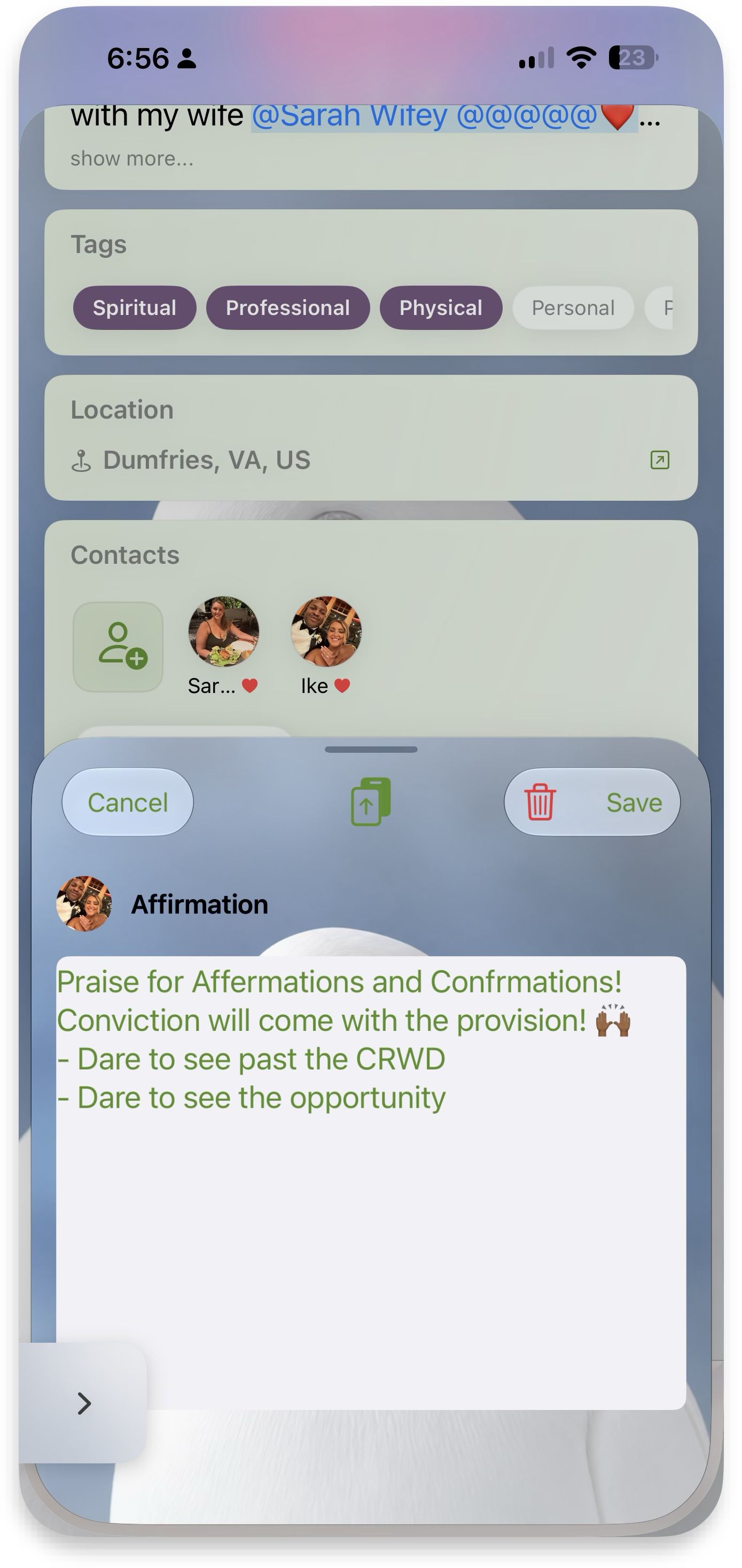 Edit affirmation
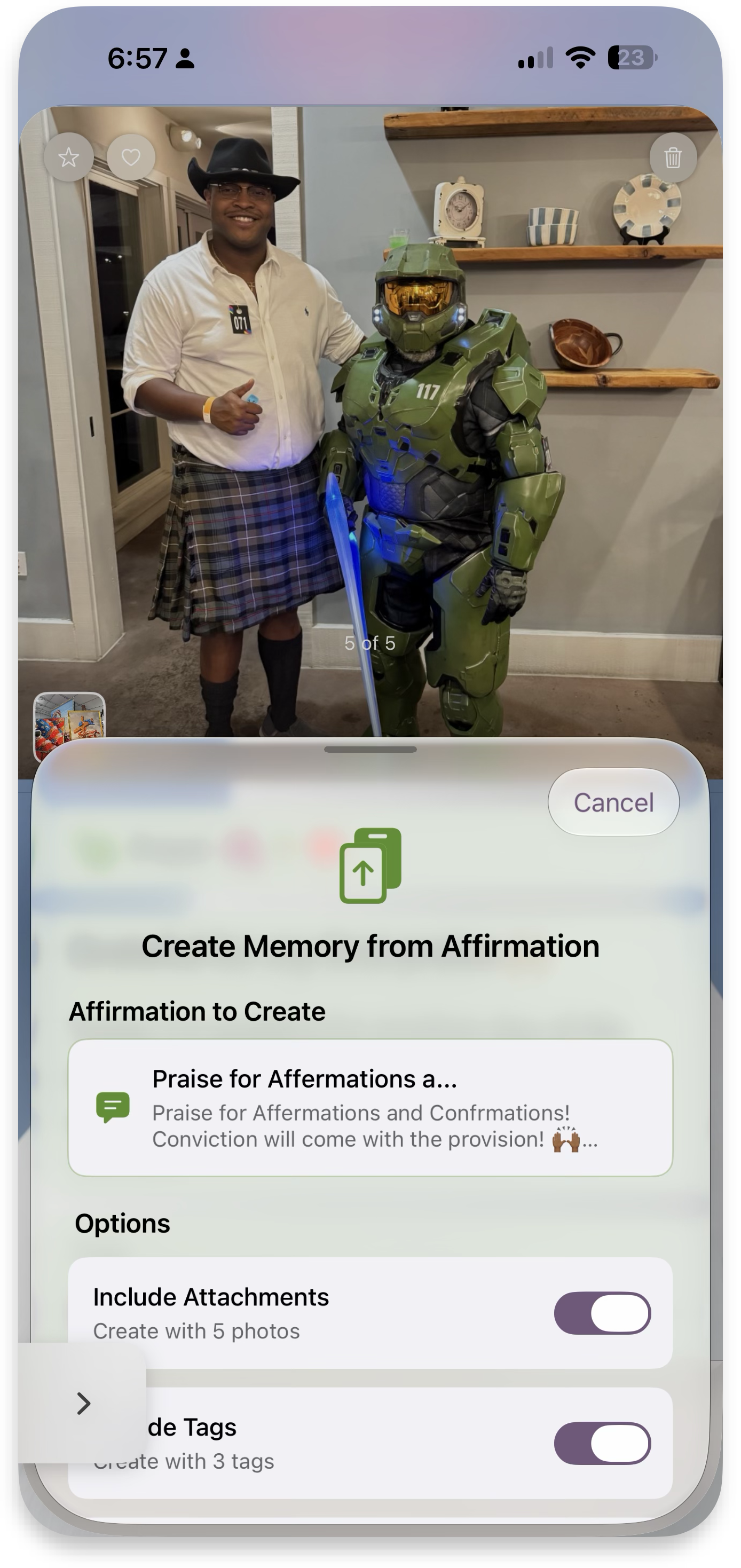 Create memory
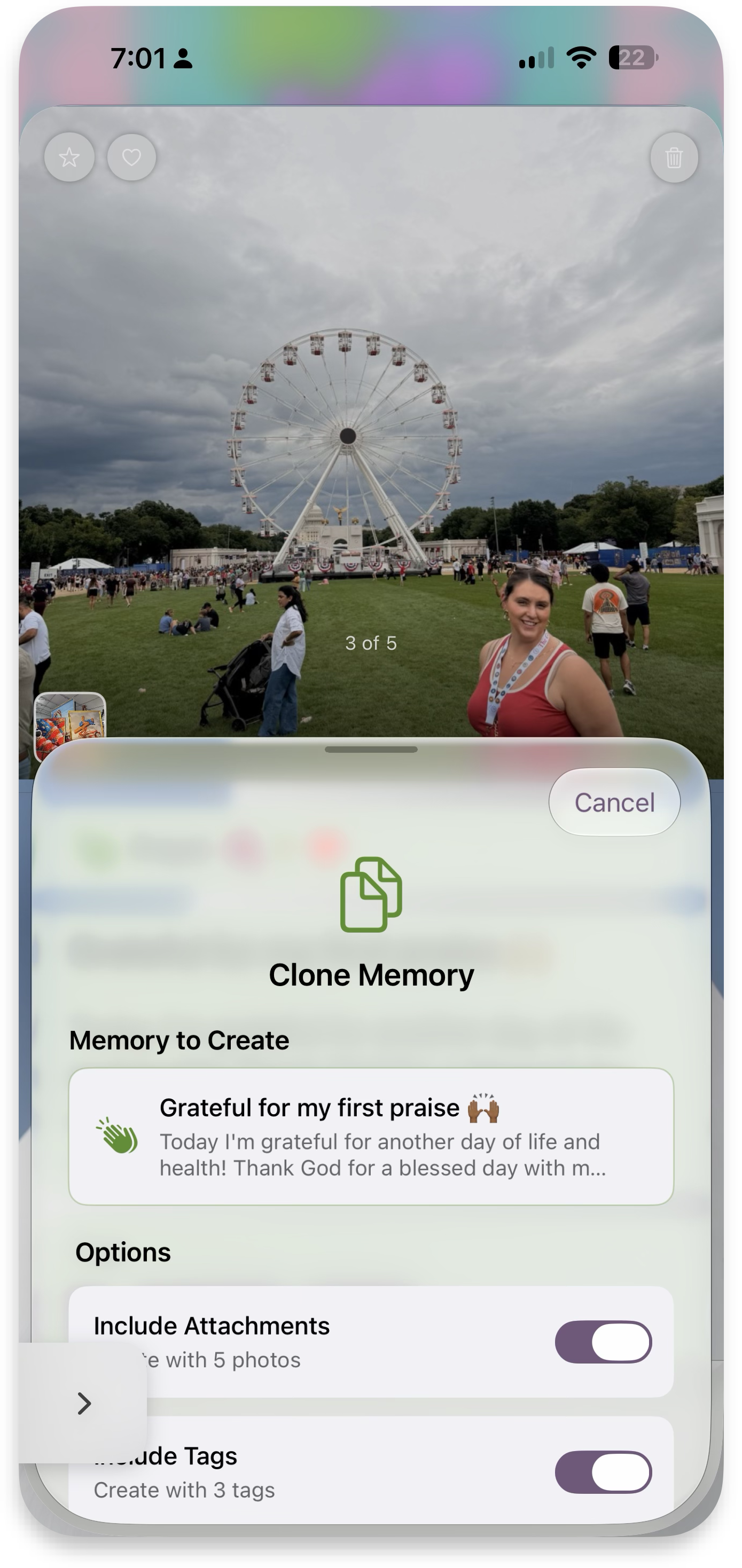 Clone memory
Share memories
Share a memory as an image, as text, or as a memory (coming soon).
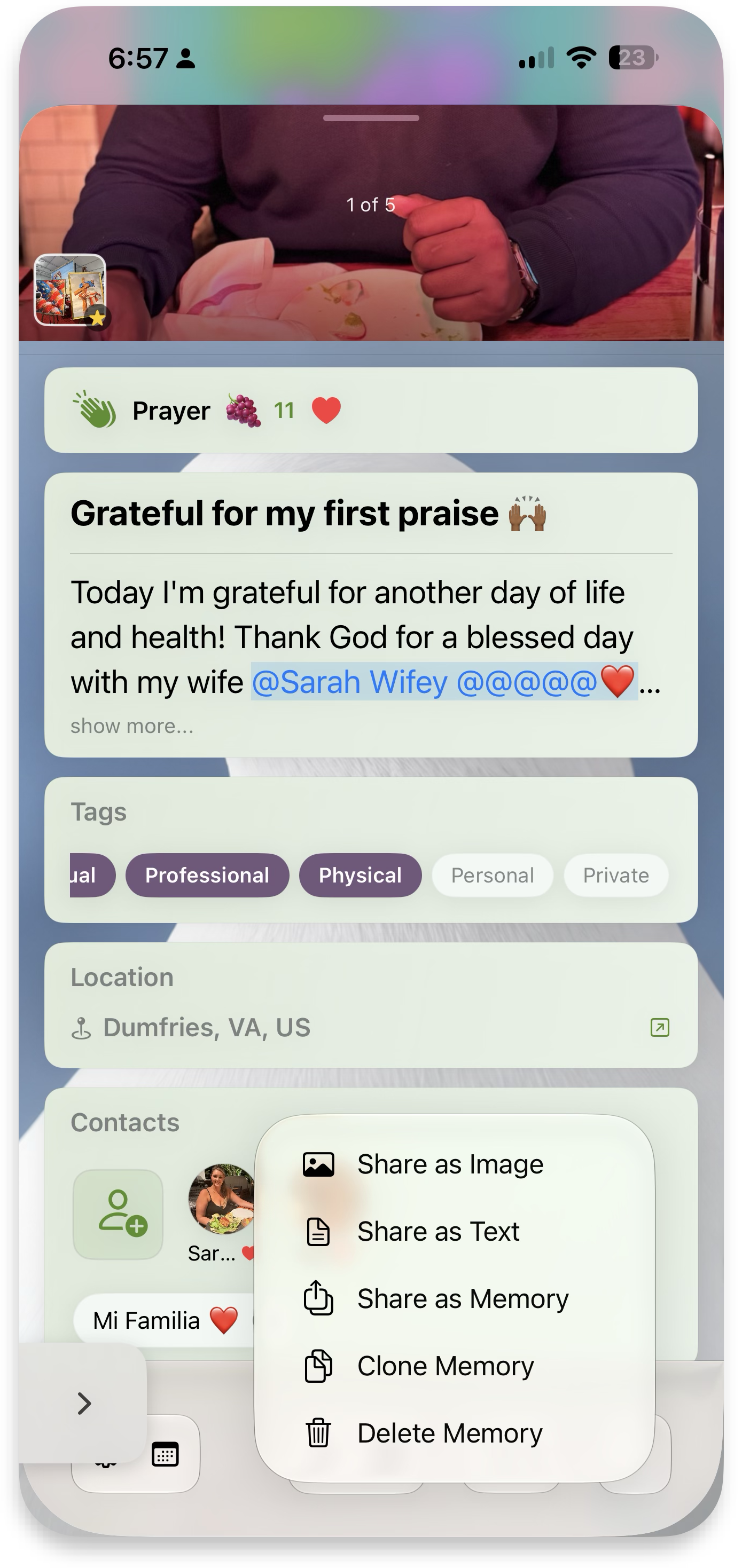 Share menu
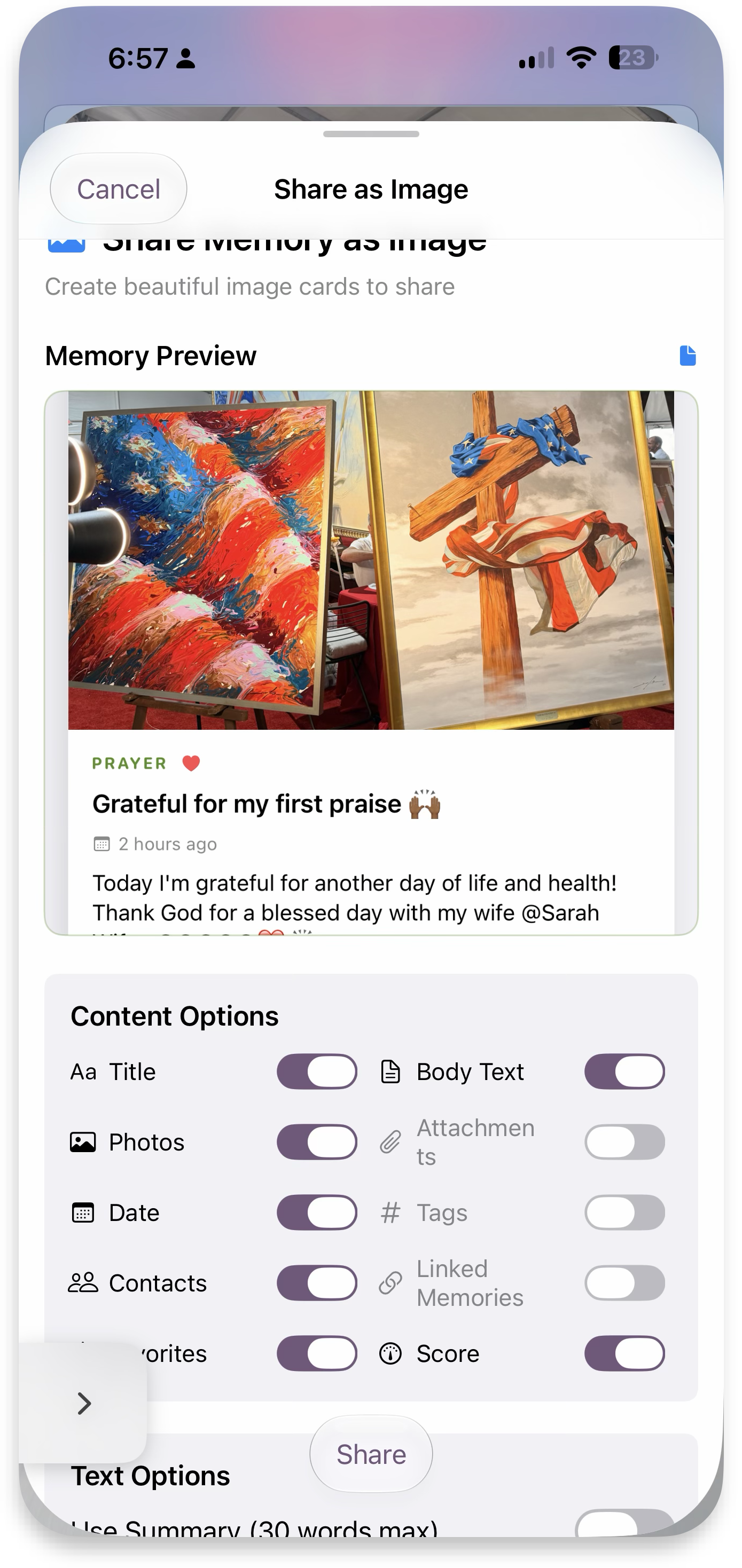 Share as image
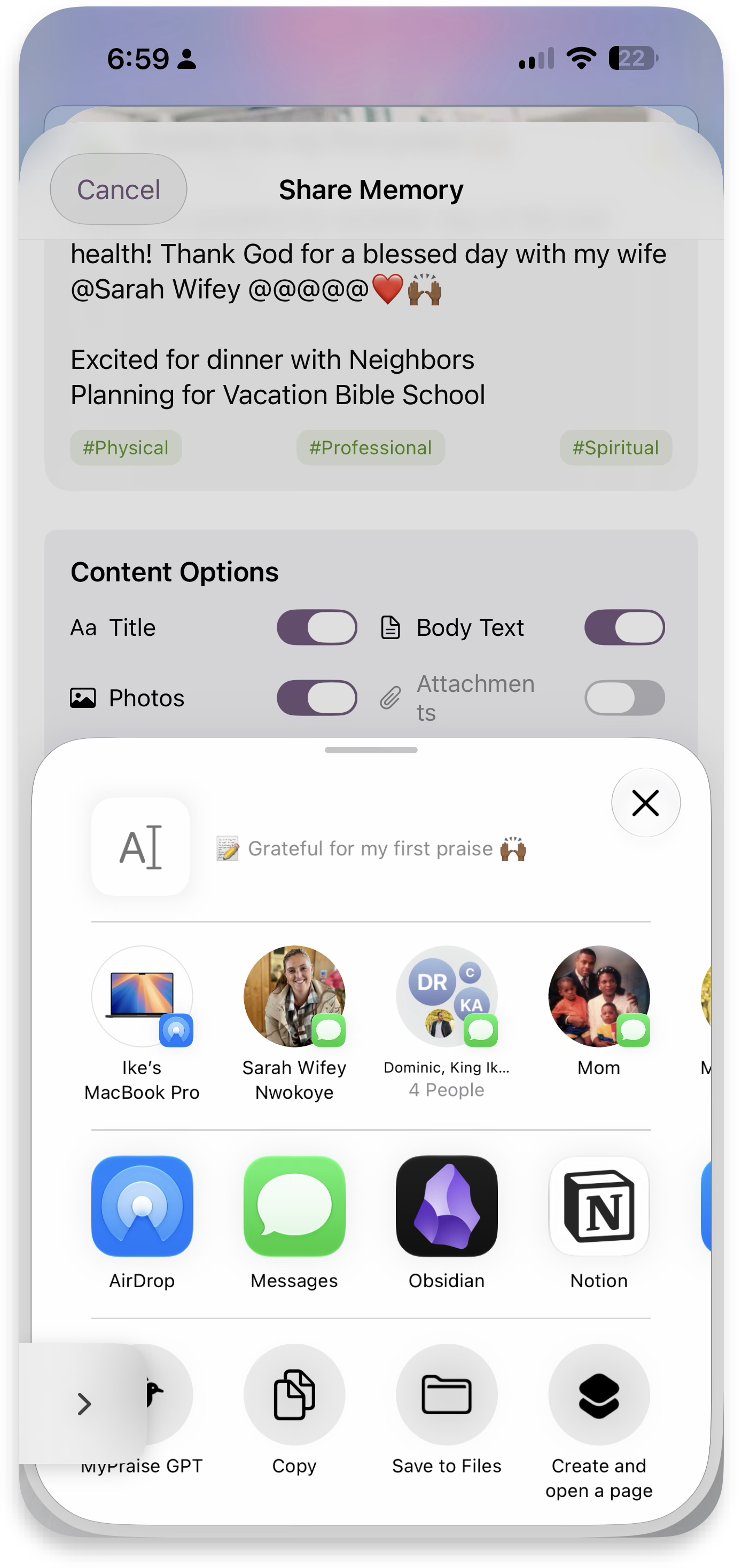 Share sheet
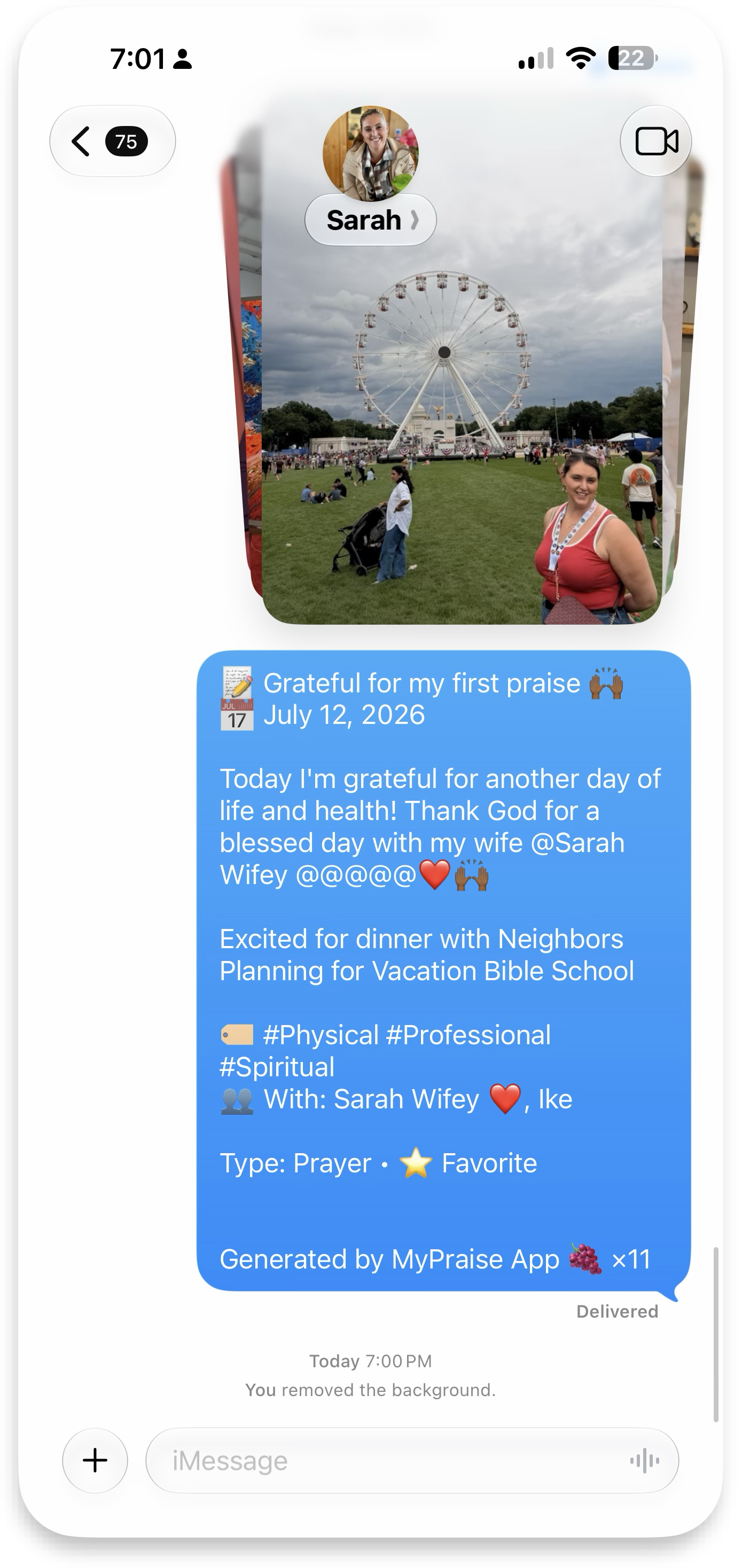 In Messages
Deep dive
Type & color coding
Praise is teal, prayer is olive green, general is gold-brown — the same three brand colors used everywhere else memory type matters (badges, metric tiles, card washes).
Private memories
A private memory gets a small rich-yellow marker instead of its type color — a deliberate, distinct signal so private entries are never mistaken for a normal praise/prayer/general tag.
Text size
Memory body text has its own size setting (default / small / very small) independent of system Dynamic Type — useful for people who write long entries and want to see more per screen.
Theme.TextColor.accent(for:), applied ad hoc across views rather than a single MemoryCard component — this design system packages it as the reusable MemoryTypeBadge. See docs/duplicate-memory-creation-fix-summary-2025-03-07.md for save-flow edge cases.
Home screen management
Welcome to your home page — your Gallery front and center, with Recent Memories and My Achievements right below.
Gallery, front and center
Swipe to change photos, or tap the shuffle or thumbnails for finer control. Link memories to photos in your Gallery to enrich your memories.
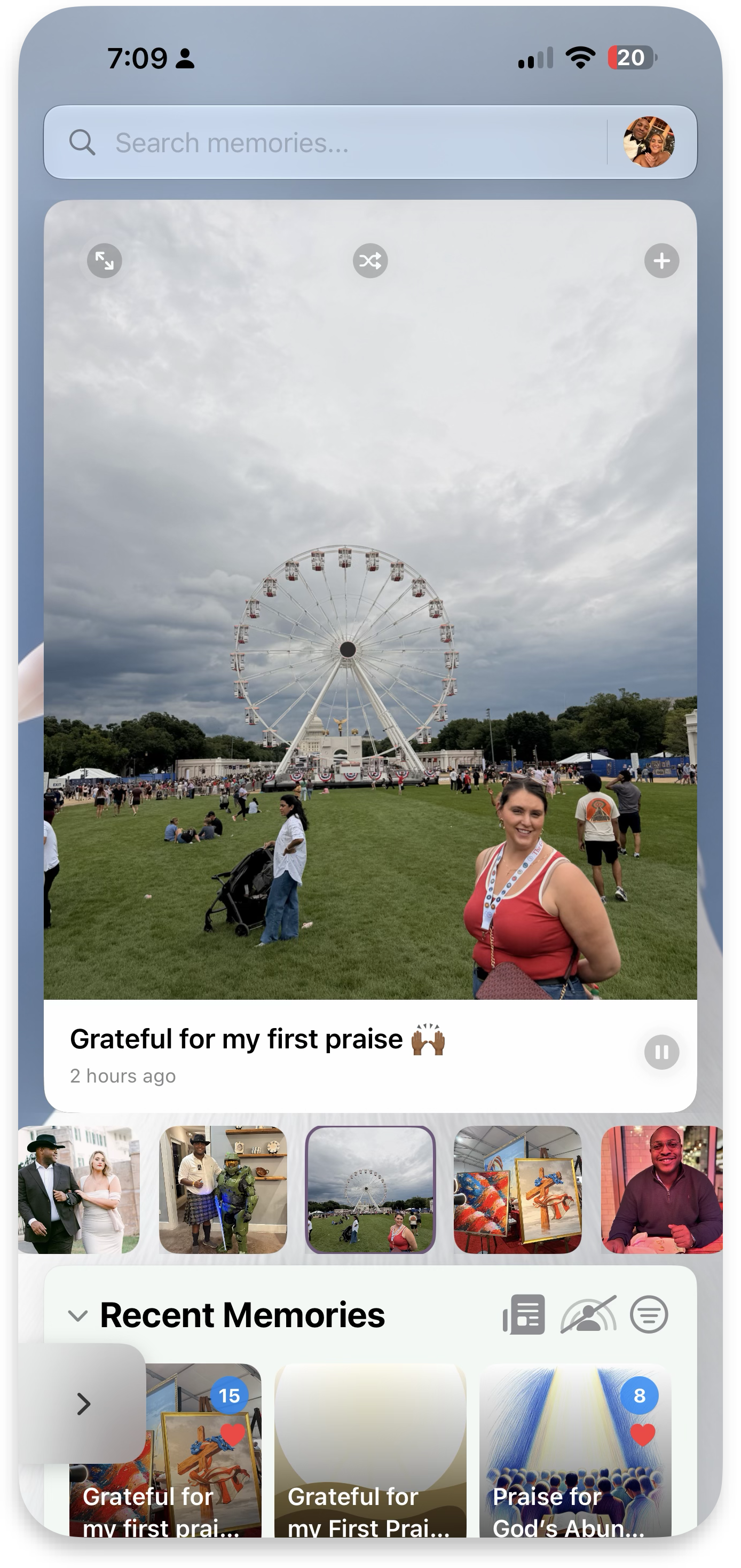 Gallery on Home
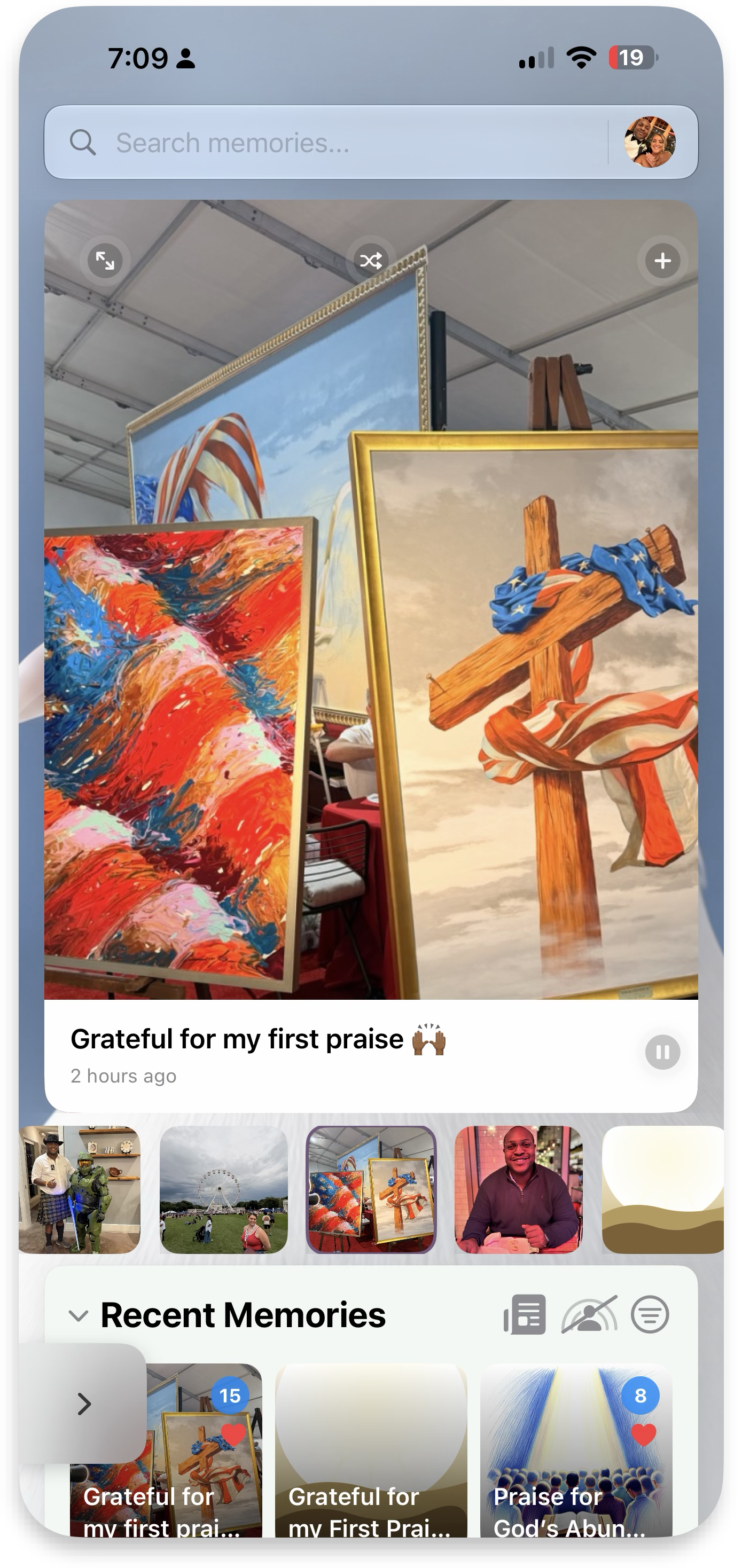 Swipe & shuffle
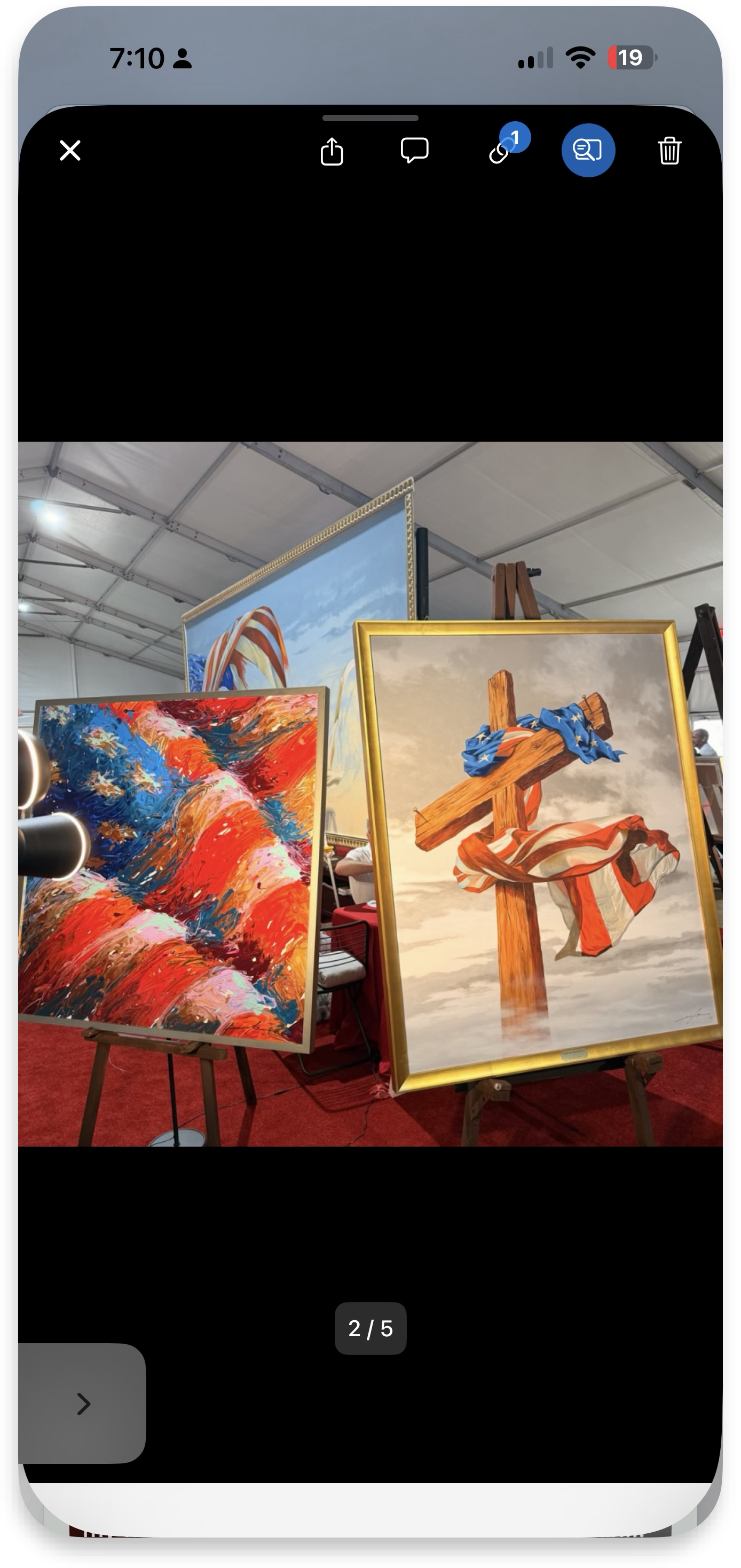 Photo fullscreen
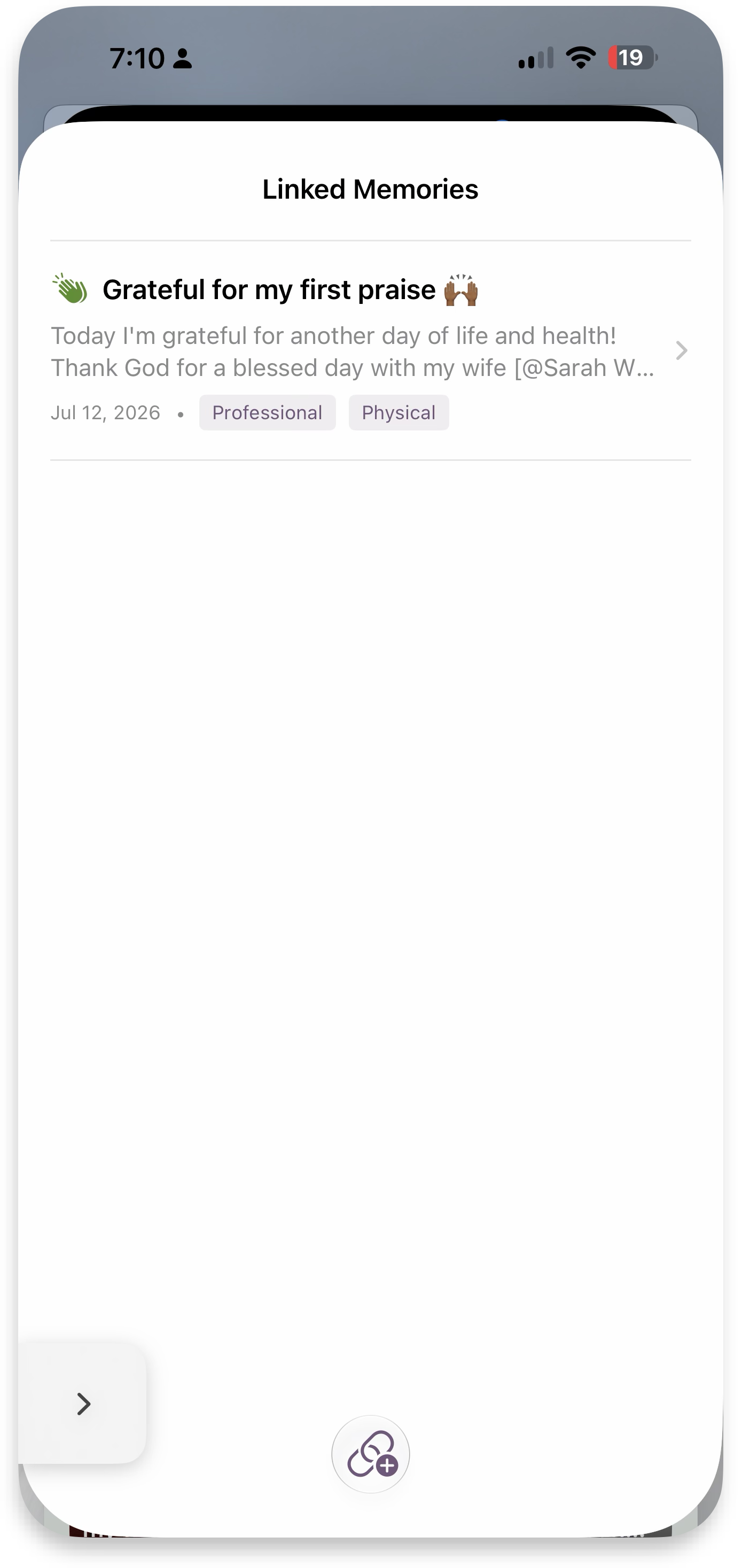 Linked memories
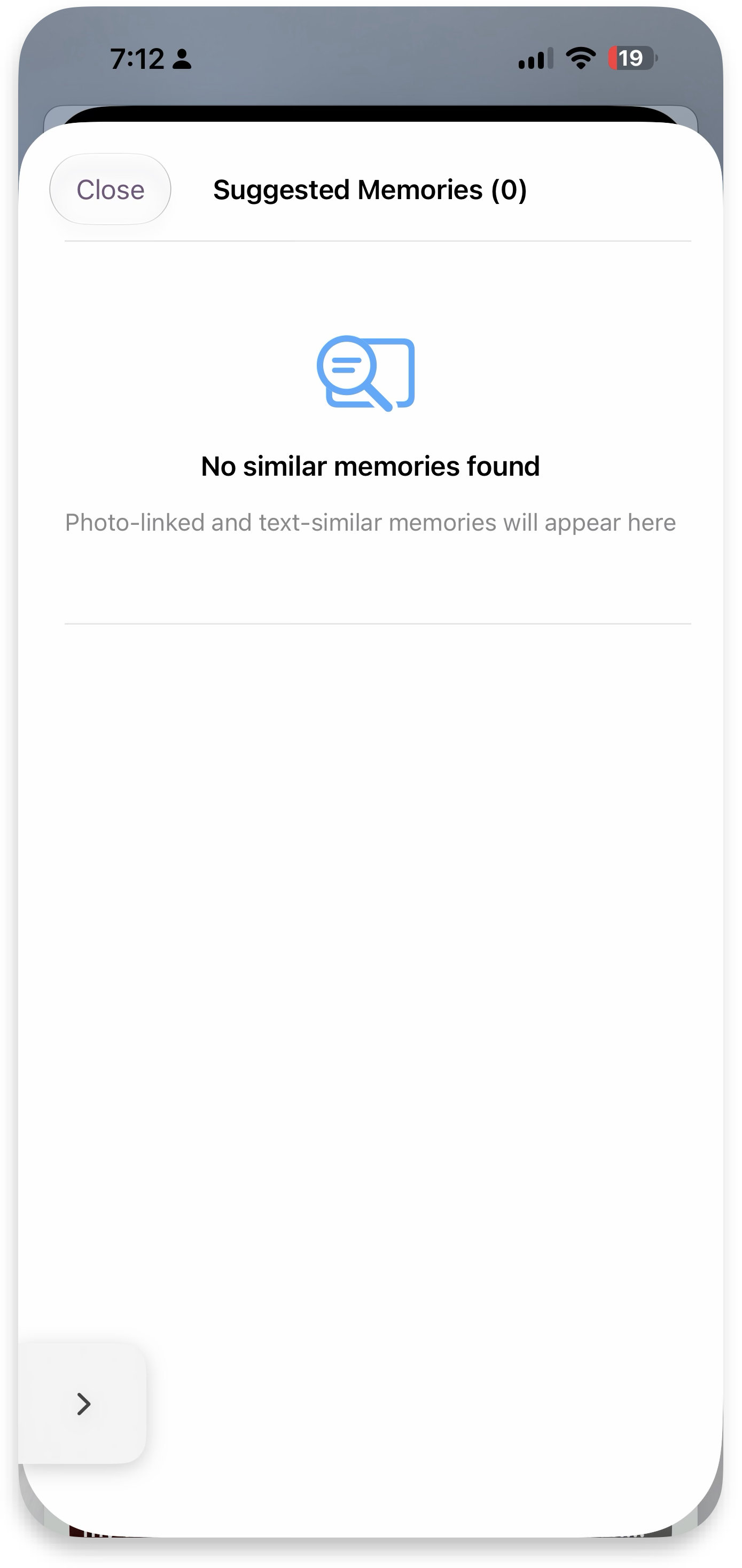 Suggestions
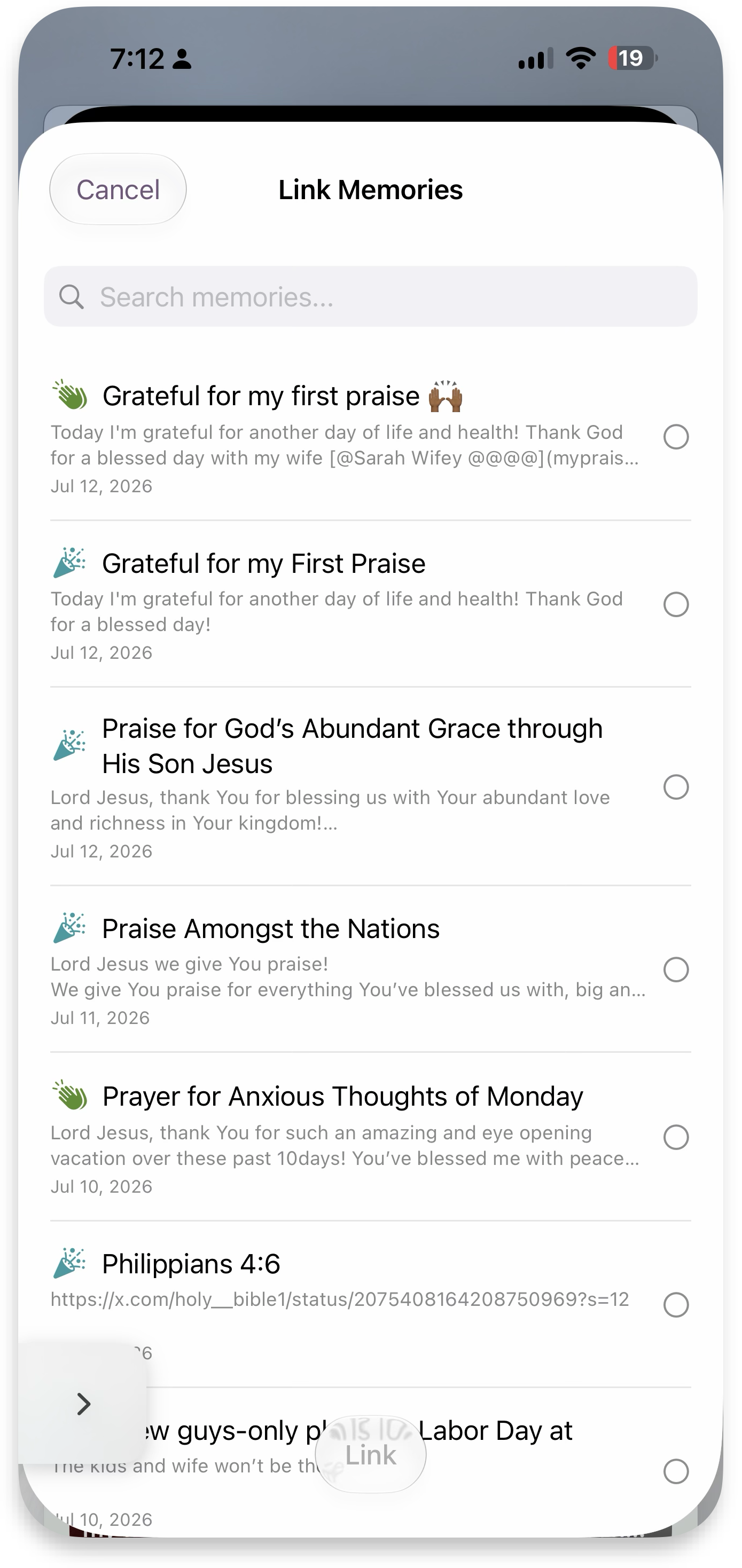 Link memories
Add photos, videos & links
Directly add new photos from your iOS gallery, take a new photo or video, or add links. When you add a URL, a rich thumbnail is generated if the website supports it. Extra: paste images (coming soon). More details ↓
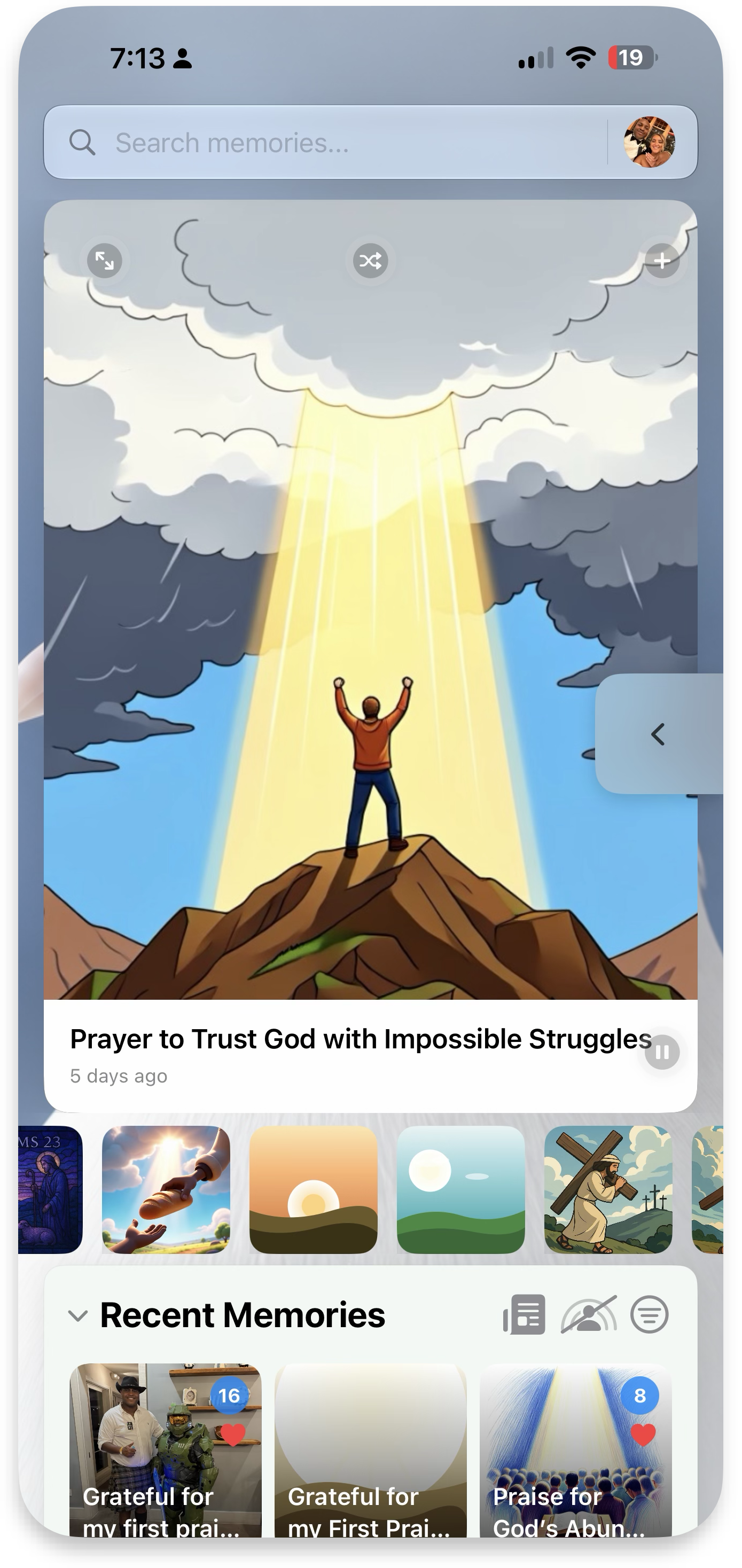 Home gallery
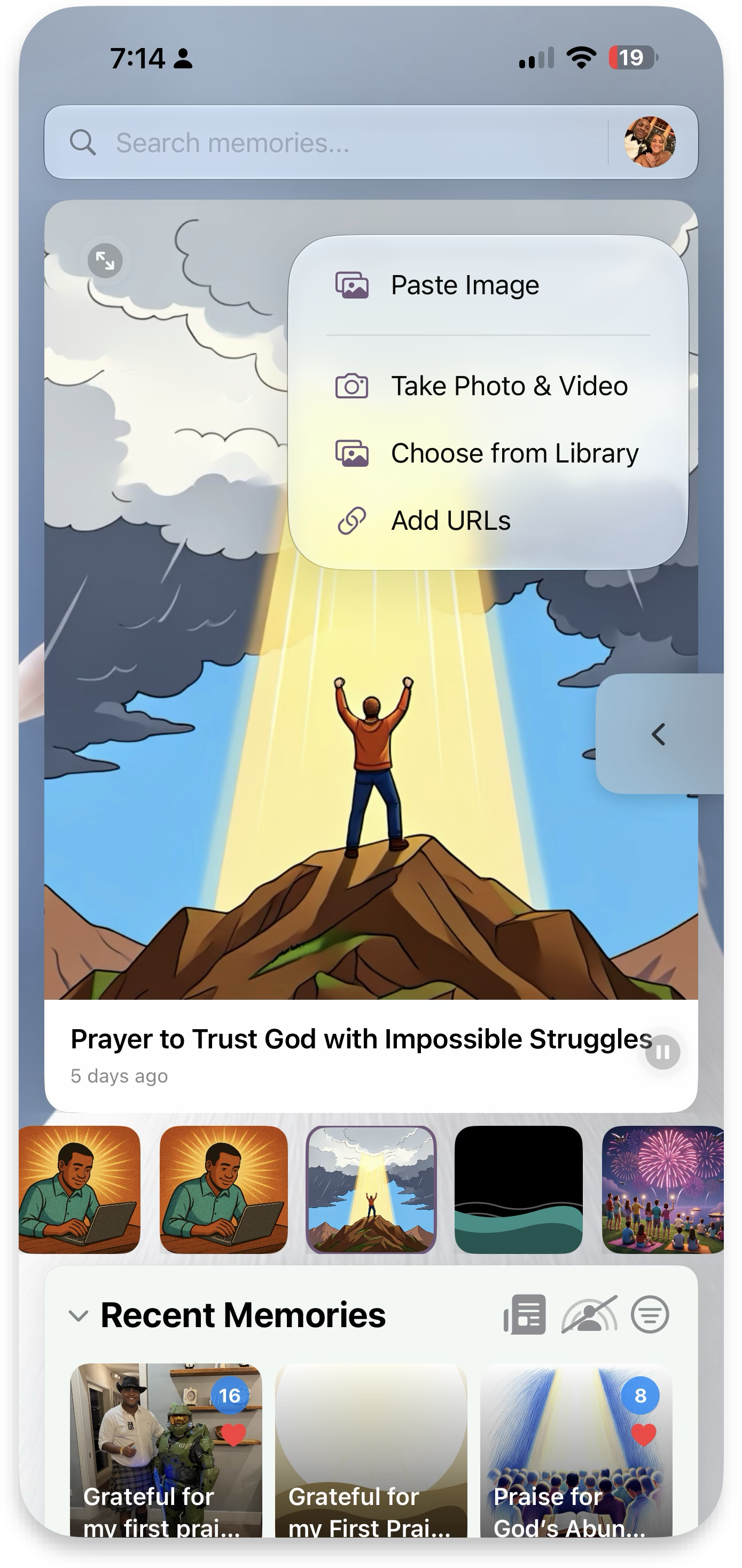 Add media menu
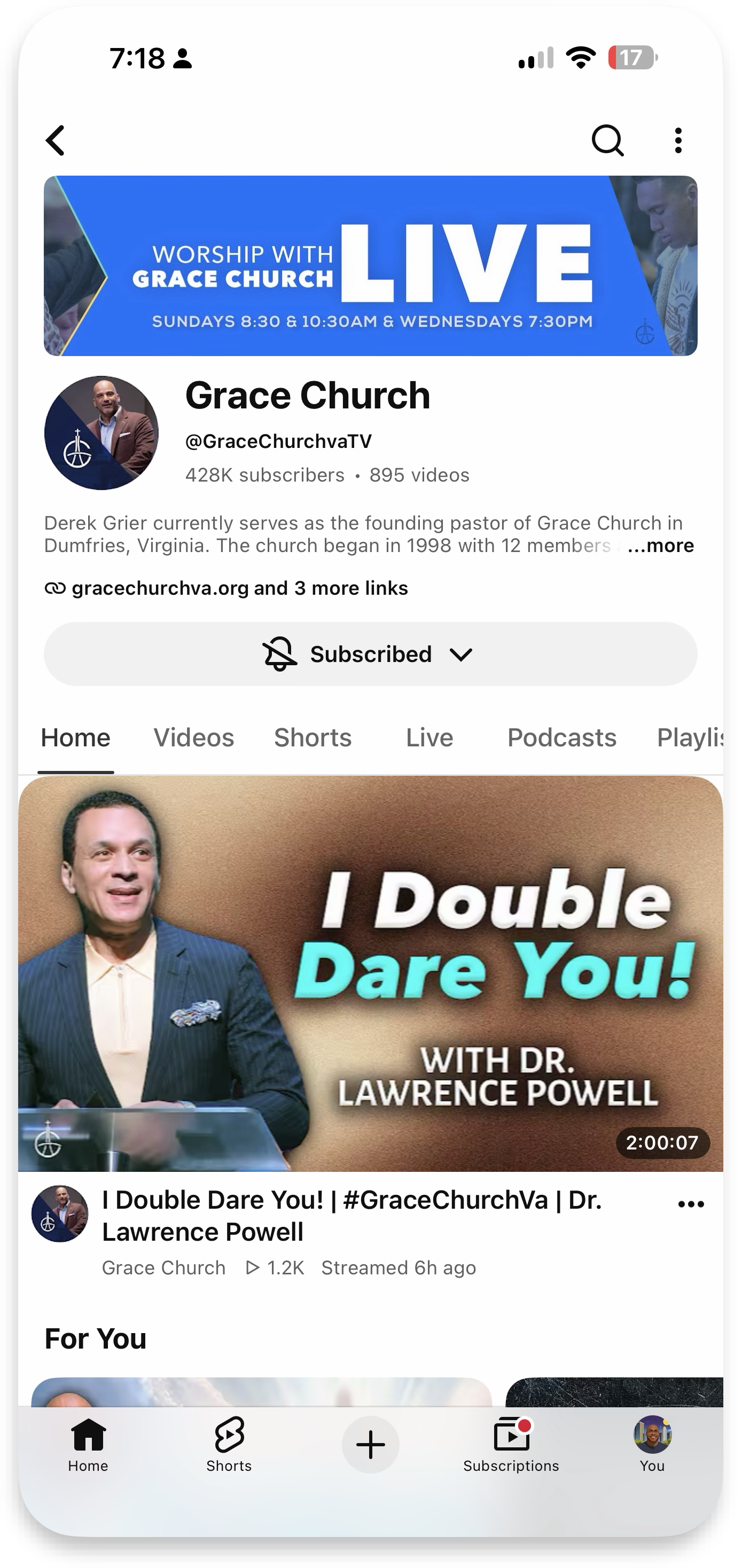 Find a link
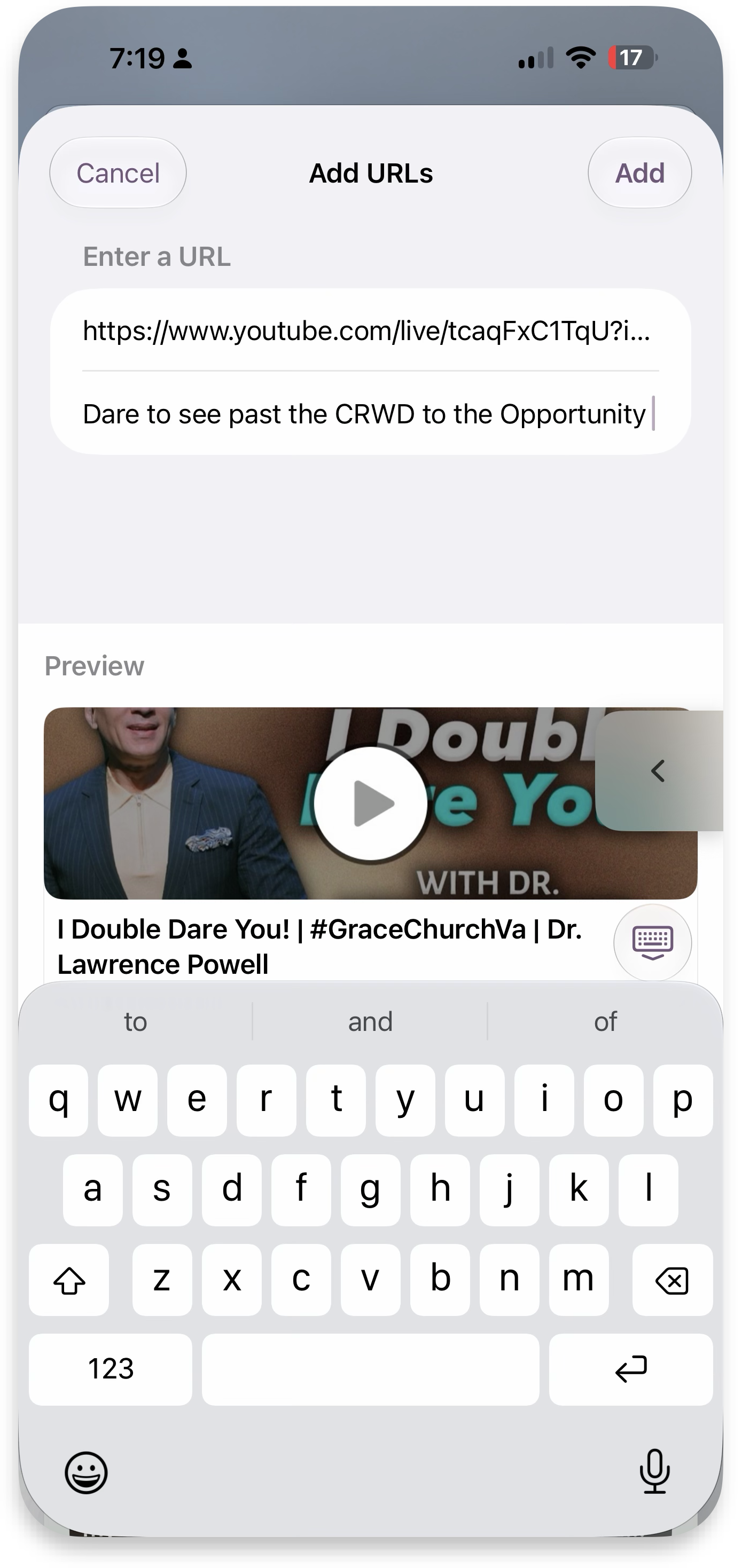 Add URL
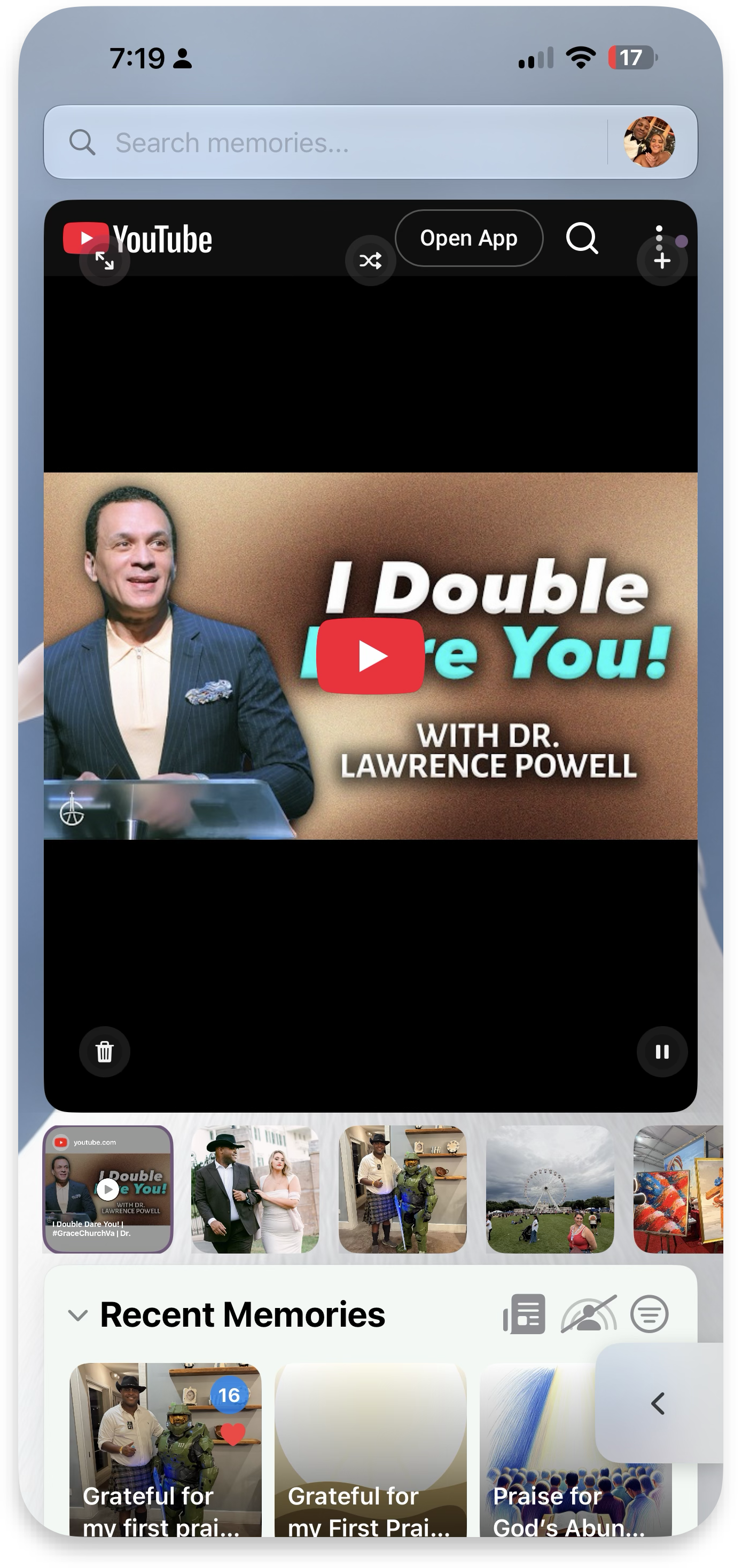 Rich thumbnail
Recent Memories, filters & privacy
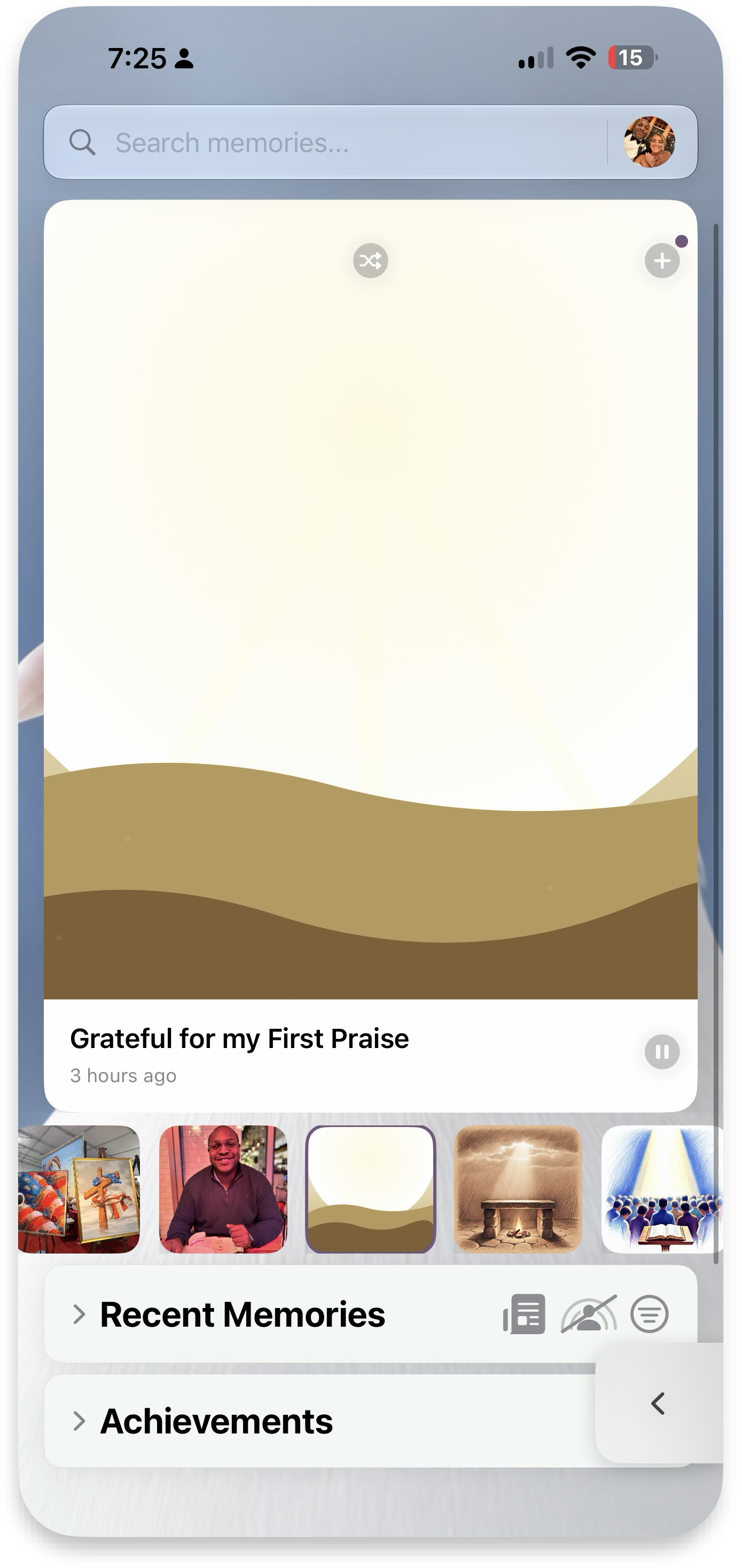
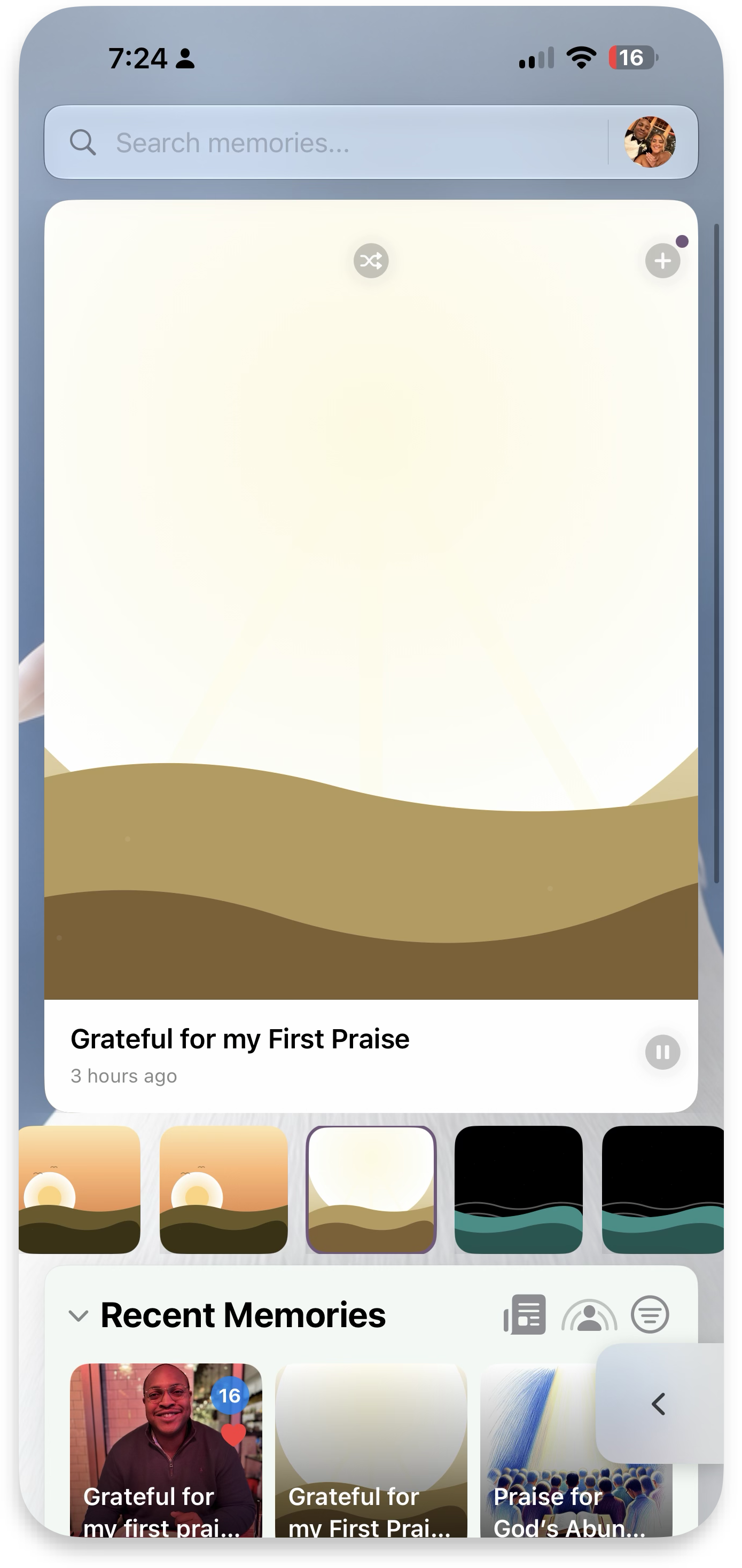
Expand Recent Memories to see what's happening, and adjust the filters for a specific time range, search term, or tag / attachment. In your Gallery, show just the title or the title and memory — or only time-of-day thumbnails when you're in an open space and want more privacy. Privacy: hide / show private memories (coming soon).
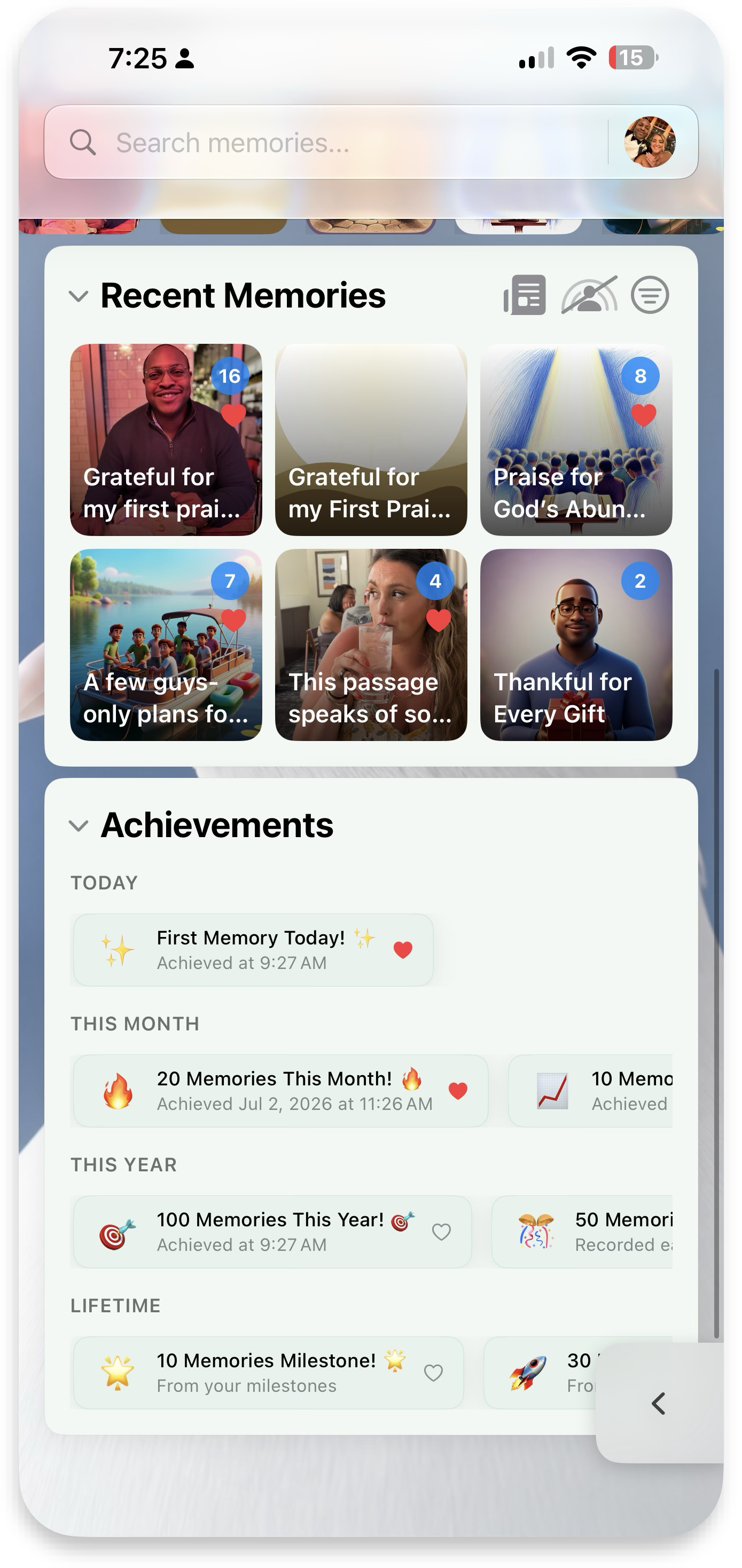 Expanded view
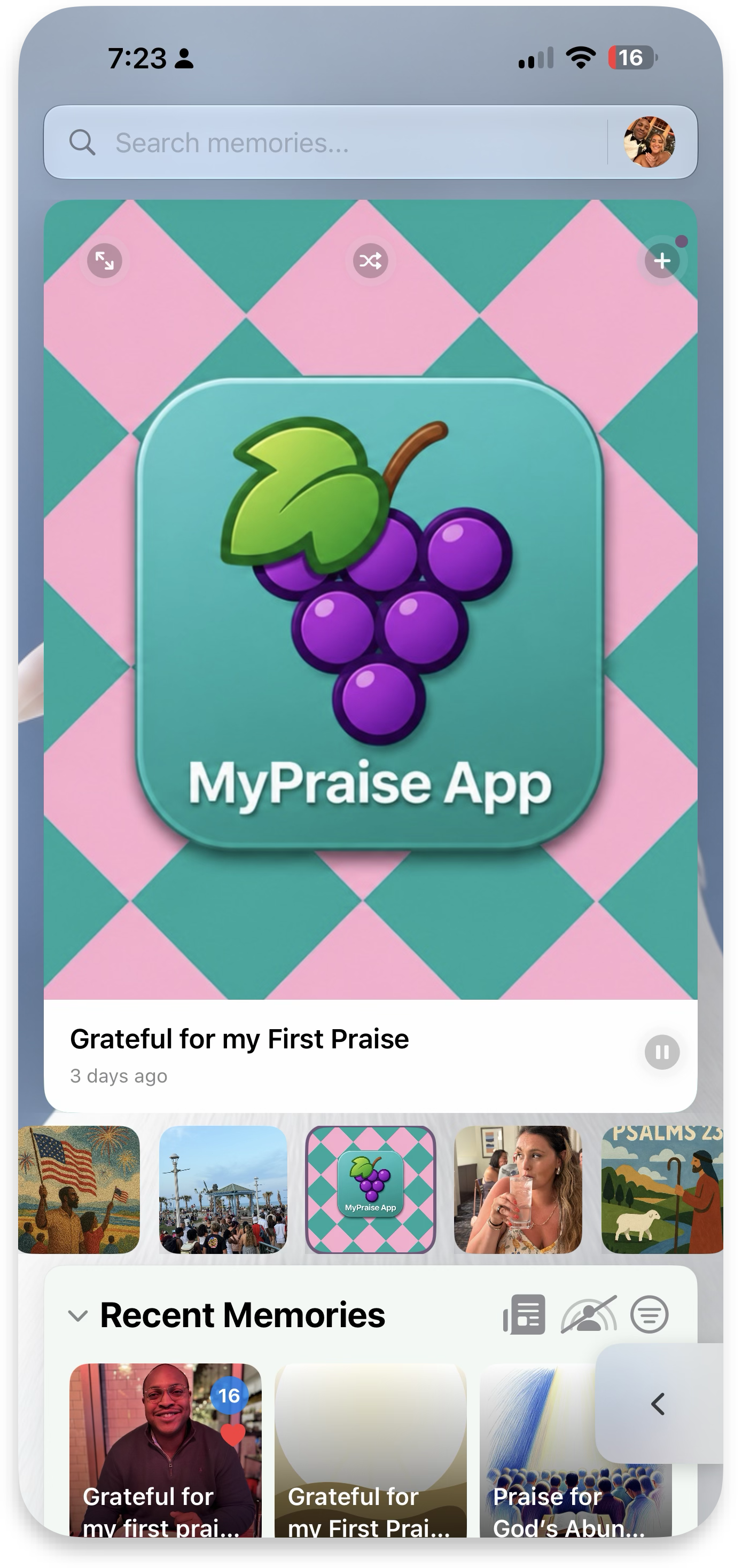 Title only
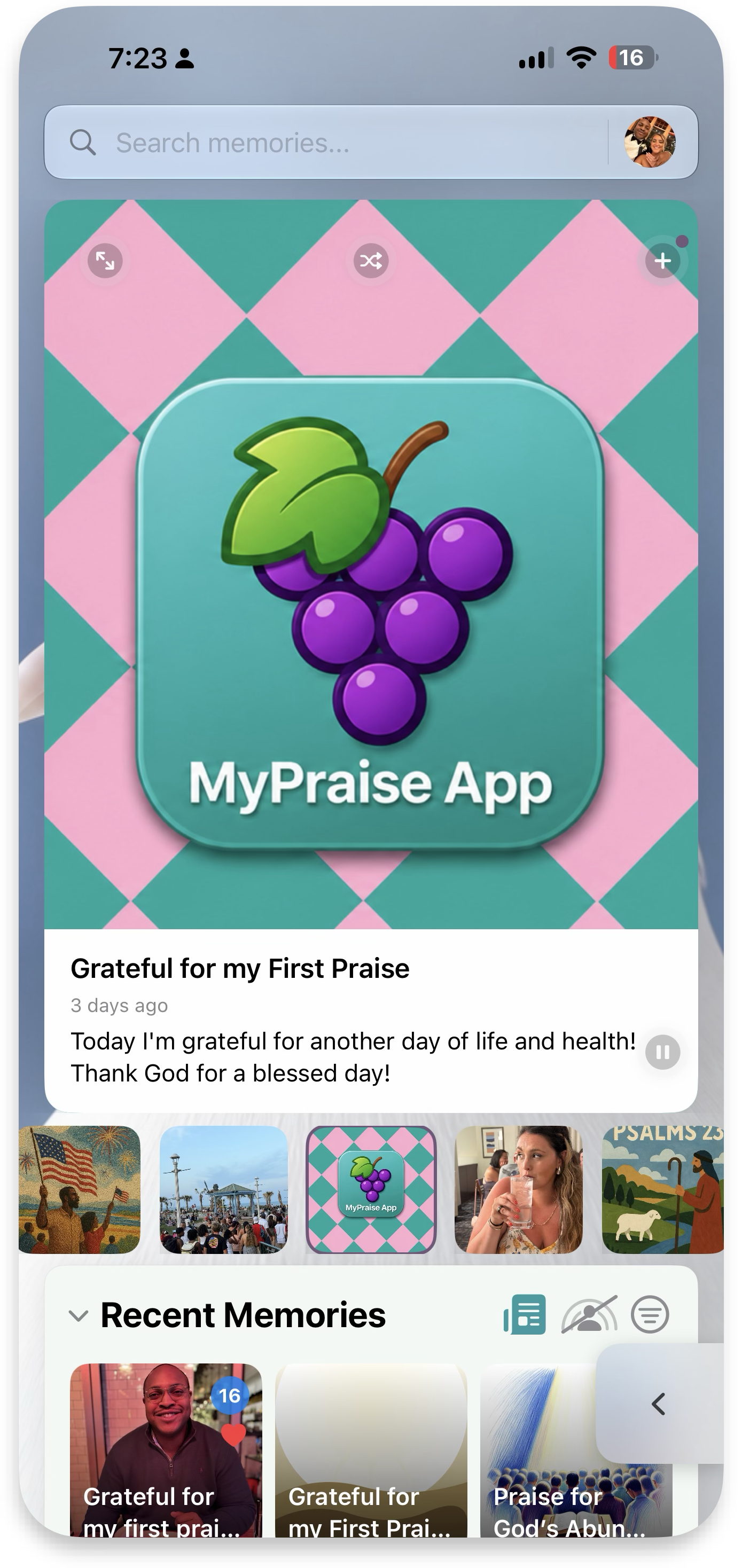 Title & memory
 Time-of-day view
 Private thumbnails
Quick Access menu
Easily create new memories, access the MyPraise Assistant, and launch Dream mode from the floating Quick Access menu — type to enter text right from it. Move the menu to magnet points, and hide it by swiping off screen.
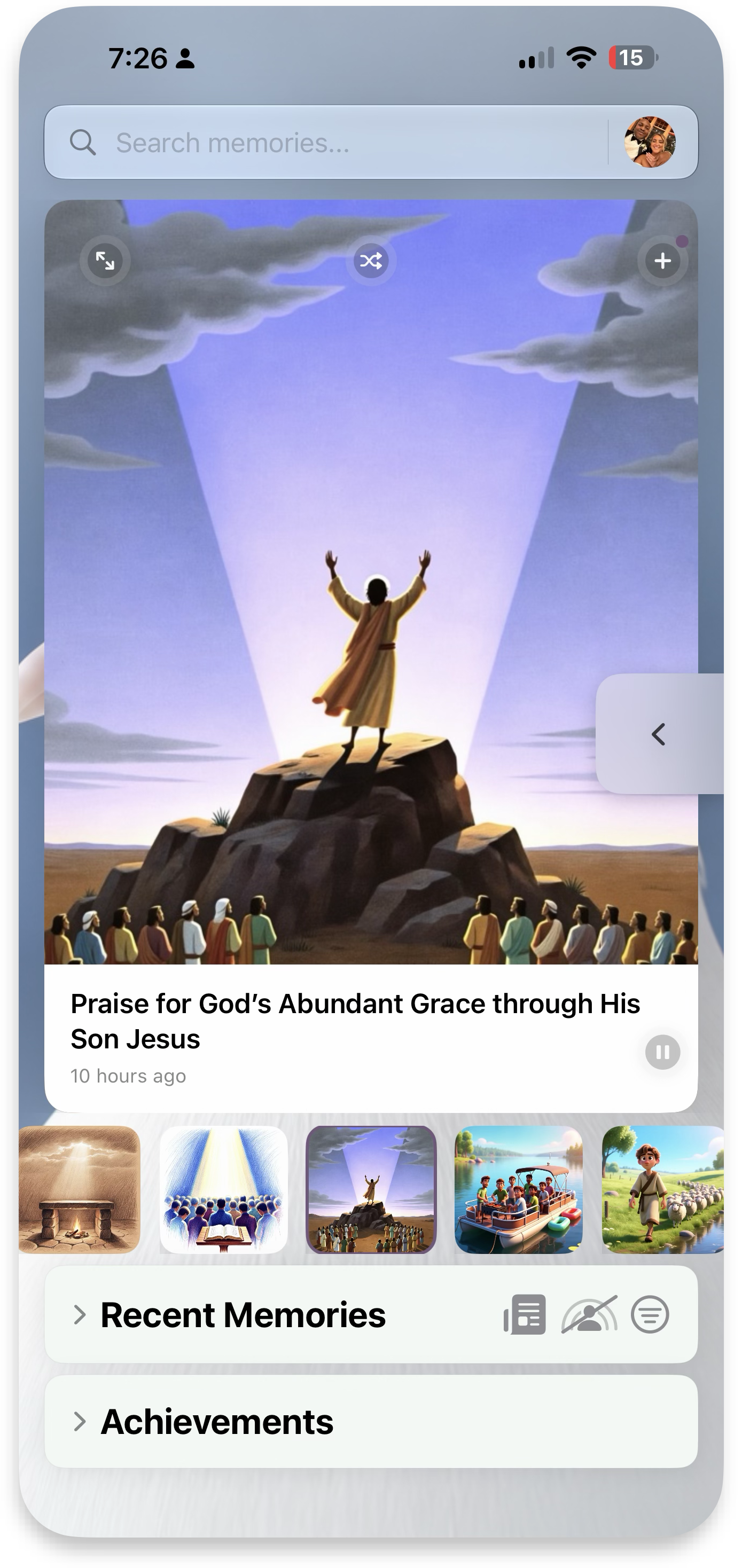 Collapsed
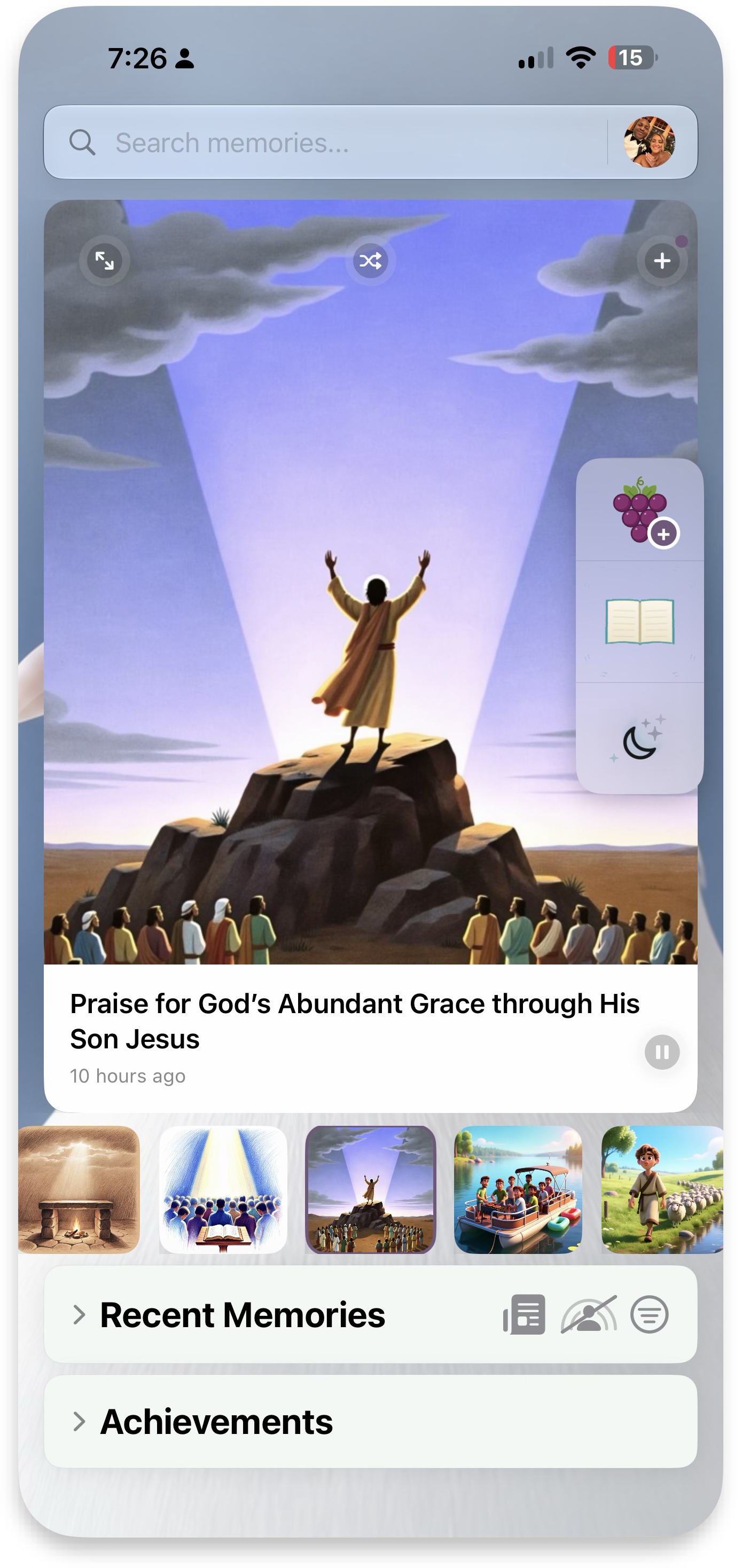 Expanded
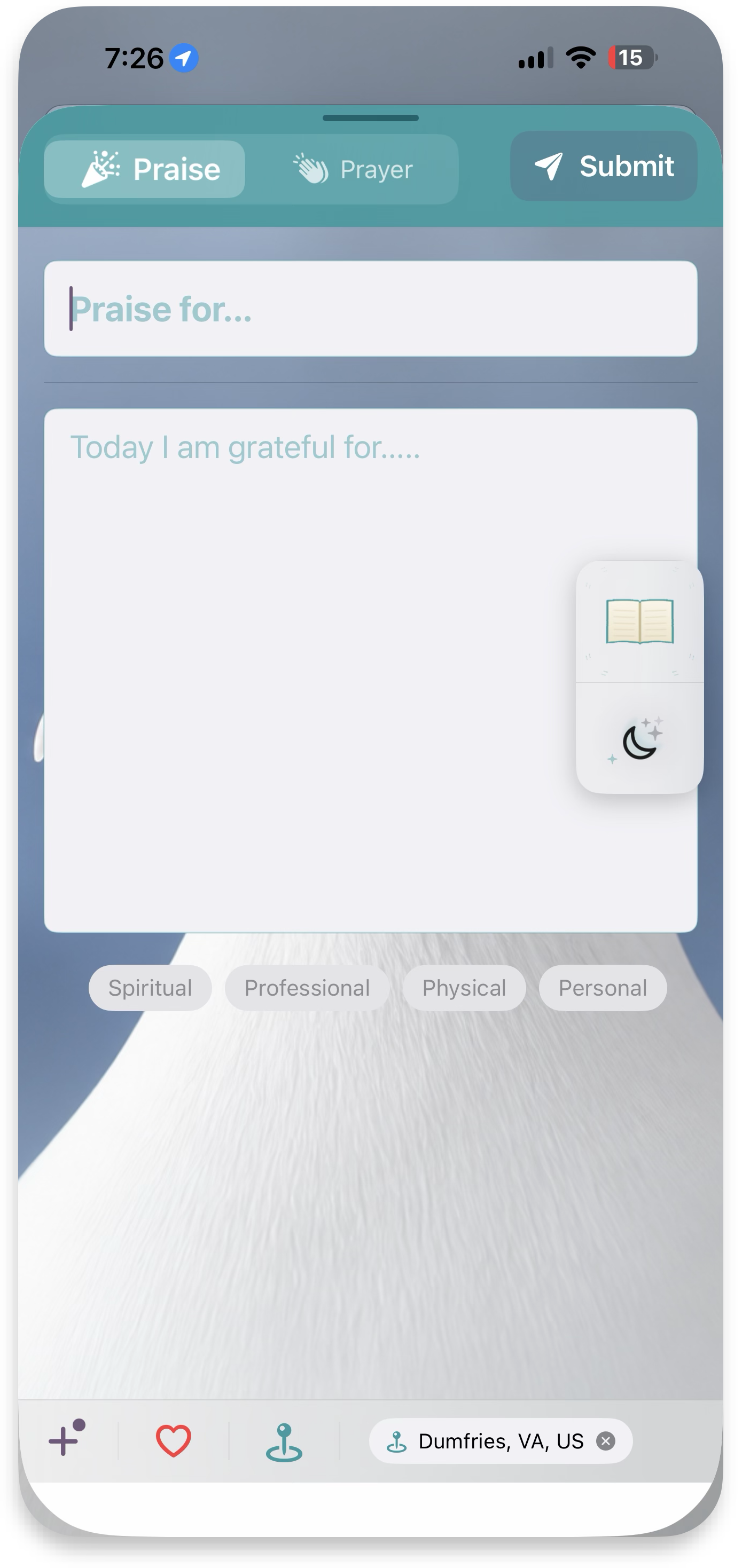 New memory
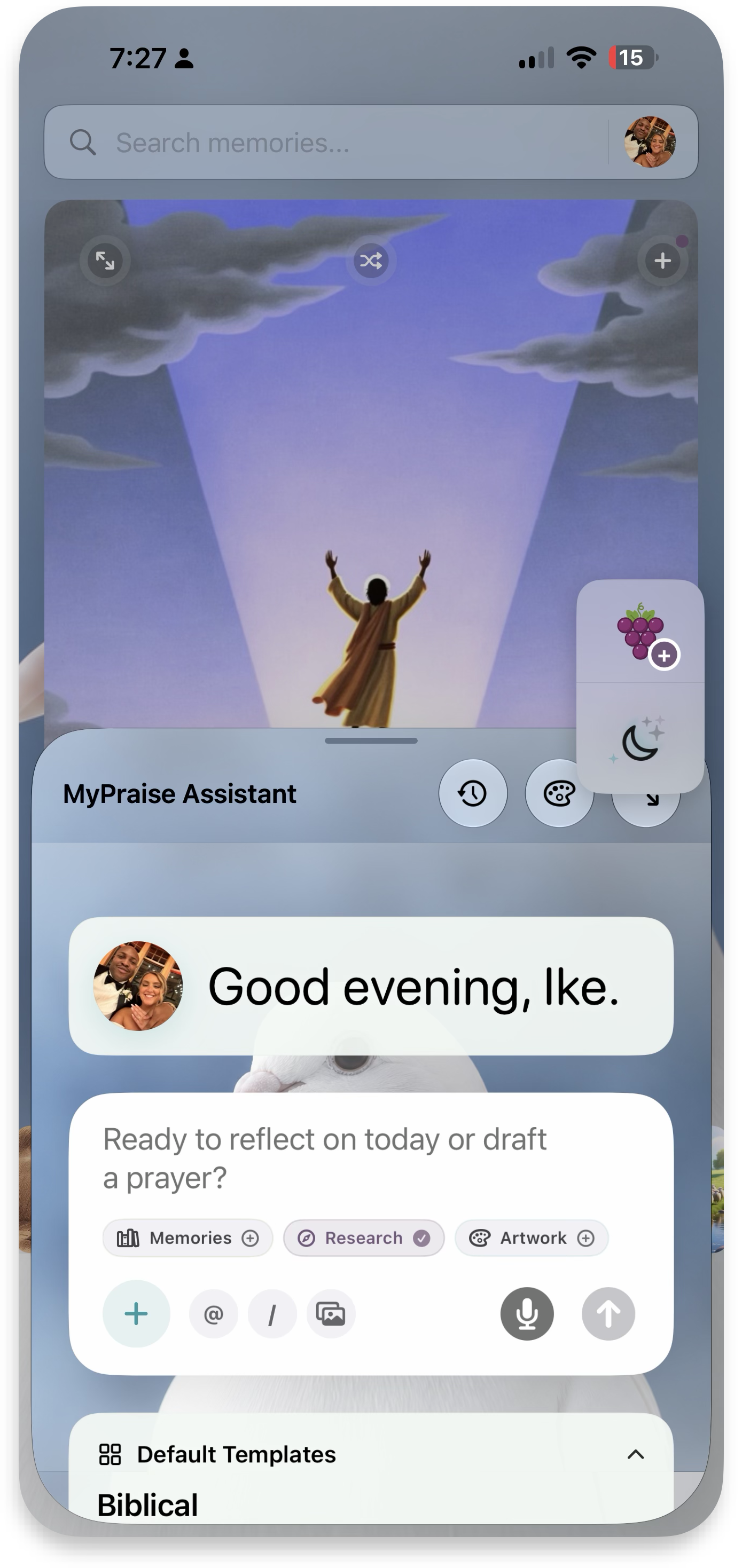 Assistant
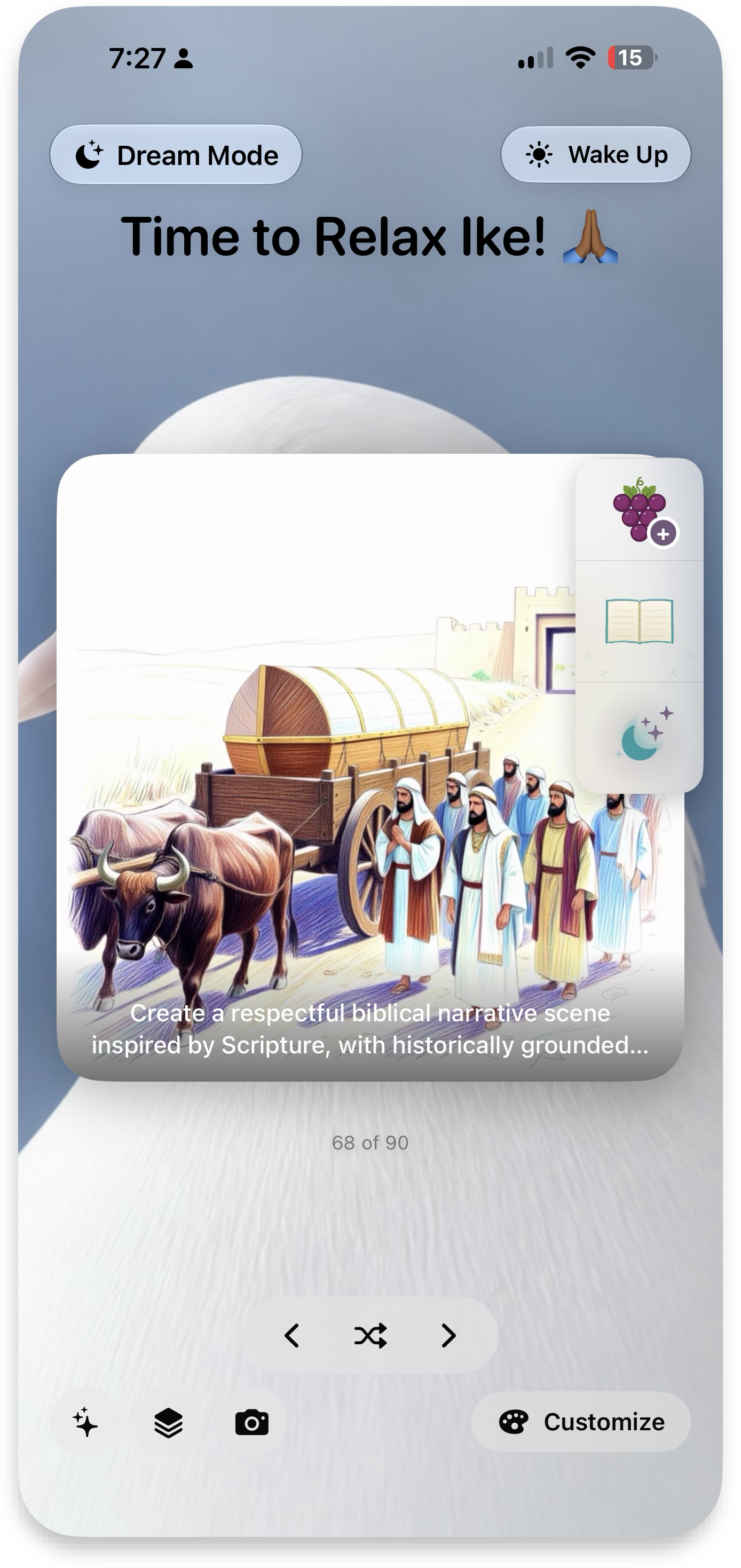 Dream Mode
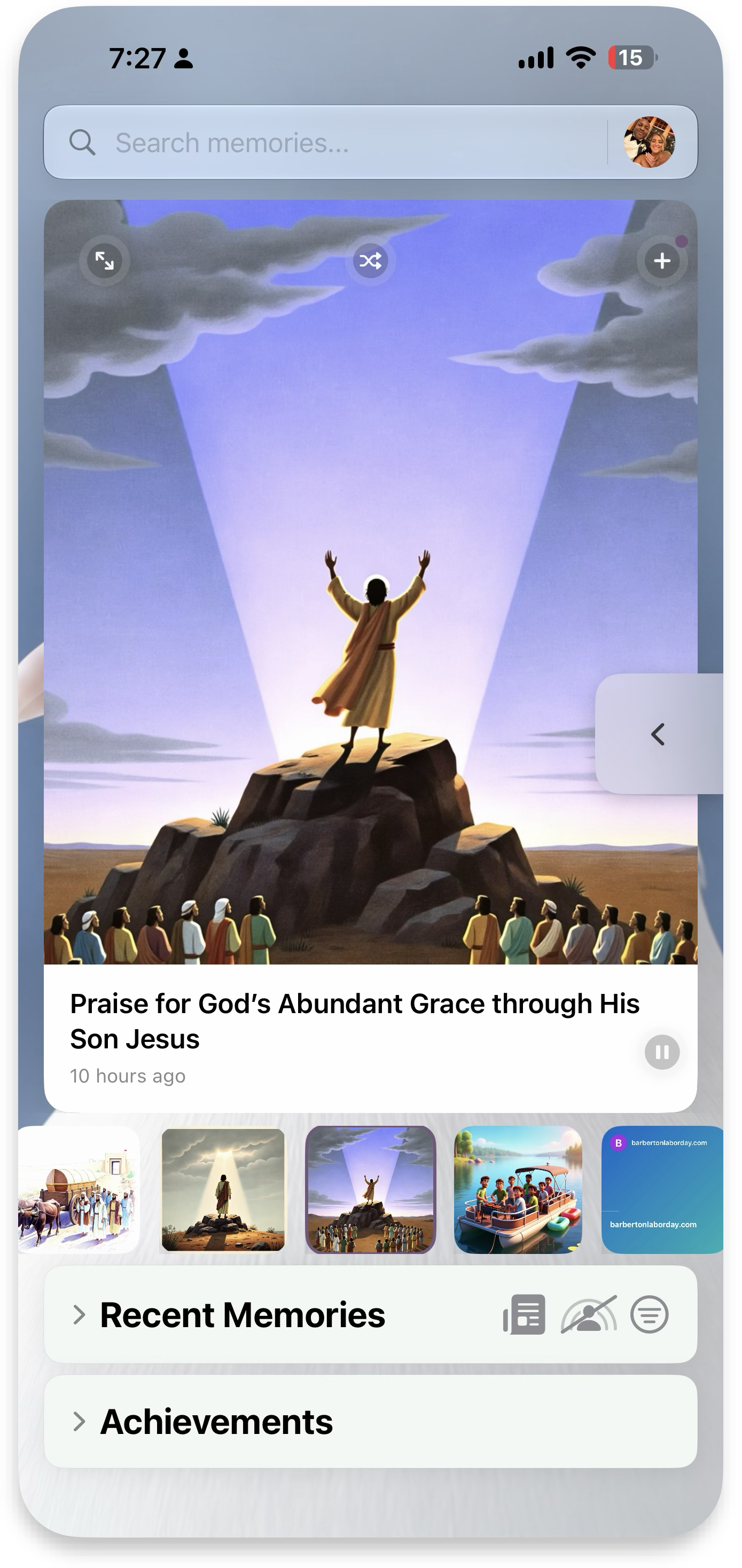 Magnet points
Hub management
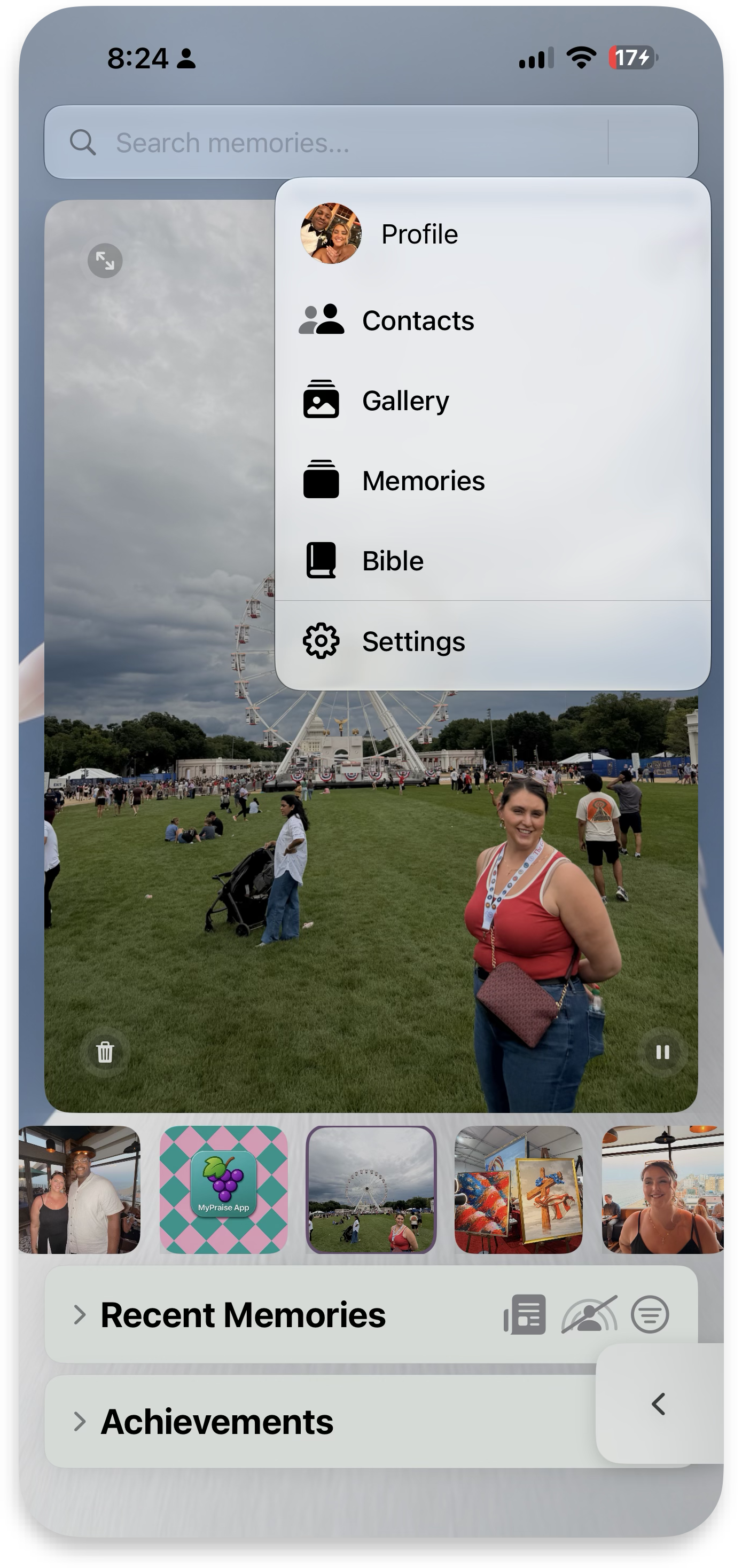
Hubs are how you interact with and view MyPraise App in many ways. Open the hubs menu from Home to jump into your Profile, Contacts, Gallery, Memories, Bible, and Settings — plus Reflection reports when you're ready to look back.
MyProfile
View your profile and watch your praises grow, reflect, and celebrate gratitude — your journey stats, streaks, favorite achievements, snapshot, and personalization for how the Assistant greets and knows you.
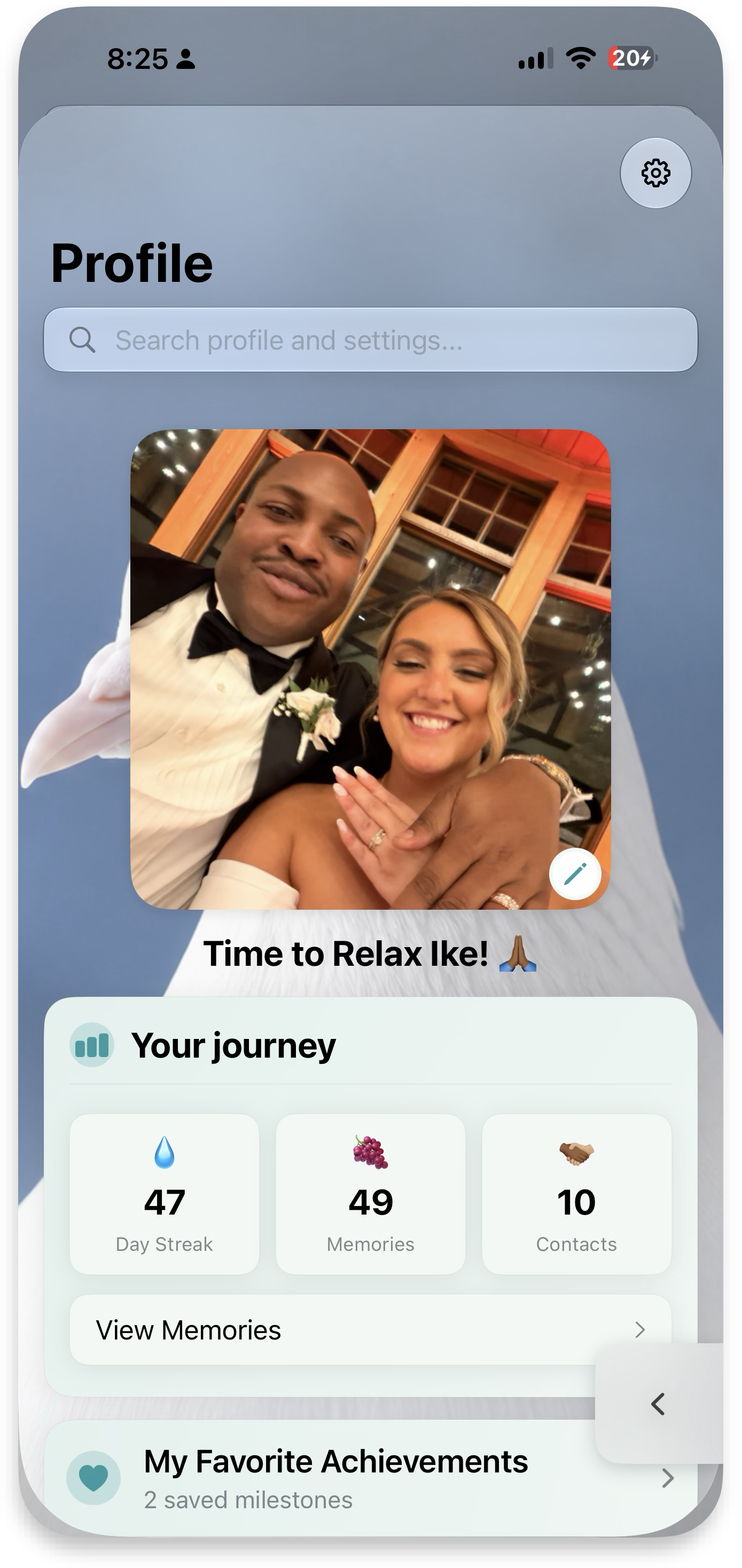 Profile
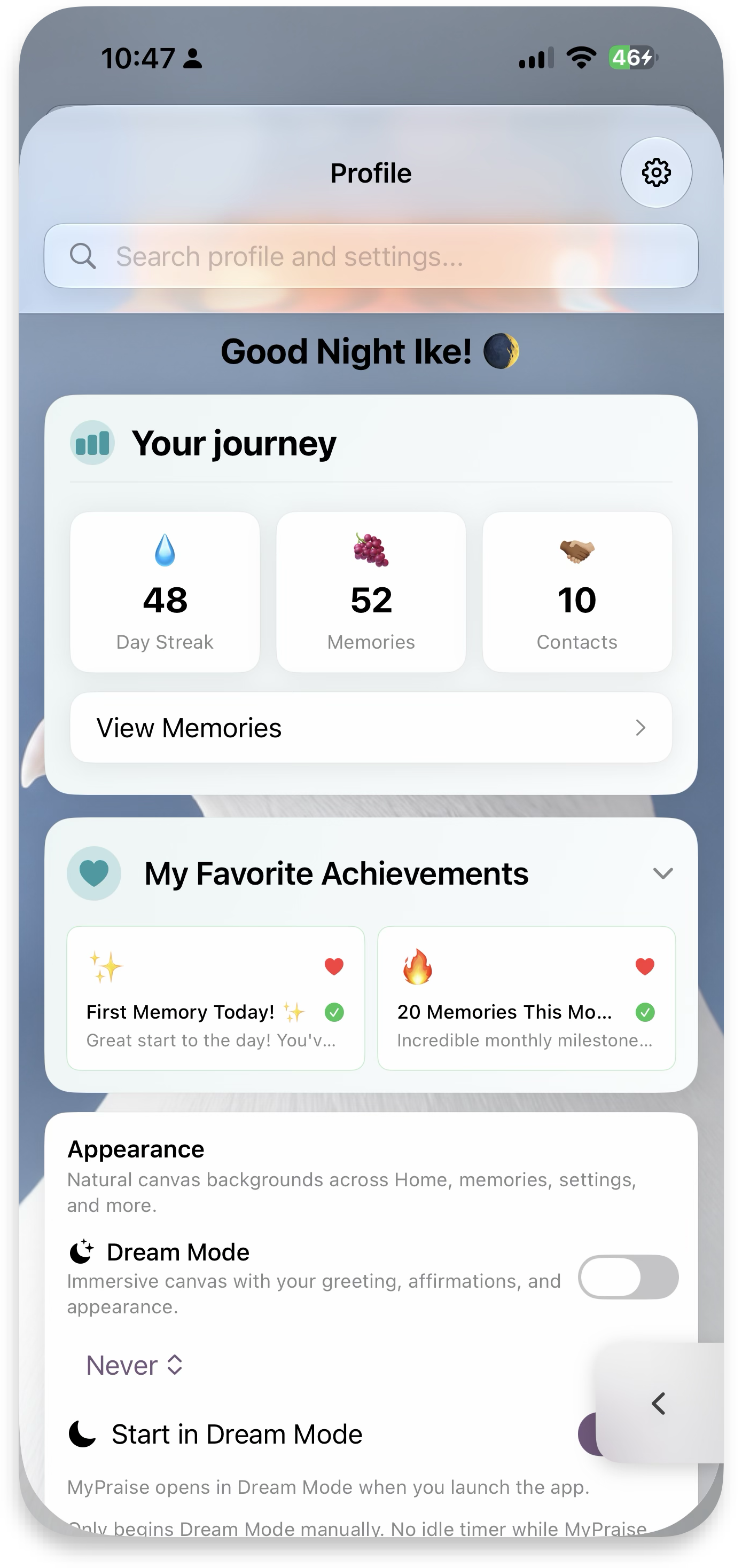 Your journey
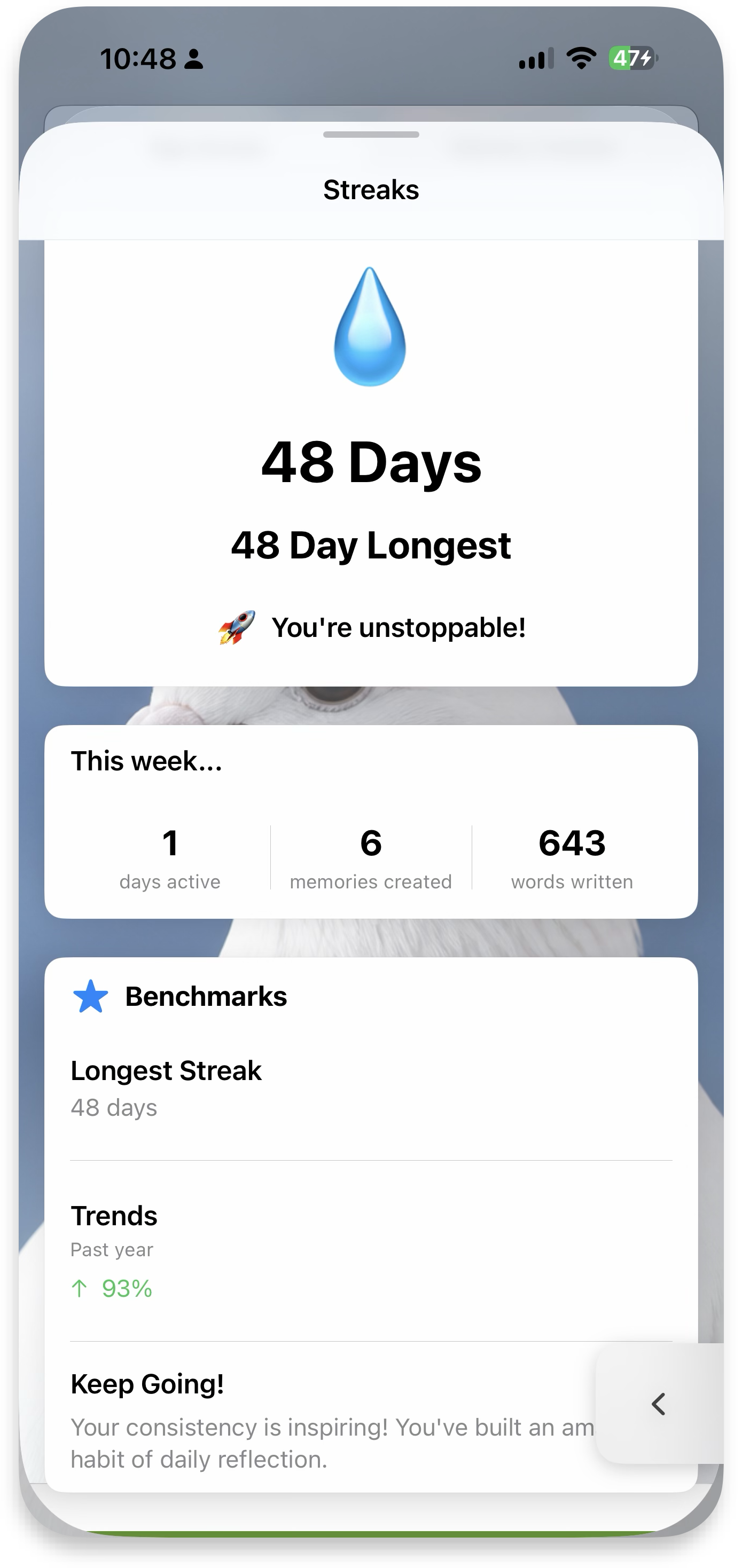 Streaks
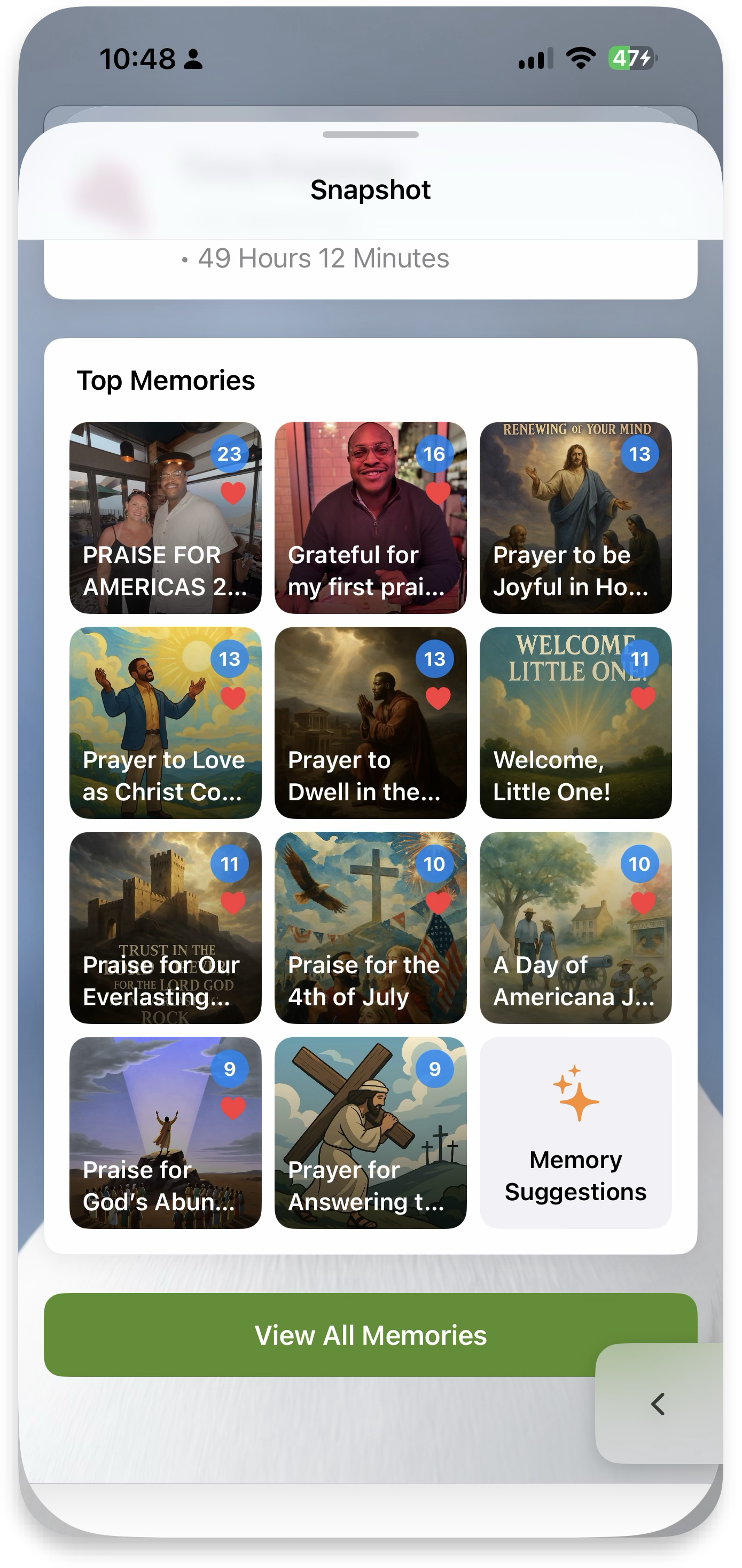 Snapshot
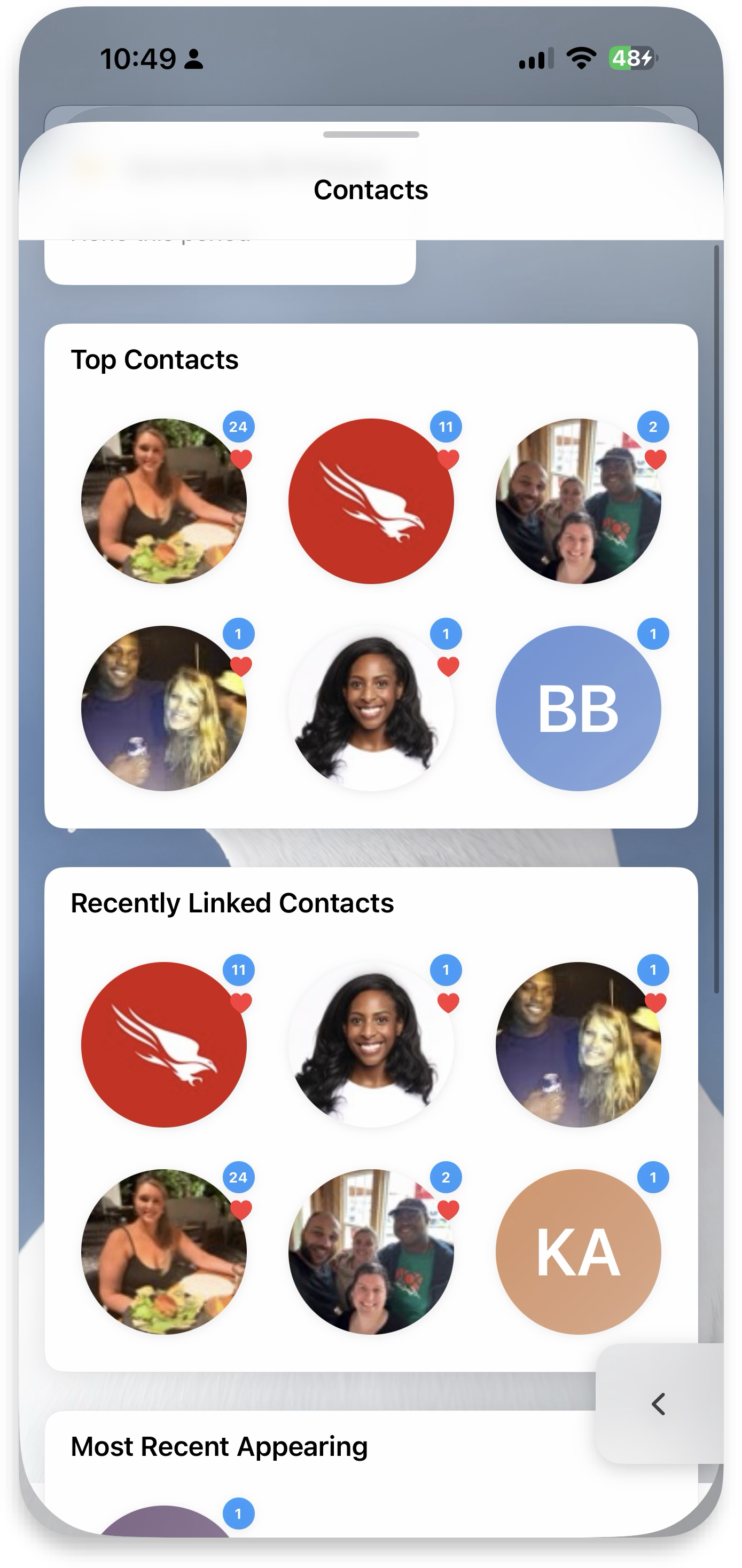 Contacts insights
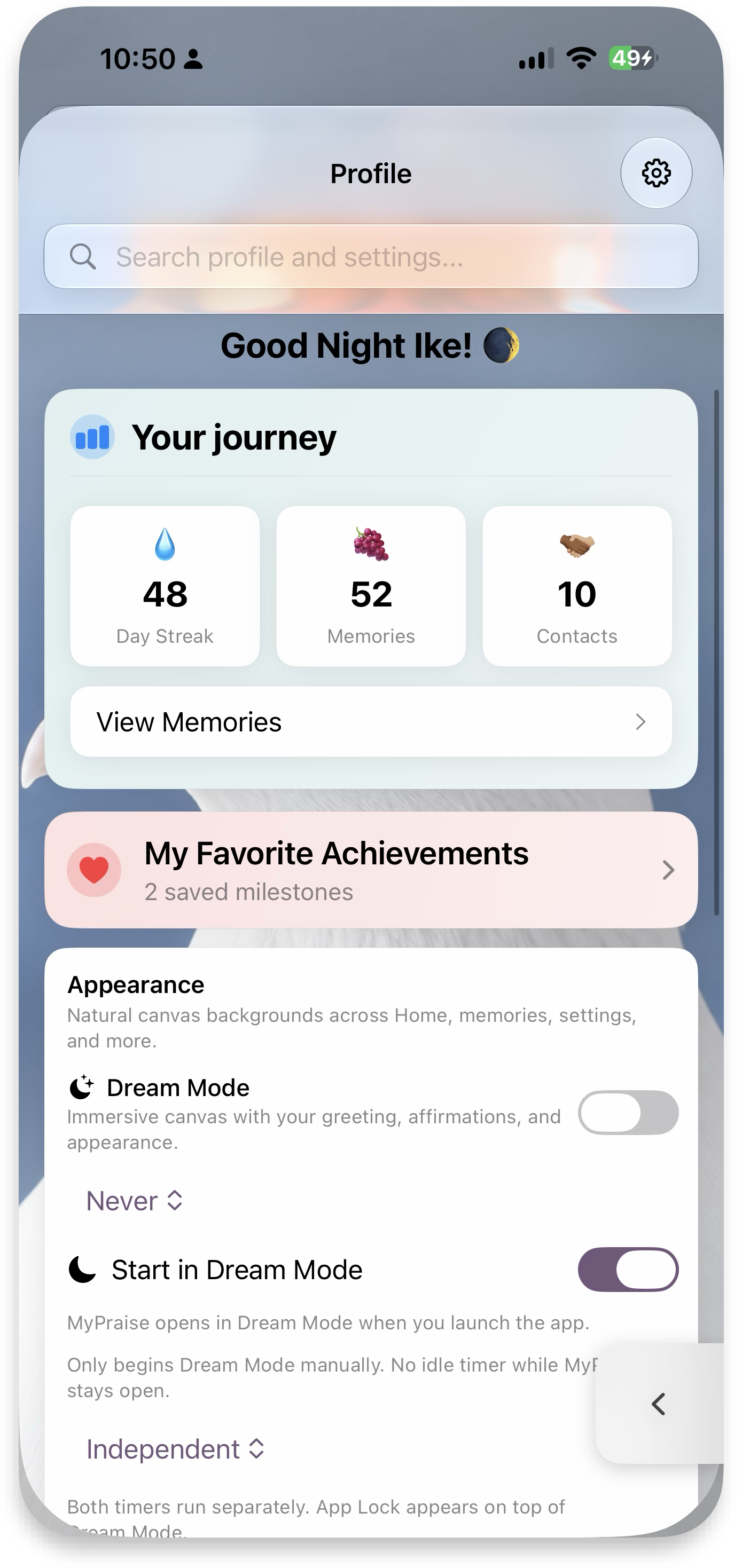 Favorites
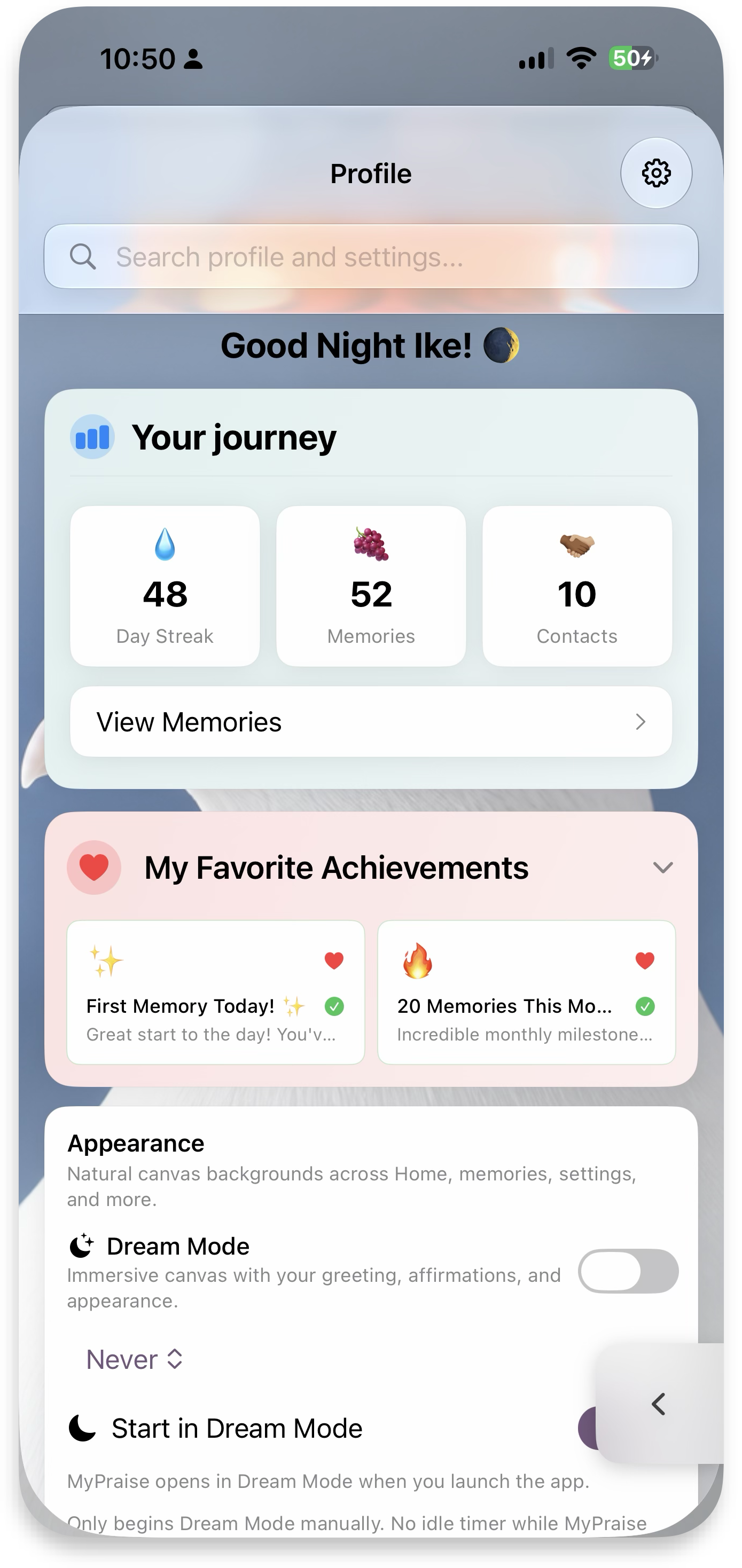 Achievements
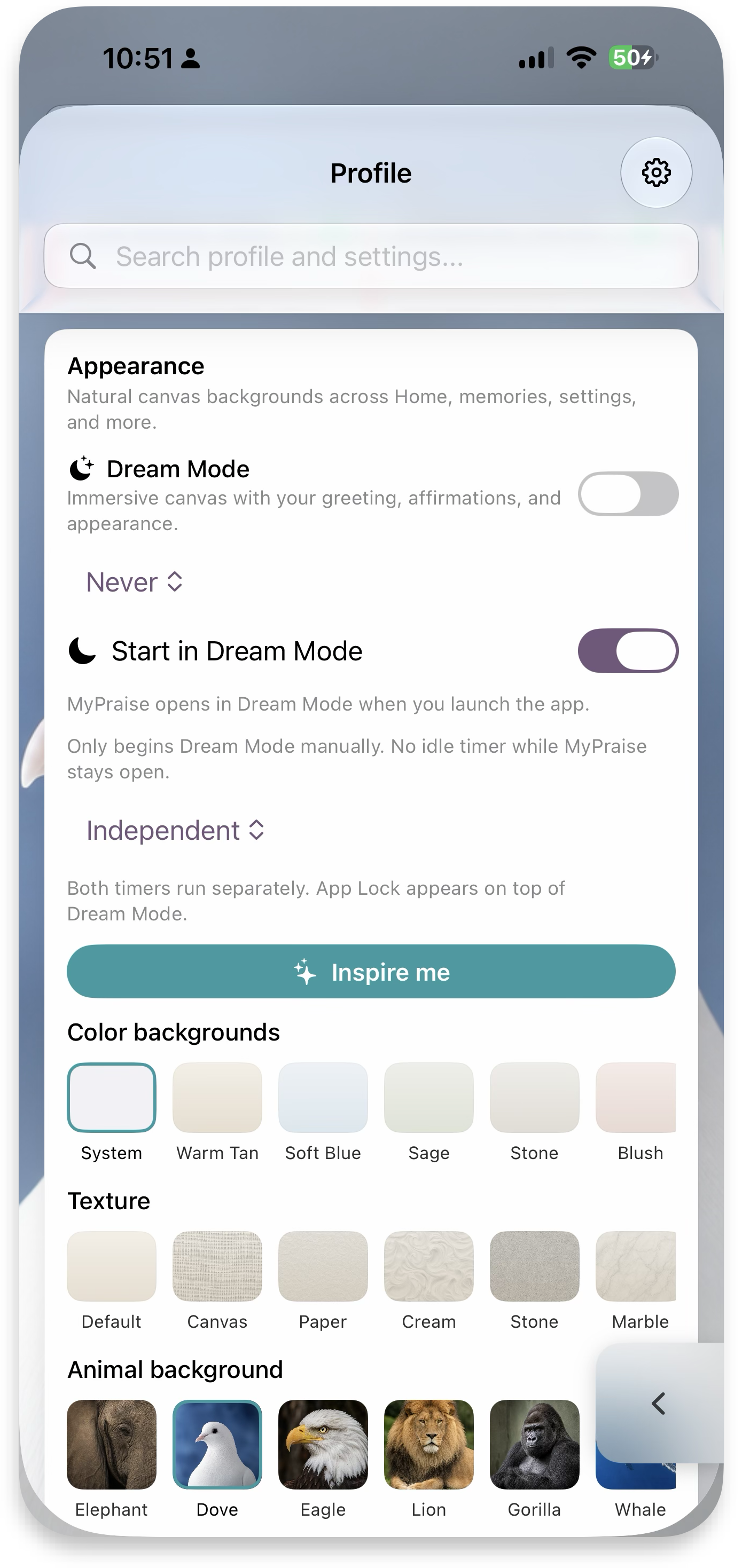 Appearance
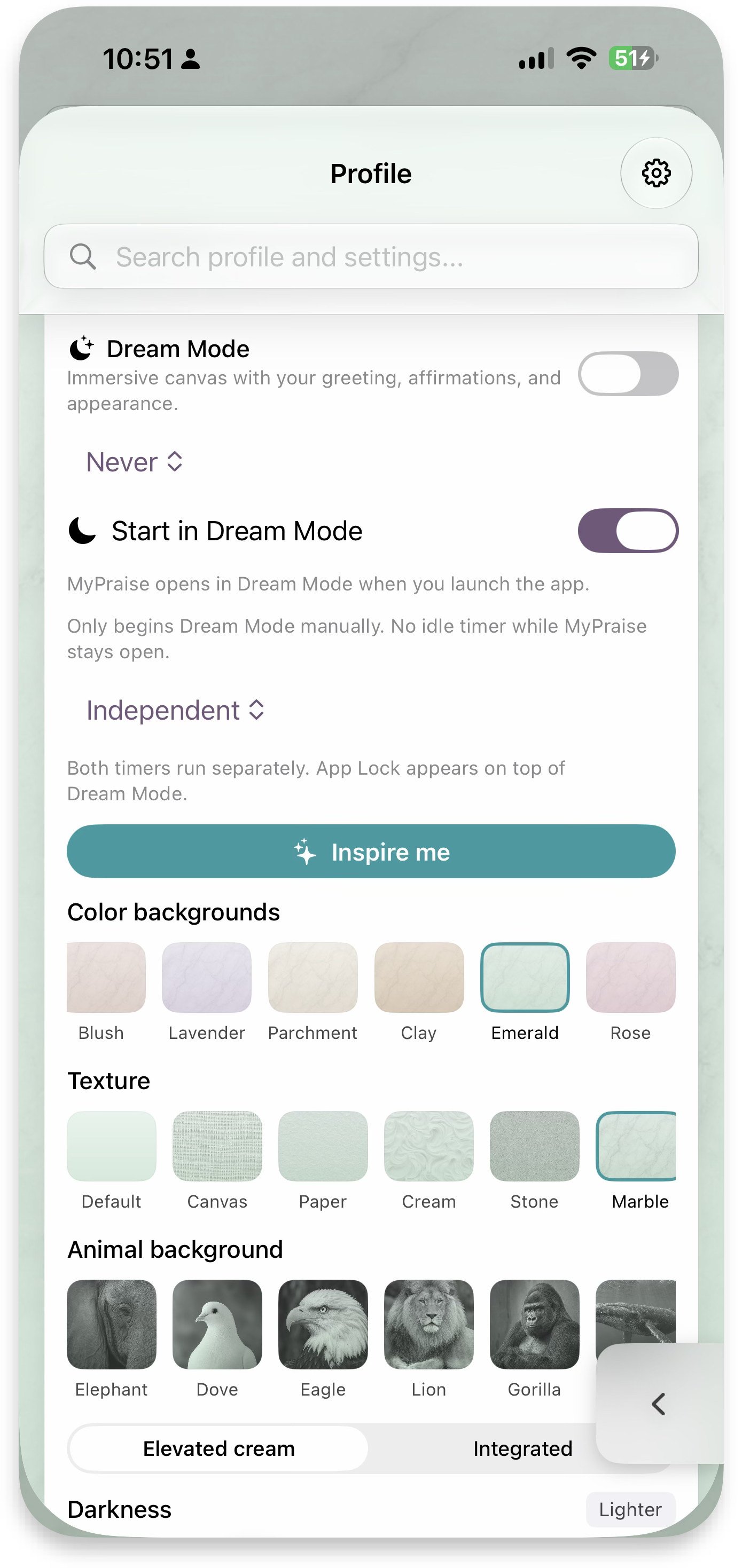 Palettes
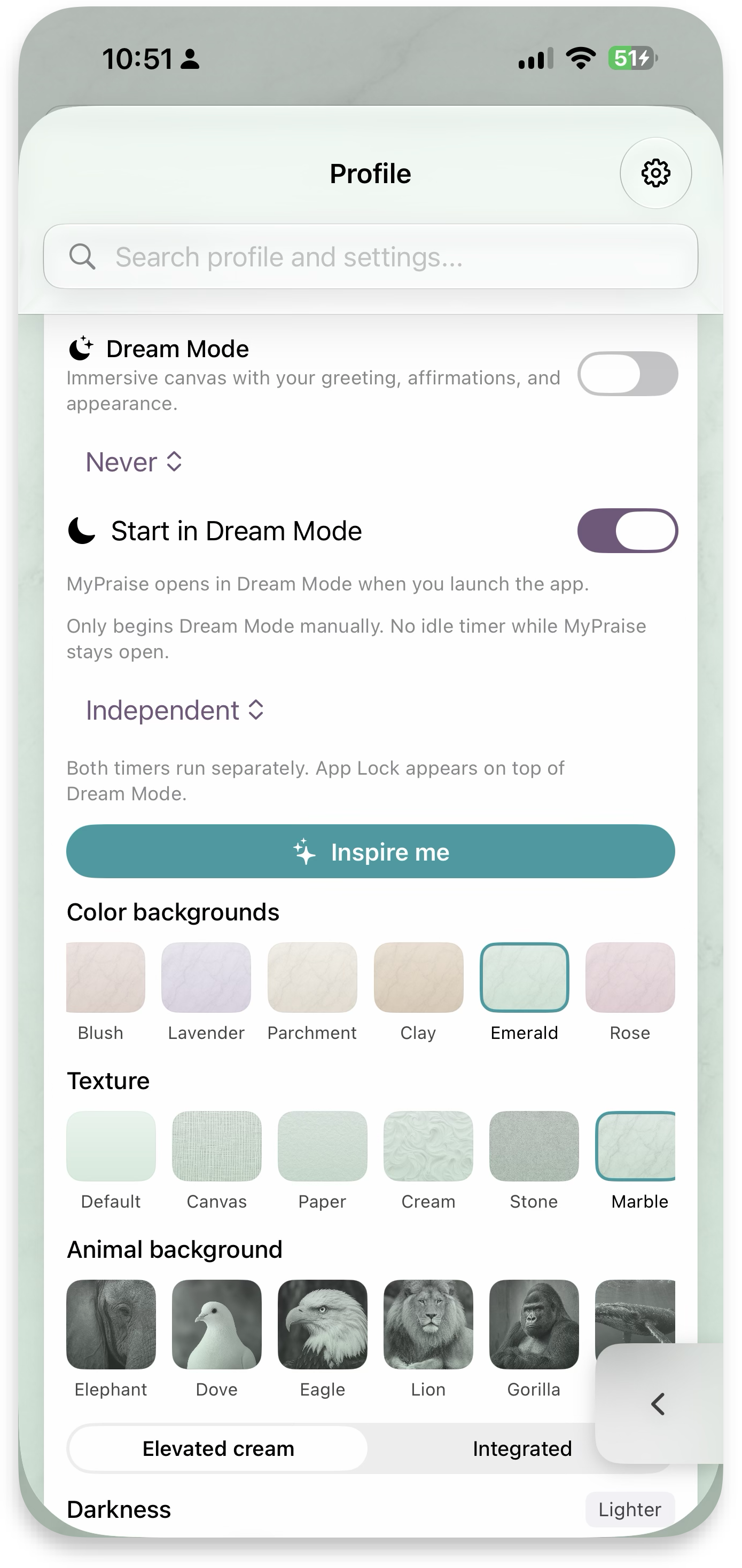 Textures & animals
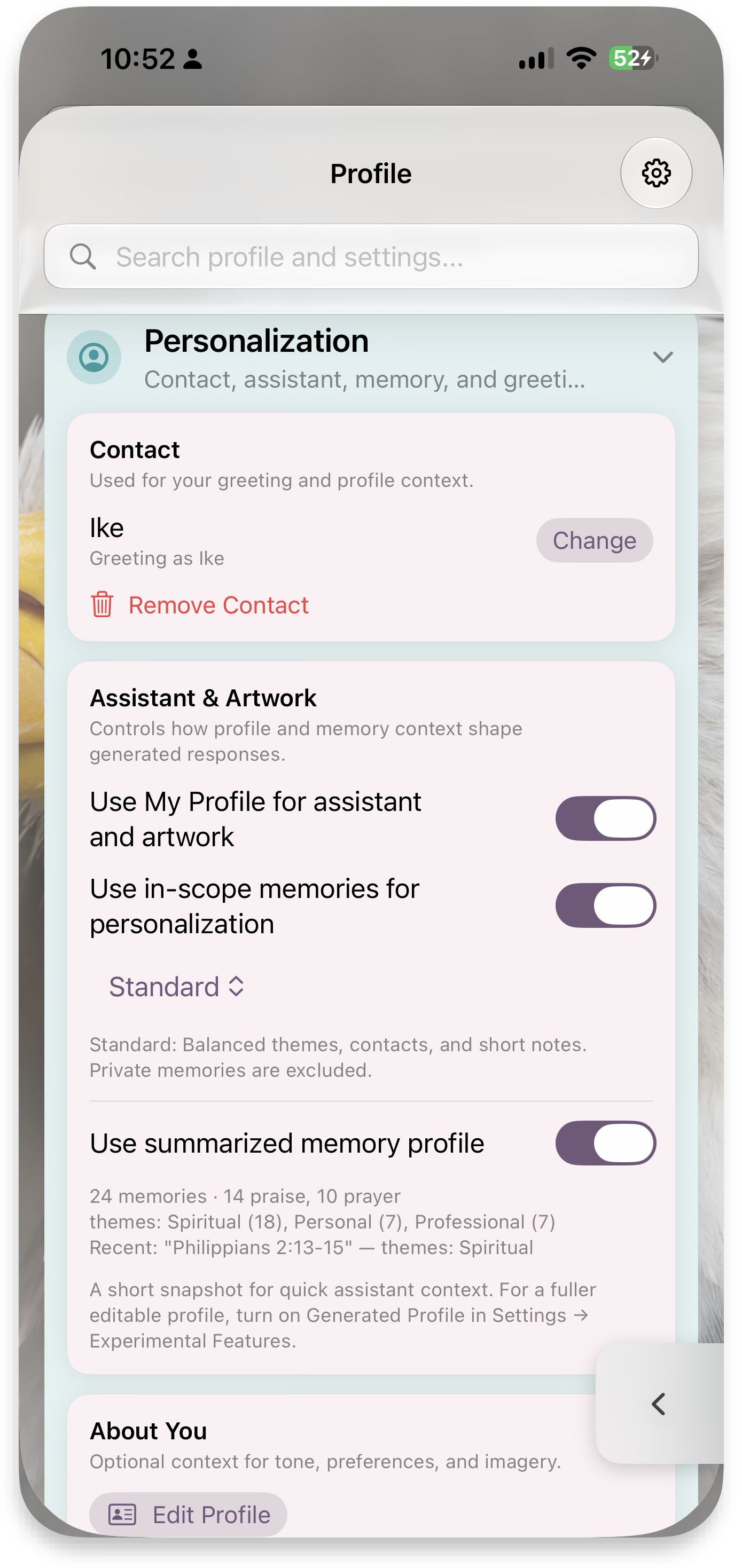 Personalization
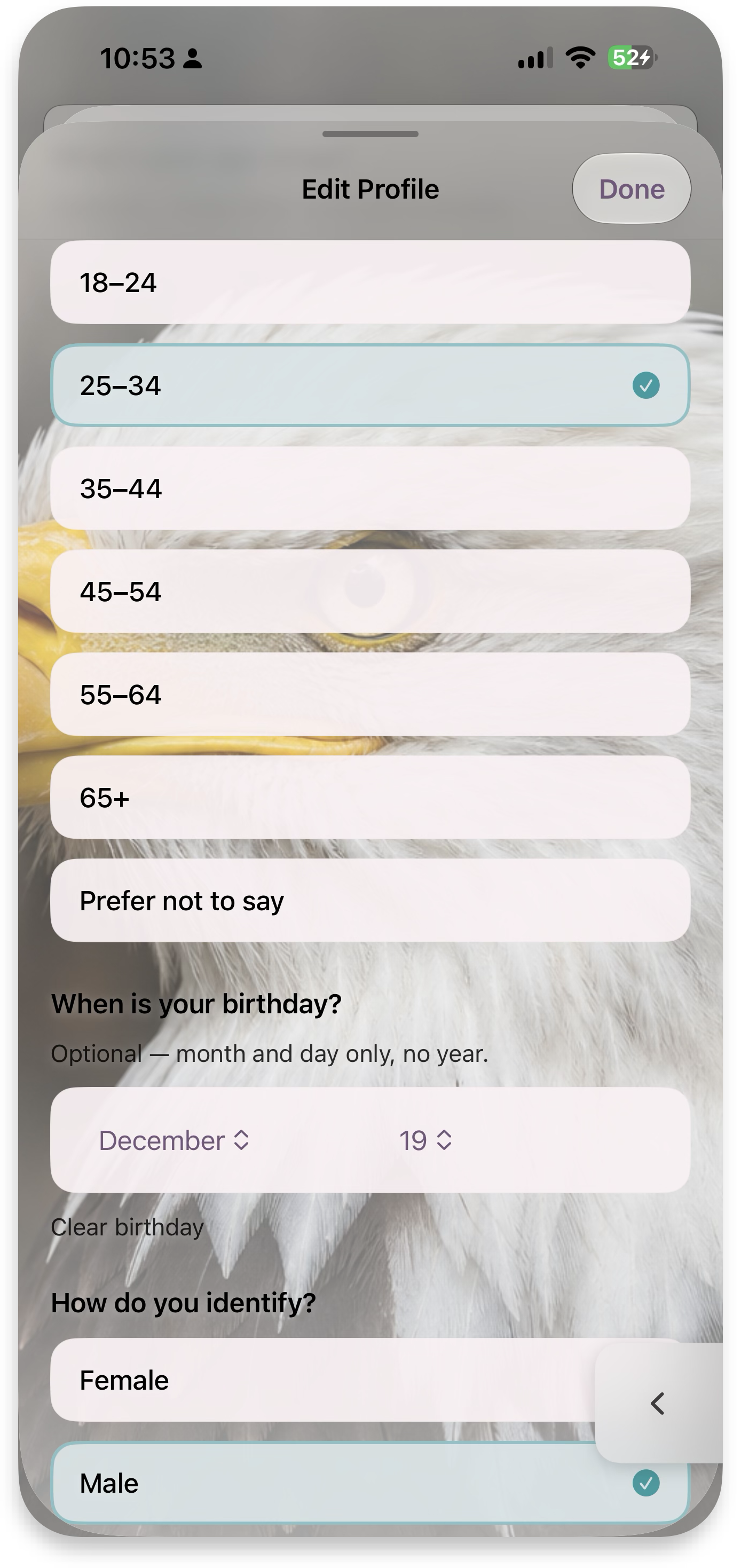 Edit Profile
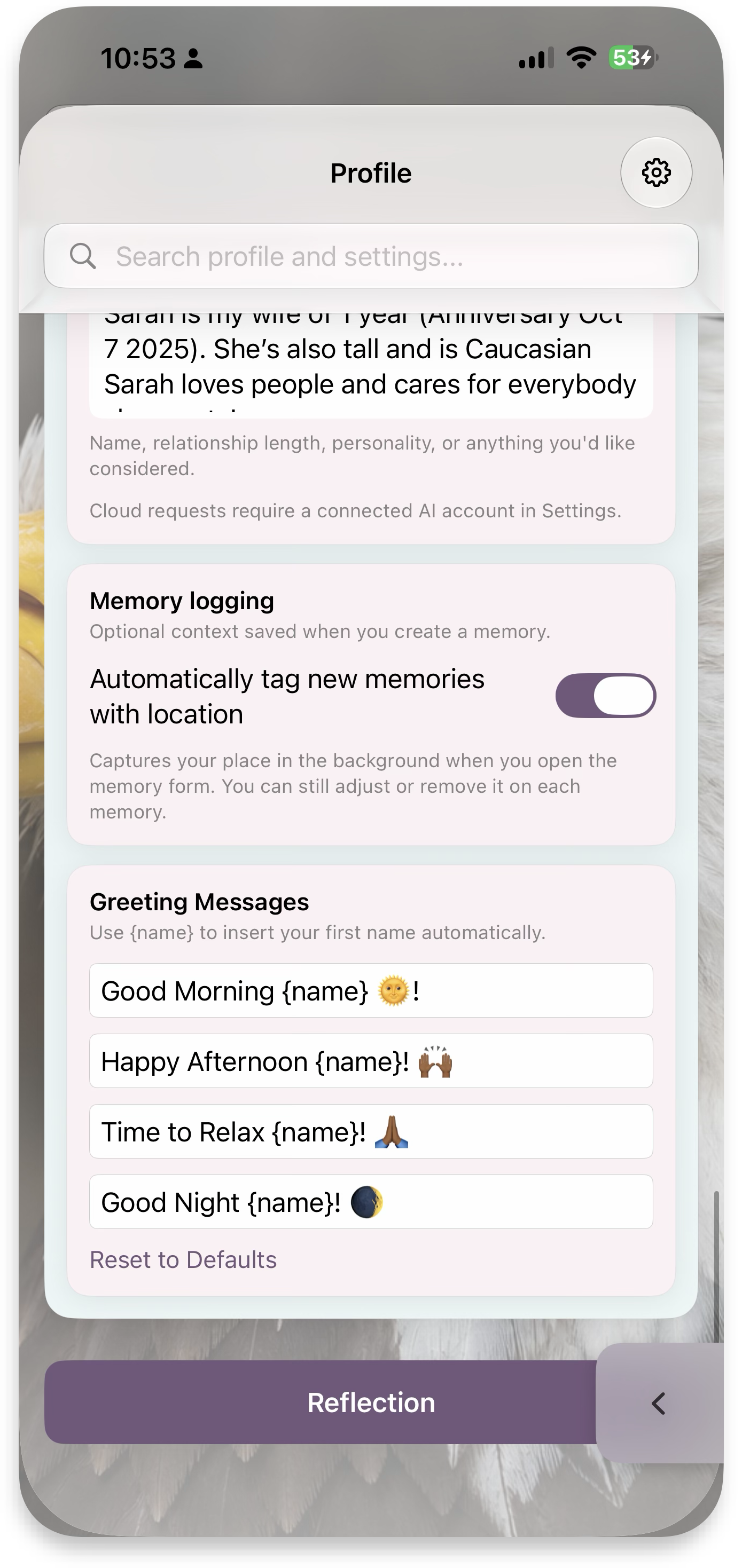 Greetings & logging
MyContacts
Whether you added contacts in Onboarding or skipped it, the Contacts hub is your place to add more, create contact groups, reach out to your contacts, and see your memories and photos with the people you care about. Contacts are circular initials avatars; in a group stack each gets a white stroke so overlapping circles stay legible.
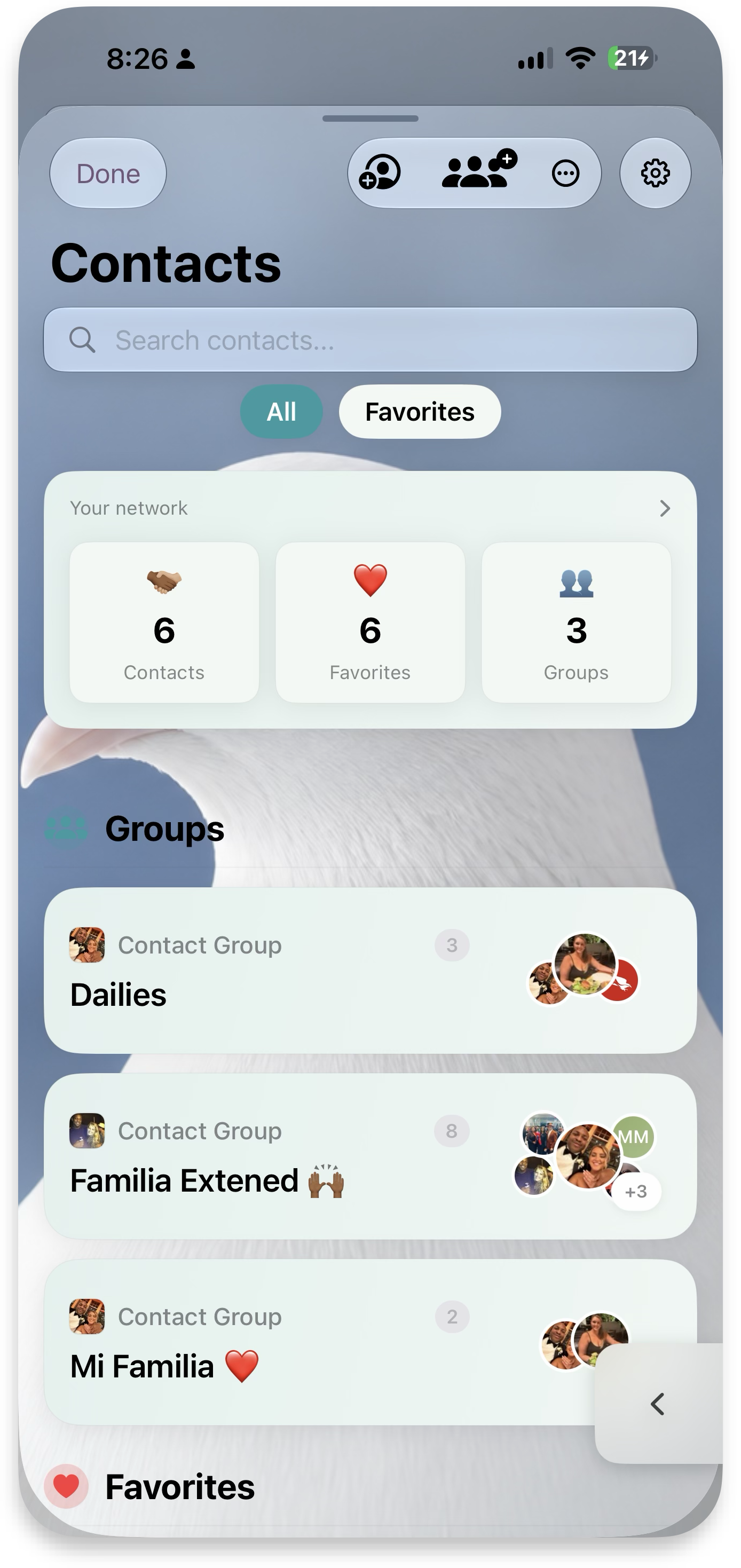 Contacts hub
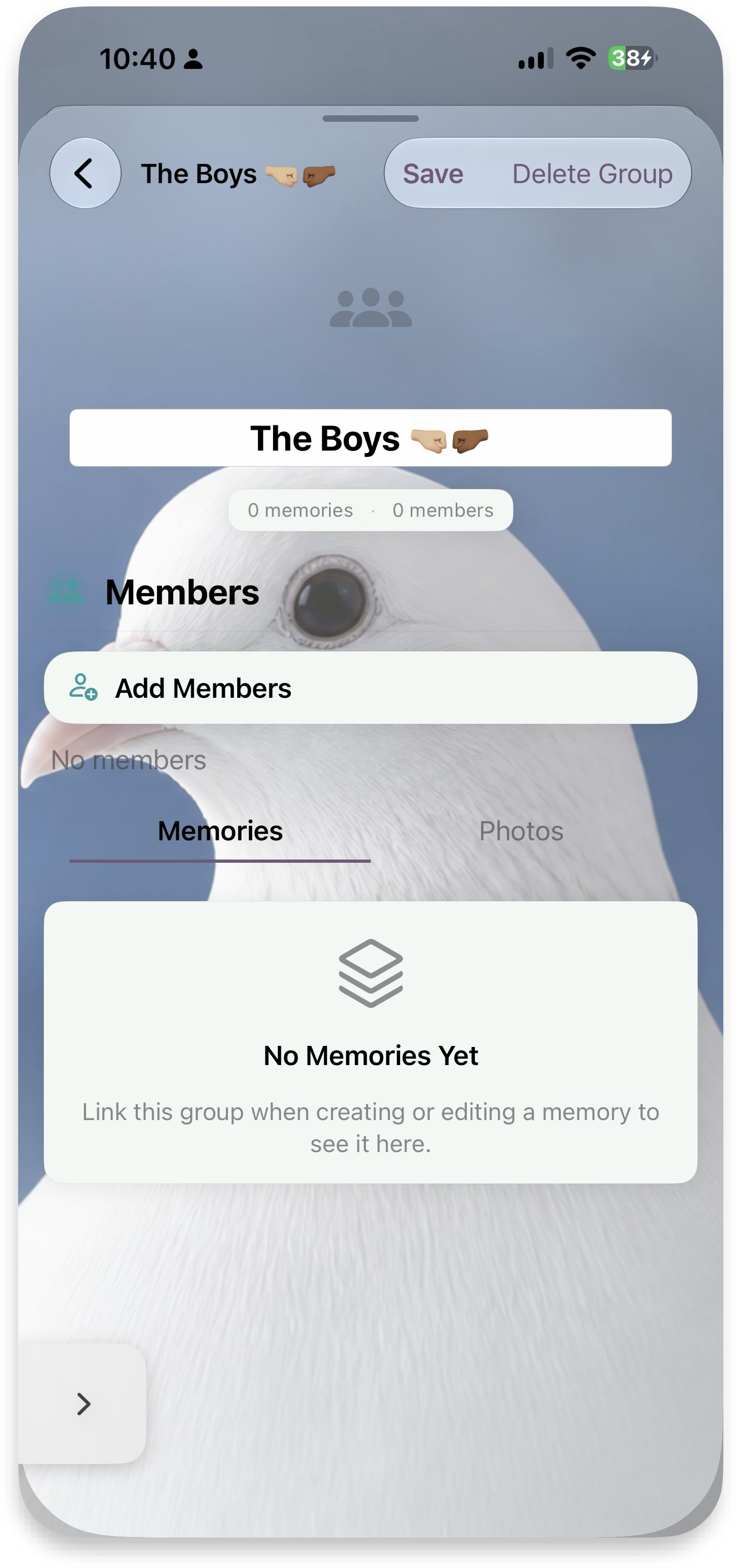 New group
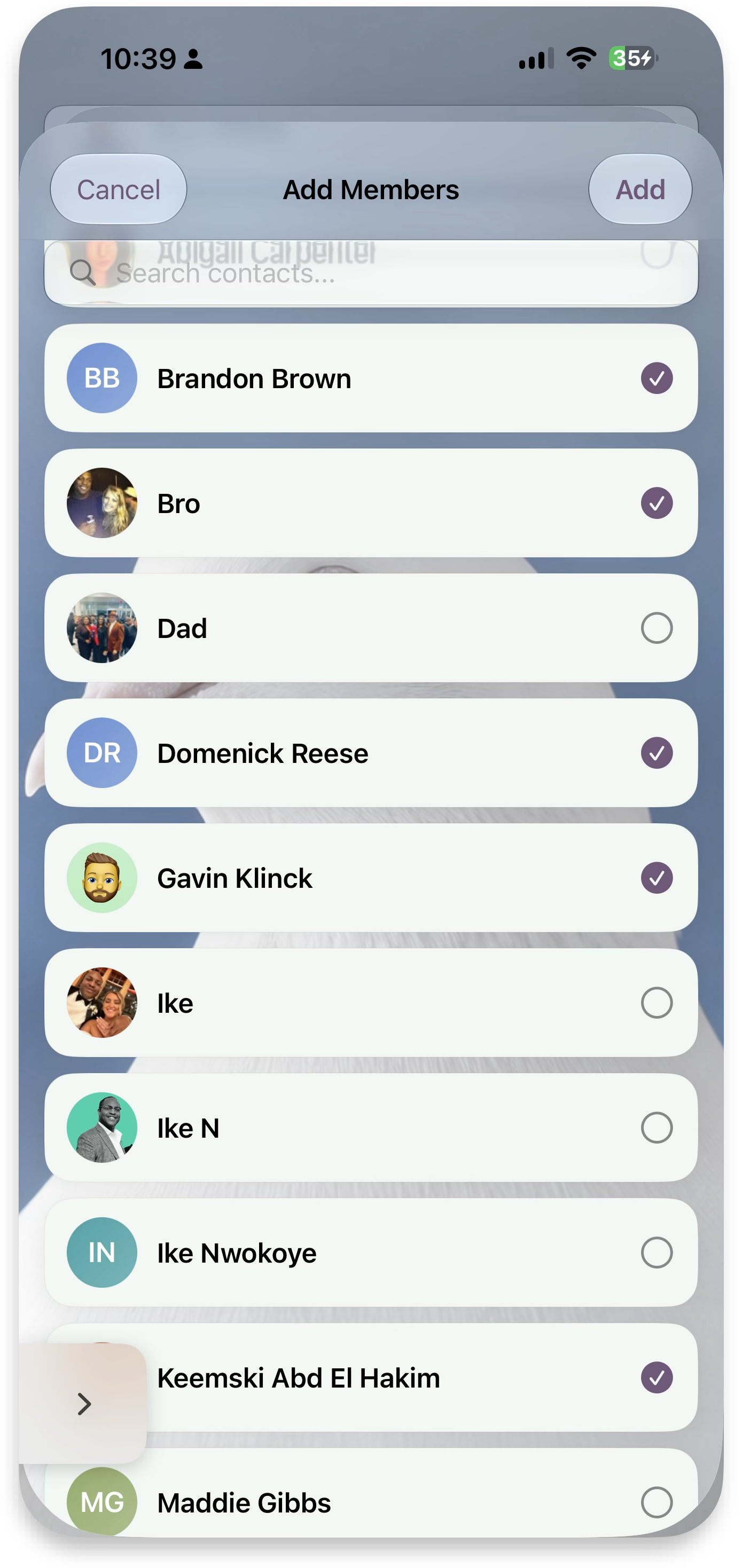 Add members
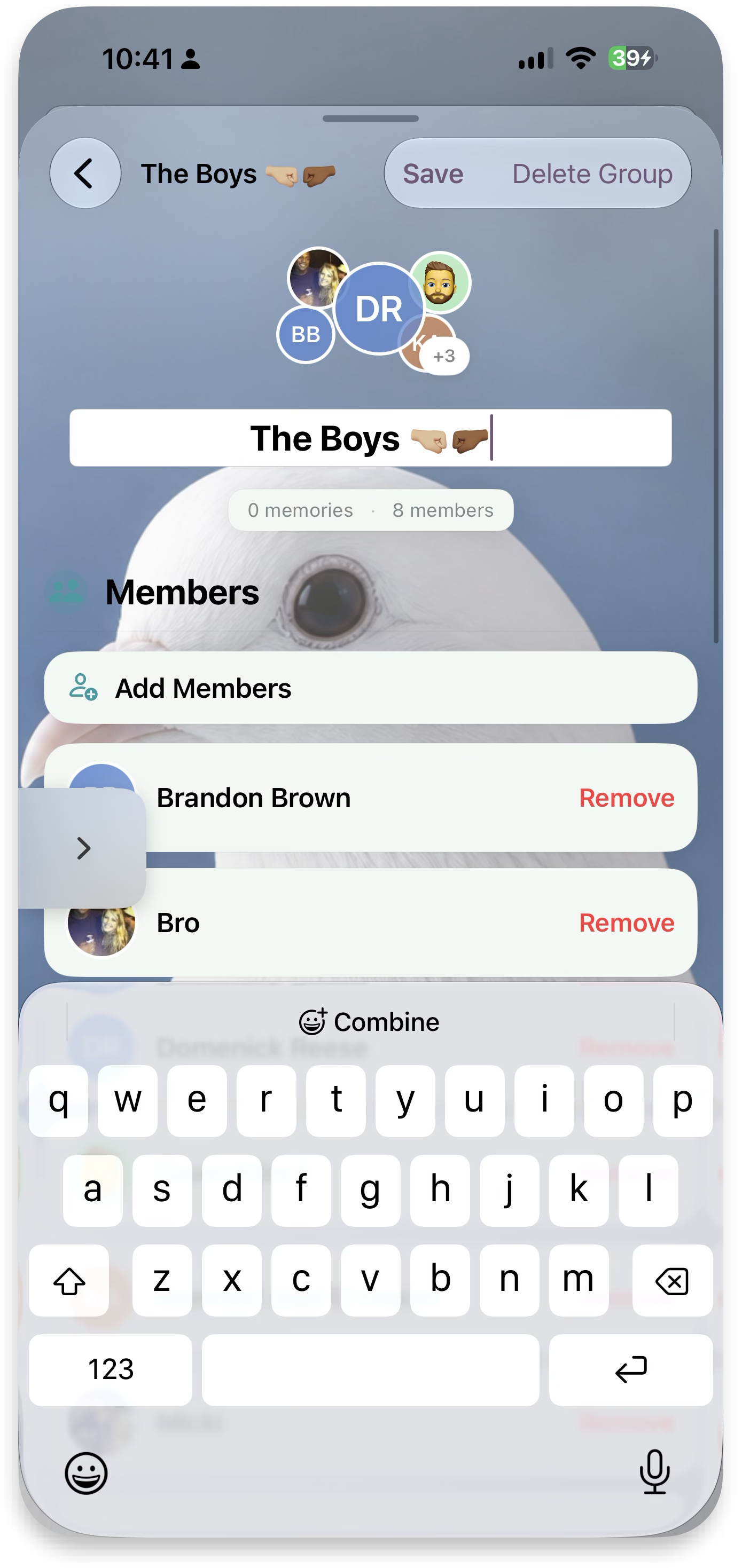 Group members
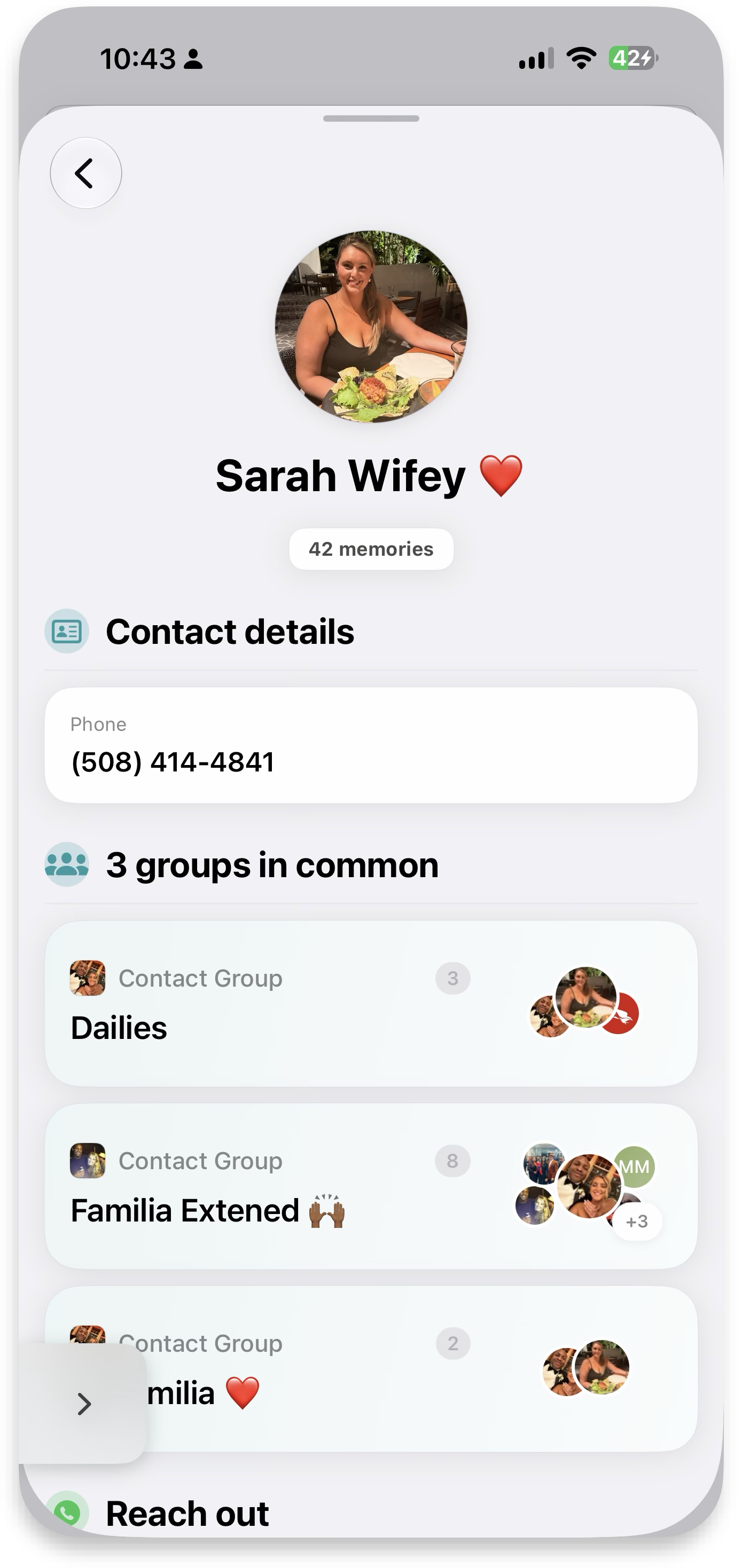 Contact detail
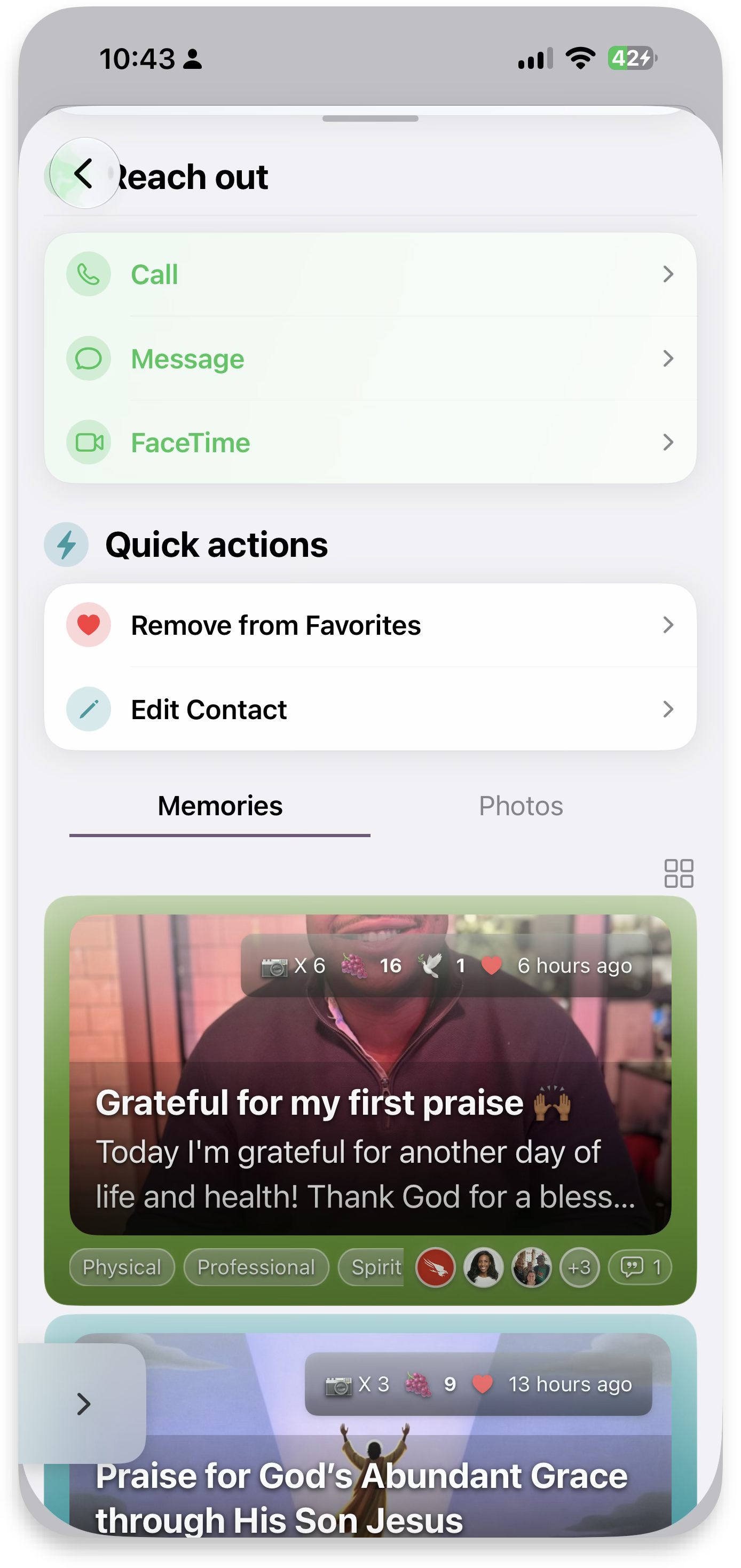 Reach out
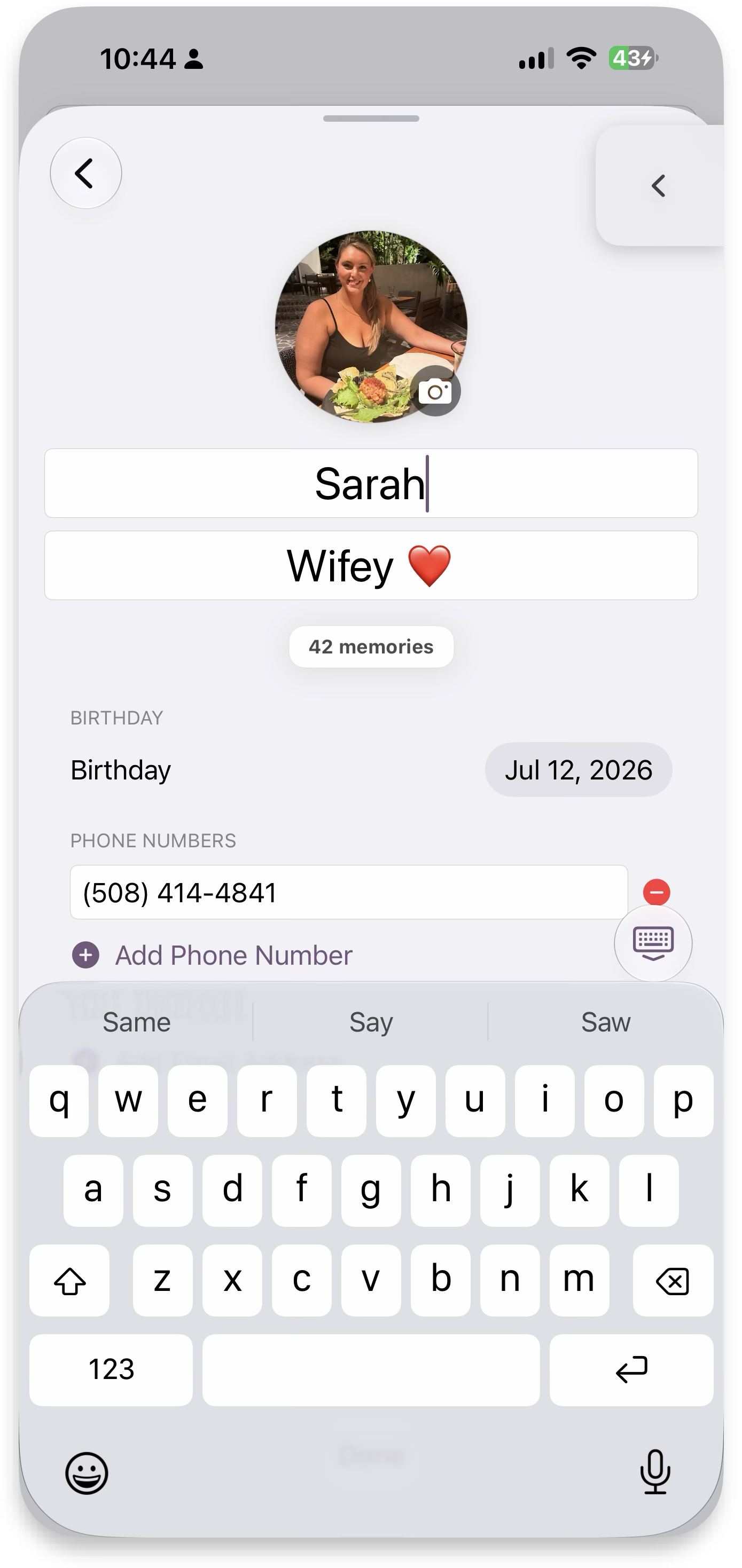 Edit contact
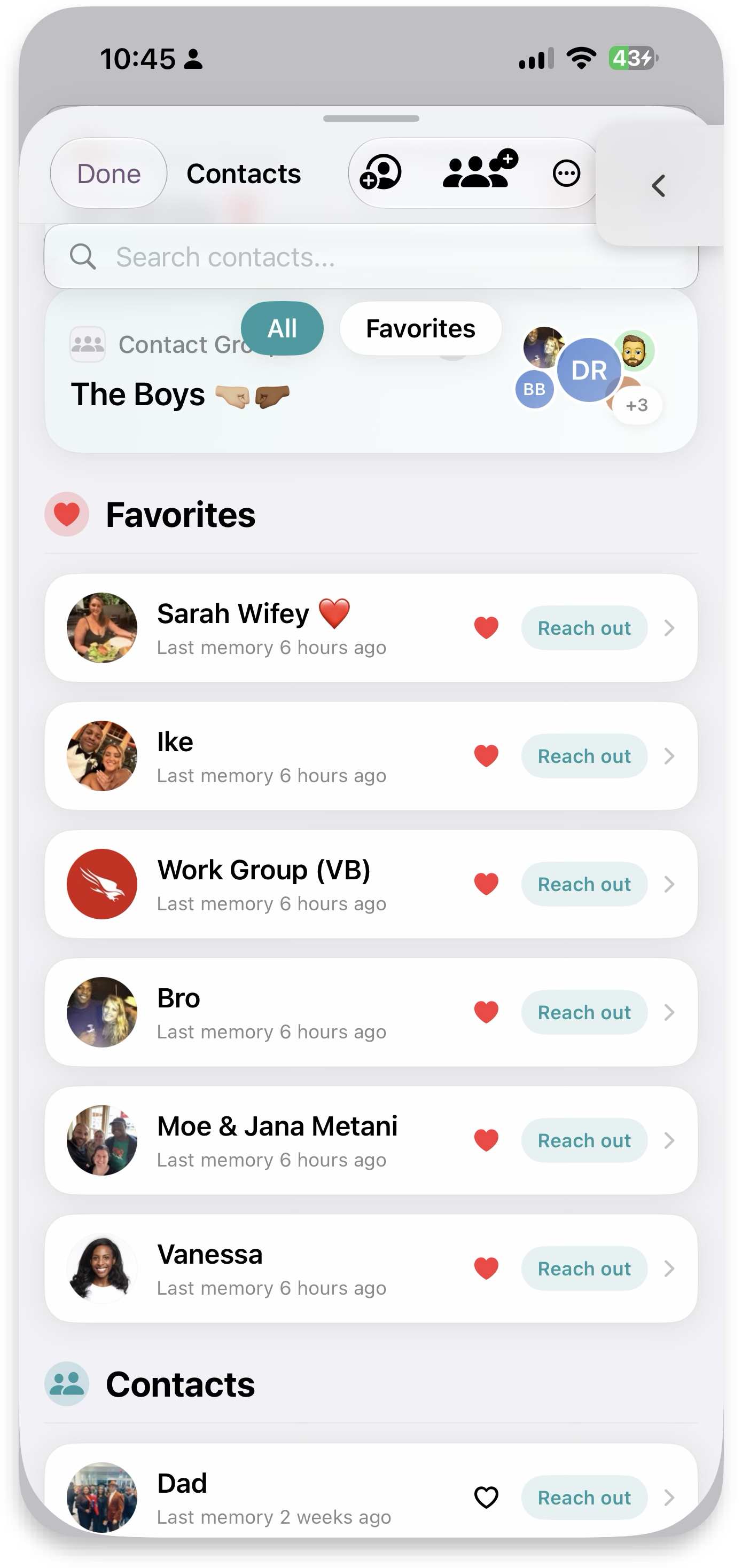 Favorites
 Call & message
MyGallery
See your images, videos, links and media in your Gallery — photos from every memory roll up automatically into one browsable place. Filter and see which ones are favorited. Collections (e.g. "Answered Prayers," "Family") are saved filters over the same underlying memory media, not separate storage.
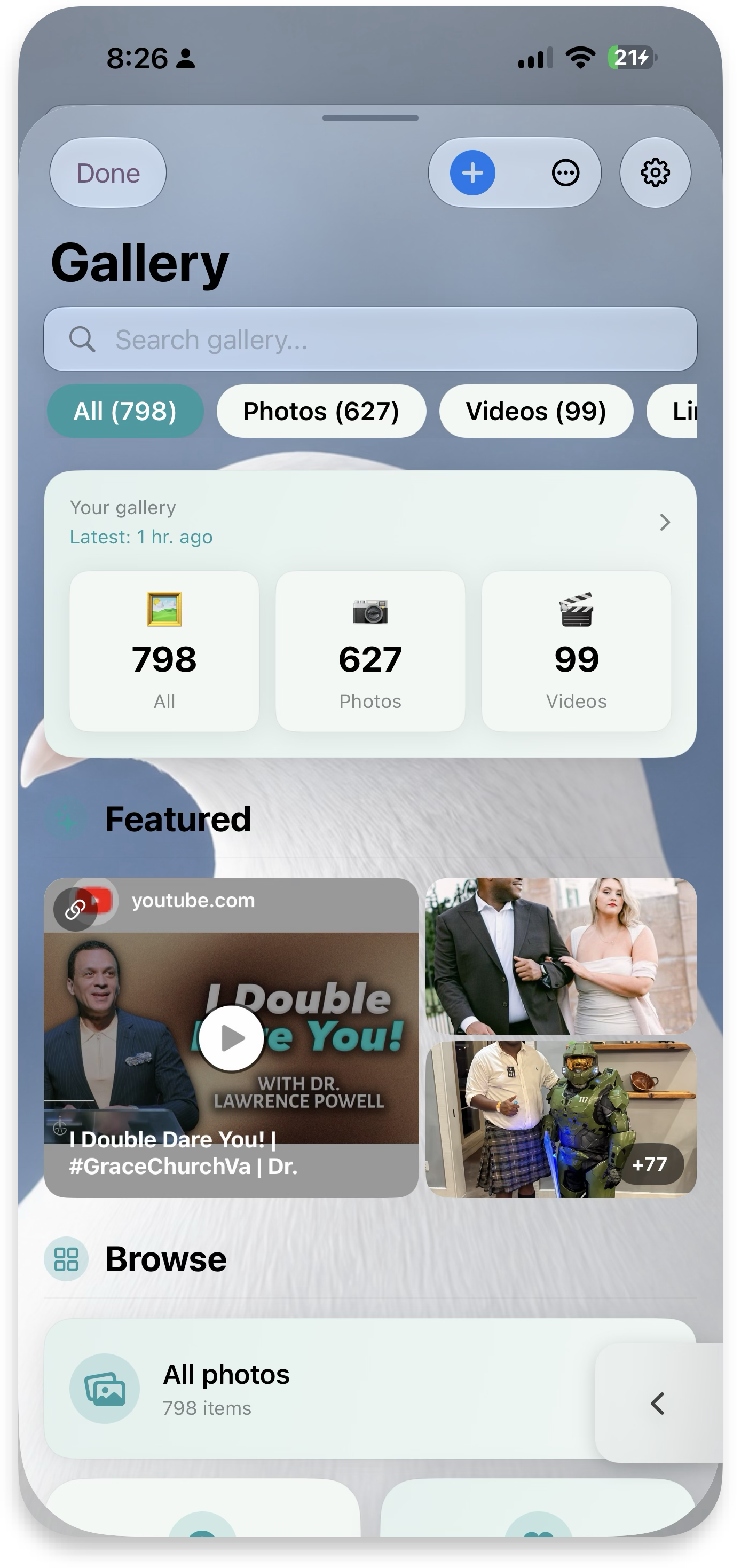 Gallery hub
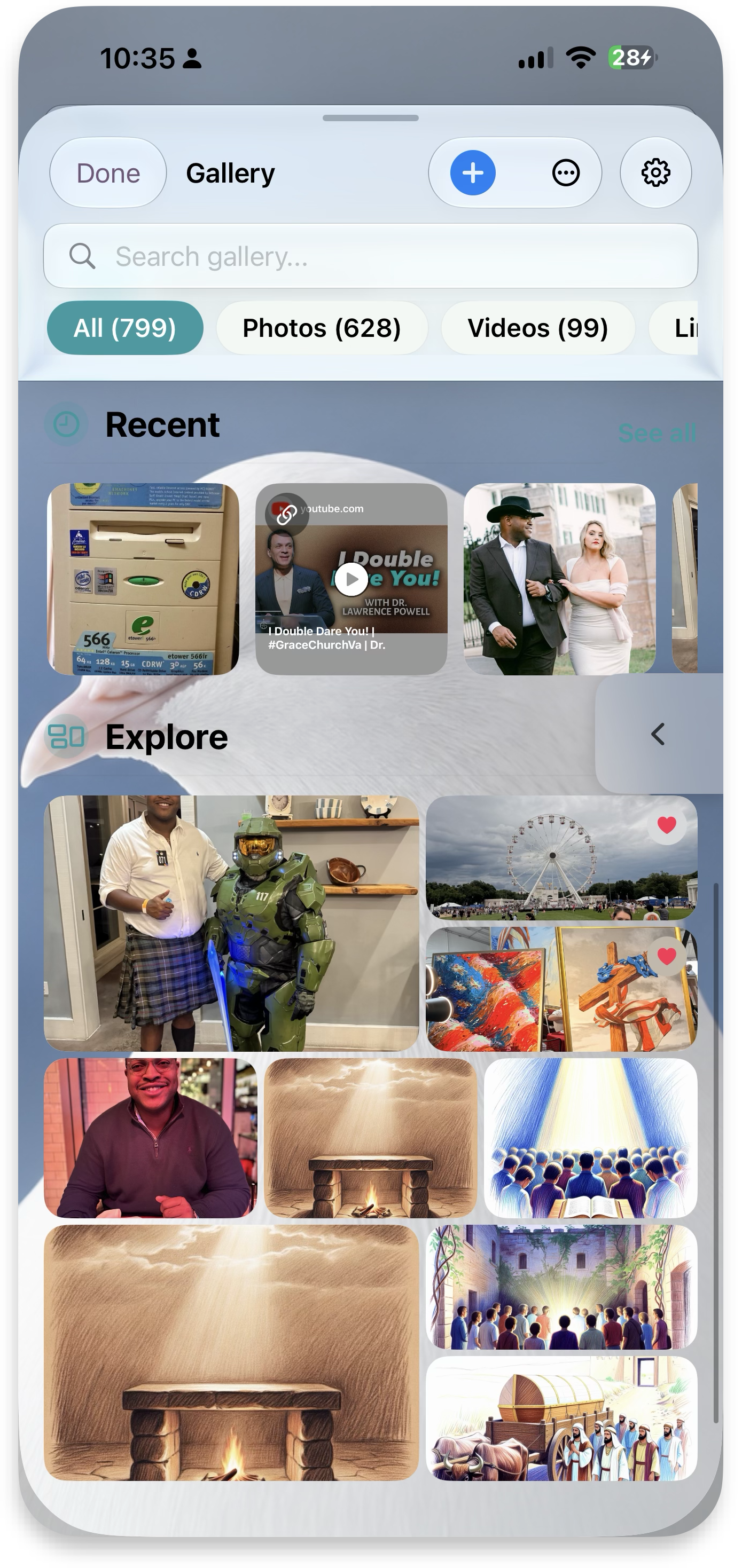 Recent & explore
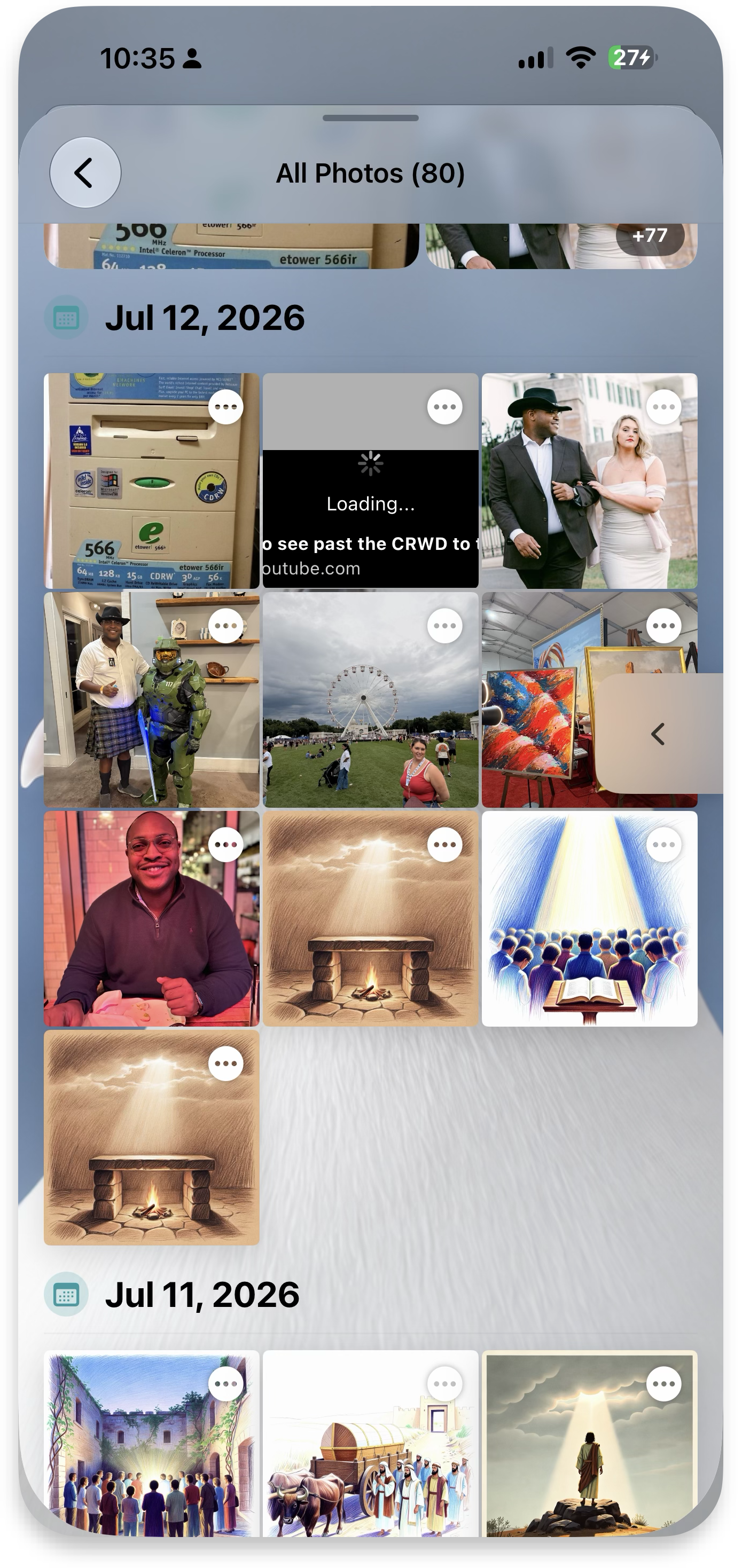 All photos
MyMemories
View your logged memories and filter to see which ones are favorites, prayers, praises, and more. Swipe memories to quickly favorite or share. Customization: the icon setting changes how memory type icons are styled.
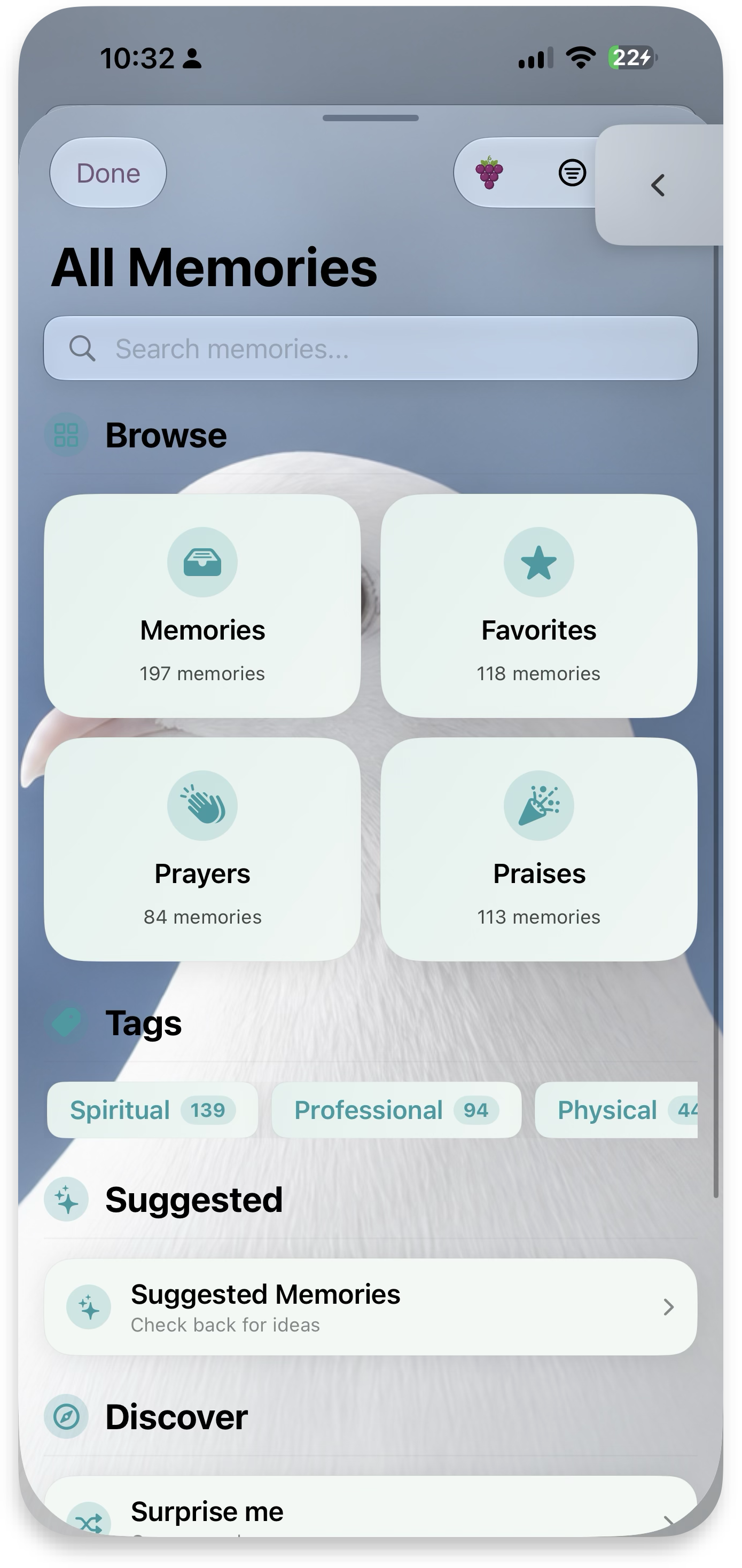 All Memories
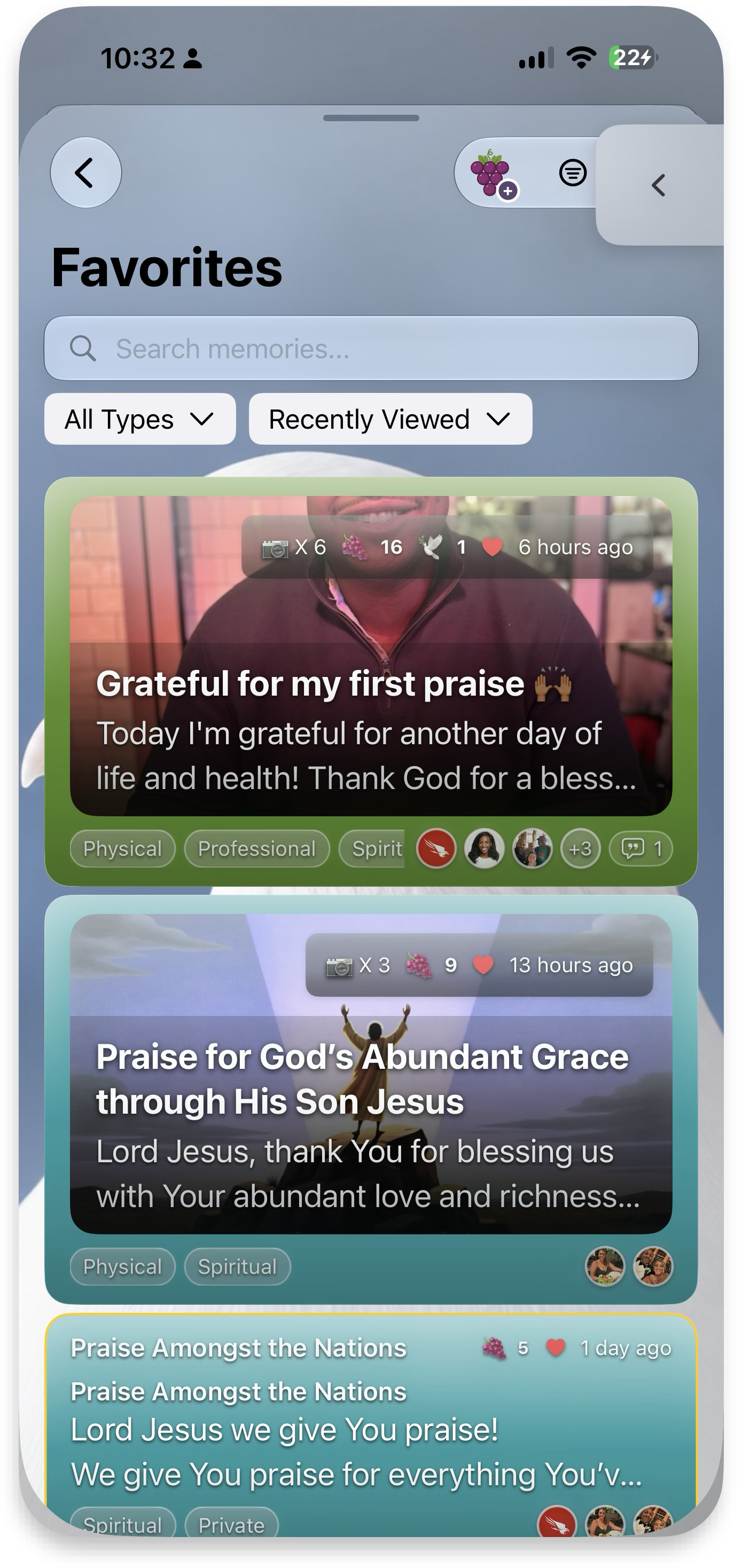 Favorites
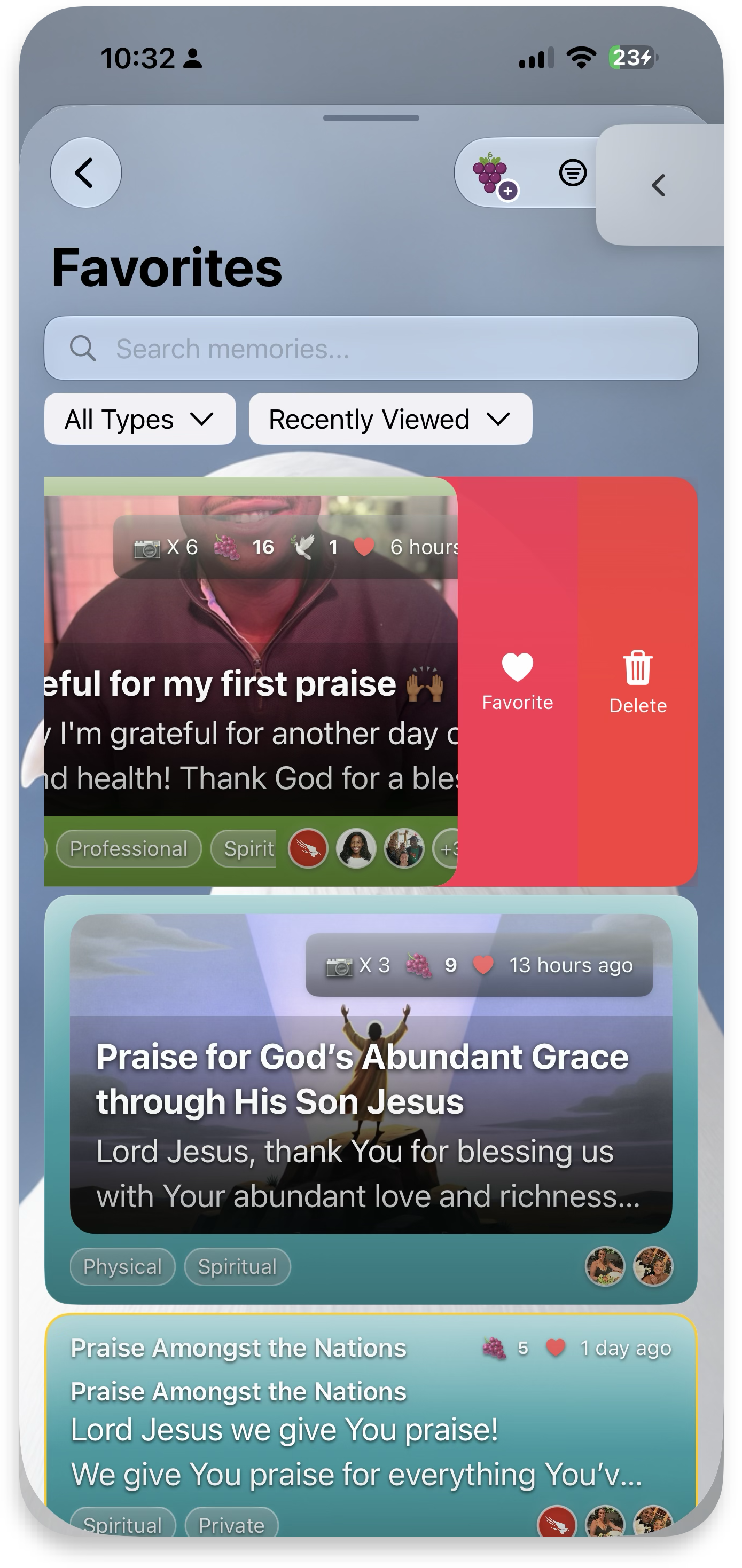 Swipe — favorite
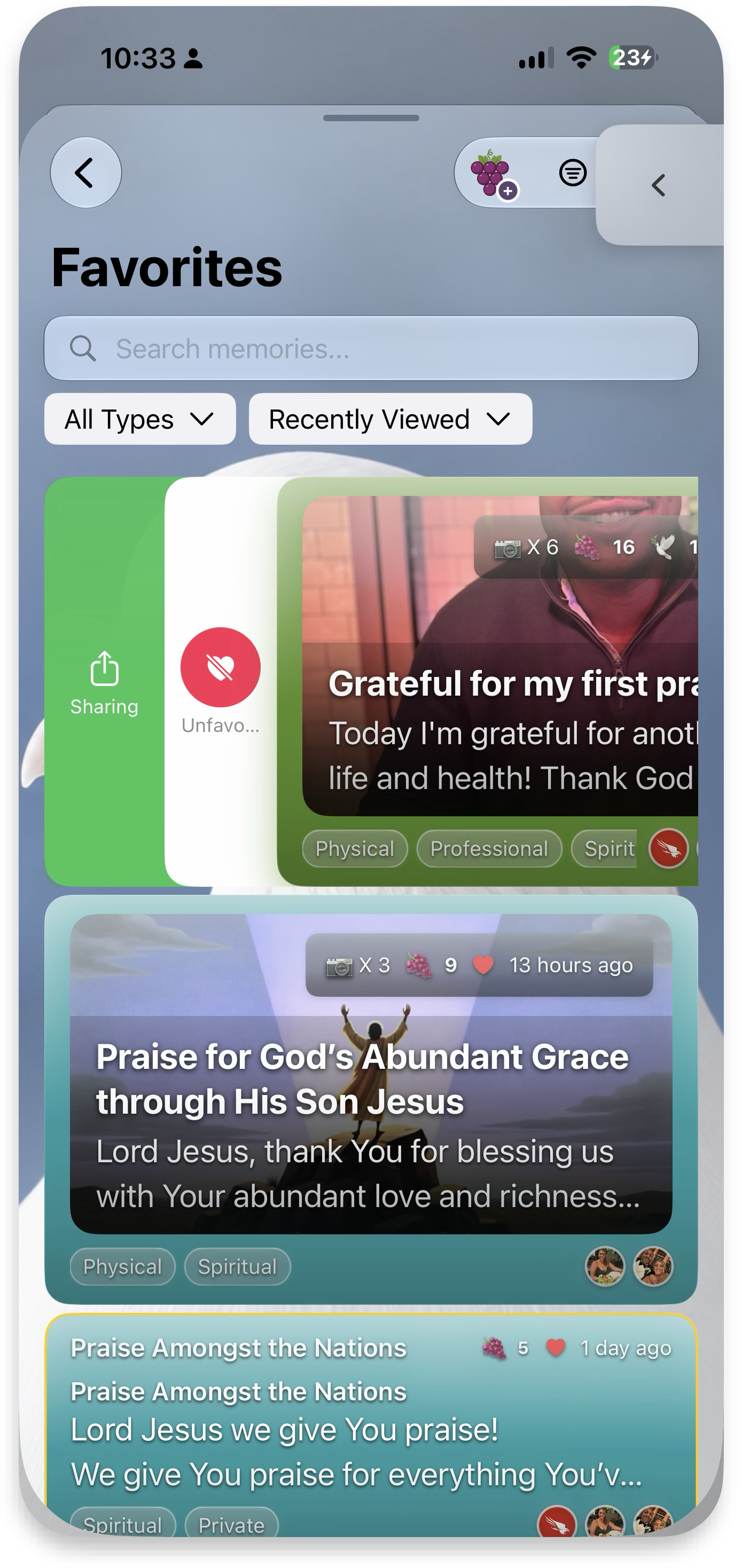 Swipe — share
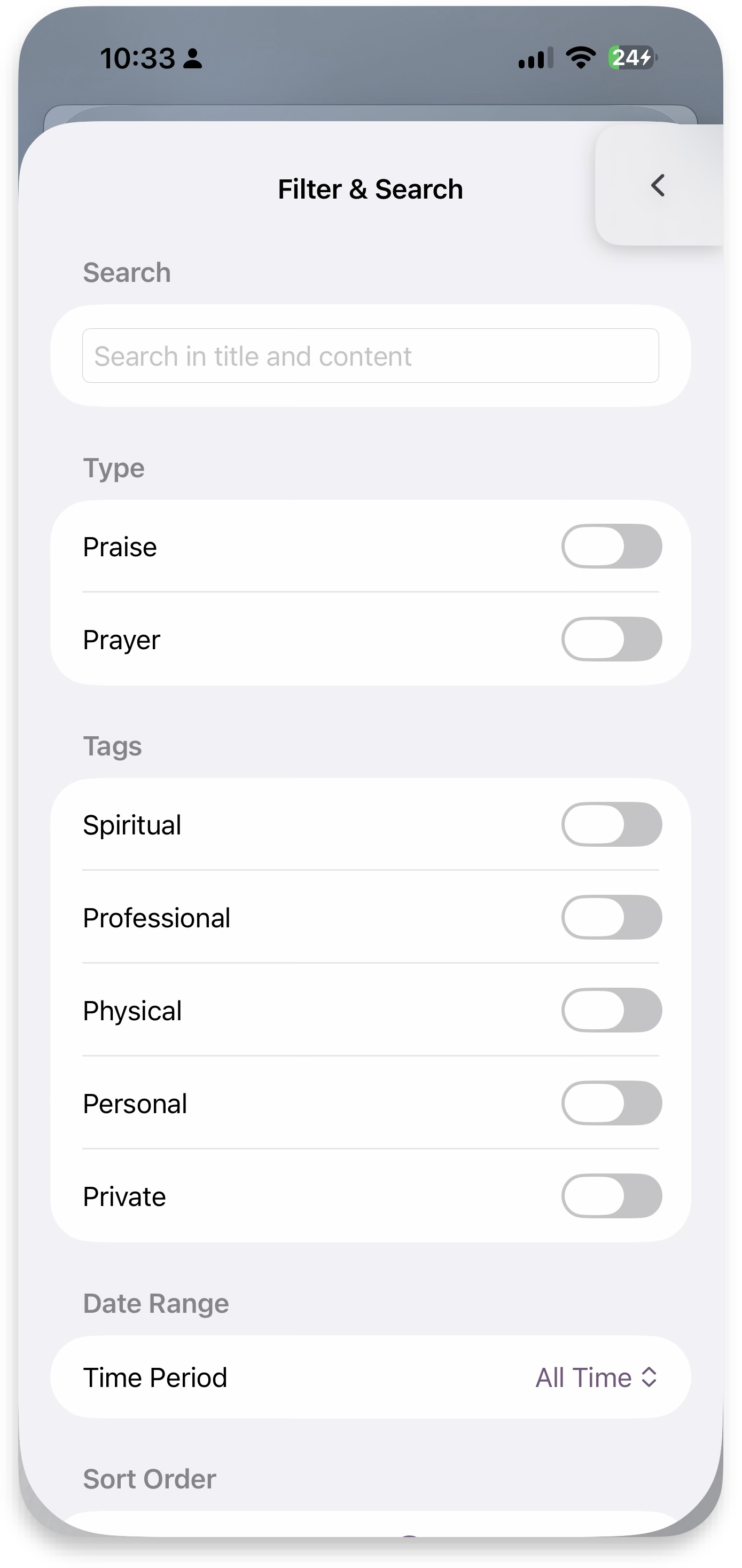 Filter & search
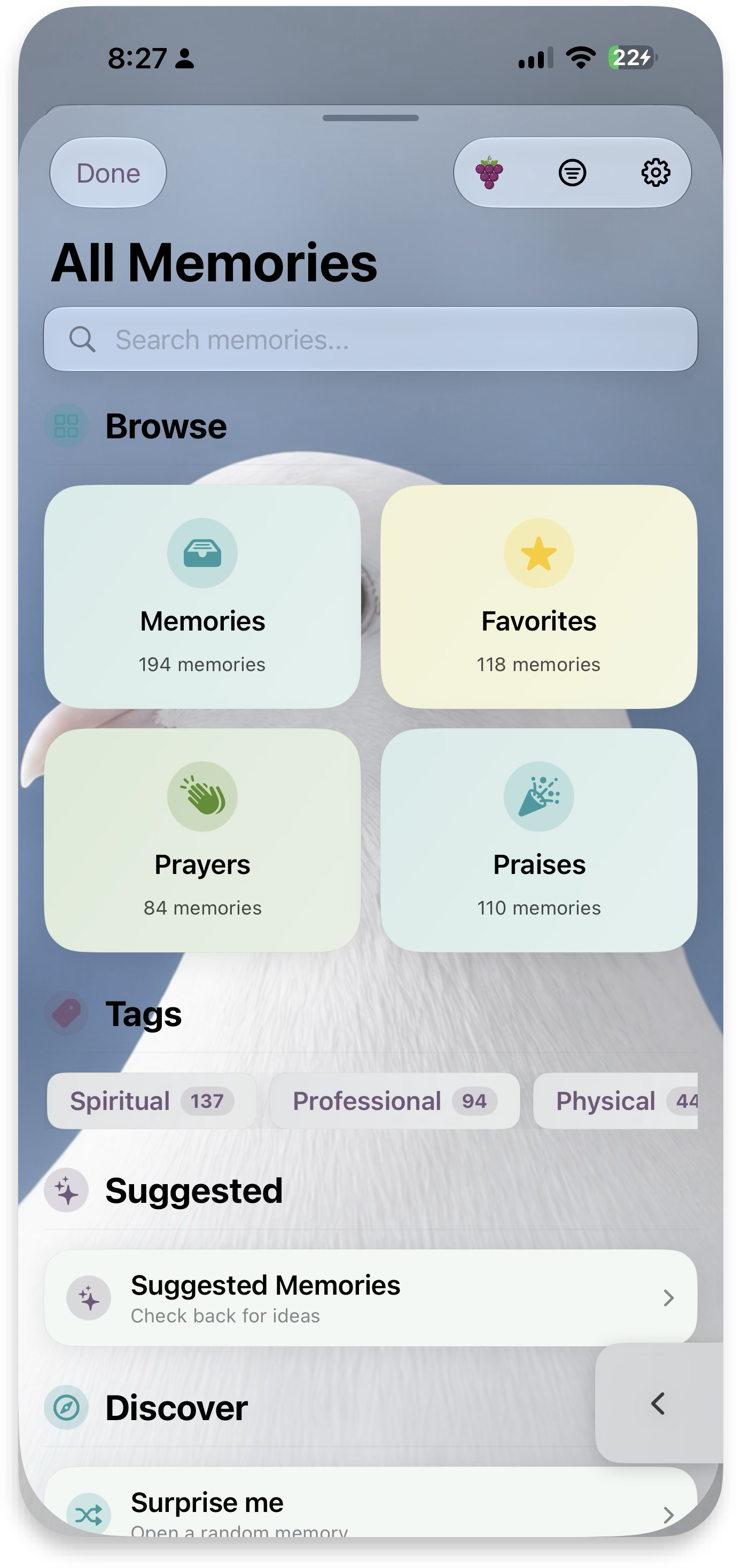 Icons — colorful
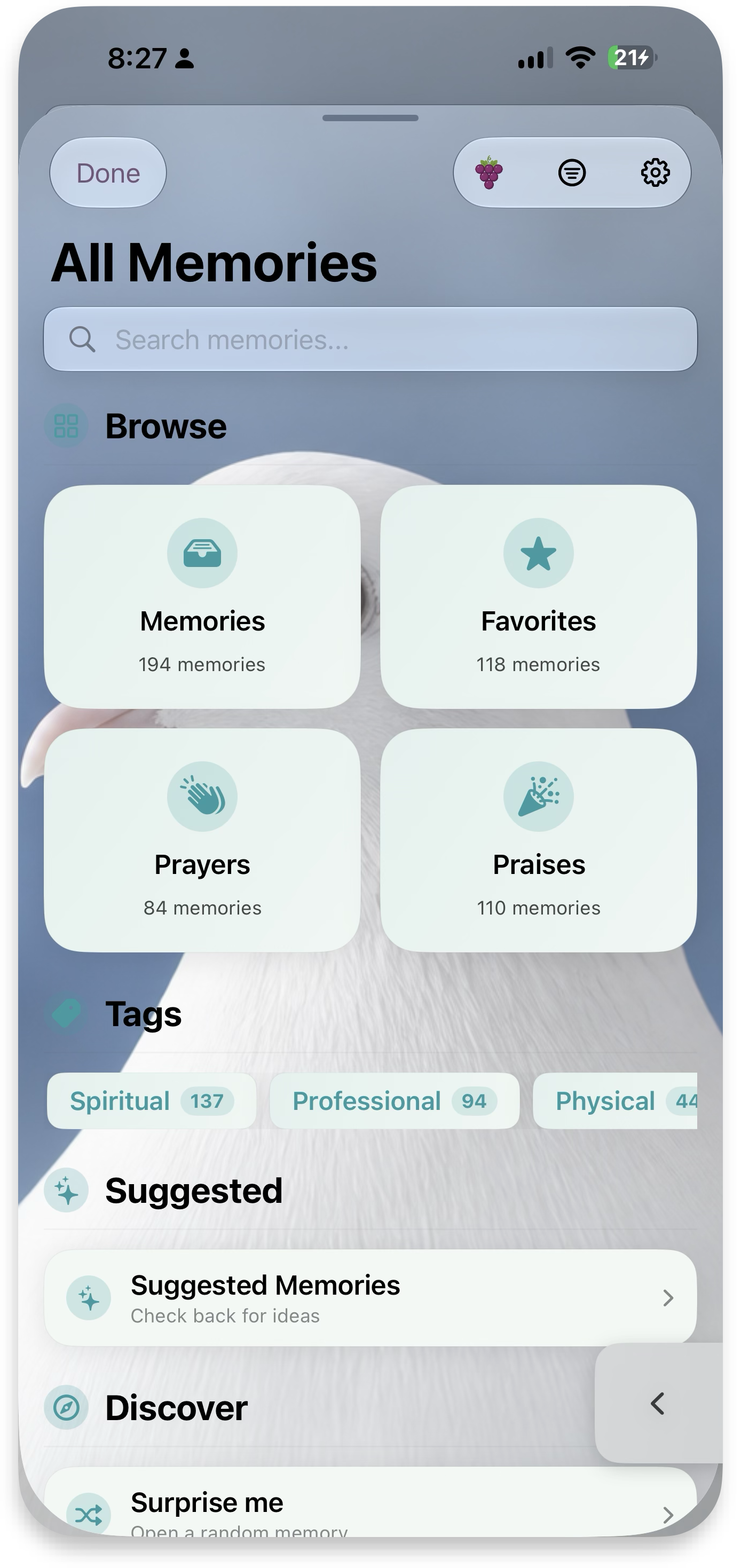 Icons — tinted
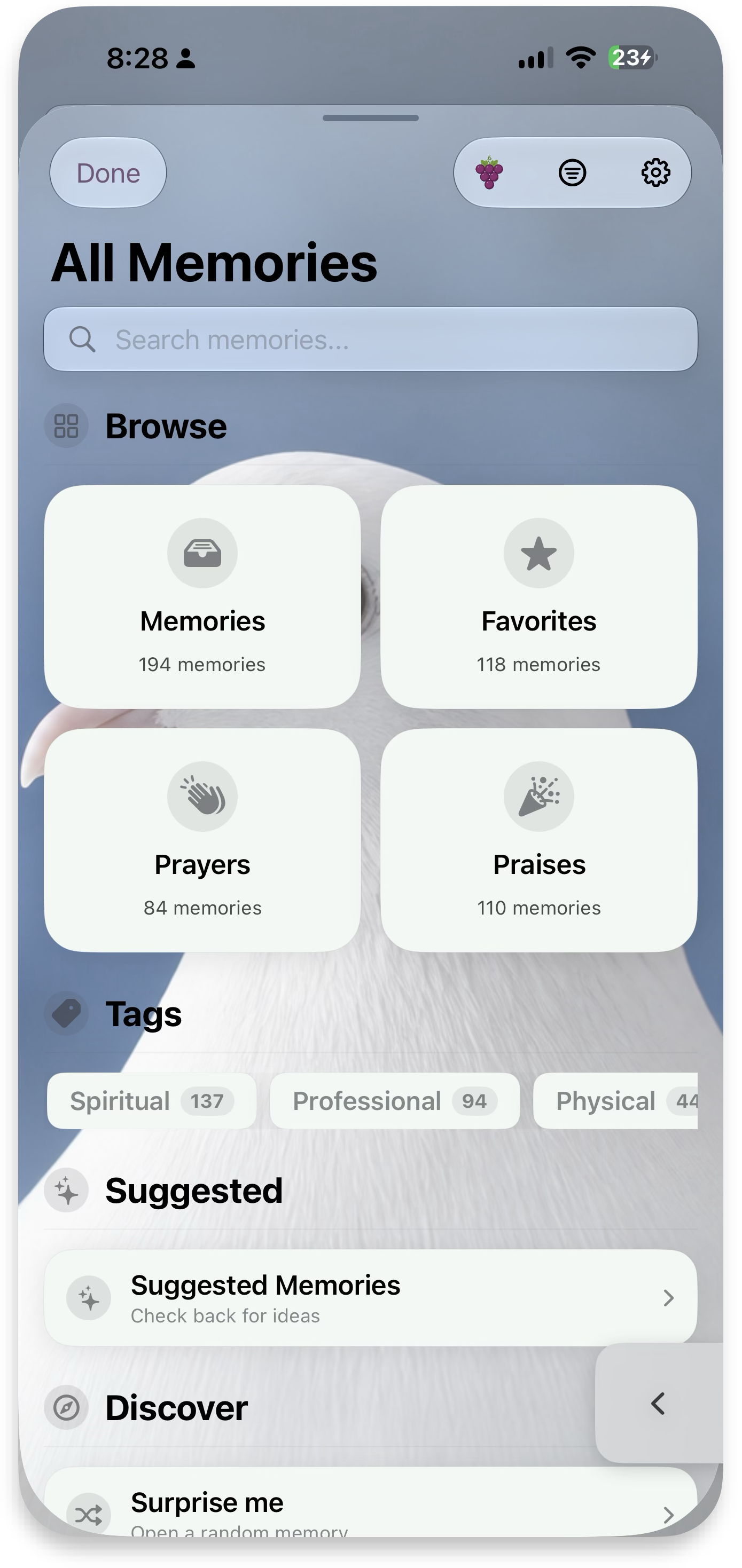 Icons — mono
 Icon setting
MyBible
A simple Bible Mode reader to help you stay close to the word, study the message, listen in the background, and directly create memories. Scripture is bundled with the app, so it works fully offline, with red-letter text built in.
Read & study
See stats on your Bible reading trends and recent highlights, jump right back to where you were reading and getting inspired, and highlight and mark up your Bible for verses you resonate with.
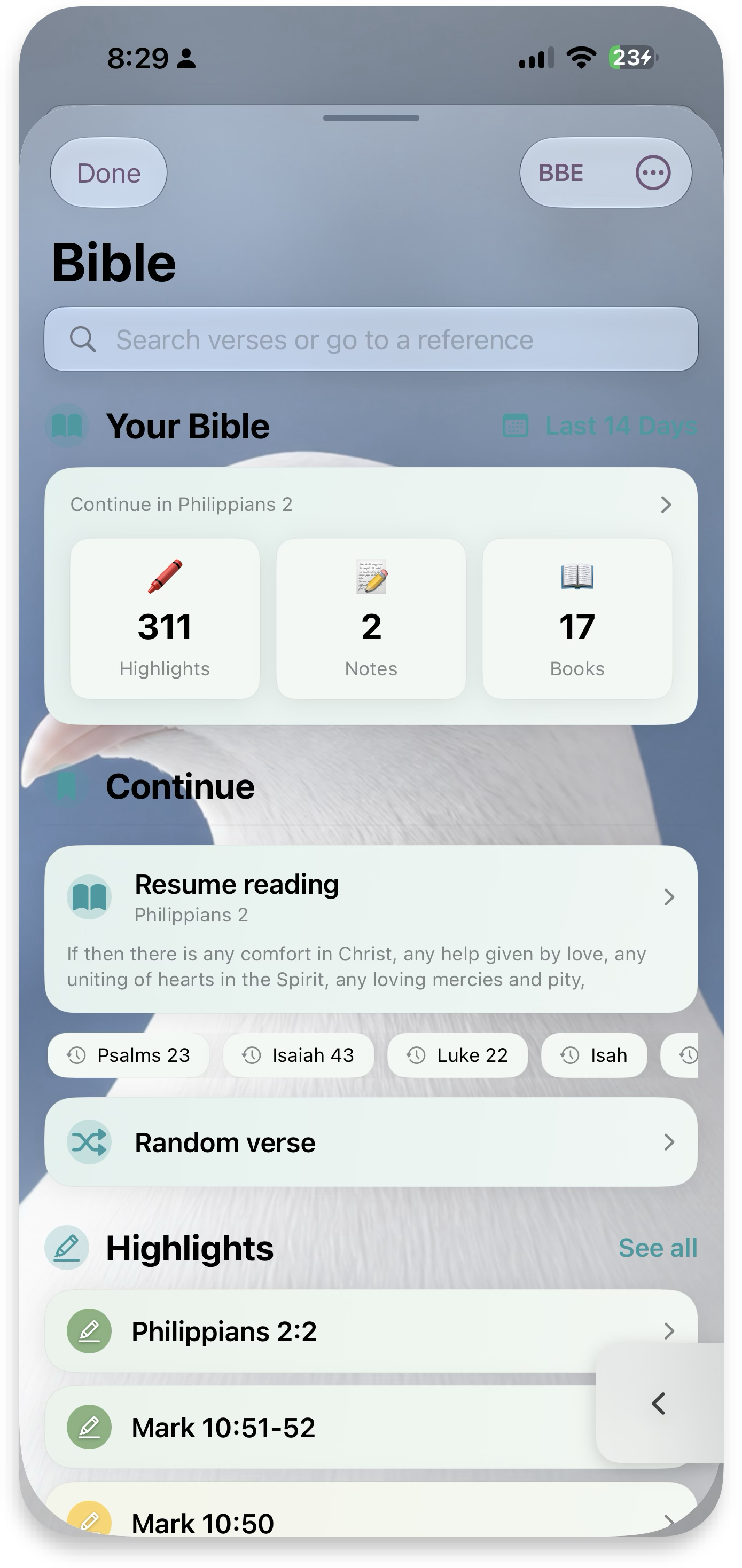 Your Bible
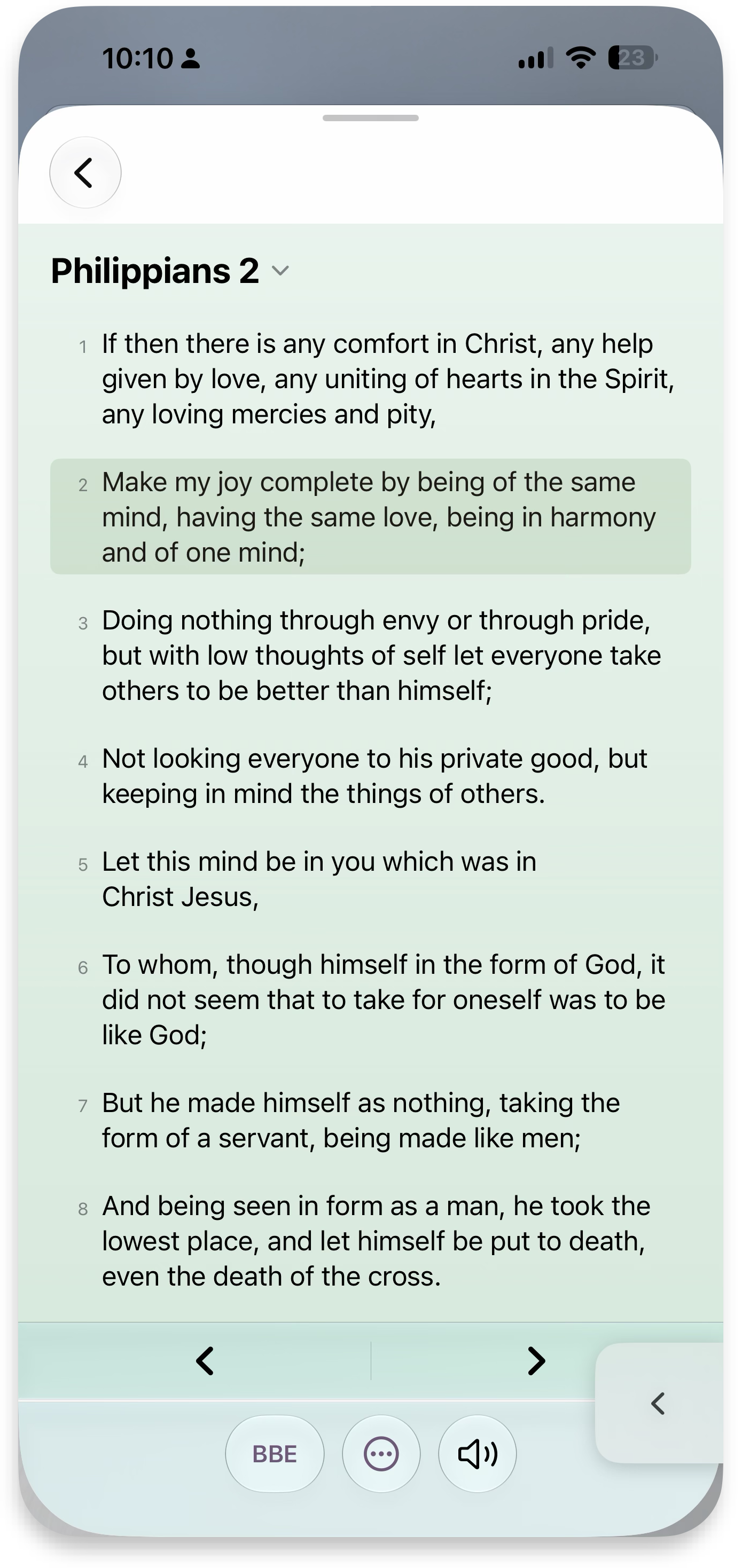 Reading
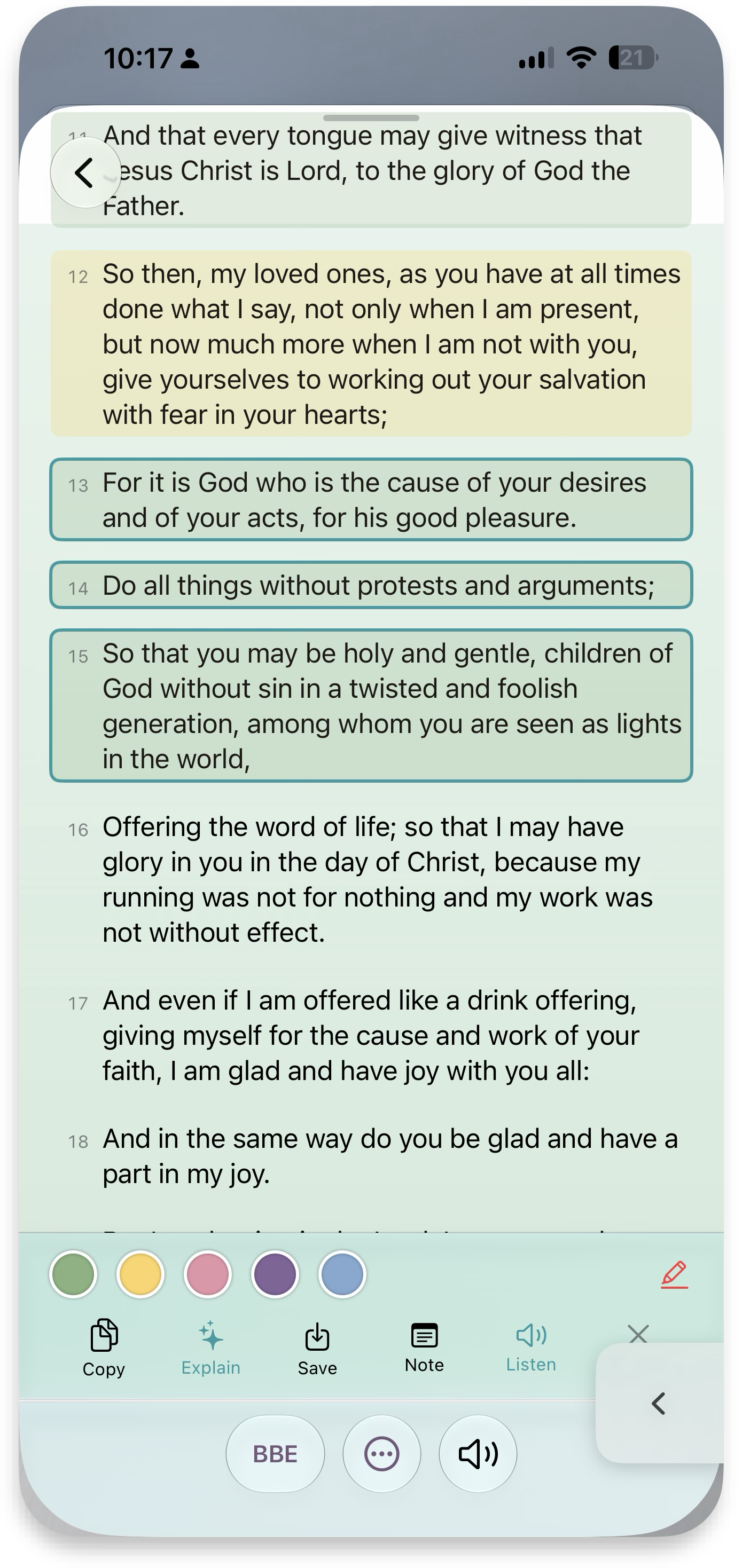 Highlight & markup
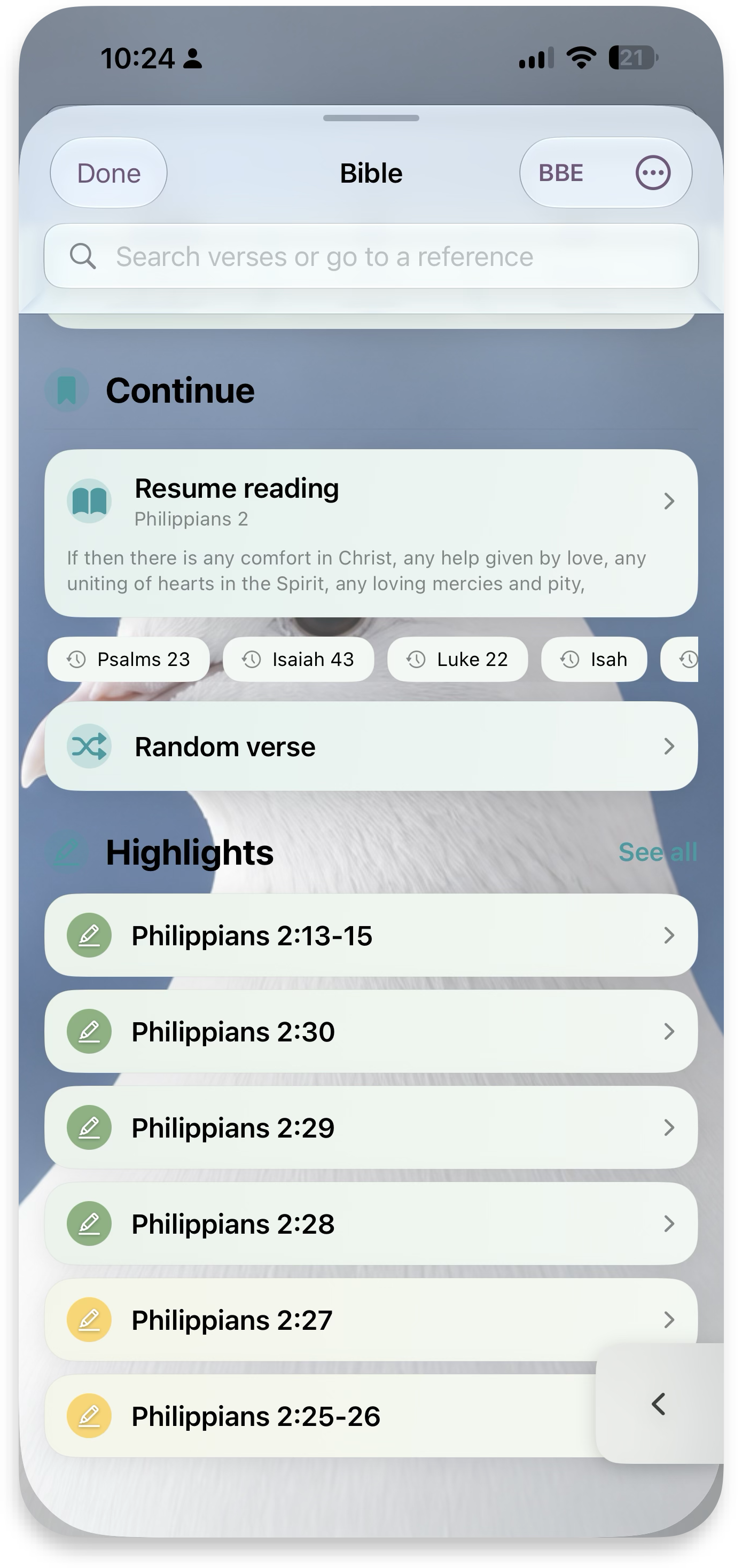 Highlights
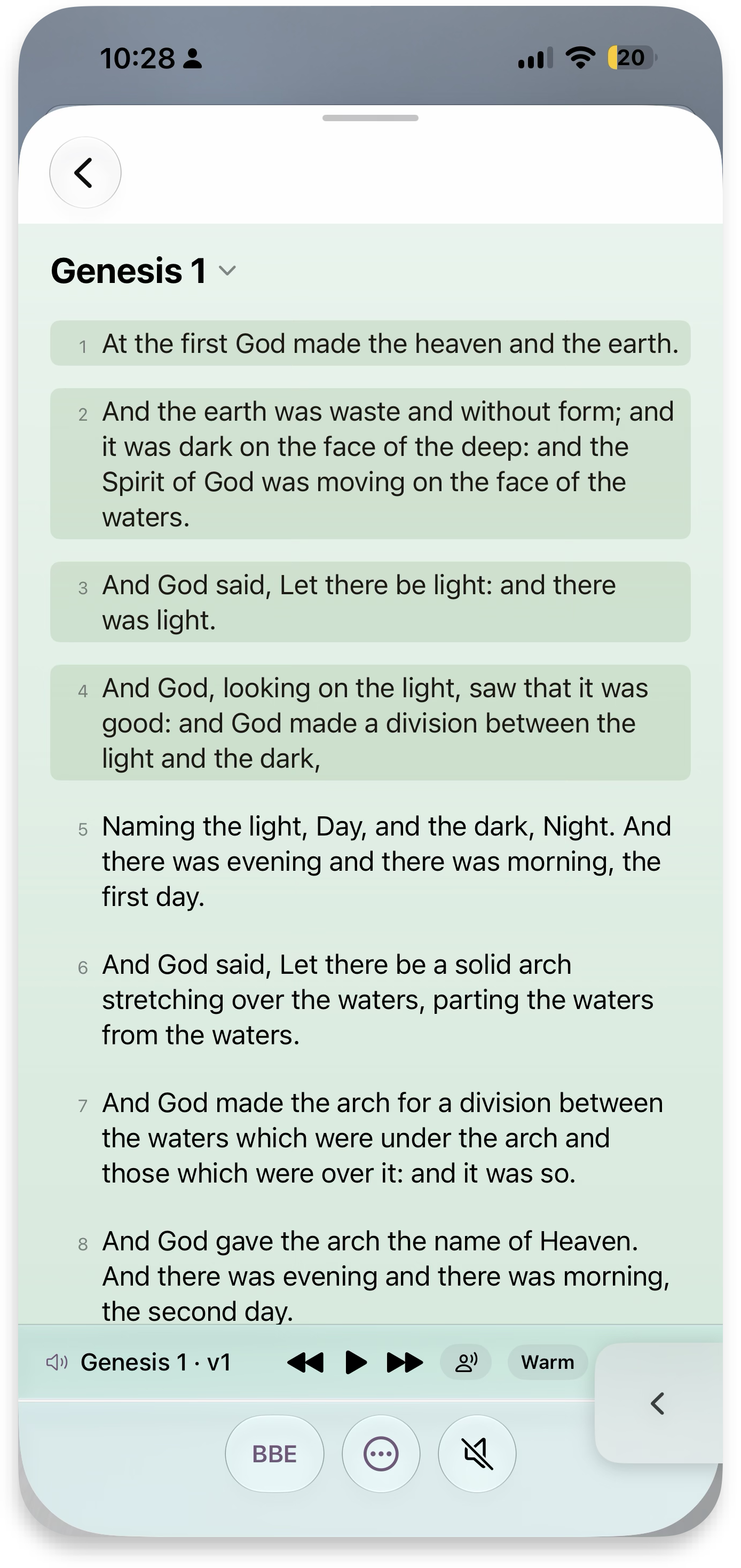 Listen
Search & browse
Search for a specific verse or highlight — or browse all the books and chapters.
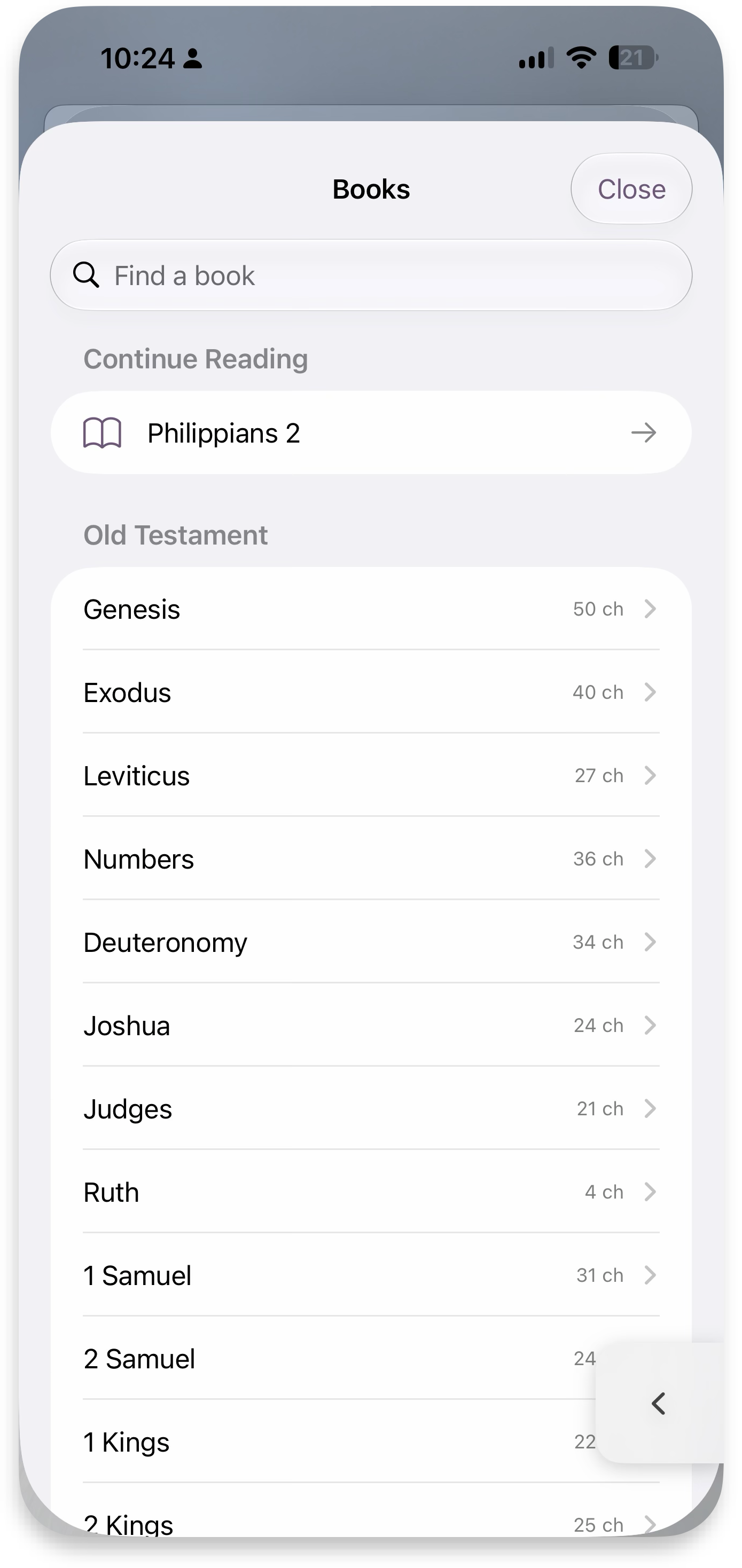 Books
Books
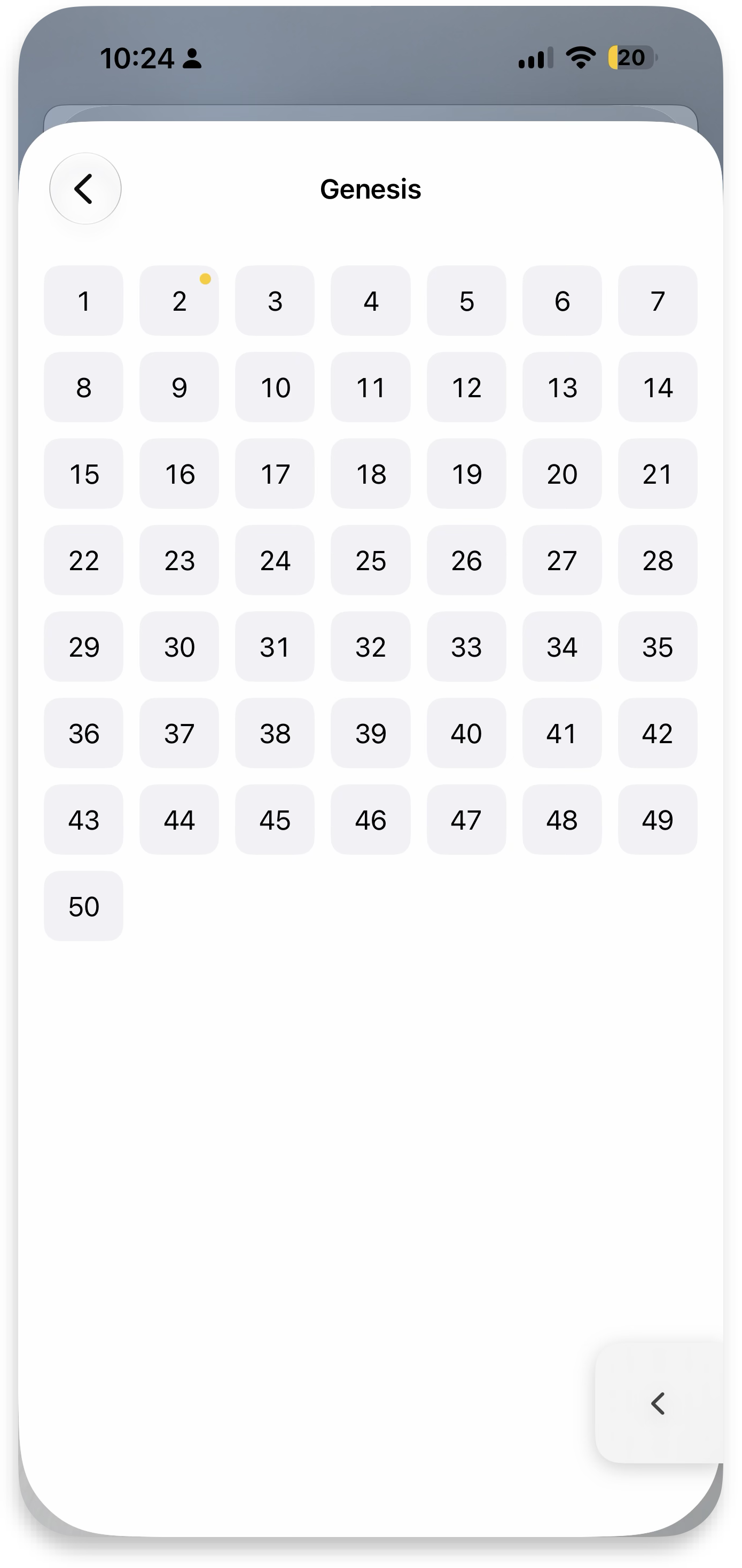 Chapters
Versions & view options
Extras: change Bible version, go fullscreen, view only your highlights, navigate to a random verse, or view all the books again to go to another. More details ↓
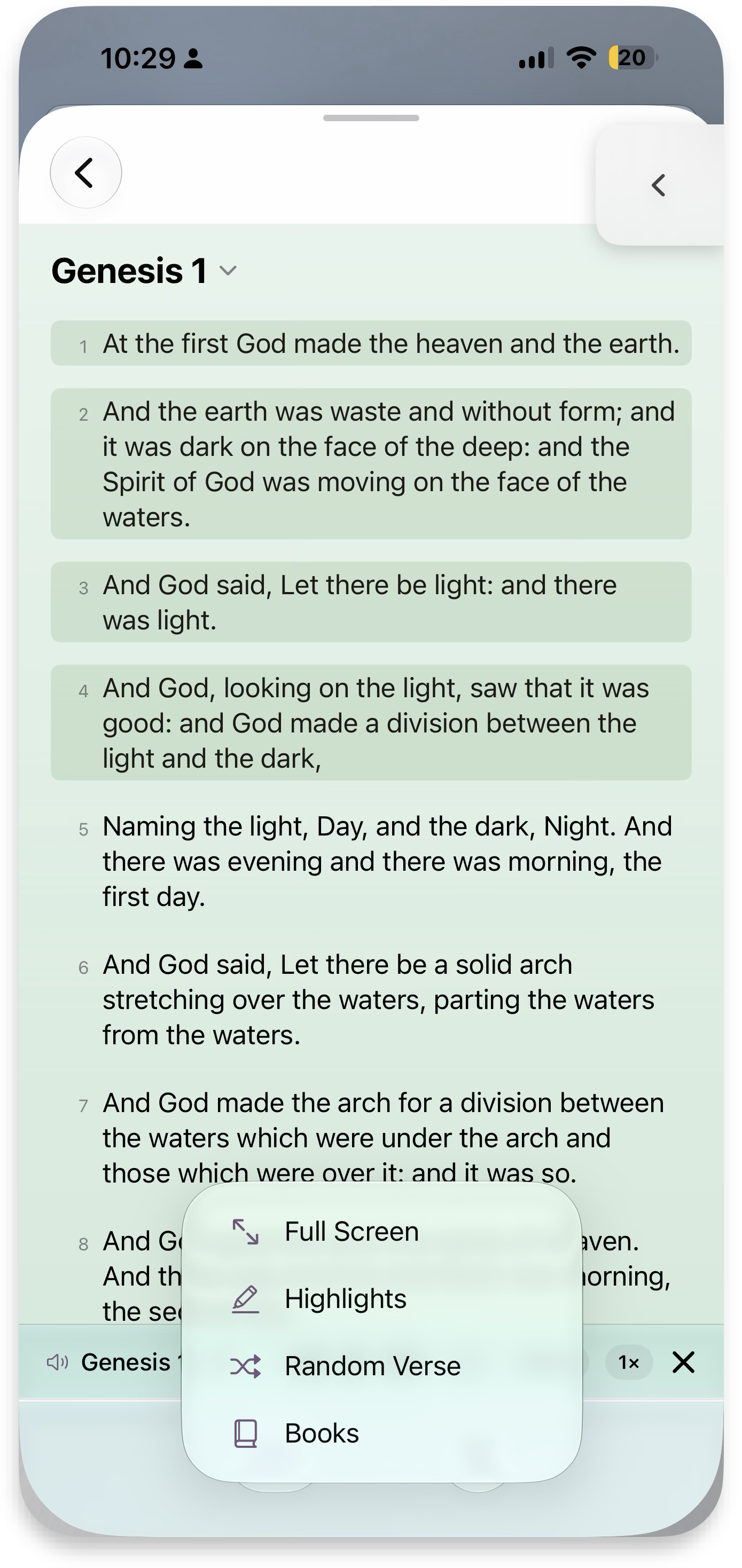 View options
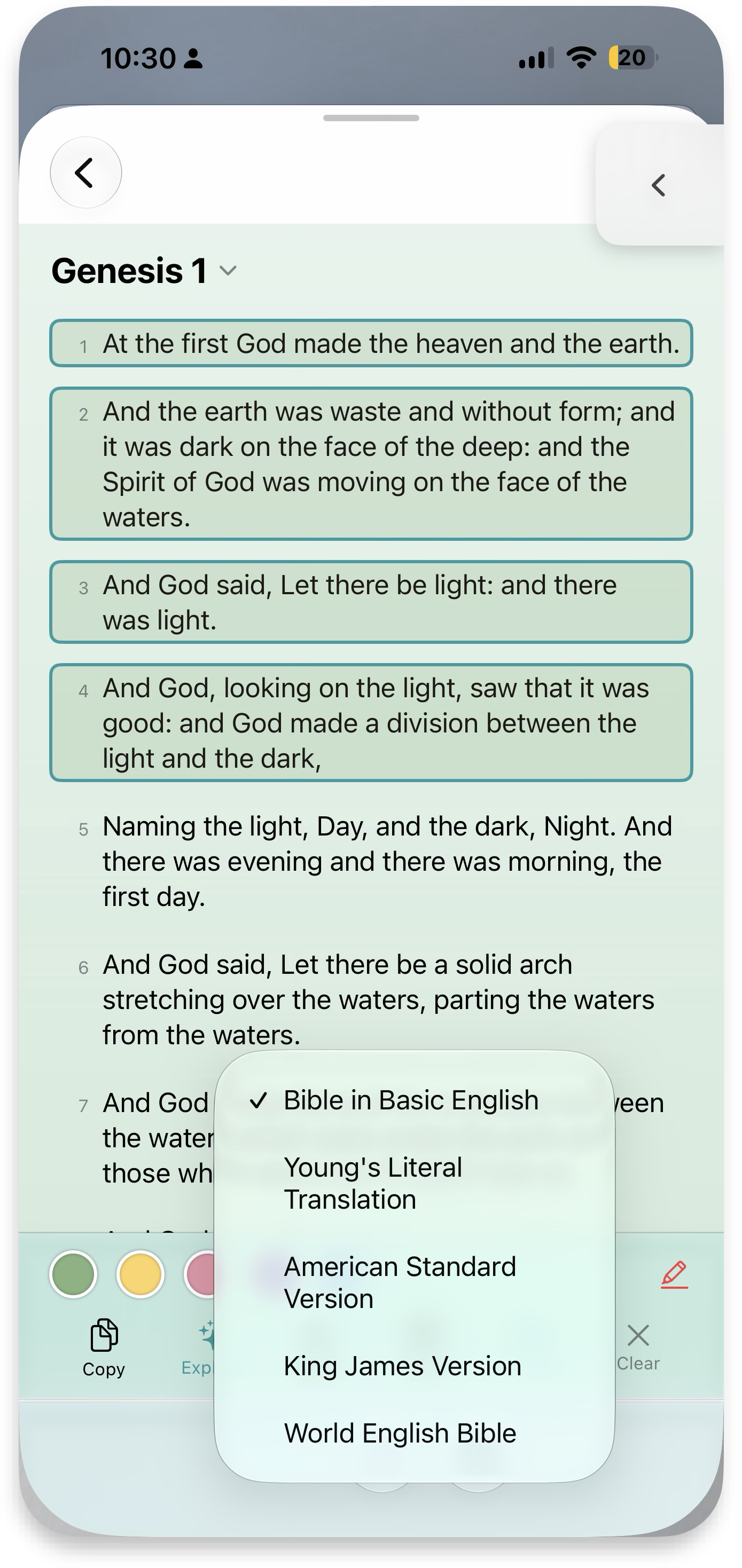 Versions
Save to MyPraise App
Extras: add notes and verses that save directly to MyPraise App, ready to enrich memories later — and ask MyPraise Assistant for insight (coming soon). More details ↓
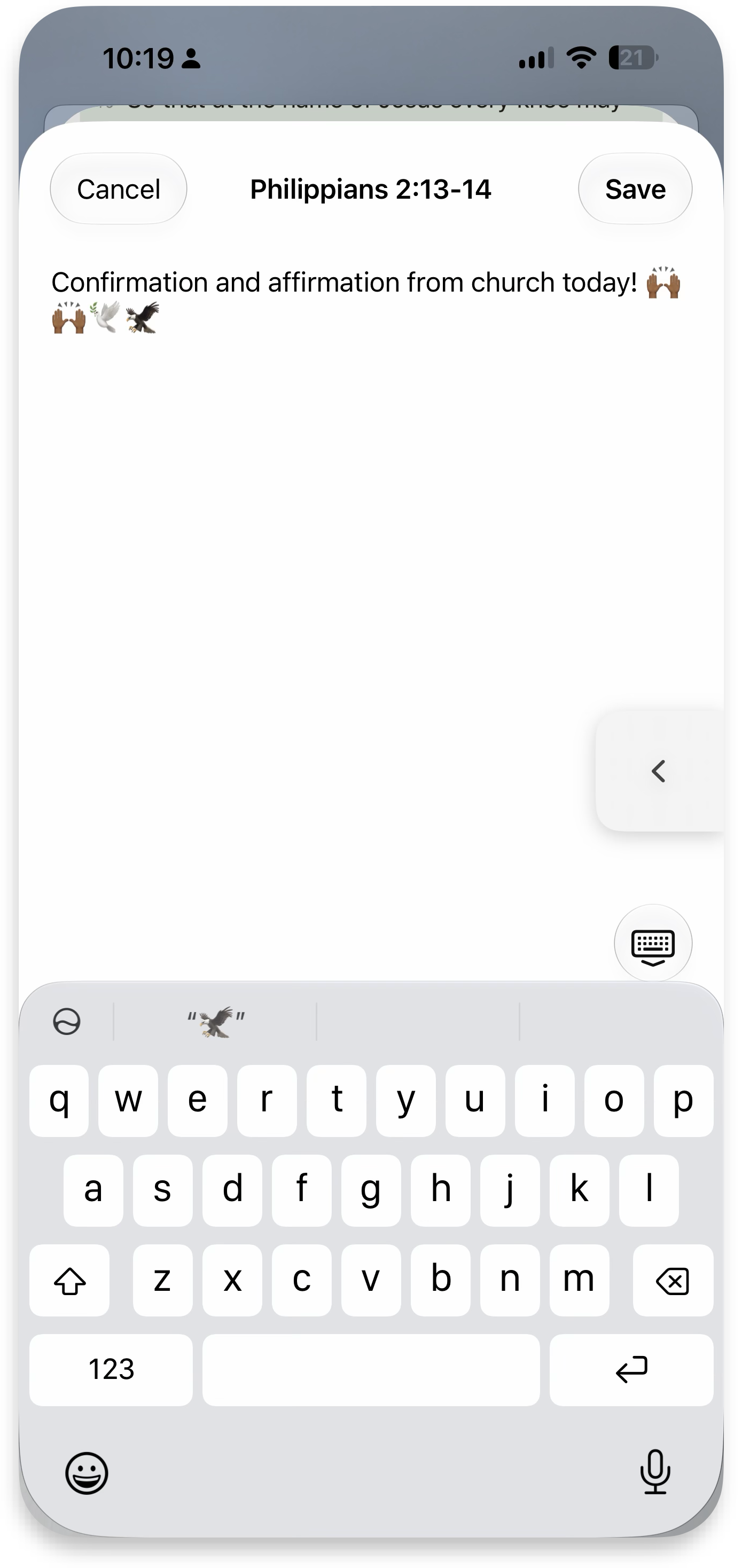 Add a note
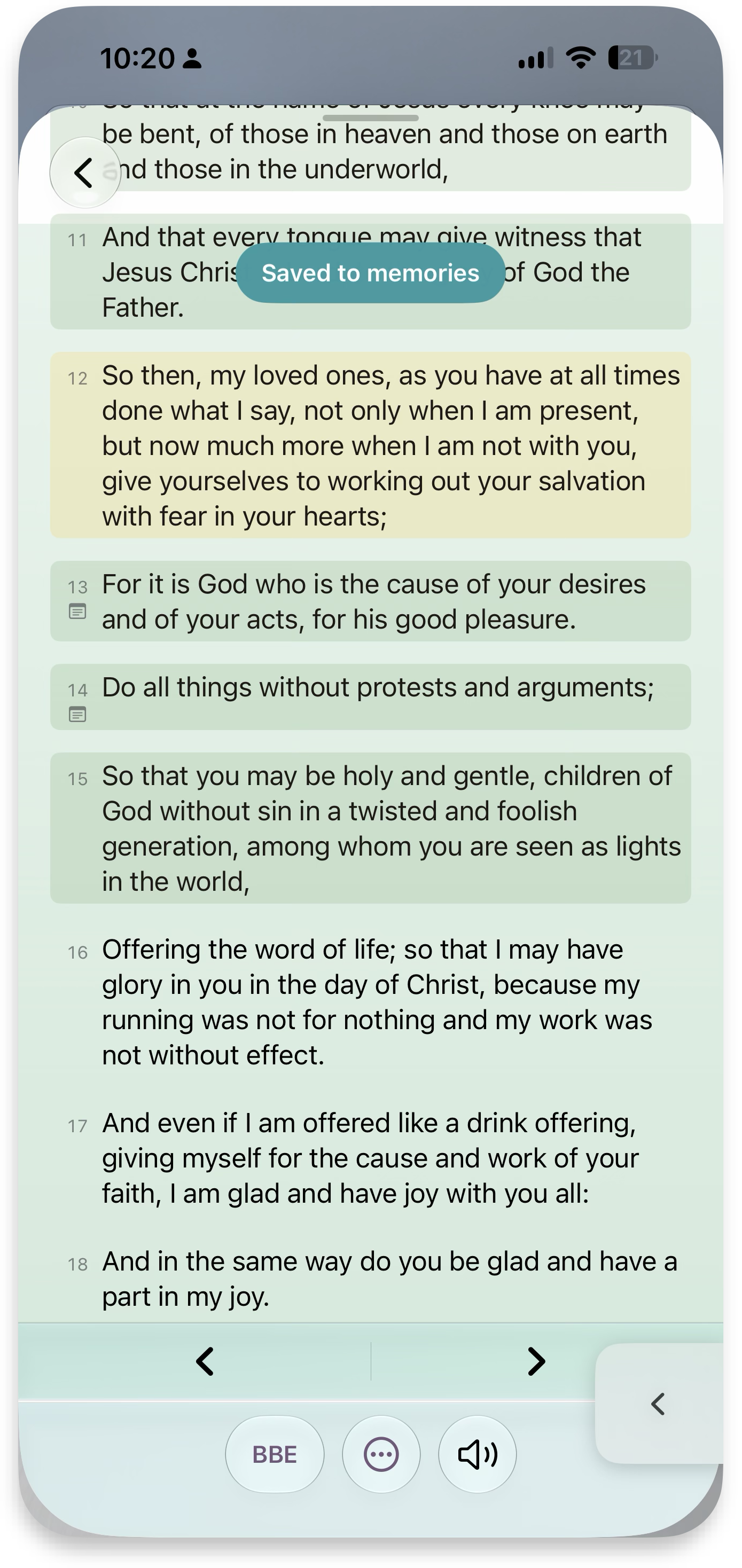 Saved to memories
Settings & Preferences
Make MyPraise App work the way you do — from sync and notifications to security and supporter perks.
Guide & feedback
How-To Guide: quick access to the Help guide (what you're reading here). Share your Feedback: share how you're using the app — issues and requests all welcome!
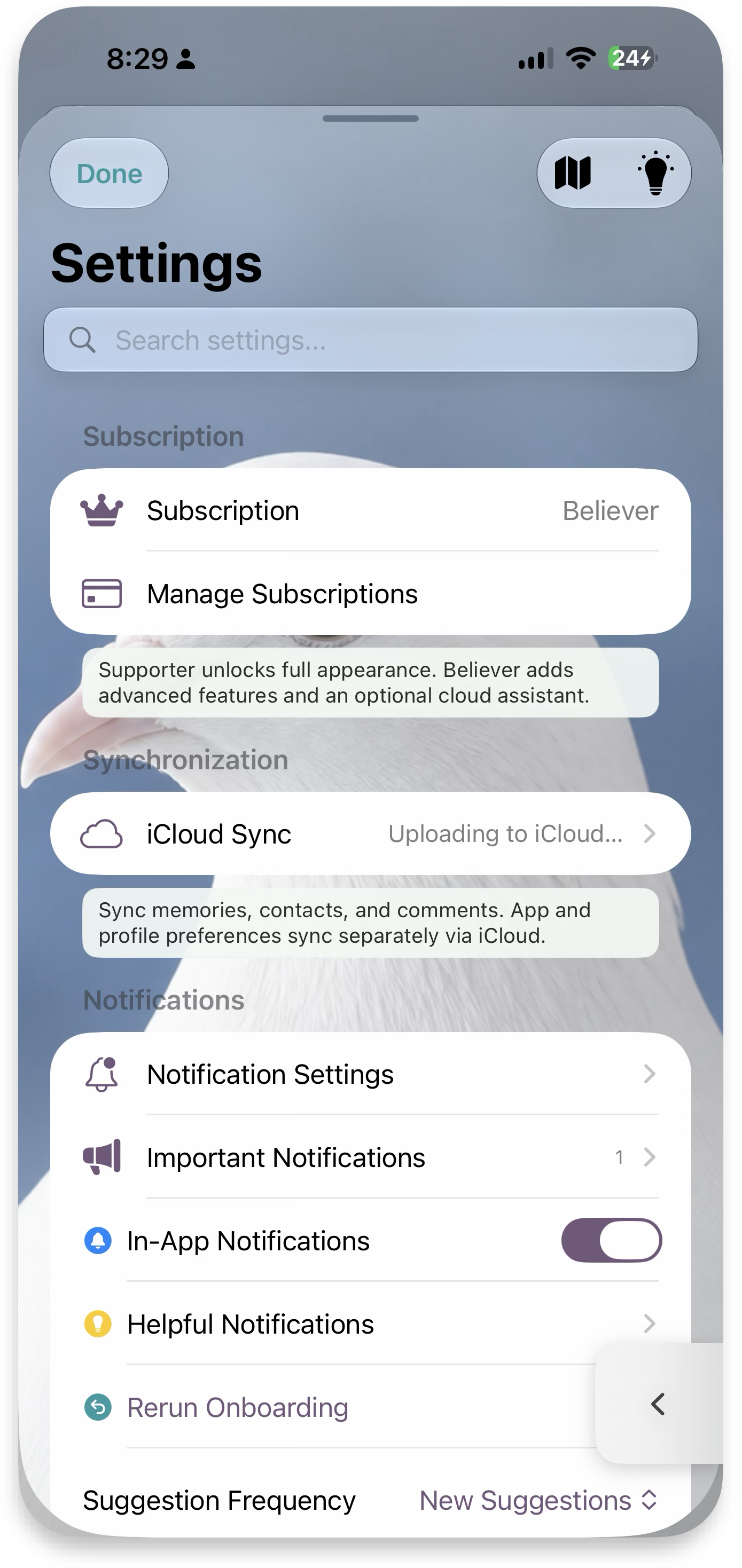 Settings
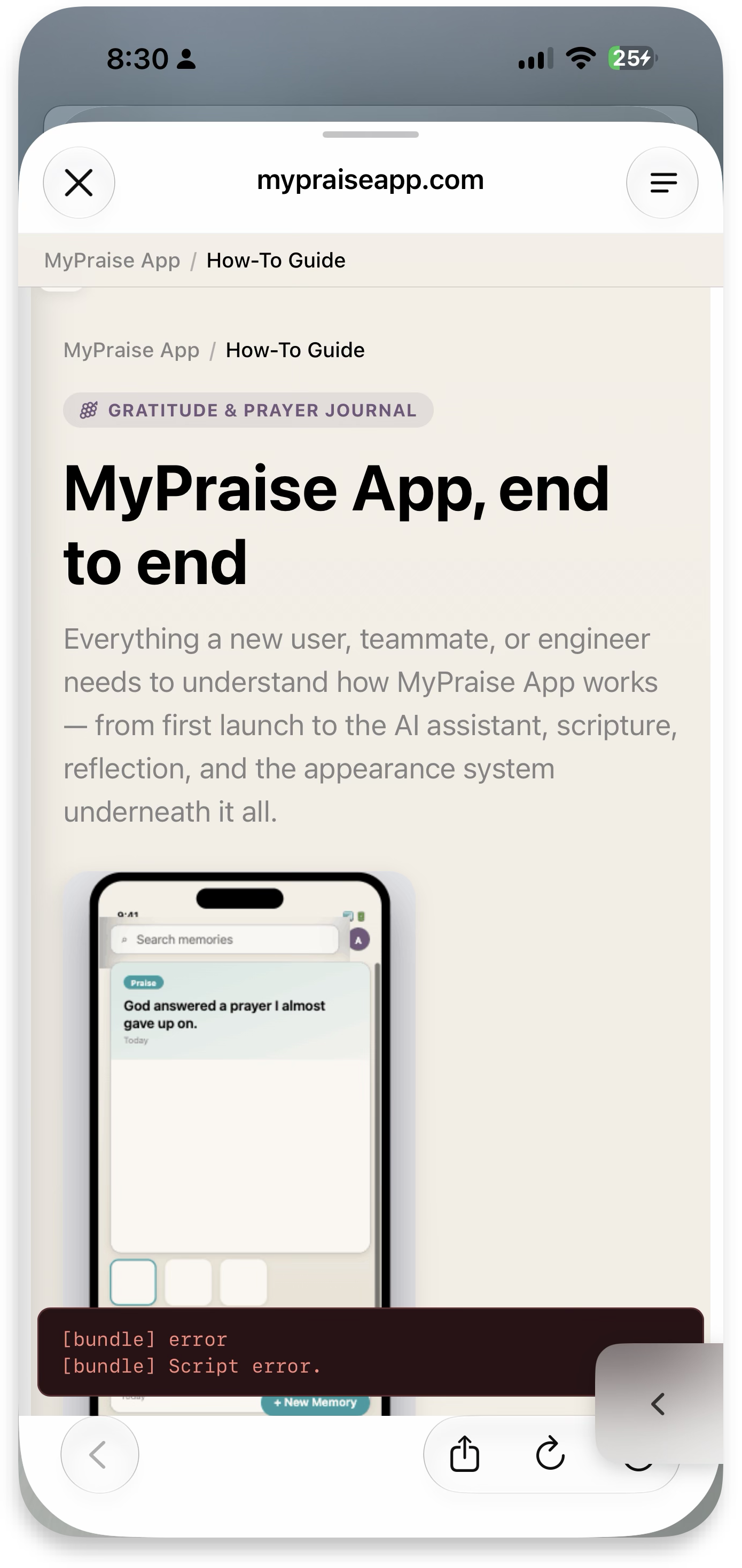 How-To Guide
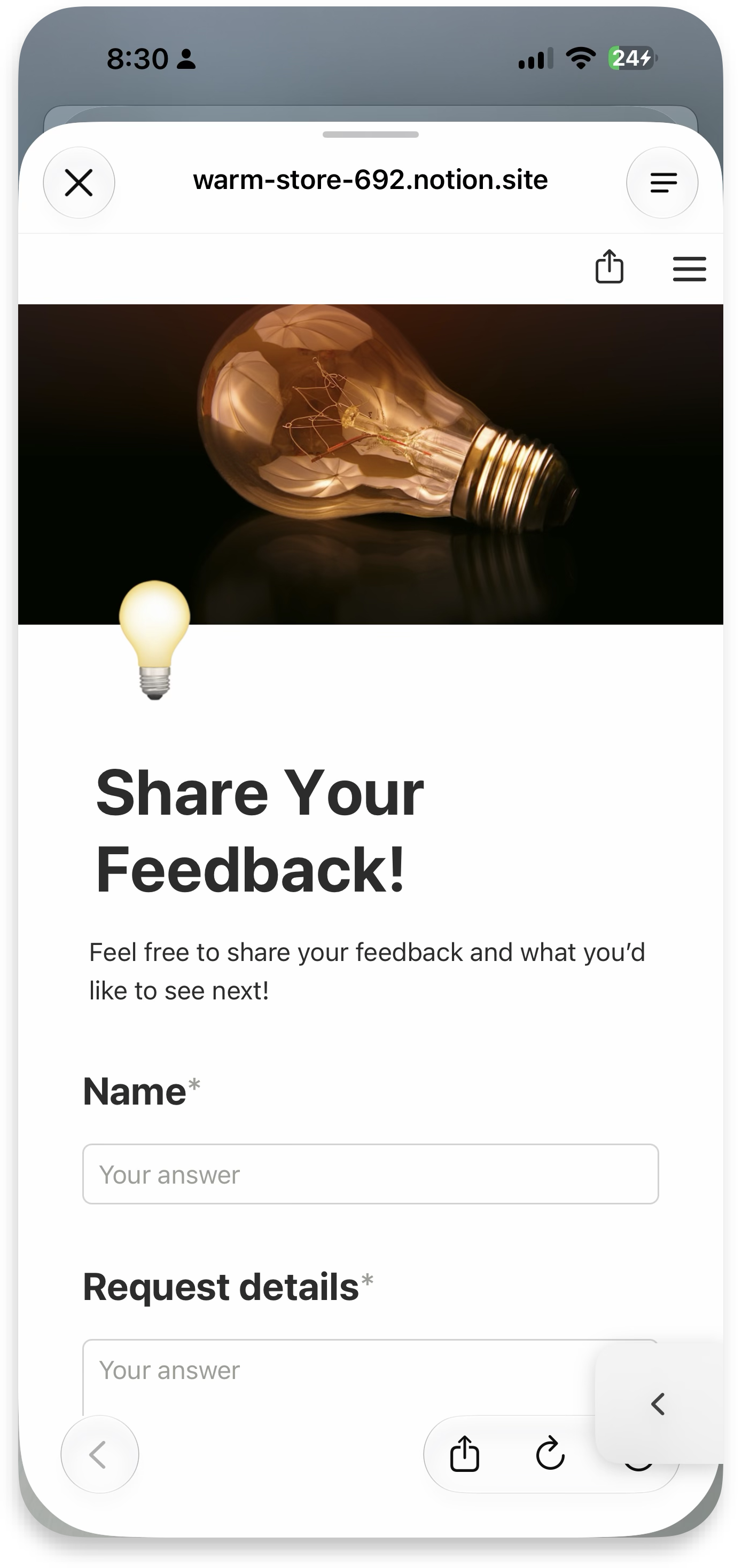 Share feedback
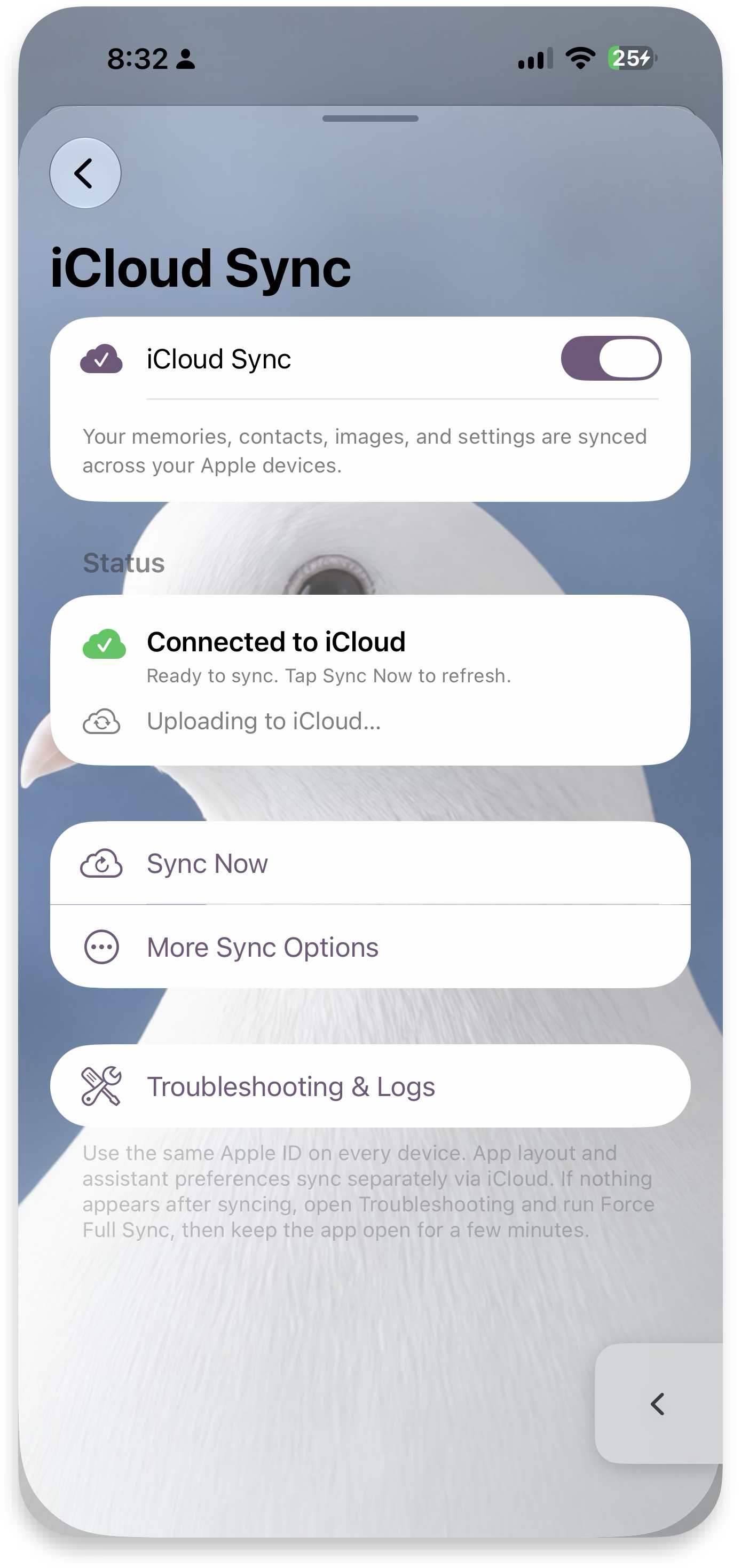
iCloud Sync
Sync memories and media across your iCloud for cross-device access.
Notifications
Notification Settings: change notifications and how they're triggered. Important Notifications: major announcements and news. Helpful Notifications: additional notifications to help and enrich the MyPraise App experience. Supporter Tier+ unlocks further customization like adding images and creating custom messages.
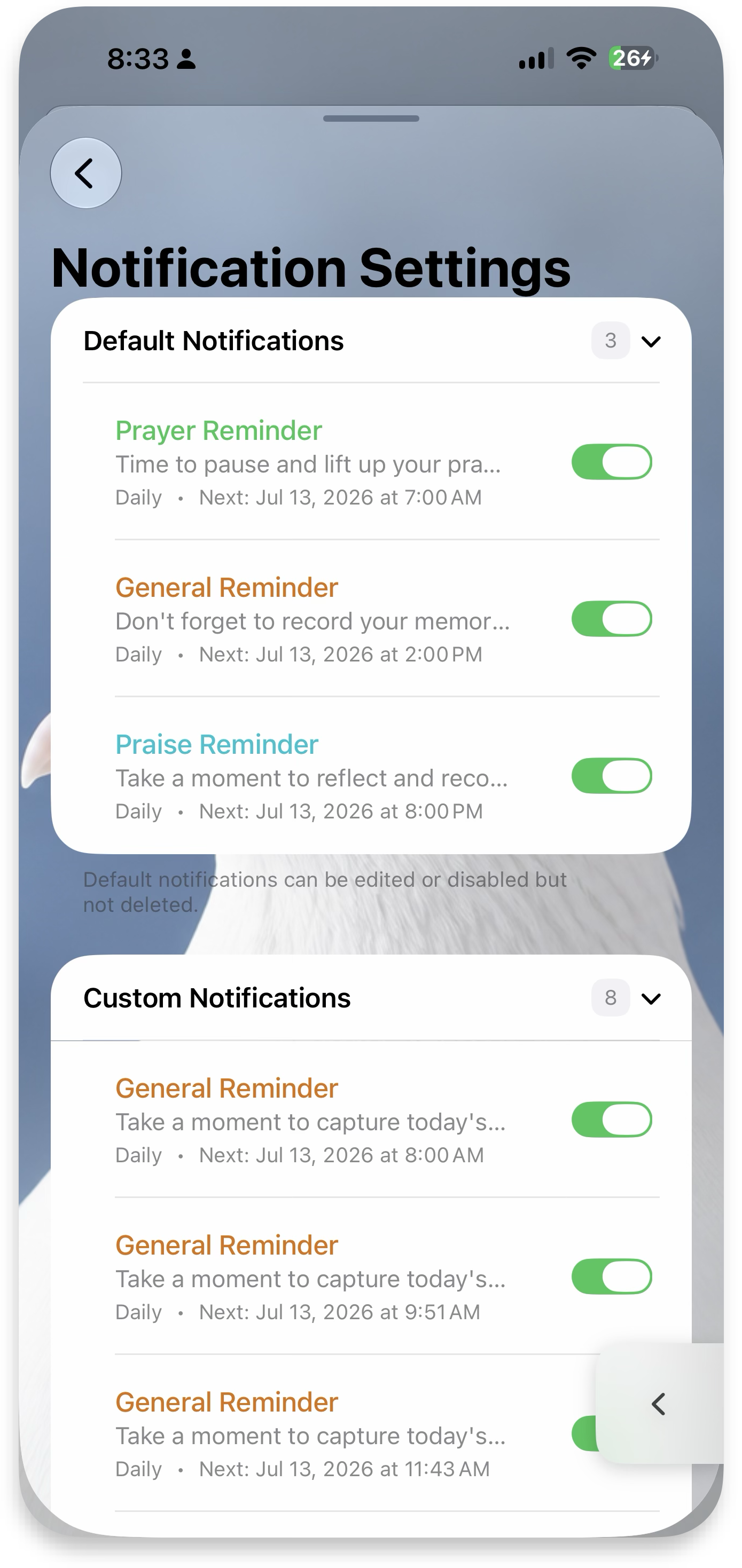 Notification list
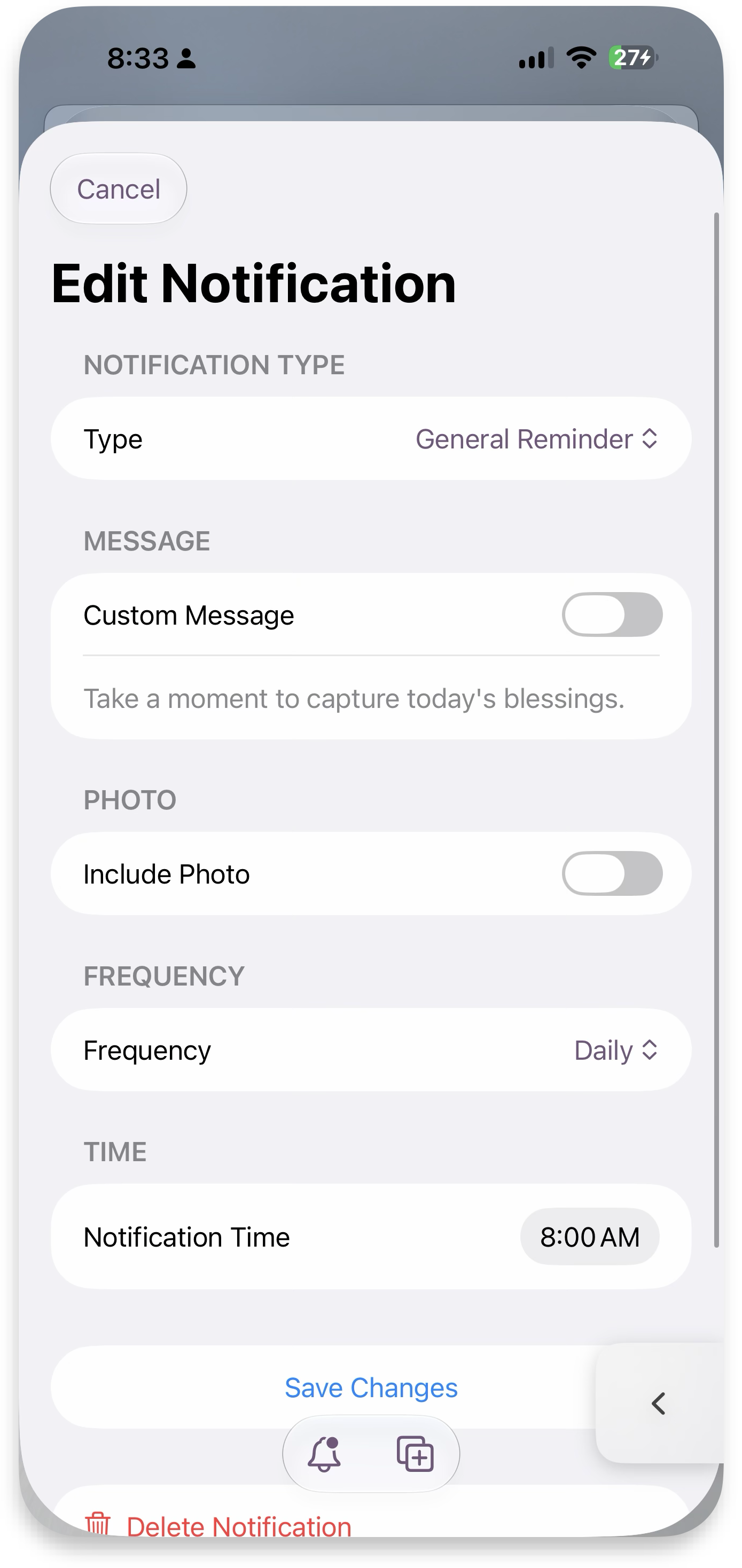 Edit notification
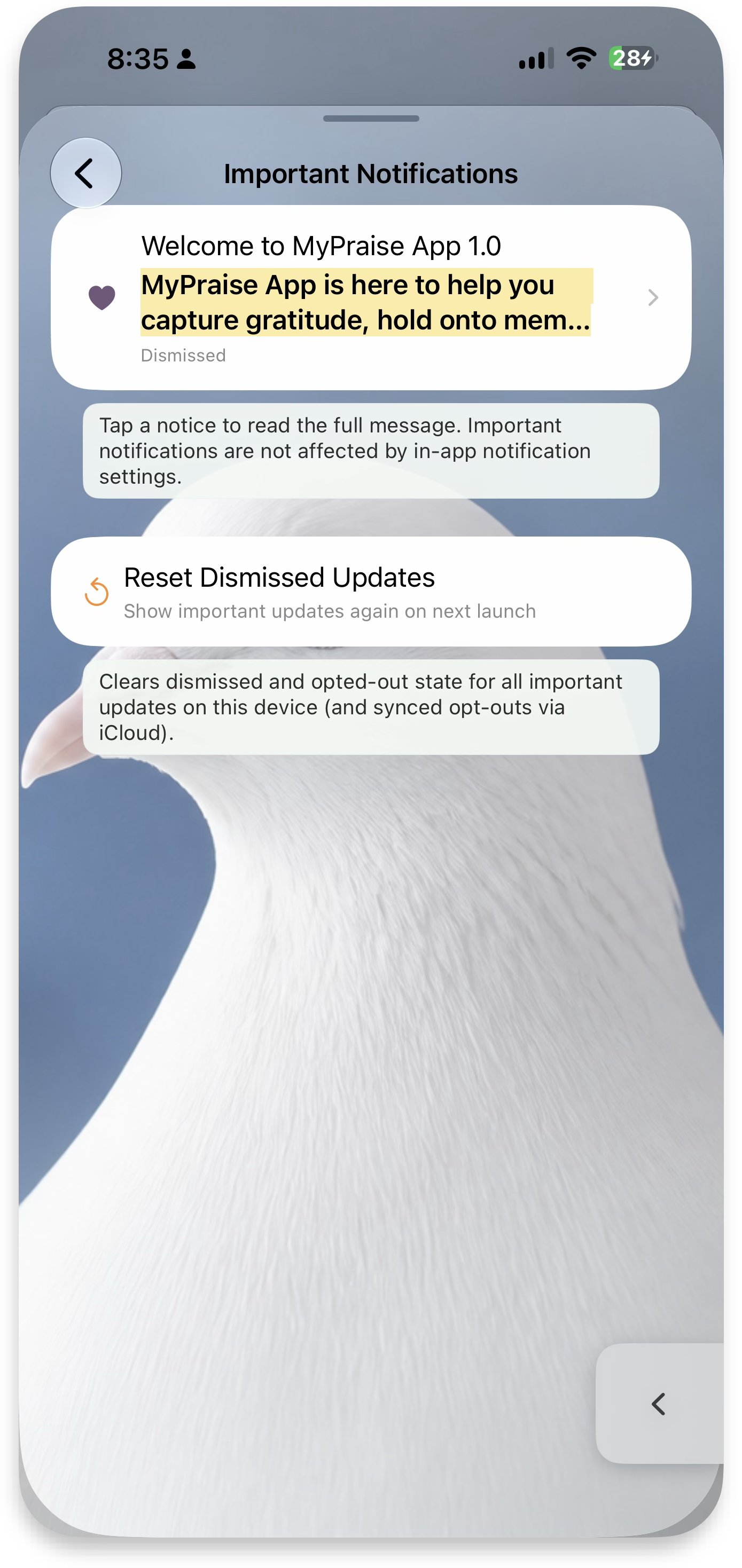 Important
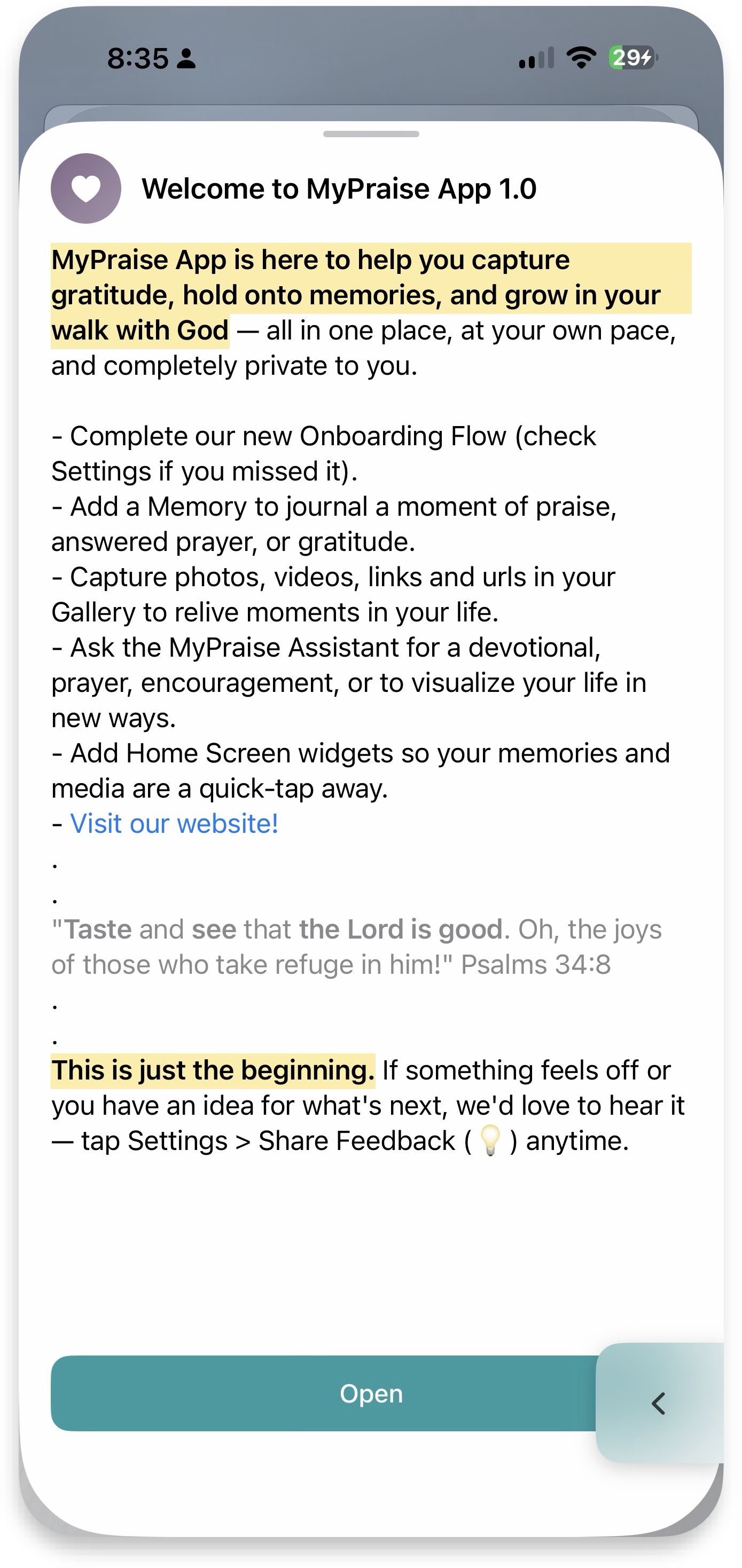 Announcement
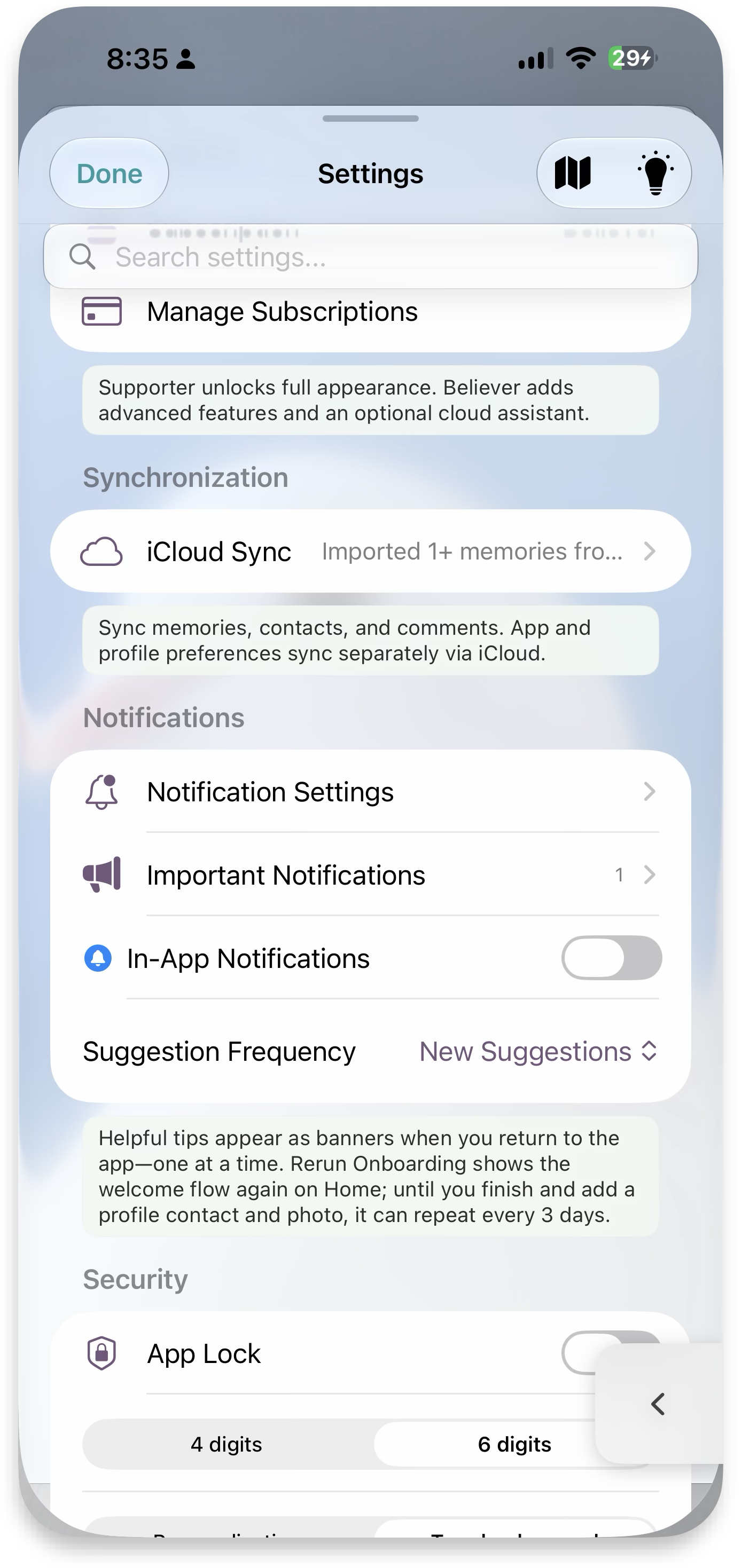 In-app off
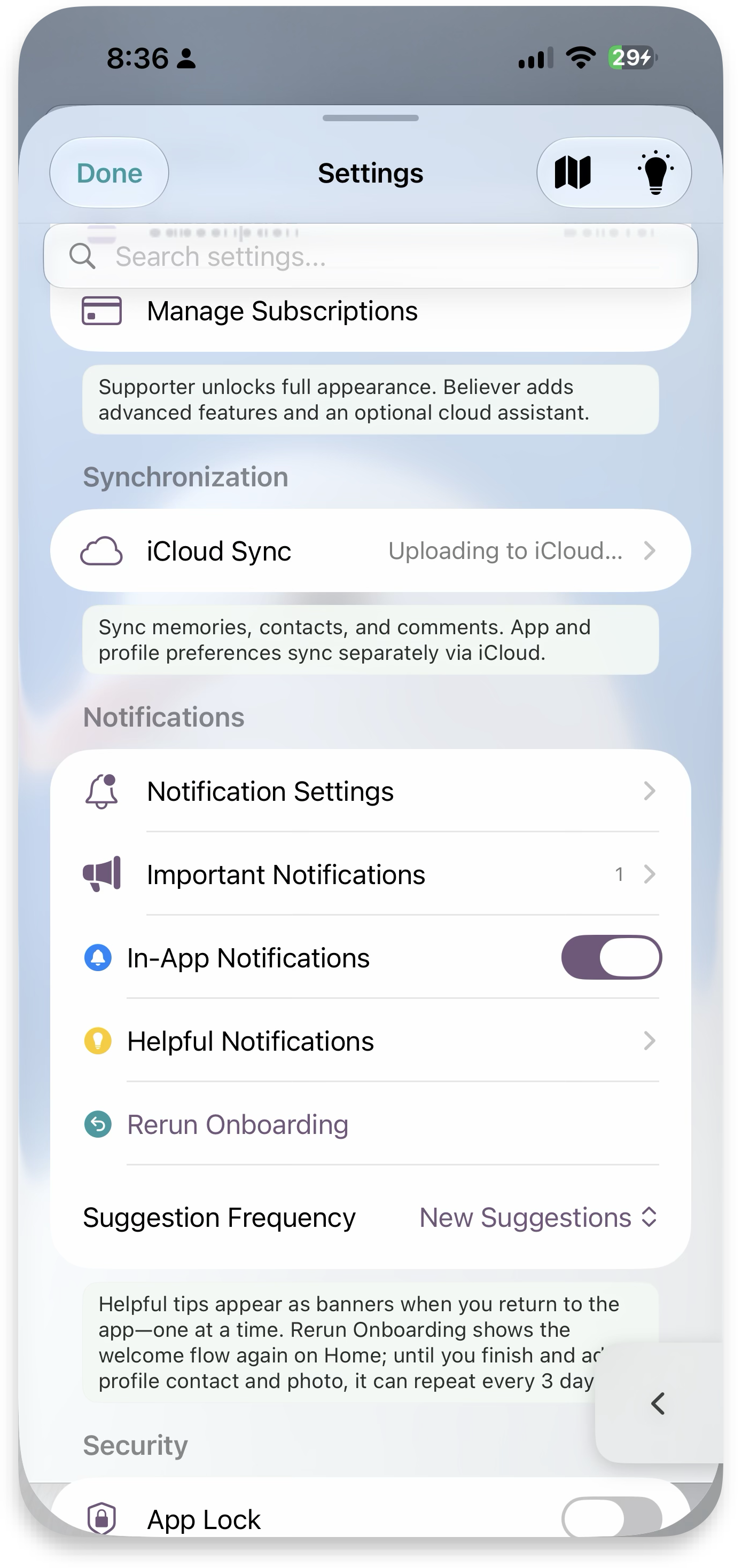 In-app on
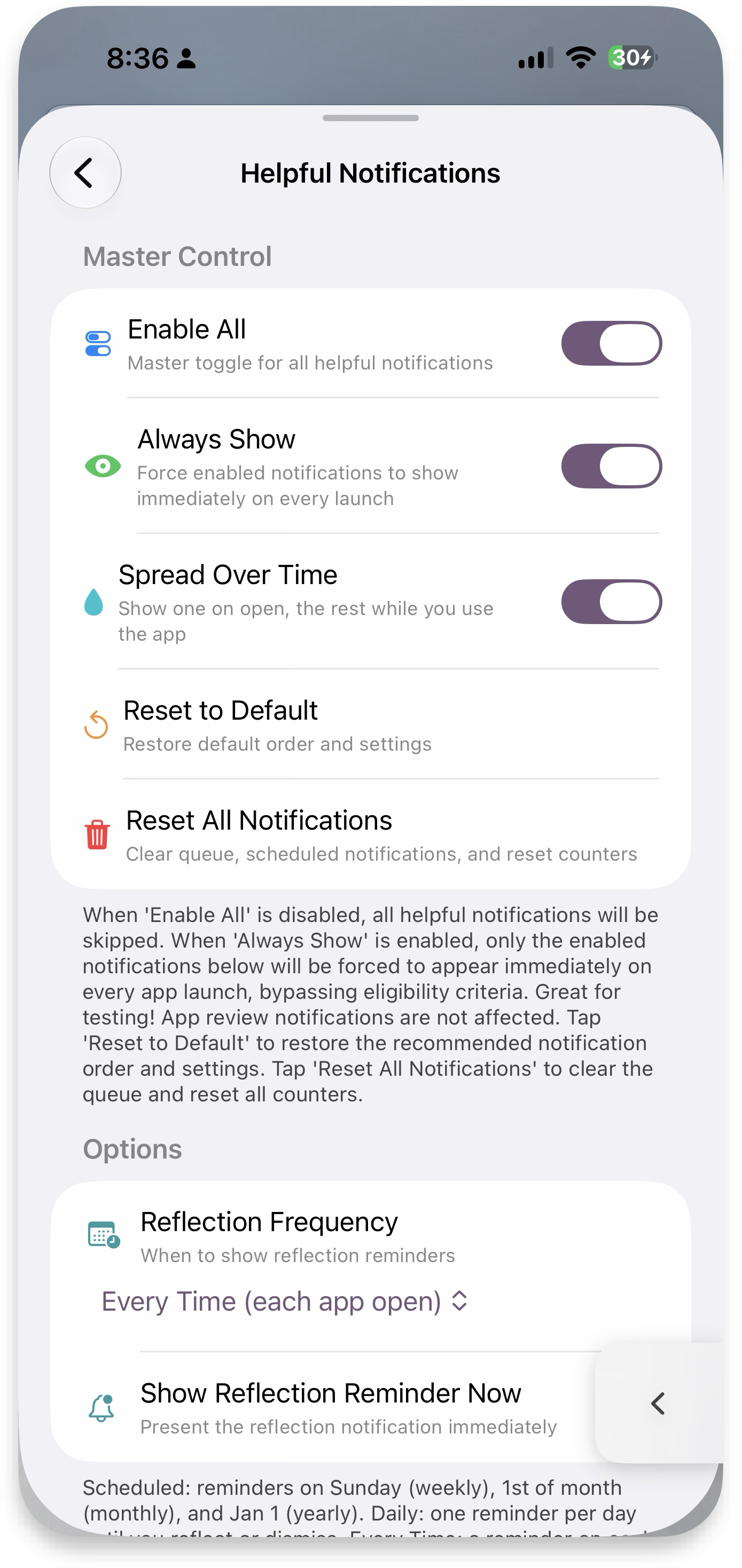 Helpful
App Lock & security
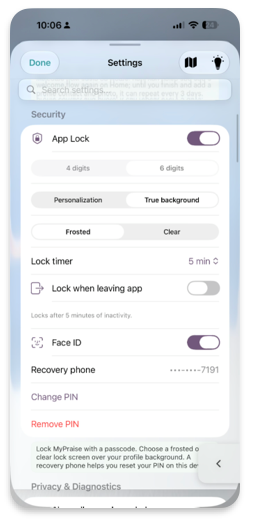
Lock your app with a PIN and Face ID — based off a timer, or when you close the app, for peace of mind. Note: the backup phone number doesn't send a text — it's used to verify you know the number.
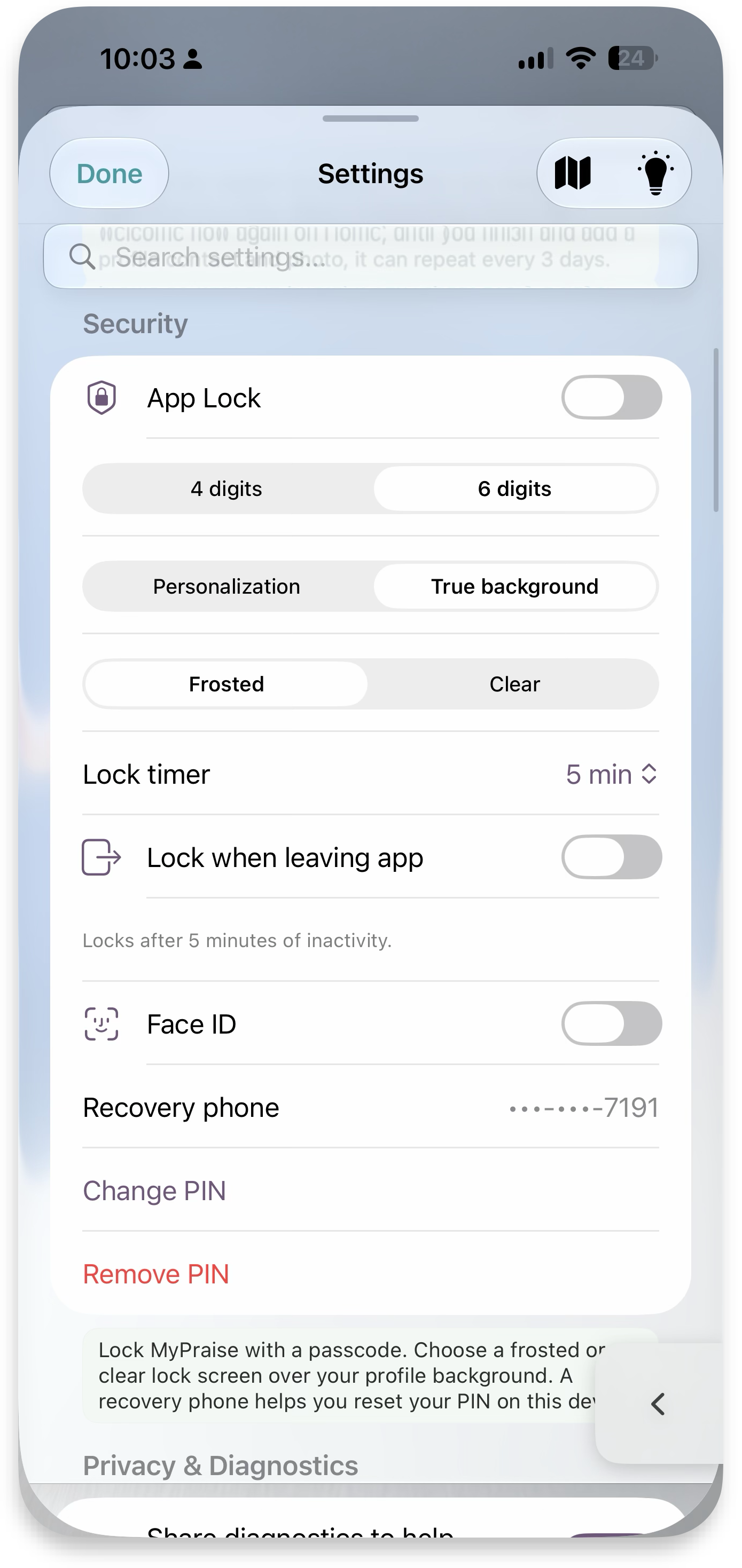 App Lock options
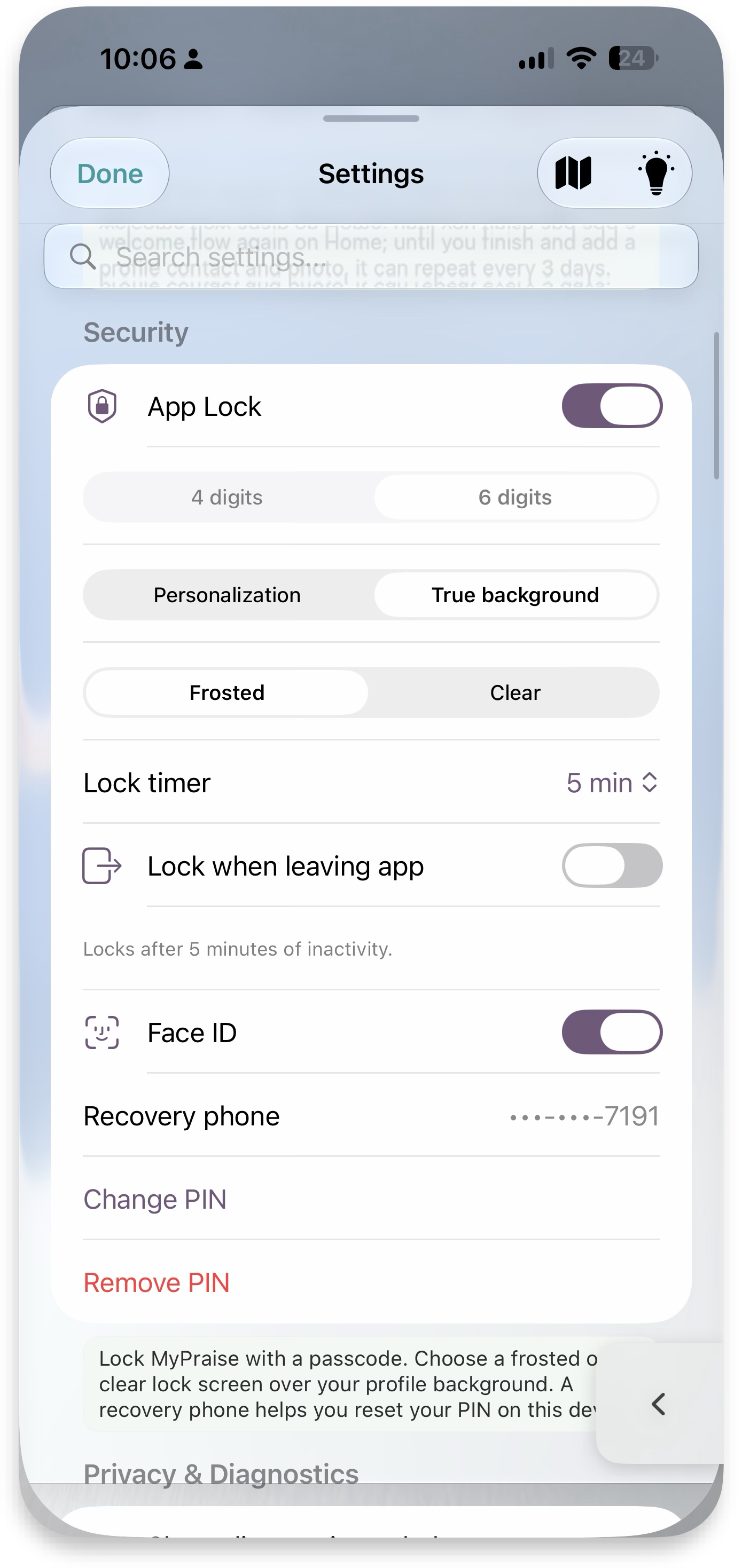 Enabled + Face ID
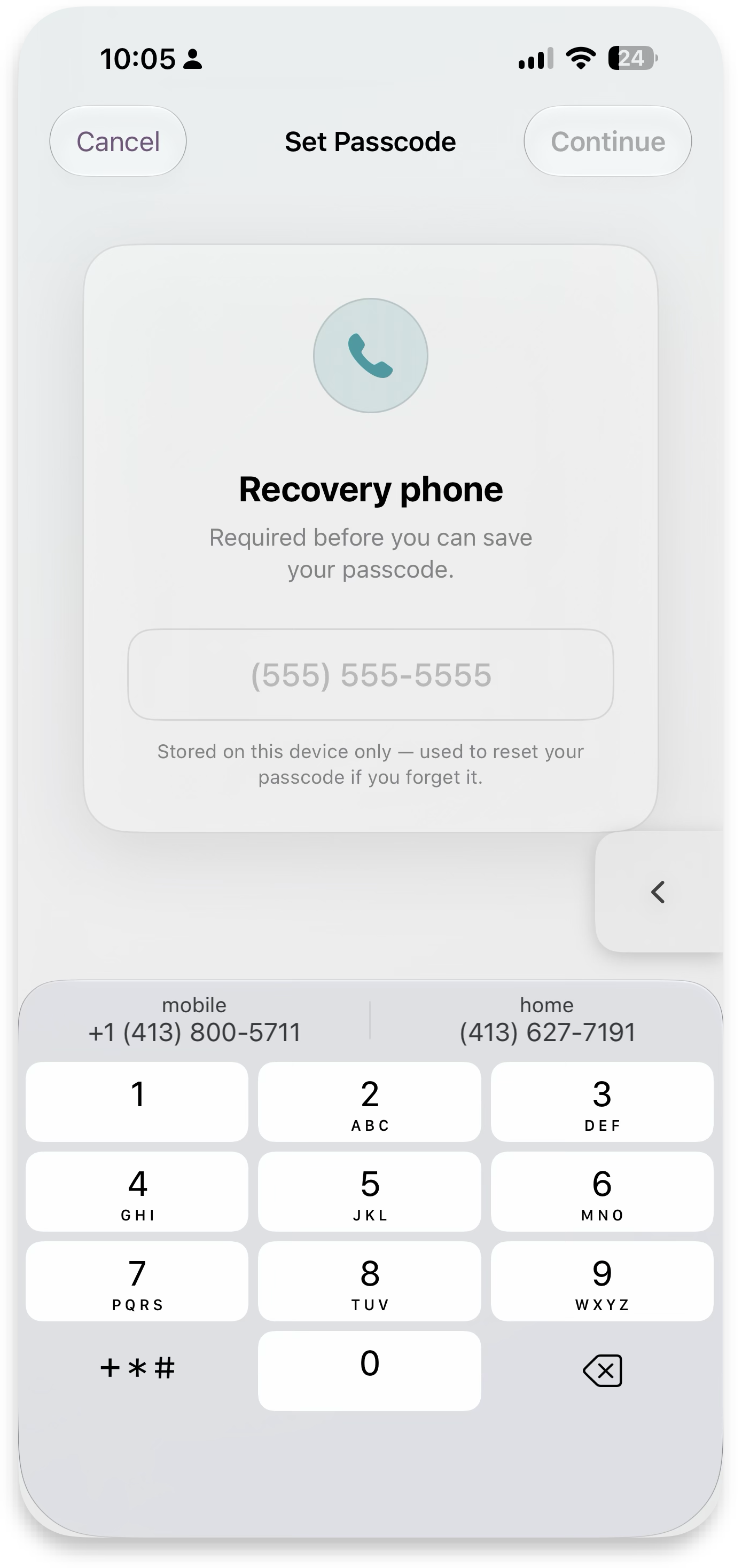 Recovery phone
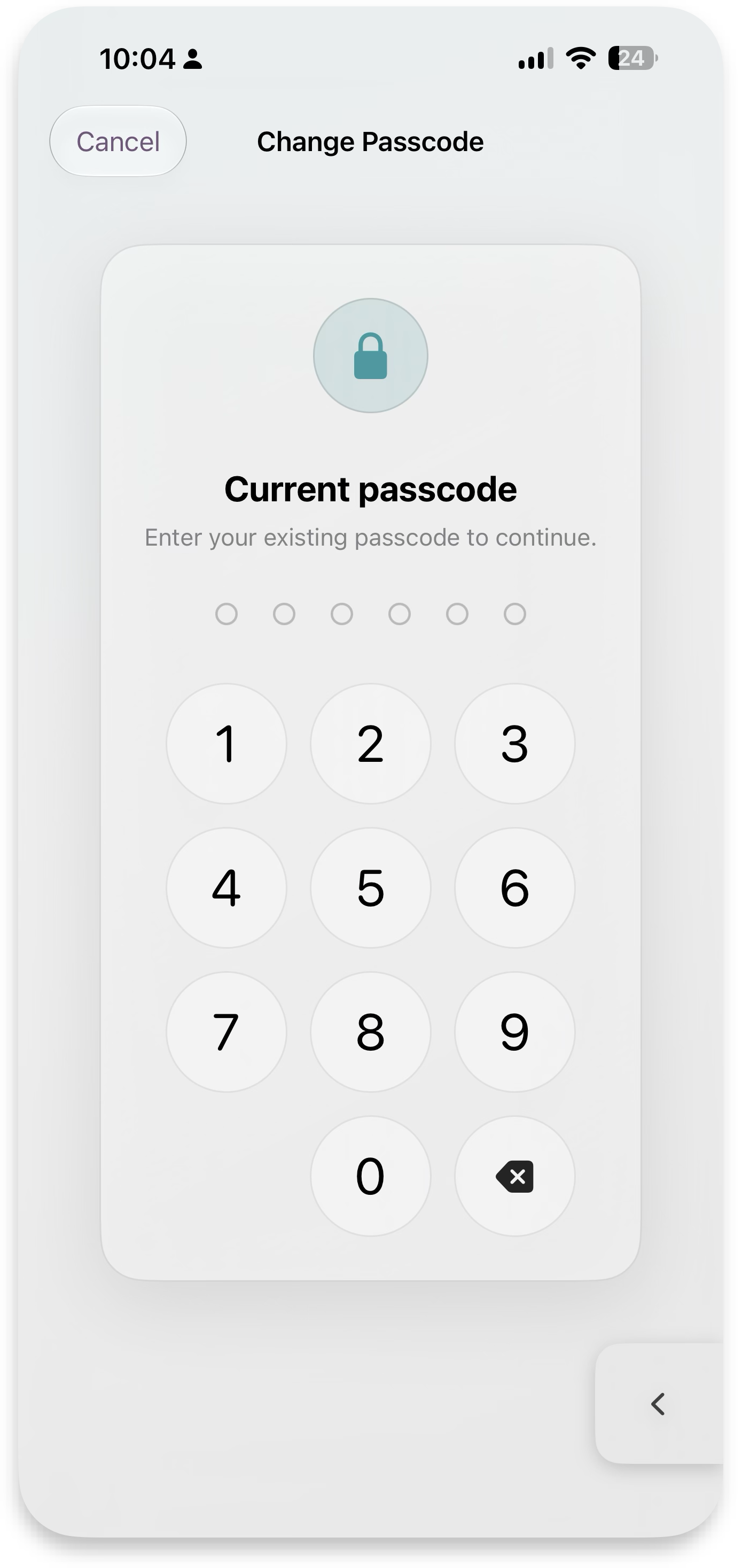 Passcode
Supporter Tier & subscriptions
Show your support for MyPraise App if you're enjoying the experience and are seeing God's blessing on your life! Try before you commit to see the additional features. Billed through the App Store; manage or cancel anytime from iOS Settings.
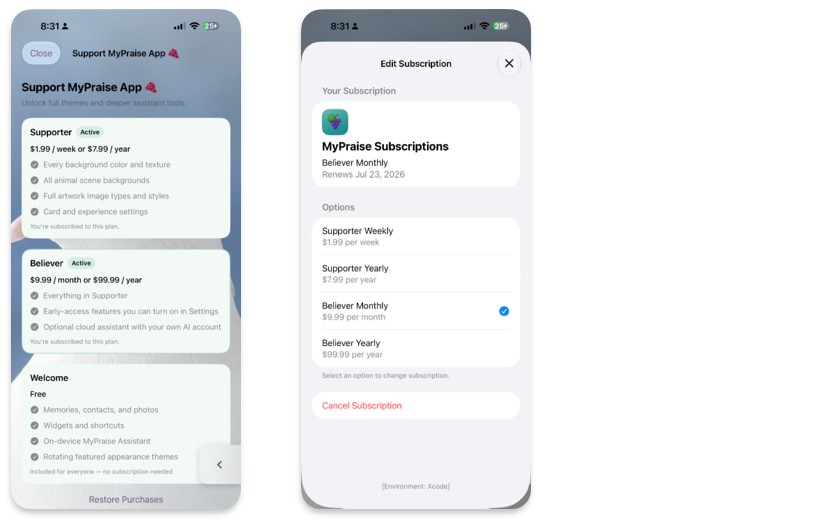
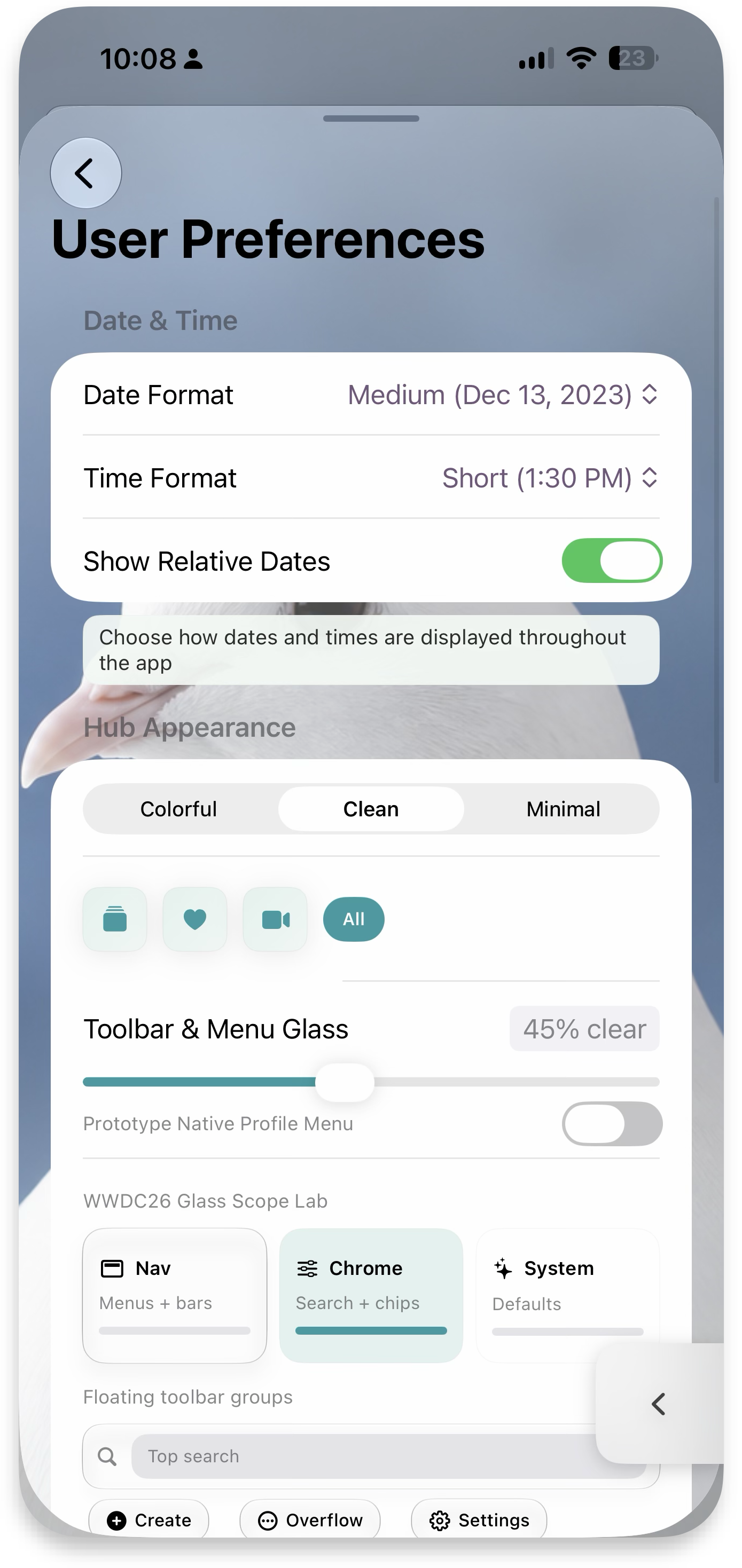
Preferences — date & time, hub appearance
Date & Time: adjust how date and time are displayed across the app. Hub Appearance: adjust how the hub and insight cards are displayed.
Diagnostics & privacy
TLDR — we would love to capture the features that you love in the app, but will never capture your memories or identifiable information about you (see the Privacy Policy). Privacy: more coming soon.
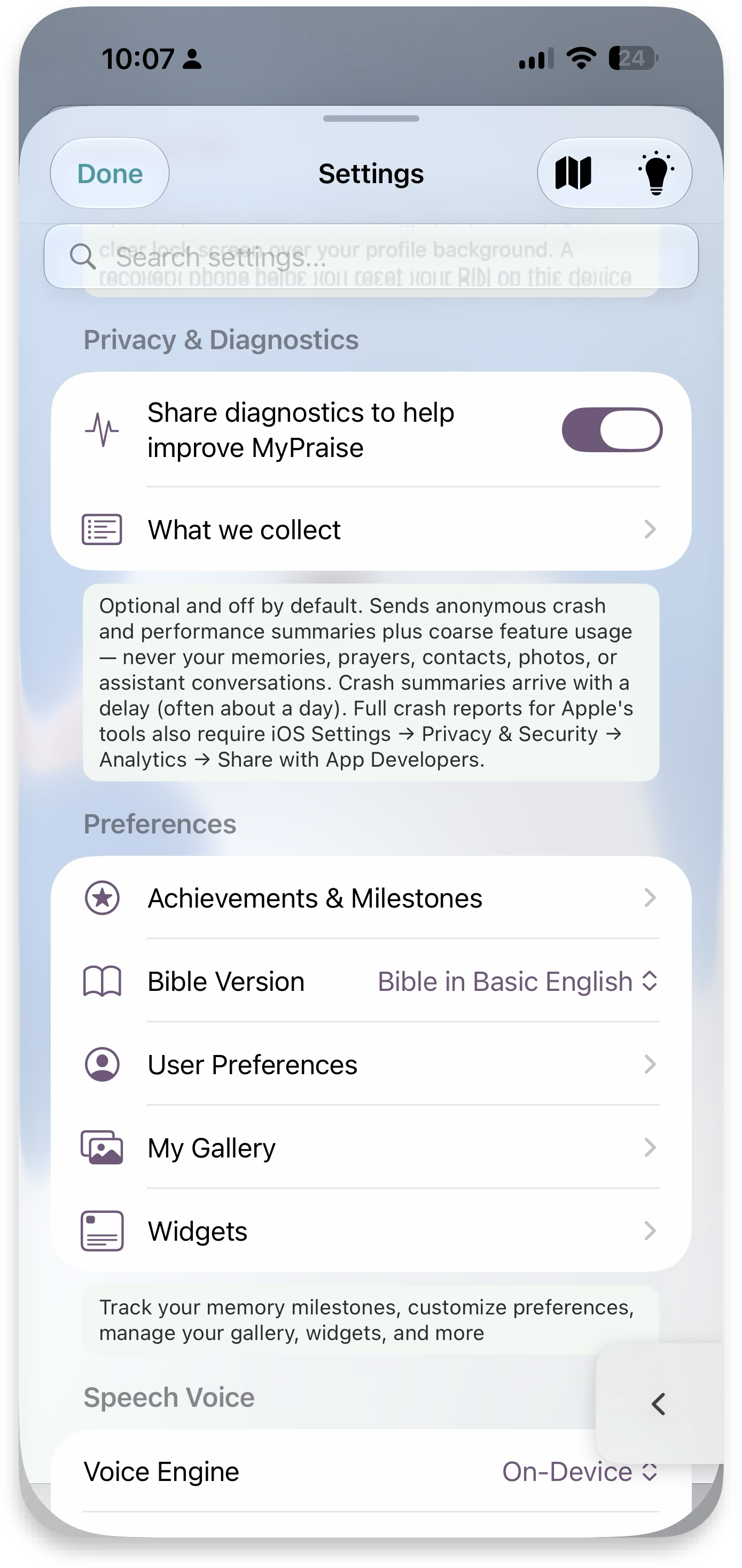 Share diagnostics
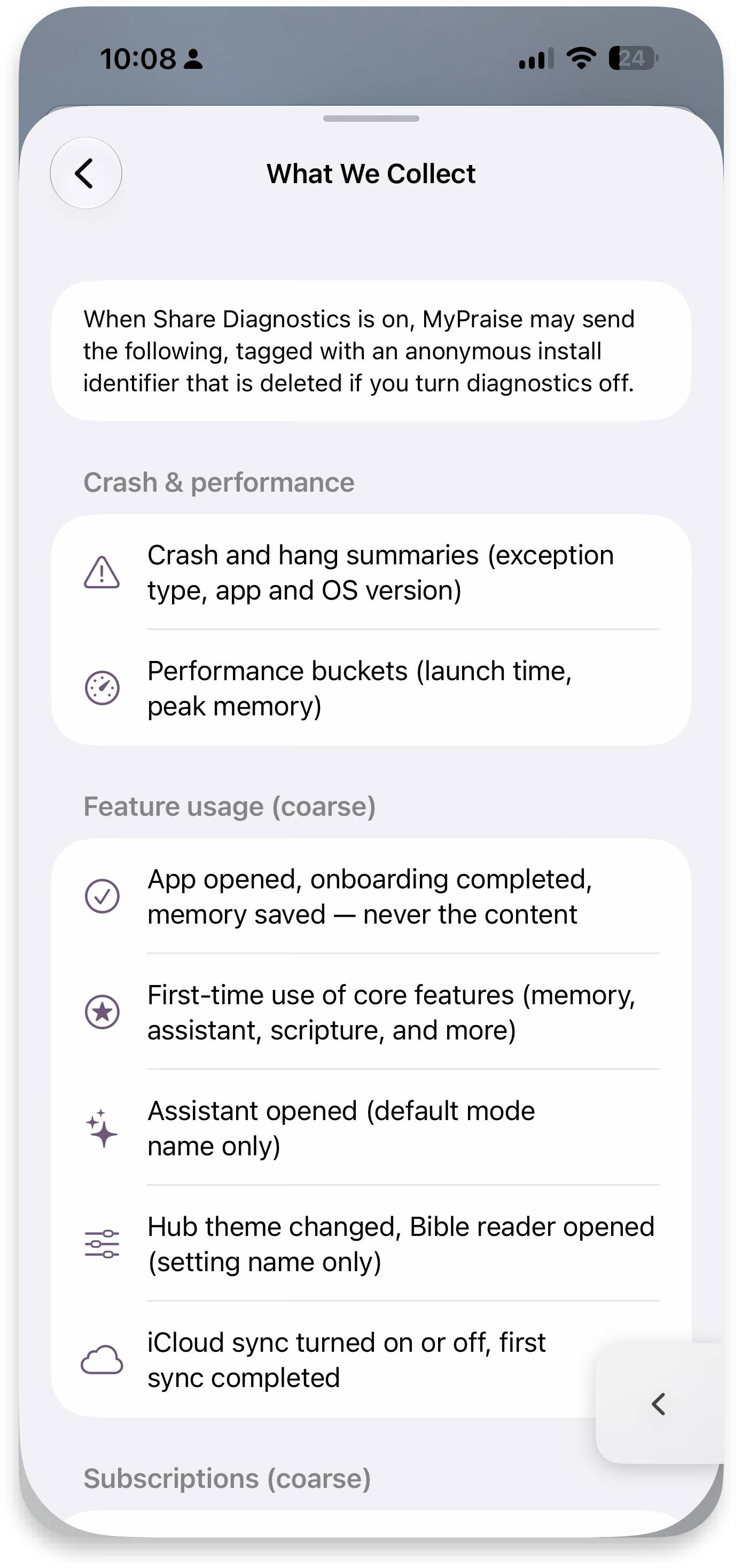 What we collect
Achievements & widgets
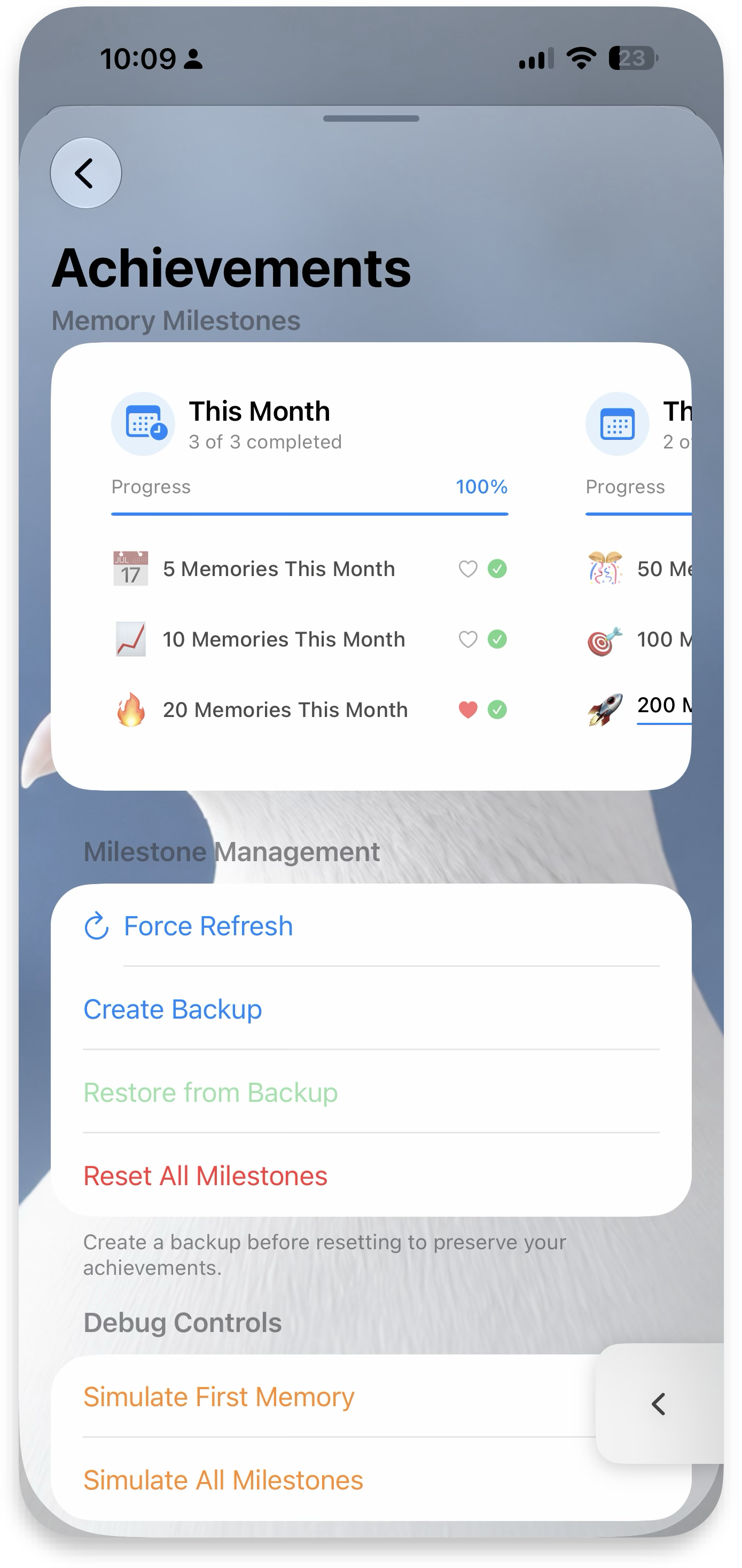
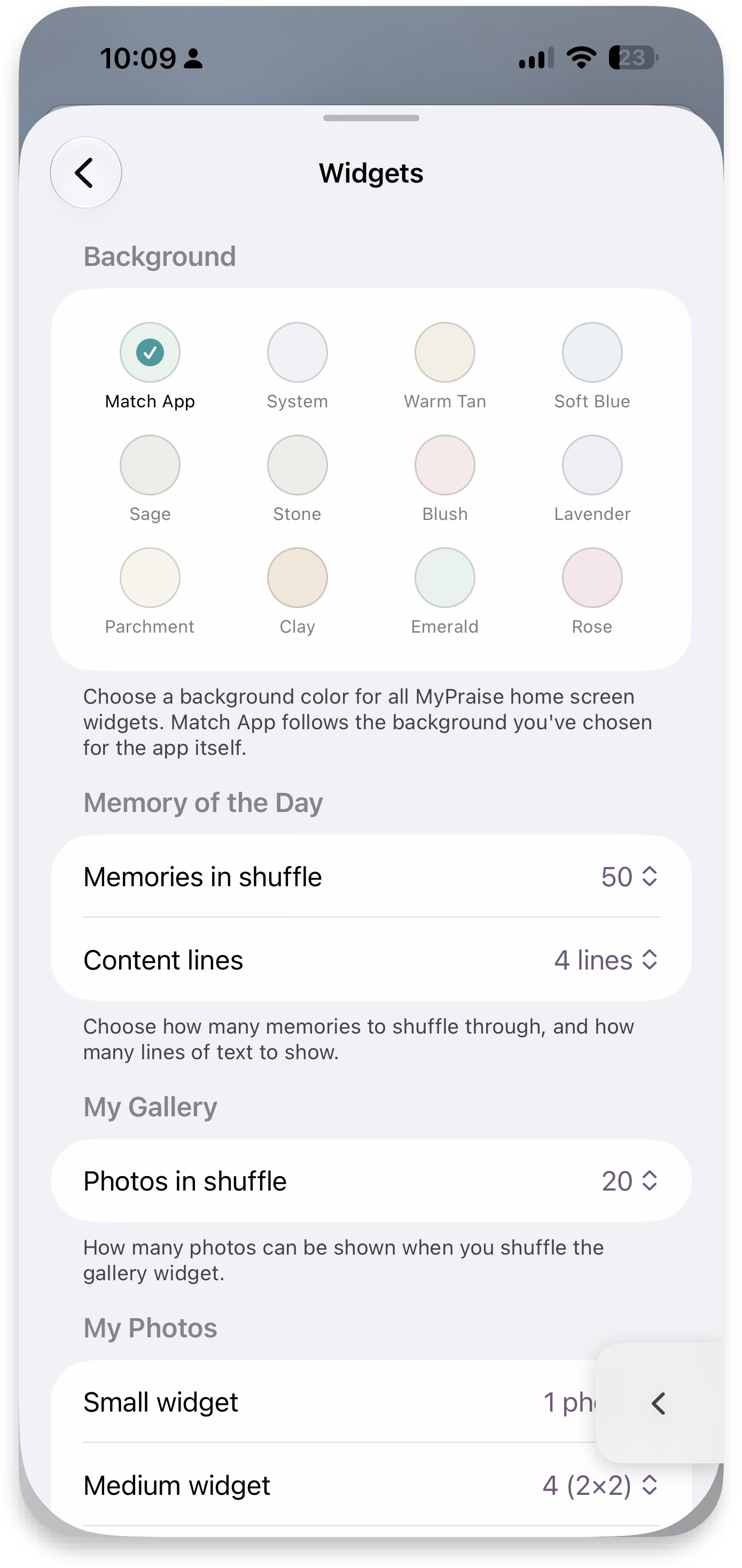
Track your achievements — more coming soon. Change how widgets look; Supporter+ adjusts finer details and more color options.
Reflection reports
Reflect on your memories and see which ones were most impactful — a guided, multi-step review of a time period that closes with a Reflection Report summarizing themes, answered prayers, and gratitude patterns.
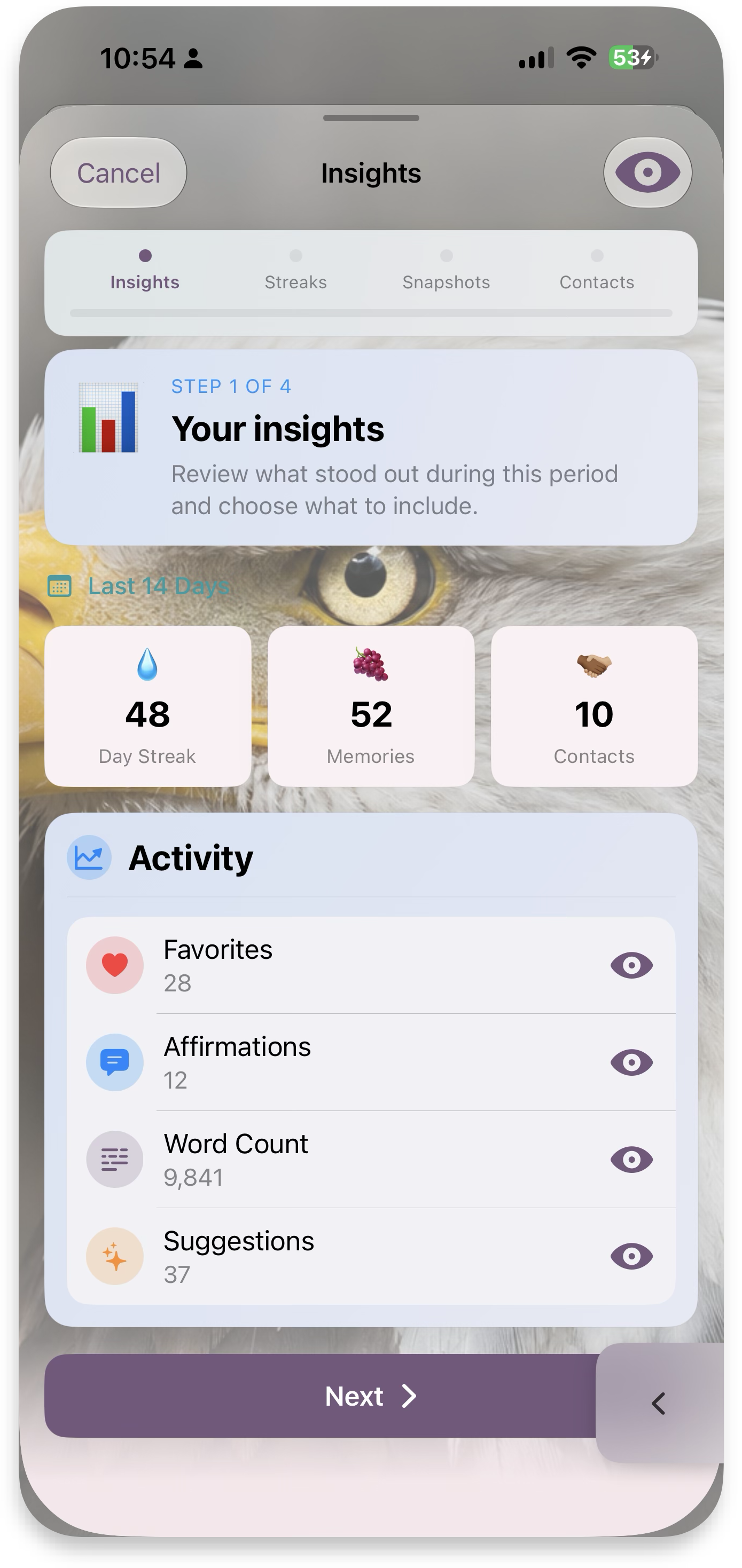 1 · Insights
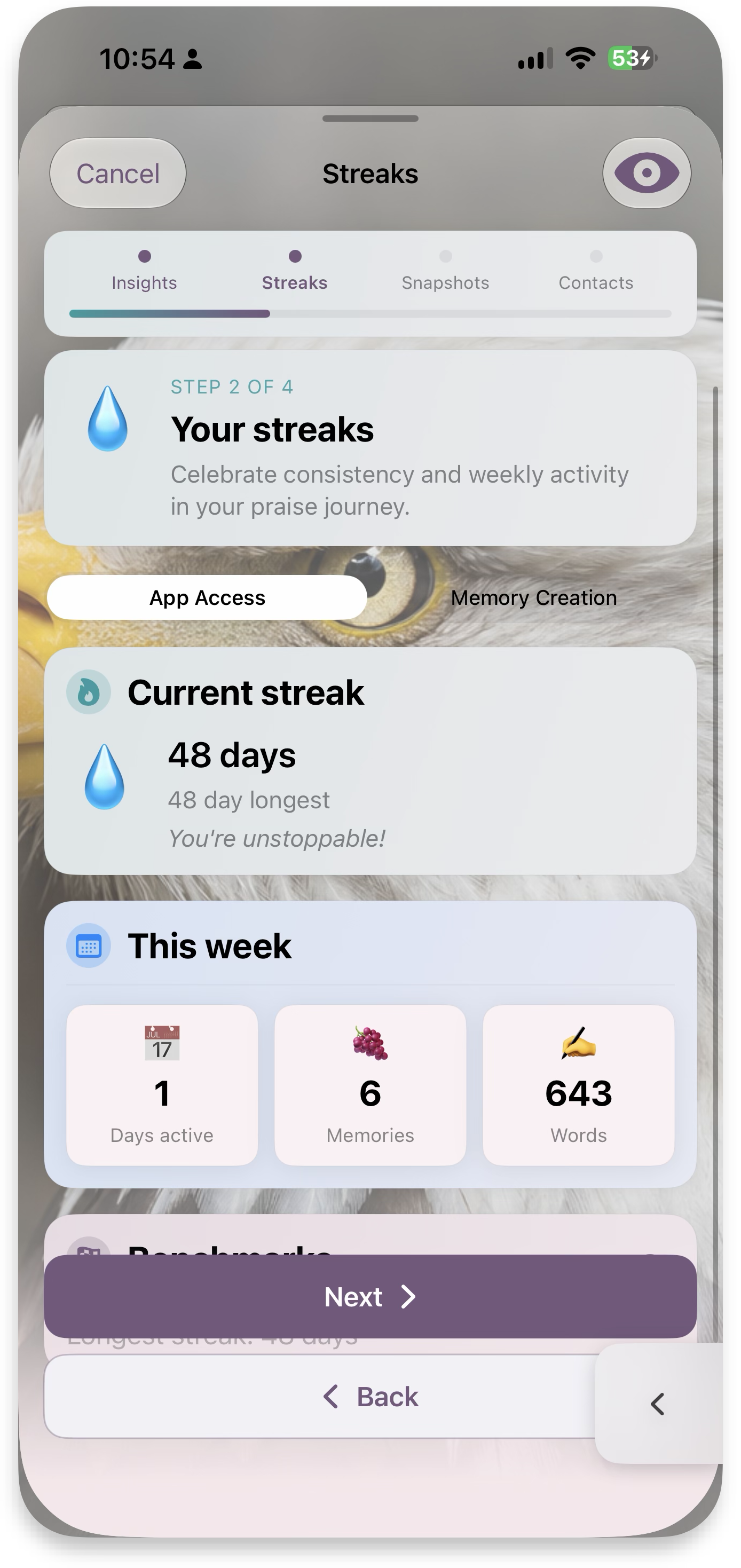 2 · Streaks
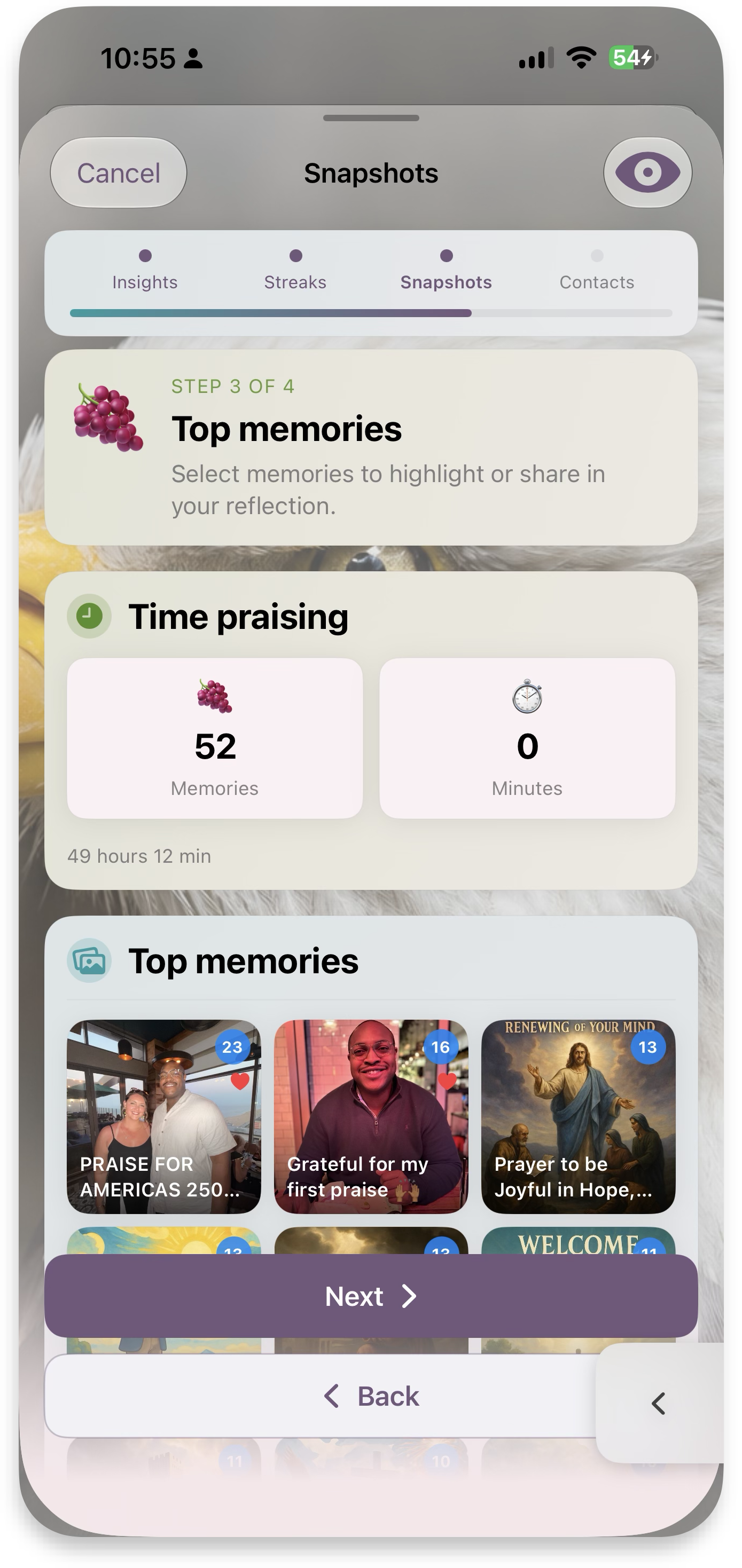 3 · Top memories
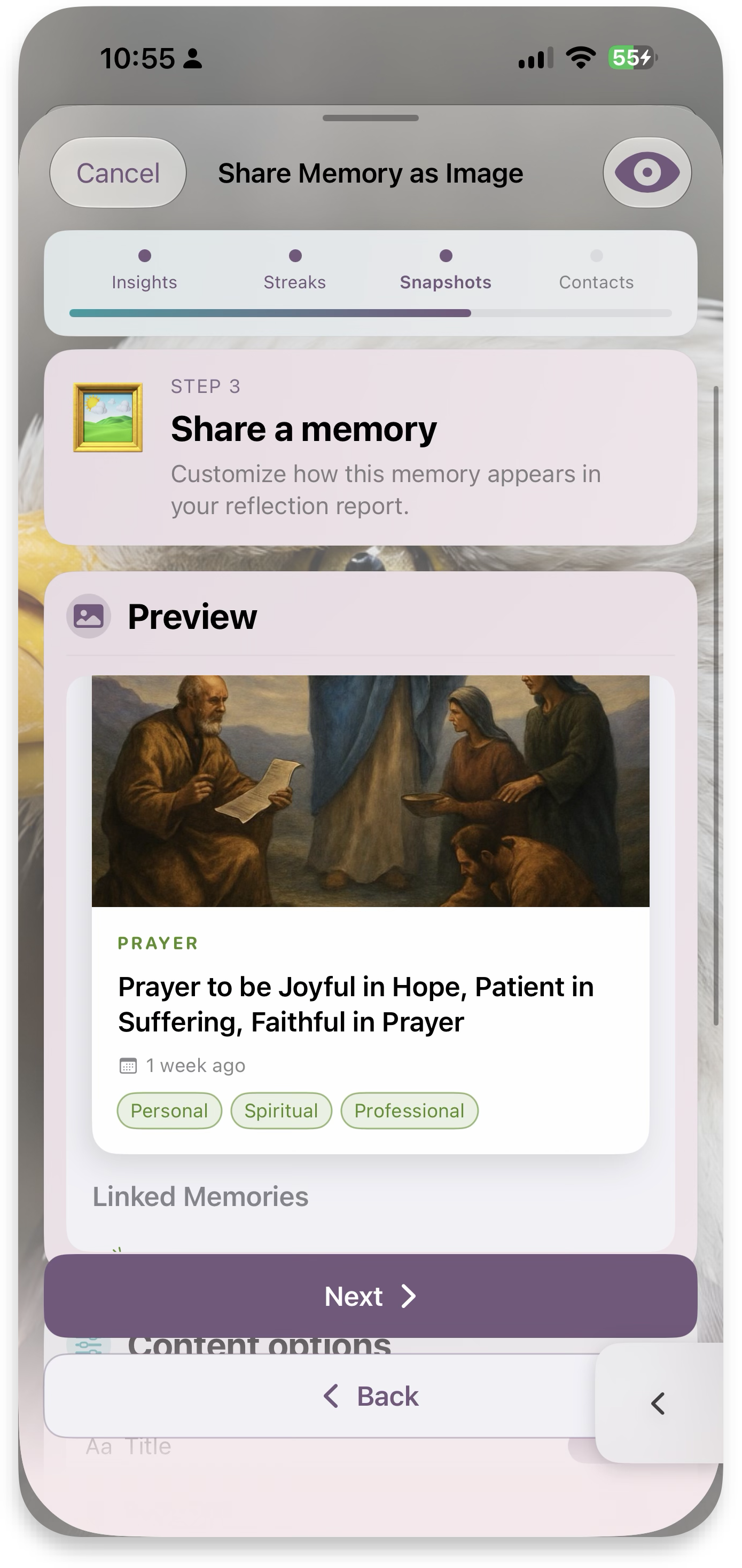 Share a memory
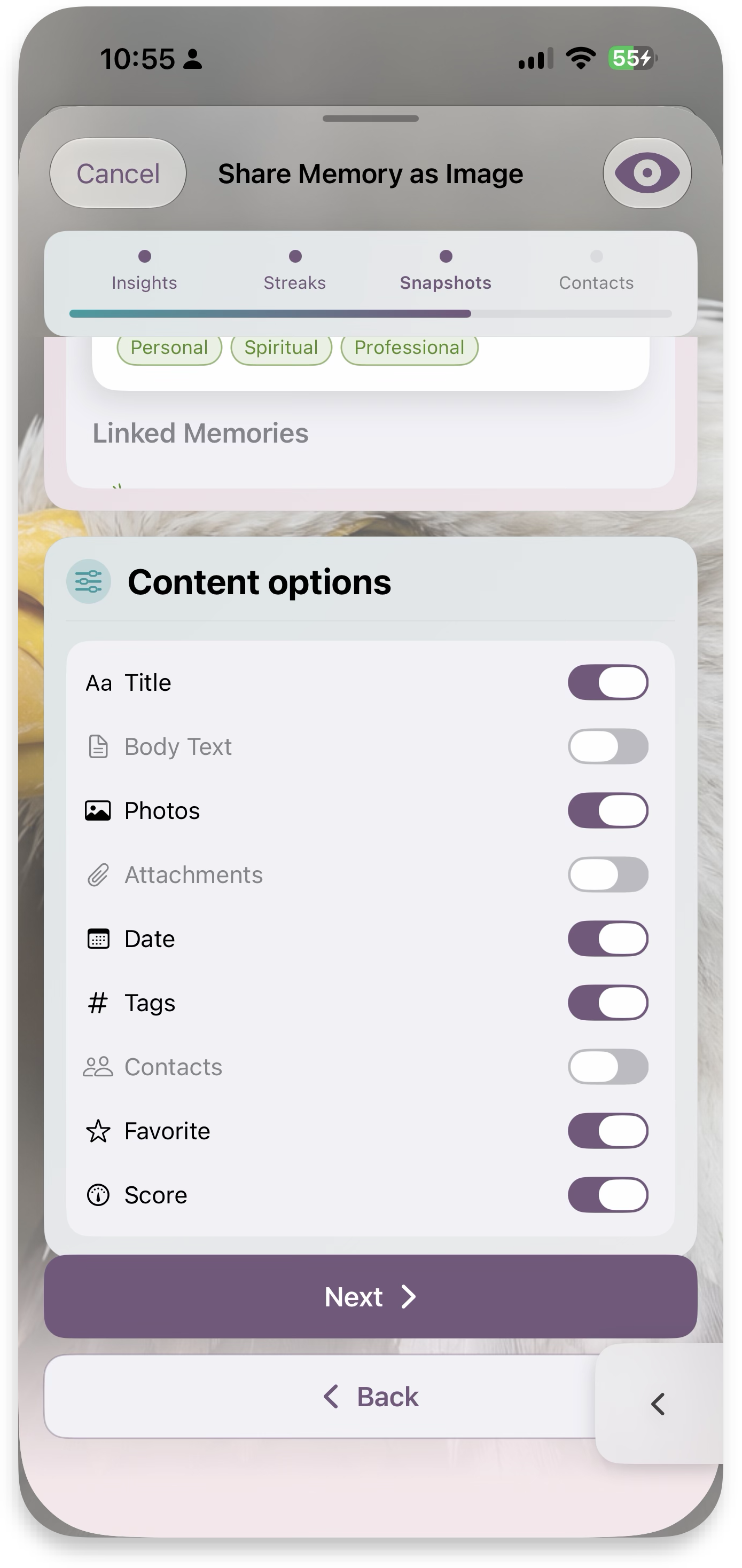 Content options
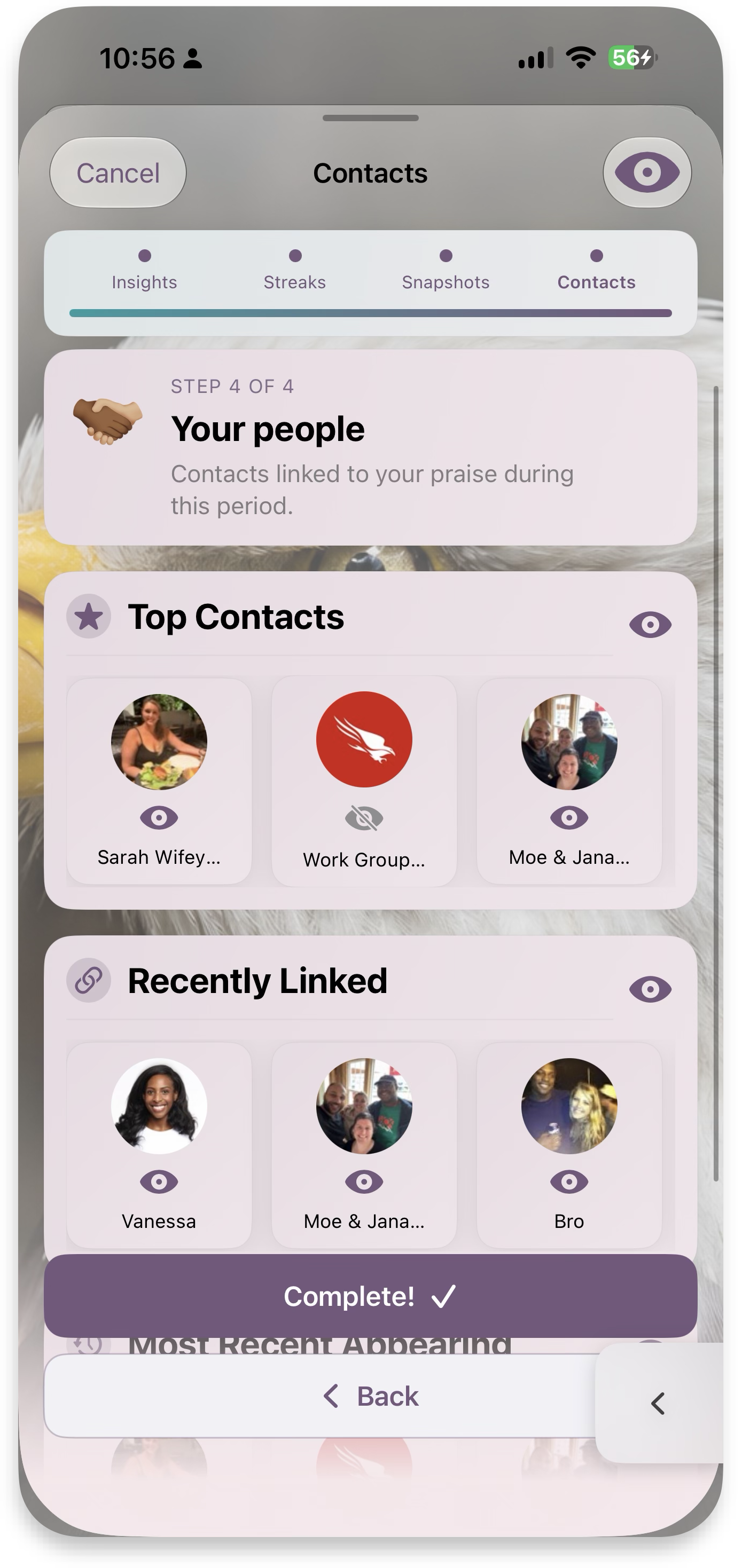 4 · Your people
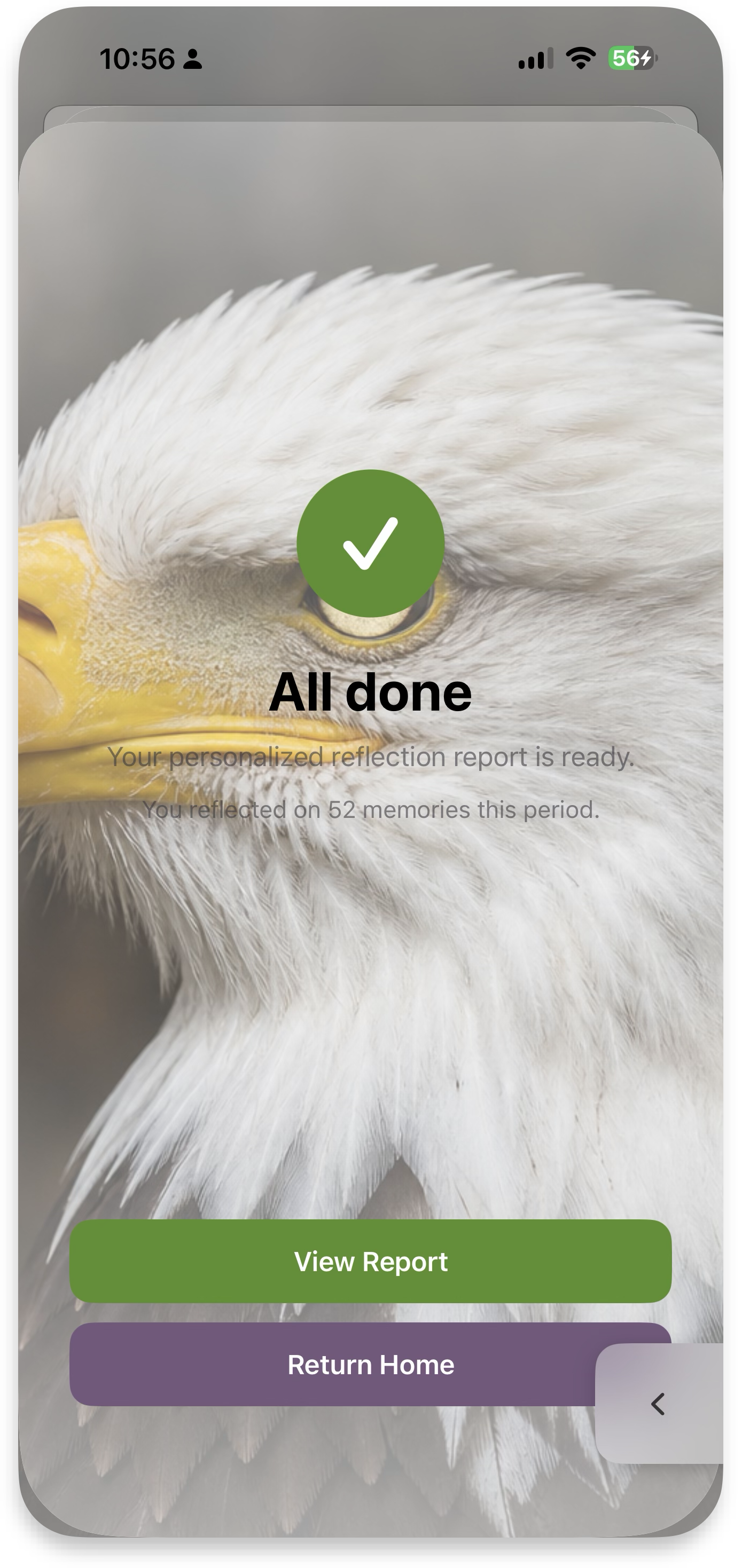 All done
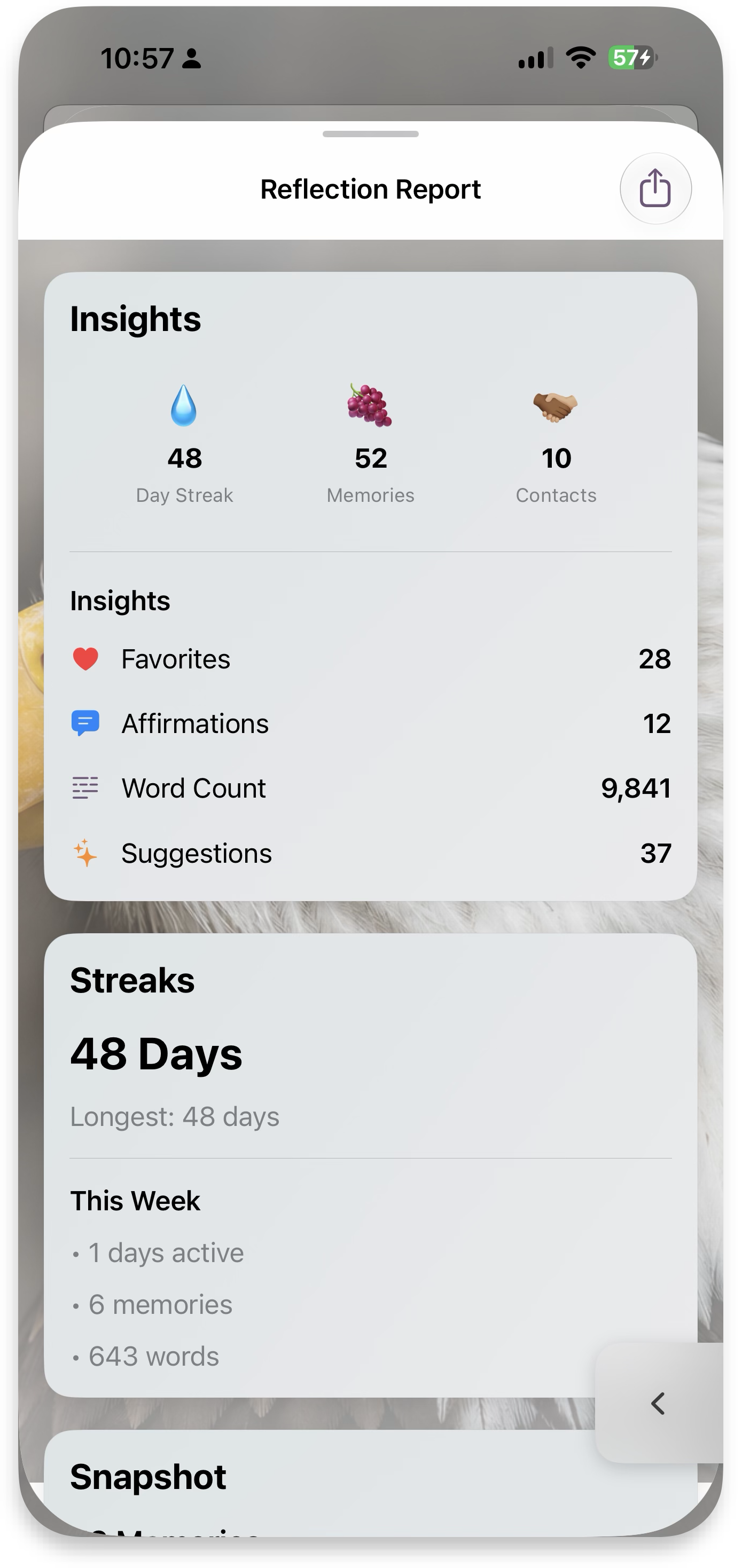 Report
MyPraise Assistant
An in-app AI chat that helps draft memories, generate devotional artwork, and summarize a period of time — always in the app's warm, first-person voice.
Quick start
- Open the Assistant from Home — it greets you by name with a time-of-day prompt.
- Ask it to help draft a memory, pray about something, or reflect on a stretch of time.
- Ask for devotional artwork to accompany a memory — it generates an image in one of ~50 style presets.
Deep dive
Voice guardrails
Responses are graded against explicit failure states — too preachy, too formal, wrong tone — so the assistant stays reverent but warm rather than sermon-like.
Devotional artwork
Generated art favors warm, golden-hour, painterly rendering over flat vector or photorealistic style — consistent with the rest of the app's imagery.
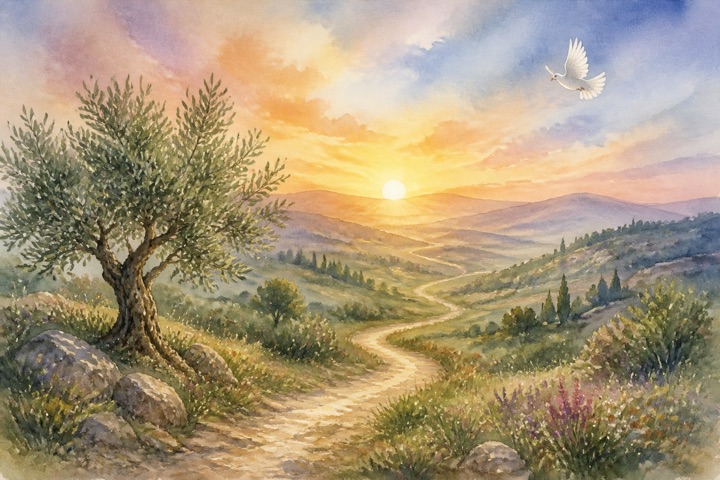

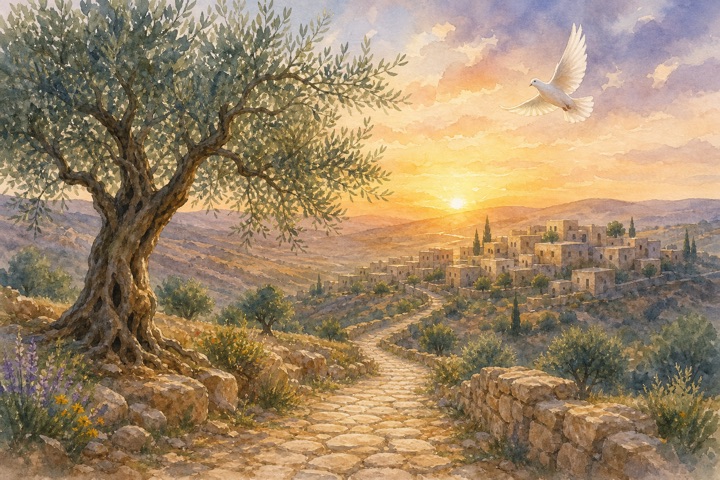
MyPraiseAssistantManager.swift; backend in AI/mypraise-gpt-backend (Next.js on Cloudflare via OpenNext), with usage/telemetry in AI/mypraise-telemetry-worker. See docs/image-playground-prompt-optimization-2026-07-06.md for artwork prompt tuning.
Canvas backgrounds & appearance
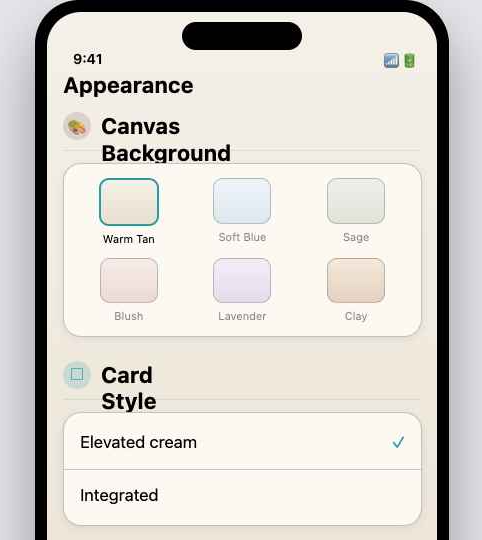
The entire app background is user-customizable: 11 named palettes, optional texture overlays, and a full "animal scene" mode.
Quick start
- Open Settings → Appearance.
- Pick a canvas palette — try the swatches in this guide's sidebar for a taste.
- Optionally switch to an animal-scene background, or adjust the darkness slider.
Deep dive
Palettes
Each palette is a top→bottom gradient plus a matching elevated card fill, with separate light/dark values and a darkness slider that blends toward white or black.
Texture & animal scenes
A subtle woven/paper/marble texture can layer at 30–45% opacity, blended multiply in light mode and screen in dark mode. Animal-scene mode swaps in a full-bleed photographic background with a vertical scrim for text legibility.
This guide's approximation
The dark-mode values the app ships are captured only for Warm Tan; the other nine palettes' dark tones you see toggled here are computed approximations for demonstration, not exact source values.
AppBackgroundView.swift and Theme.swift (AppBackgroundPalette, CanvasTextureLayer); the other 10 dark variants are there if you need exact values.
Extras
Nice-to-have touches that go beyond the core flows — each one links back to the feature it belongs to.
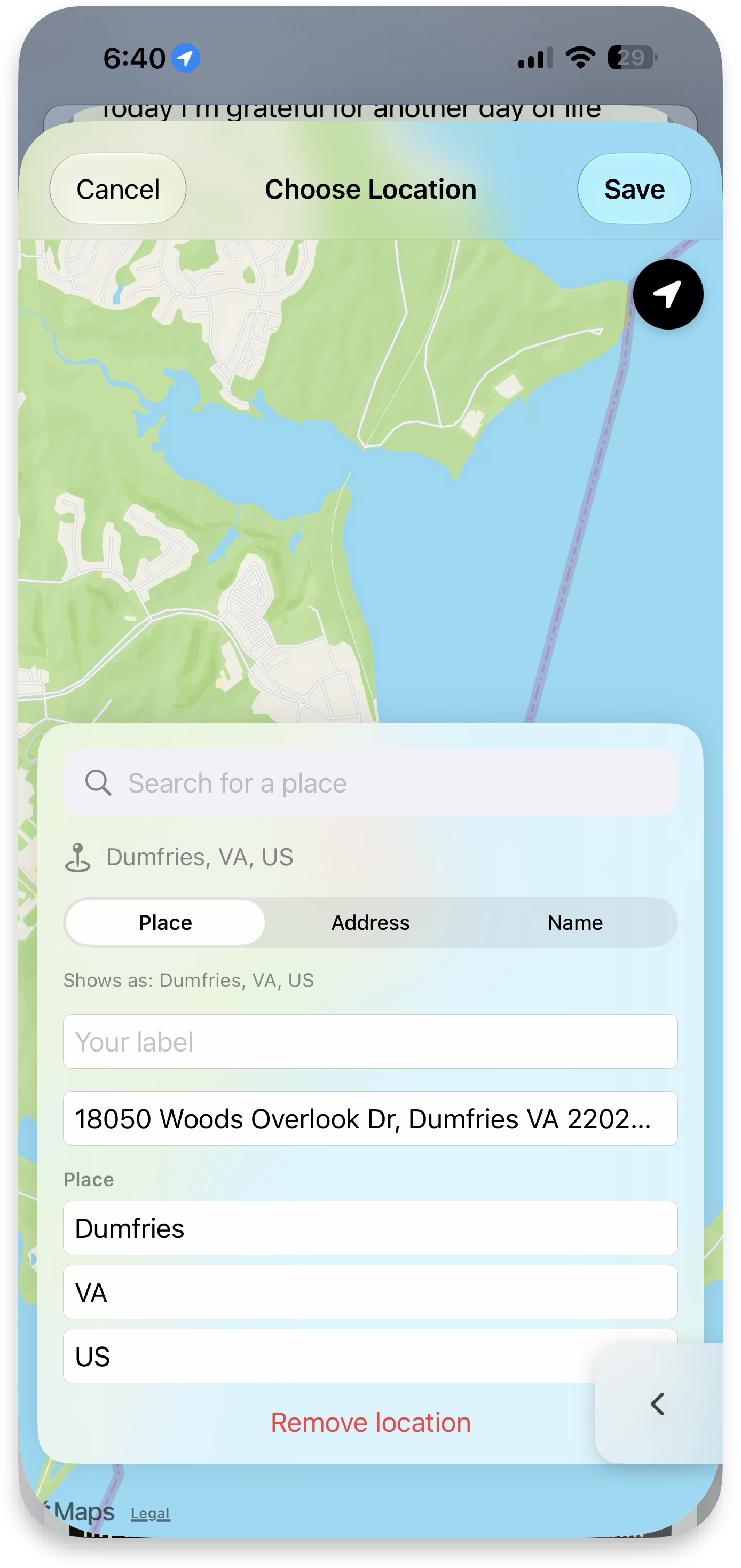
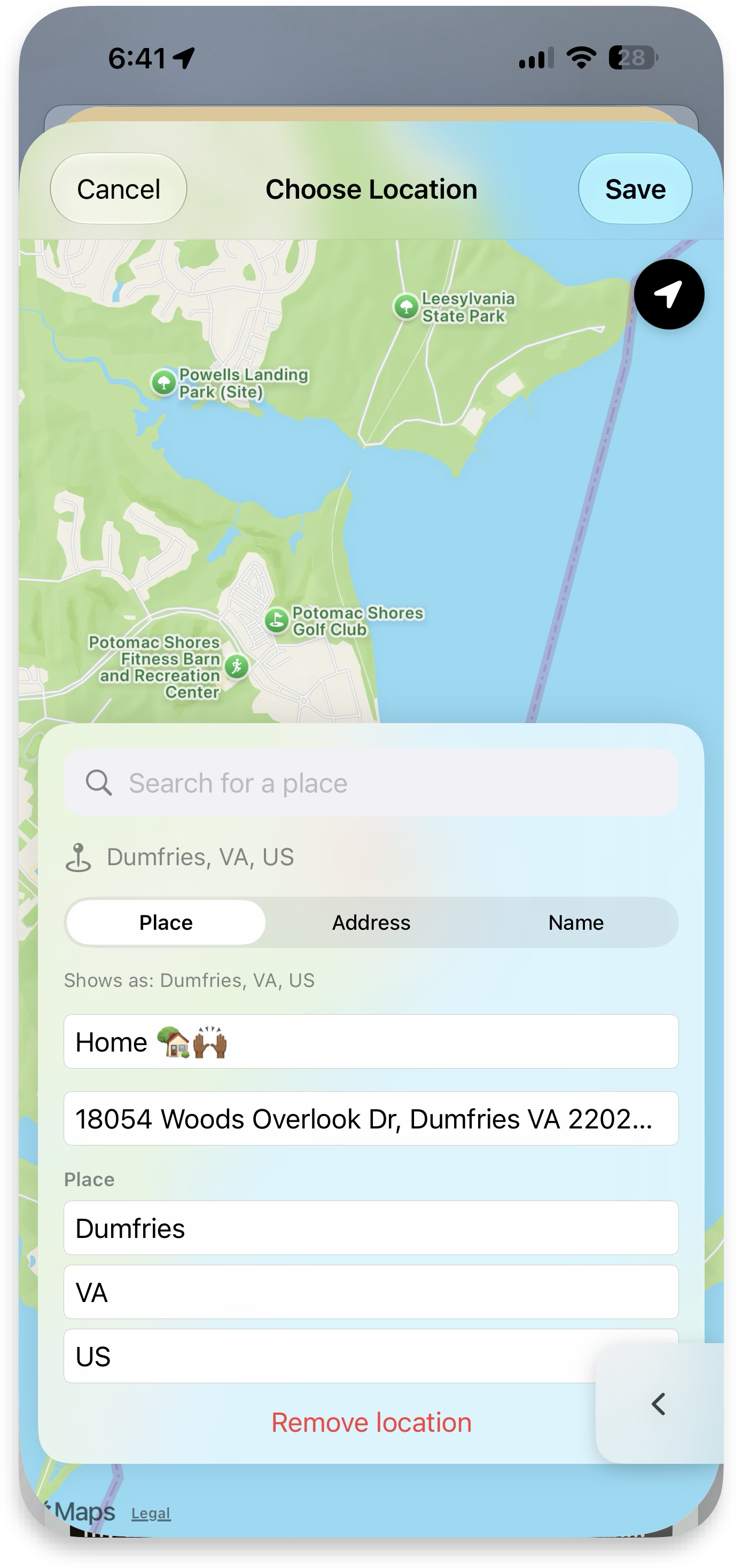
Locations & saved places
From 1 · Basic management ↑Add your location to a memory, and save a place with your own label (e.g. "Home 🏡") so you can reference it again later.
Featured photo & gallery favorites
From 2 · Enrich memories ↑Change your featured photo and pick favorite photos for your gallery.
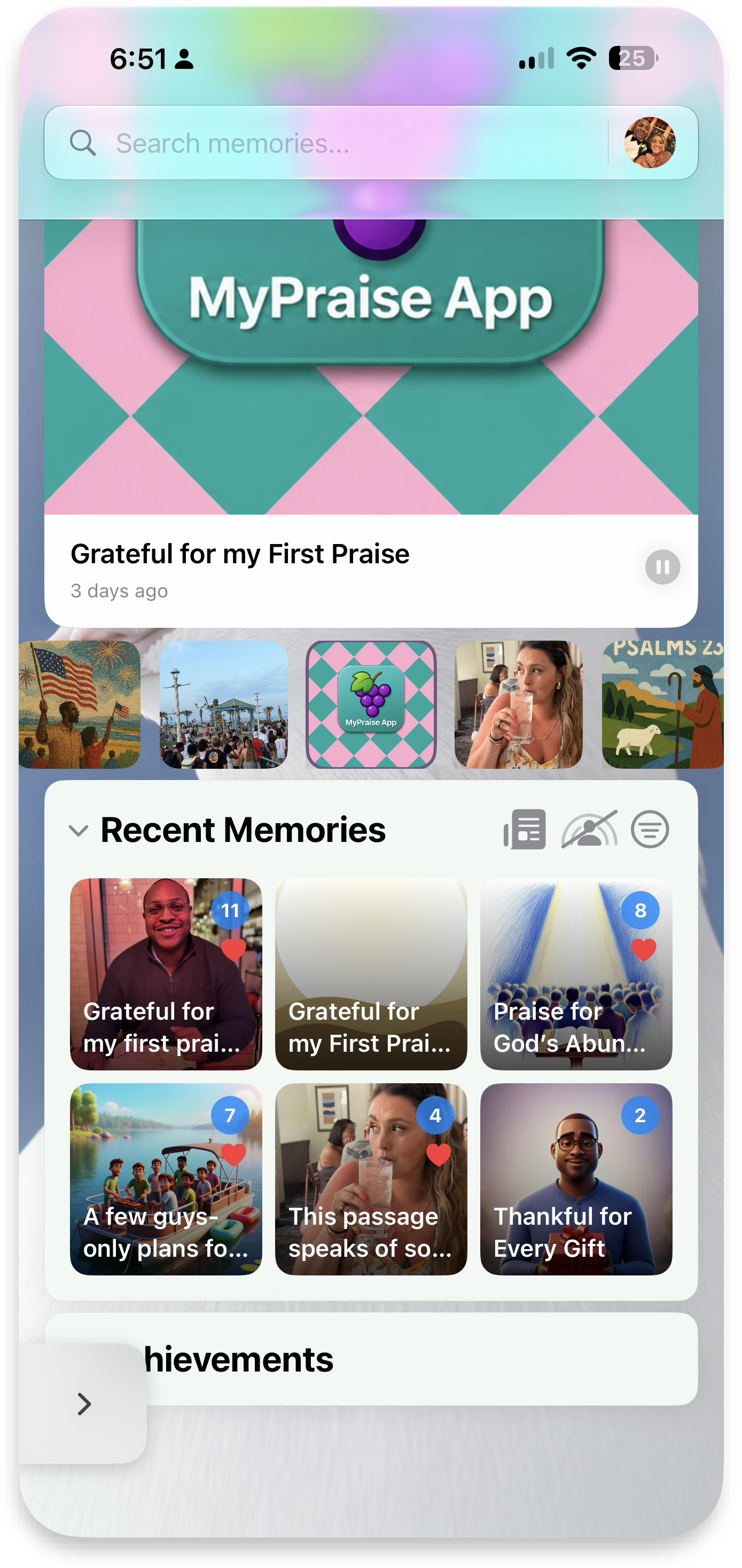
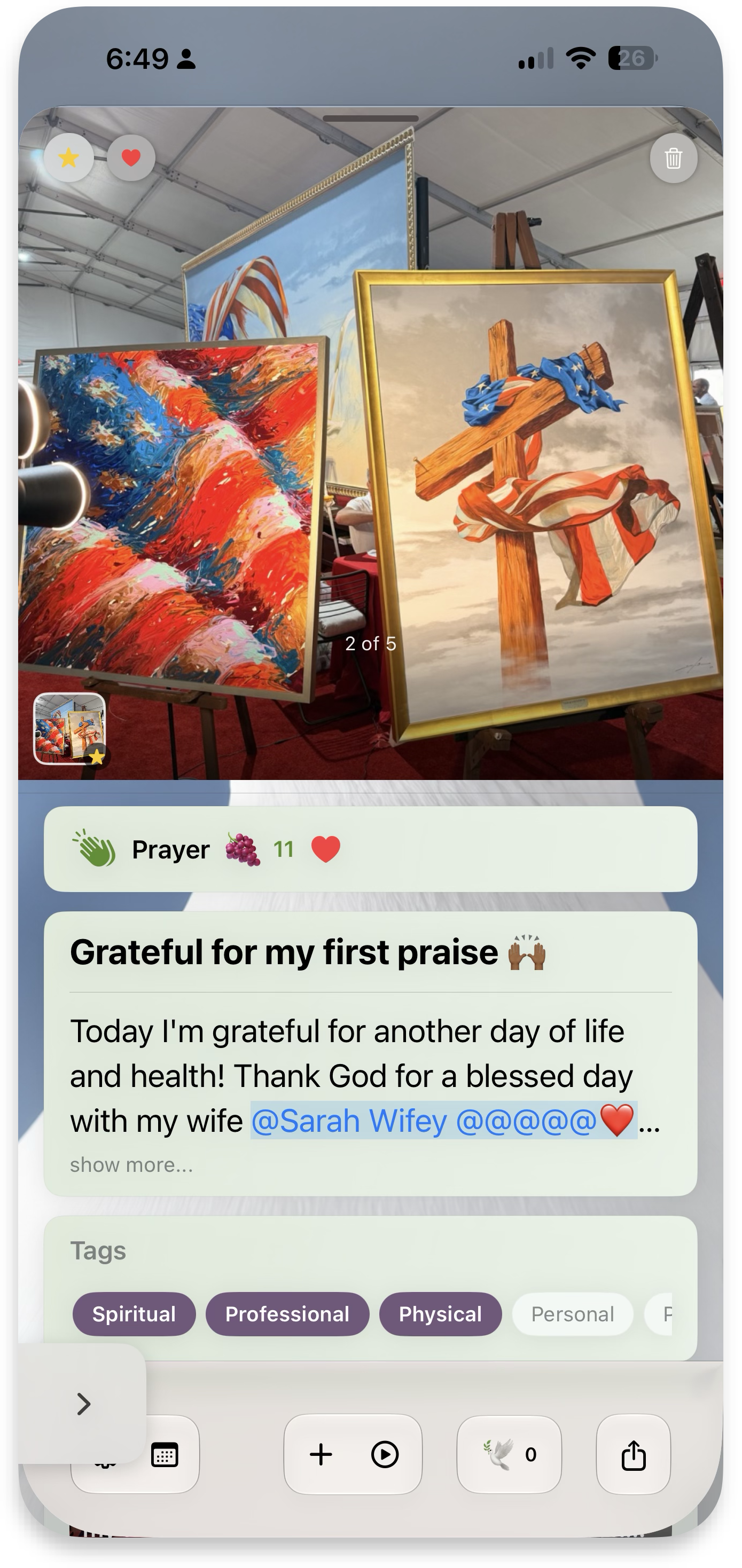
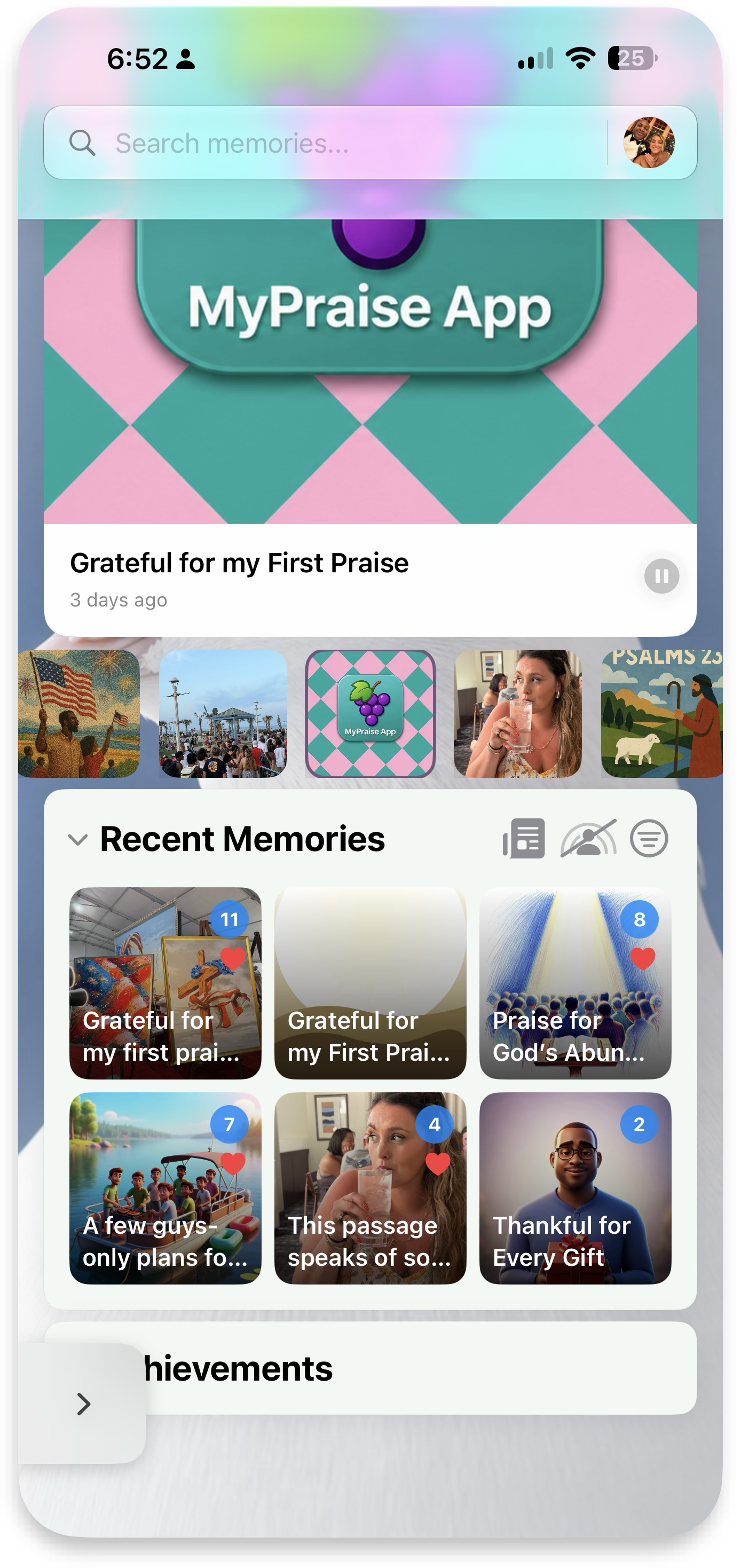
Paste images (coming soon)
From Home screen · 2 Add photos, videos & links ↓Paste images straight from the clipboard into a memory — alongside adding from your iOS gallery, taking a new photo / video, or adding links.
Add notes & verses, saved to MyPraise App
From Hubs · 5 MyBible ↑Add notes as you read, and add verses — both save directly to MyPraise App so they're ready to enrich memories later.
Ask MyPraise Assistant from the Bible (coming soon)
From Hubs · 5 MyBible ↑Ask the MyPraise Assistant for insight on the passage you're reading, without leaving Bible Mode.
Change Bible version & fullscreen reading
From Hubs · 5 MyBible ↑Switch Bible versions, go fullscreen, view only your highlights, navigate to a random verse, or view all the books again to jump to another.
Clone memories
From 3 · Add affirmations ↑Clone an existing memory for easy modifications — the clone screens are included in the affirmations screenshots above.
Pricing
Start with the complete praise journal for free. Paid tiers add customization, advanced controls, and optional assistant capabilities while preserving everything below them.
 Welcome
Praise capture, Scripture, people, privacy, export, and supported on-device assistance.
Full palettes, textures, animal scenes, splash styles, artwork options, and app icons.
Advanced Dream Mode, notification, interface, and widget controls.
Experimental Features and optional bring-your-own-key OpenAI tools.
 Flexible billing is also available. Cancel anytime in Settings.
Troubleshooting & FAQ
Common questions, in the order people tend to run into them.
Quick start
- Use the sidebar search to jump straight to the topic giving trouble.
- Scan the questions below — most first-week issues are covered here.
- Still stuck? Switch to Developer mode for the source files behind each fix.
A memory I saved seems to have duplicated. What happened?
A rare double-save could occur if the save button was tapped twice quickly while attachments were still uploading; this was tracked and patched — delete the duplicate and the original is unaffected.
I changed my canvas background and now some text is hard to read.
Try the darkness slider in Appearance settings — it blends the palette toward white or black to restore contrast, especially over animal-scene backgrounds.
Notifications for daily prompts aren't showing up.
Re-check the permission prompt from onboarding wasn't dismissed — notifications can be re-enabled from iOS Settings → MyPraise → Notifications at any time.
Can I restart onboarding to change my answers?
Yes — onboarding can be re-run from Settings, though a couple of edge cases around re-run state were only recently ironed out (ask an engineer if something looks stuck).
Is my data private?
Memories marked private are excluded from shared/group views; this app has no public feed — everything is personal or shared only with contacts you explicitly link.
docs/duplicate-memory-creation-fix-summary-2025-03-07.md, docs/helpful-notifications-fixes-2025-03-08.md, docs/lessons-learned-onboarding-and-rerun.md, and docs/notion-memory-view-link-preview-fix.md for the full incident history behind these answers.